
How to add a custom welcome message to your document link
A short welcome note helps set the right tone before viewers access your document. You can add or update this text from the Branding tab of any document. The feature is available on all plans.
Before you start
• You need Owner or Editor access to the document.
• The document must be shared via a link.
Step-by-step
-
Open Branding – In the left sidebar, click Branding to access account branding settings.
-
Go to Document Branding – Click on the Document Branding tab at the top of the branding page.
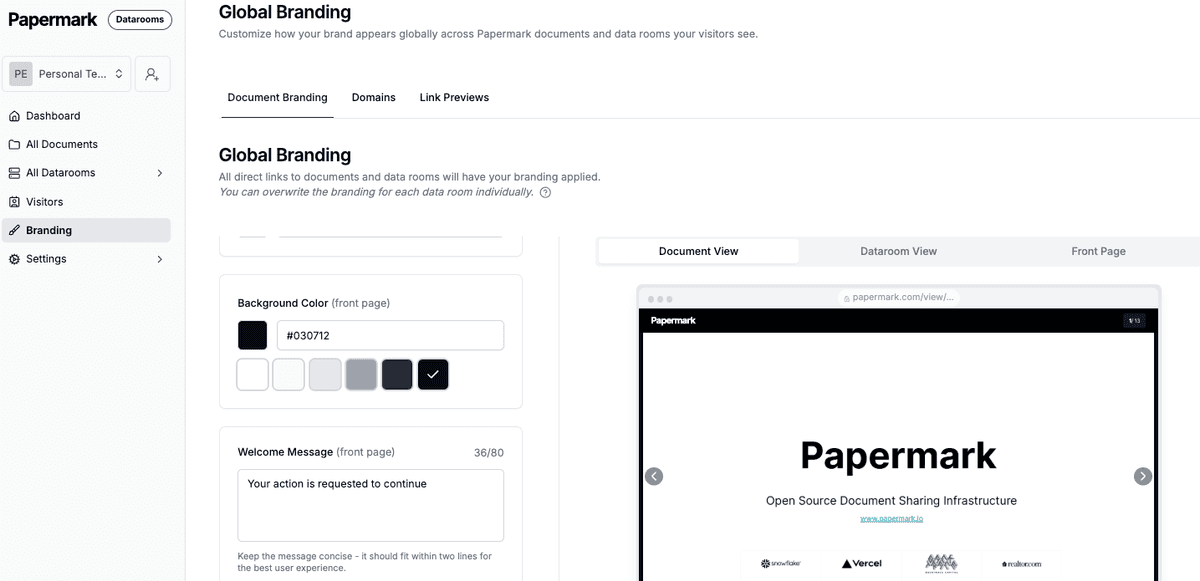
- Scroll to "Welcome message" – Scroll down to find the "Welcome message" field, which sits below the color and banner settings.
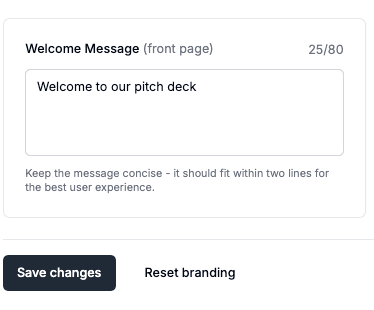
- Enter your message – Type up to 150 characters.
- Save changes – Click Save changes at the bottom. A toast confirms the update.
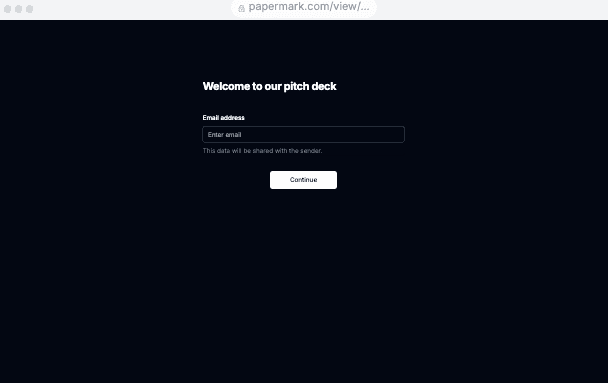
- Preview it – At the top-right of the branding pane, switch to the Front page tab to see the welcome message in context.
Tip: Keep the message short and action-oriented – e.g. "Welcome! Please enter your email to continue."
Where the message appears
The welcome message is displayed:
- On the front gate of every document link you share (before email/password collection).
- On both desktop and mobile views.
Best practices
- Match your brand voice – stay friendly and concise.
- If you require email verification or password protection, clarify it here.
- Update the message for different audiences by creating separate document links with tailored text.