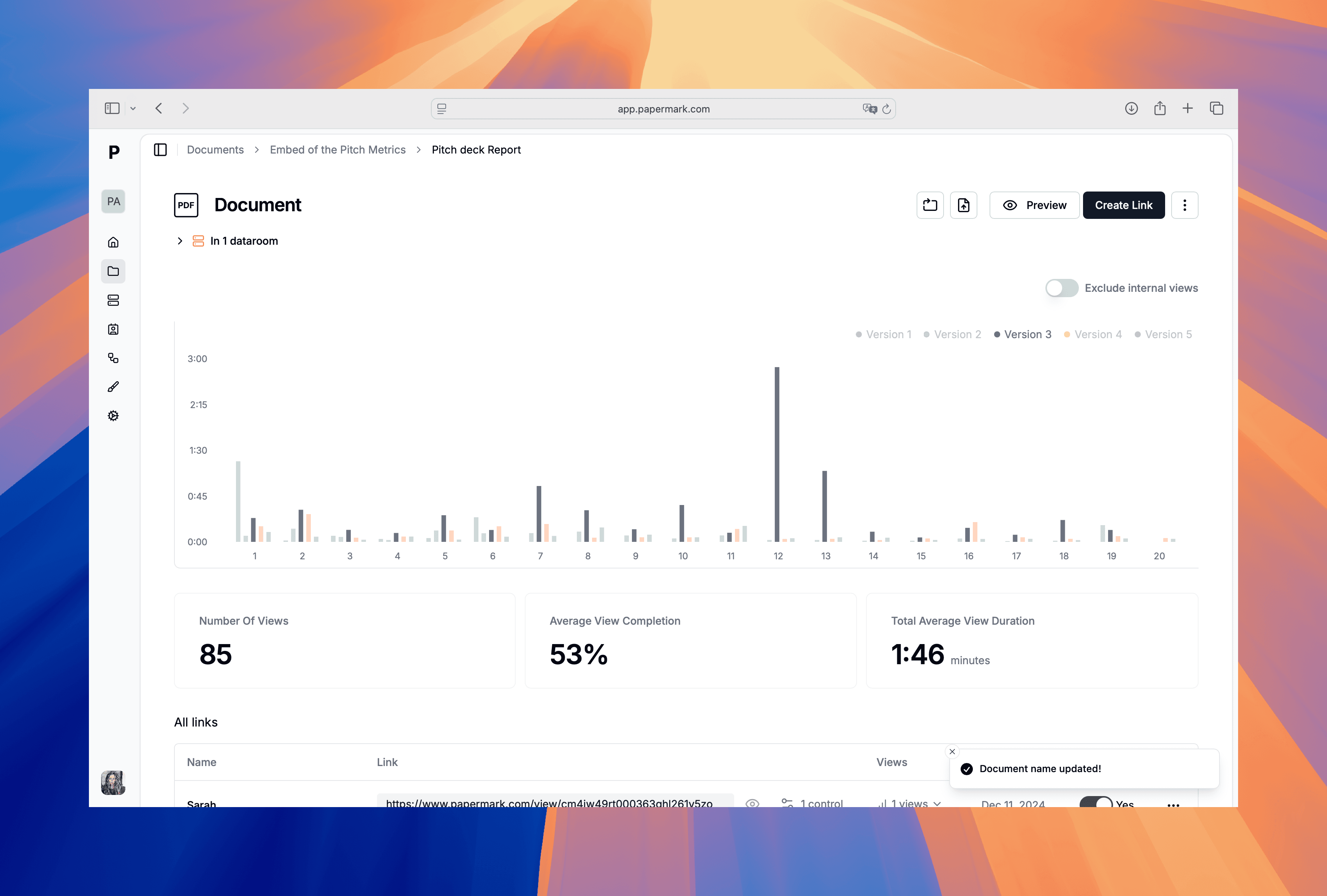
BlogHow to manage Google Docs version control in 2025

How to manage Google Docs version control in 2025

Google Docs has built-in version history, but uncontrolled sharing can still create chaos. This guide shows how to manage Google Docs version control with naming, permissions, and Papermark links for external sharing with audit trails and watermarks.

Share secure documents

No credit card required

Page by page analytics
Require email verification
Require password to view
Allow/Block specified viewers
Apply Watermark
Require NDA to view
Custom Welcome Message

Quick recap of steps

  1. Name Docs consistently and save named versions for milestones.
  2. Limit edit rights; use comments and suggestions for most collaborators.
  3. Share externally with Papermark links for watermarking and audit logs.
  4. Lock approved versions as PDF for records.
  5. Review access and rotate links after reviews.

Comparison: Google Docs version control options

MethodBest forVersion historyExternal sharingSecurity
Built-in version historyInternal collaborationFull history with named versionsInternal linksWorkspace permissions
Change governanceCritical docsNamed checkpoints + approvalsInternal linksRole-based access
Papermark linksExternal reviewers, clientsVersion history + audit logsSecure links, data roomWatermark, email verify, expiry

1. Use Google Docs version history correctly

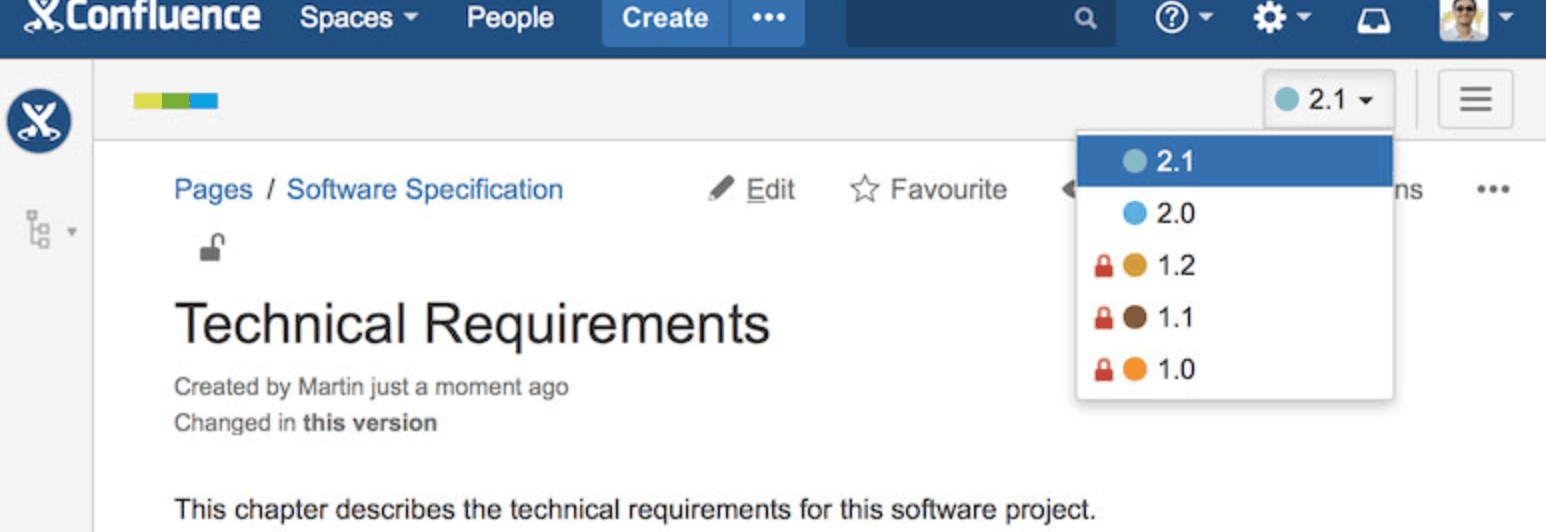
Docs keeps history, but you need to label milestones and control edits.
Step-by-step guide

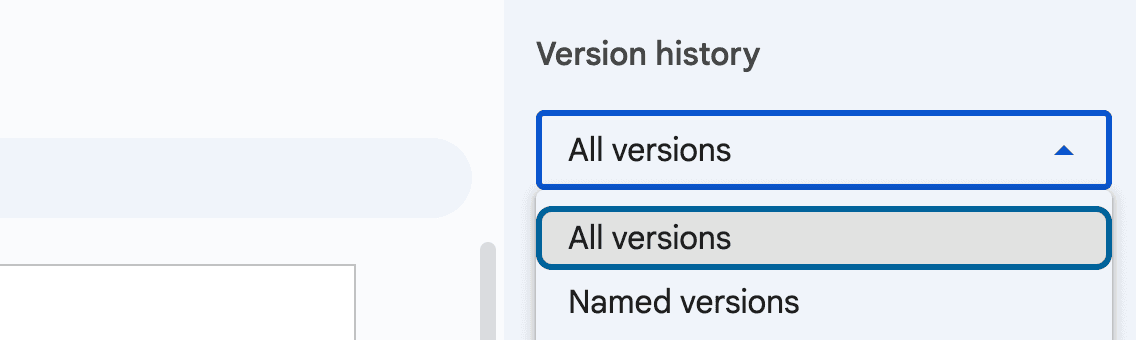
  1. Use clear titles and name key versions (File → Version history → Name current version).
  2. Default collaborators to Comment or Suggest; restrict Edit to owners.
  3. Before big edits, duplicate for backup or name a version as a checkpoint.
  4. Restore from Version history if an unwanted change ships.
  5. Export approved versions to PDF and store in a read-only folder.

Google Docs version history

2. Add lightweight change governance

For critical docs, add simple approvals.

Step-by-step guide

  1. Add a short Changelog at the top: date, version, approver.
  2. Gate major versions (v1.0, v2.0) with an approval comment or task.
  3. Keep one source of truth; archive outdated copies.
  4. For launches, freeze the approved PDF and keep it read-only.
  5. Rotate access for contractors and external reviewers after delivery.

3. Share Google Docs externally with Papermark

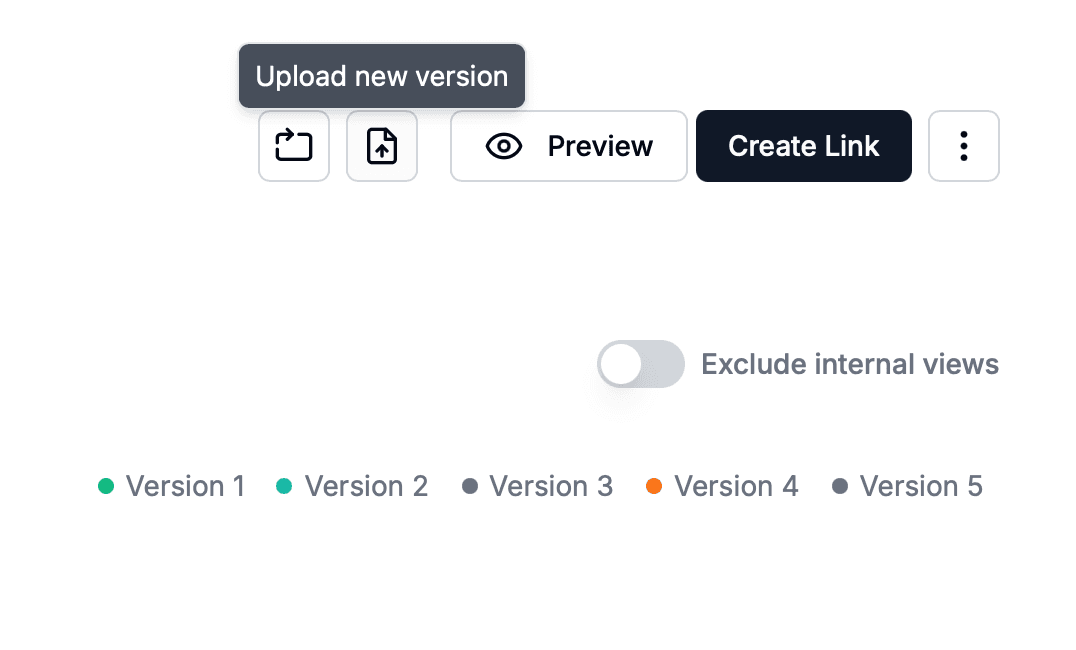
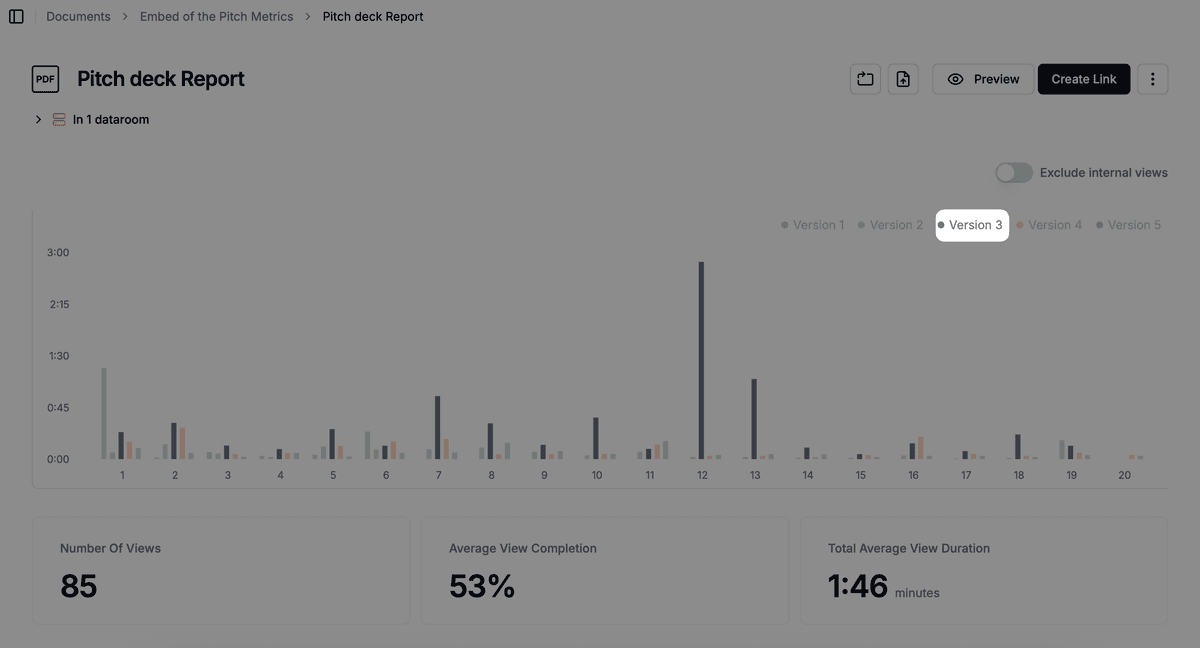
Papermark adds watermarks, audit logs, and revocable access for external sharing. Each upload creates a new version while keeping all previous versions accessible in the audit trail under one link.
Step-by-step guide

  1. Export your approved Google Doc to PDF and upload it to Papermark. Each upload creates a new version while maintaining complete version history under one live link, so recipients always see the latest without you needing to resend.

Upload document to Papermark

  1. Enable email verification, expiry, and password if needed.
  2. Turn on dynamic watermarking with viewer identity.
  3. Track page-level analytics, downloads, and view the complete version history with a full audit log showing who accessed what and when. Every version upload is recorded, making it easy to see which version was shared at any point in time.

Papermark version history and audit log

  1. When you need to update the document, simply export the new version from Google Docs to PDF and upload it to the same Papermark link. Recipients automatically see the latest version, while previous versions remain accessible in the history for reference or rollback.

Protect your documents with advanced security

No credit card required

Page by page analytics
Require email verification
Require password to view
Allow/Block specified viewers
Apply Watermark
Require NDA to view
Custom Welcome Message

Best practices for Google Docs version control

Name versions, use suggestions for most collaborators, and restrict editors. Export approved versions to PDF and share via Papermark to add watermarking, audit logs, and revocable access.

FAQ

More useful articles from Papermark

Ready to share your documents?