


security
How to Add a Watermark to PPT in 2026
Learn three effective methods to add watermarks to your PowerPoint presentations. Protect your confidential slides and intellectual property when sharing with investors or clients.
Watermarks in PDF documents are essential for protecting sensitive information when sharing files with clients, stakeholders, or team members. Whether you're sending confidential contracts, financial reports, or business proposals, watermarks provide a layer of security by discouraging unauthorized sharing and clearly marking your intellectual property.
Watermarking your PDF documents can help you track who viewed your documents, mark files as confidential, and add a professional branded appearance to your content.
Before diving into the step-by-step instructions for each method, here's a quick comparison to help you choose the best approach for your needs:
| Feature | Papermark | Adobe acrobat | Online tools |
|---|---|---|---|
| Dynamic personalization | (recipient info, date, time) | ✗ | ✗ |
| Tracking capabilities | ✗ | ✗ | |
| Ease of implementation | ✓✓ (web-based) | ✓ (desktop software) | (browser-based) |
| Removal difficulty | ✓✓ (very difficult) | ✓ (moderate) | (easy) |
| Works across all devices | (with acrobat reader) | ||
| Analytics on viewer behavior | ✗ | ✗ | |
| Cost | Available in paid plans | Subscription required | Free to paid options |
| Best for | Confidential documents, contracts | Internal documents | Quick watermarking needs |
Now, let's explore each method in detail.
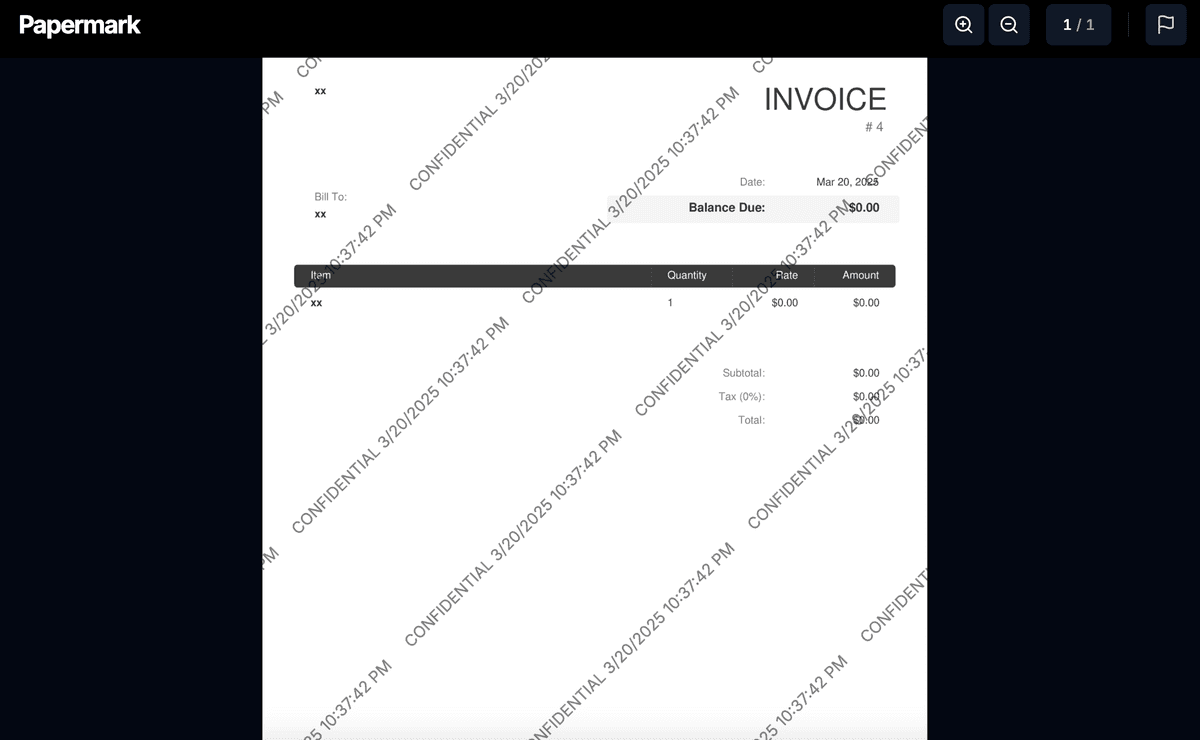
Papermark offers the most comprehensive and secure watermarking solution for PDF documents, with the unique ability to create dynamic watermarks that display the viewer's information, making each copy traceable.

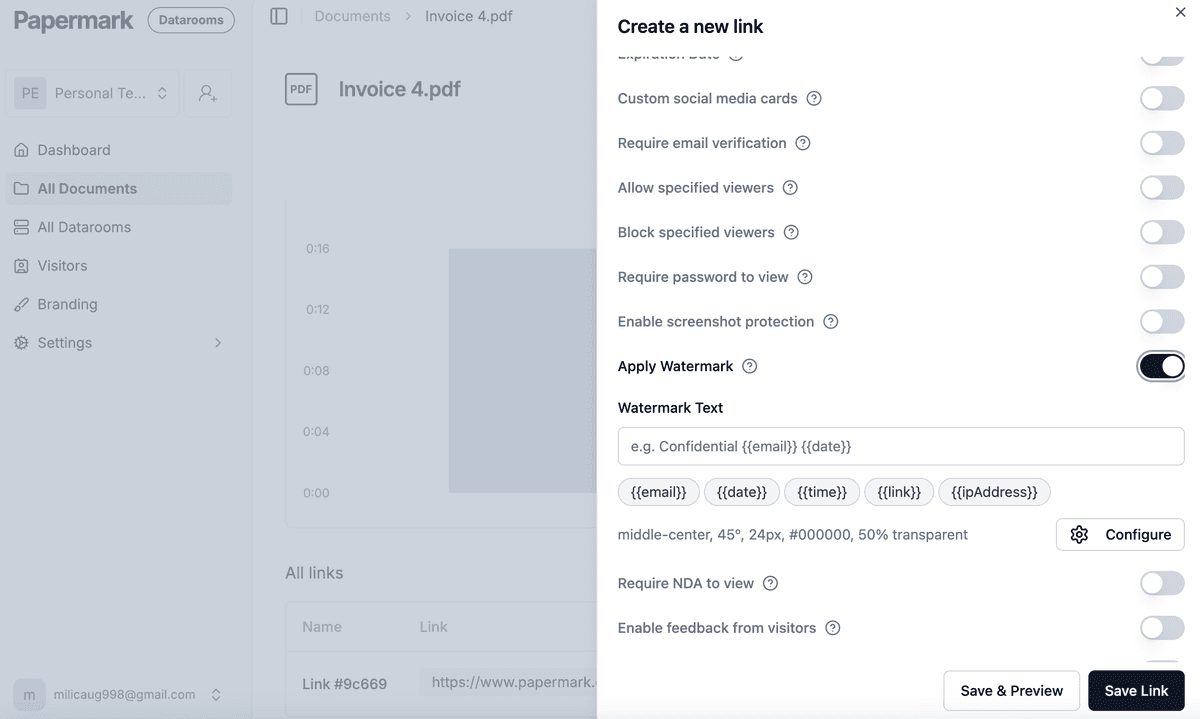
Configure watermark settings:
Customize your watermark:
{{email}} - Shows the viewer's email address{{date}} - Shows the current date{{time}} - Shows the current time{{link}} - Shows the specific link used to access{{ipAddress}} - Shows the viewer's IP address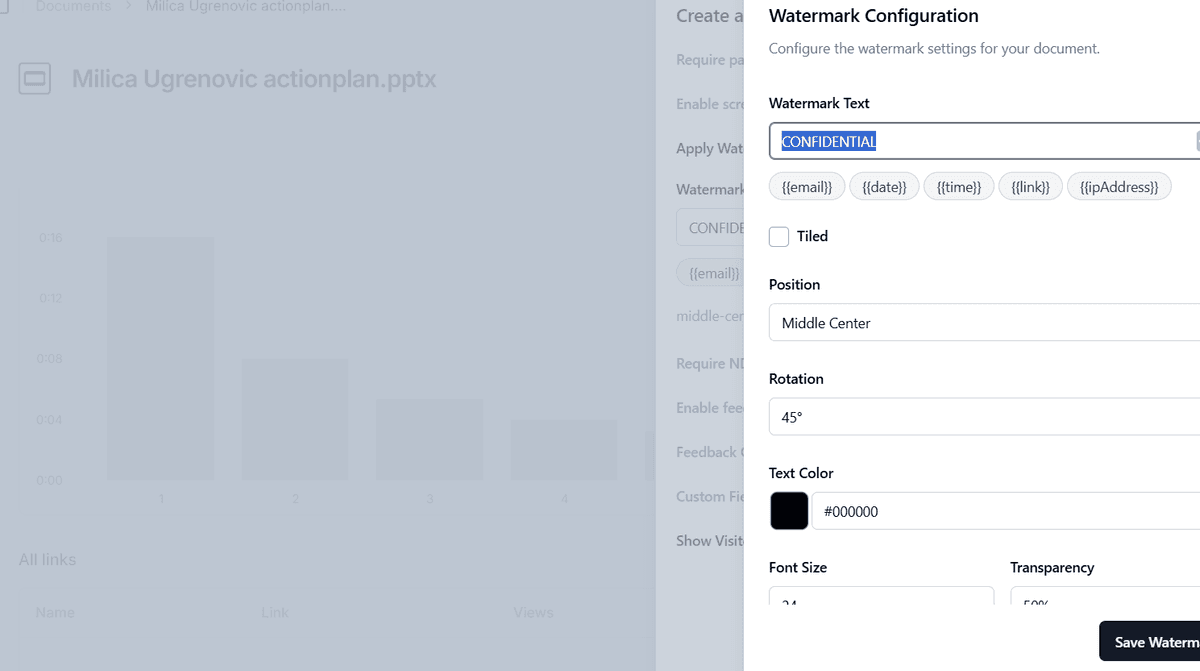
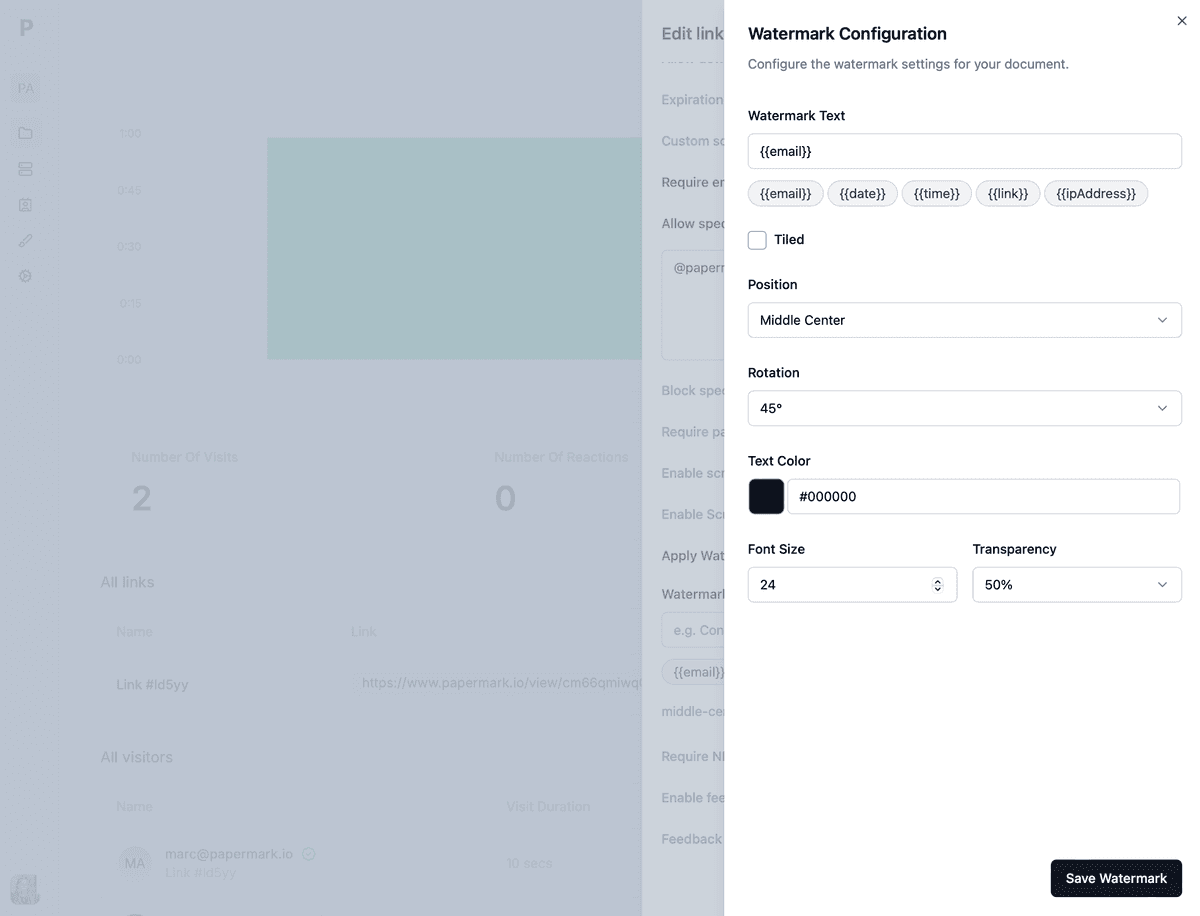
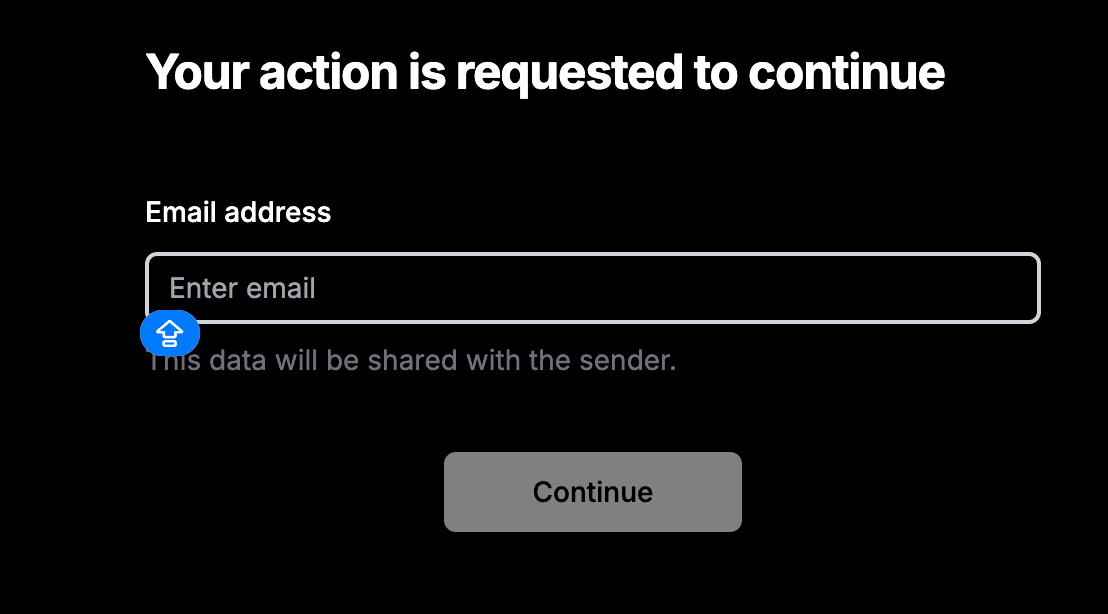

Papermark's solution is ideal for high-value content like contracts, financial reports, or any document where you need to know exactly who viewed your content and when.
Adobe acrobat provides robust watermarking capabilities for PDF documents, though it requires the desktop software and doesn't offer dynamic features.
Open your pdf in acrobat:
Access watermark tool:
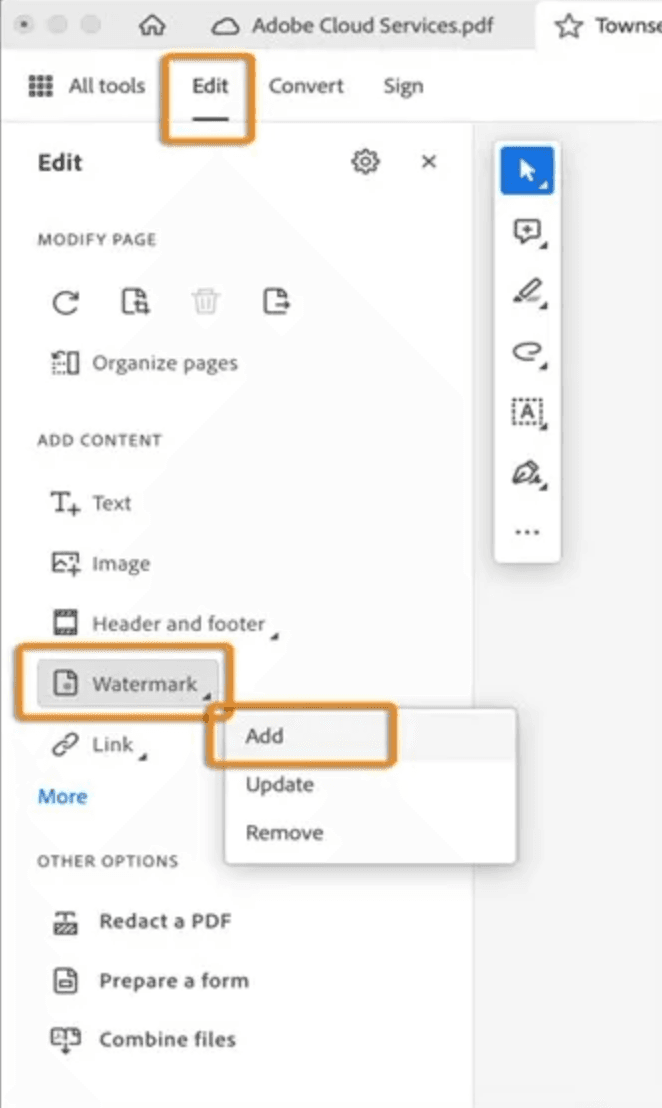
Configure watermark settings:
Apply watermark:
Save your document:
This method is best for internal documents or when you need a professional watermarking solution with adobe's tools.
Various online tools offer quick and easy PDF watermarking without requiring software installation.
Choose an online tool:
Upload your pdf:
Add watermark:
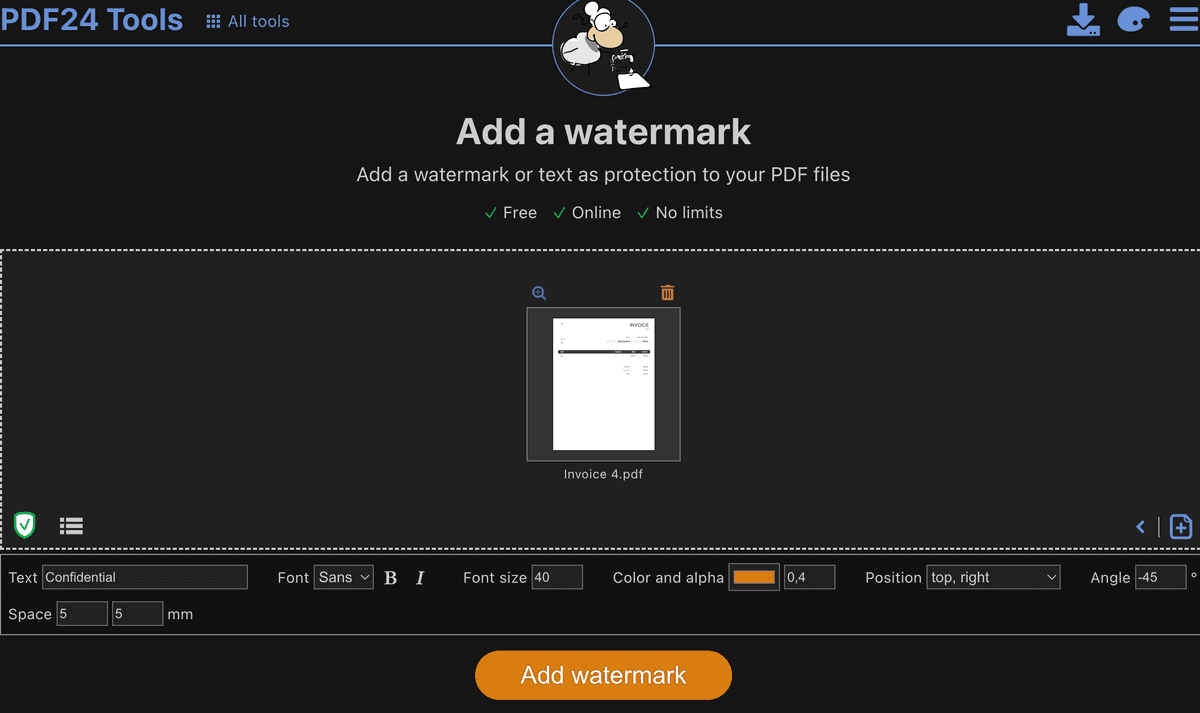
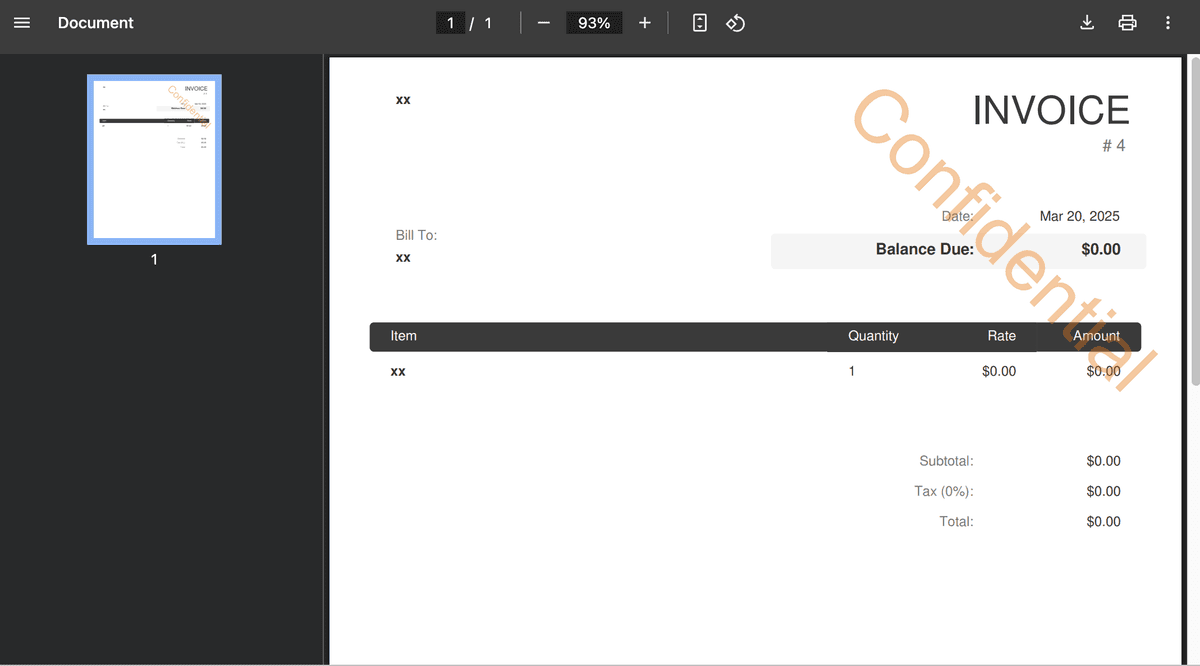
This method is convenient for quick watermarking needs but lacks advanced security features.
Adding watermarks to your PDF documents protects your intellectual property when sharing with clients, stakeholders, or team members. Choose papermark for dynamic watermarking with maximum security and tracking, adobe acrobat for professional desktop watermarking, or online tools for quick watermarking needs.
For sensitive business documents and contracts, papermark's dynamic watermarking capabilities provide superior protection while giving you visibility into who accessed your document and when.
Learn three effective methods to add watermarks to your PowerPoint presentations. Protect your confidential slides and intellectual property when sharing with investors or clients.

Learn three effective methods to add watermarks to your Word documents. Protect your confidential documents and intellectual property when sharing with clients or stakeholders.
Learn three effective methods to add watermarks to your Excel spreadsheets. Protect your confidential documents and intellectual property when sharing with clients or stakeholders.