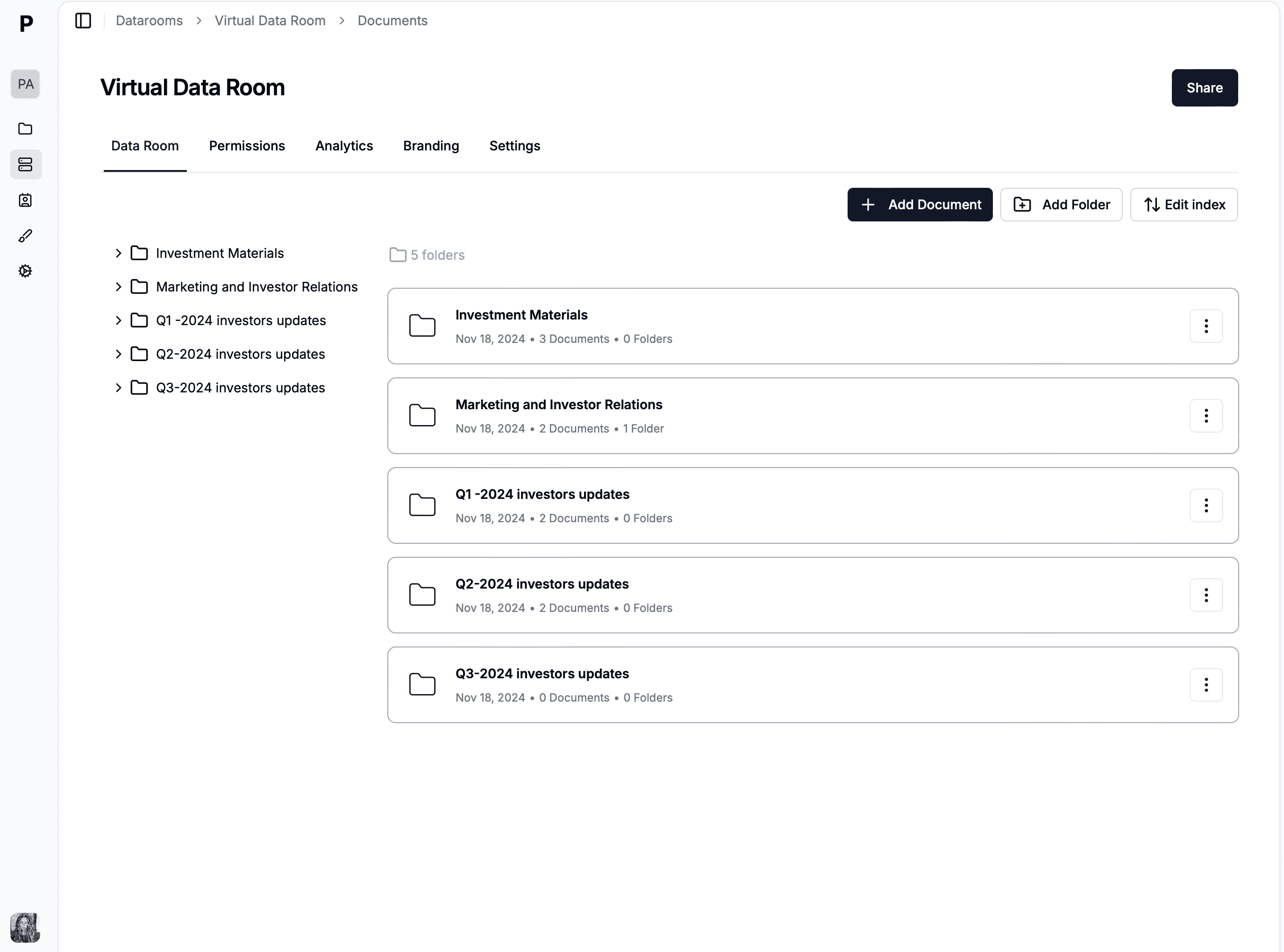
BlogData RoomsIs SharePoint Simple as a Data Room in 2026? Setup in 7 Steps and the Limits
Is SharePoint Simple as a Data Room in 2026? Setup in 7 Steps and the Limits
·6 min read
Marc Seitz
Microsoft SharePoint is an enterprise collaboration and document management platform from Microsoft 365, sometimes used as a data room for internal or lightweight external workflows. This guide walks through how to configure SharePoint for data room use, the limitations you will hit in competitive M&A or institutional fundraising, and when a purpose-built VDR like Papermark is the better choice.
Quick recap
SharePoint is a Microsoft 365 enterprise collaboration platform with document libraries and team sites, sometimes configured as a data room.
Best for: internal enterprise collaboration, document management inside the Microsoft ecosystem, and light external sharing with partners already on Microsoft 365.
Not ideal for: competitive M&A, institutional fundraising, or regulated due diligence requiring page-by-page analytics and dynamic watermarking.
Pricing: $5/user/month (Plan 1) to $30/user/month (Microsoft 365 Copilot with advanced AI).
Key limitations for VDR use: complex permission model, no dynamic watermarking, no page-by-page analytics, no NDA gating, steep learning curve for external viewers.
Papermark alternative: €99/month flat with all VDR features, 30-minute setup, no SharePoint admin overhead.
What is a SharePoint data room?
A SharePoint data room is a Microsoft 365 site or document library configured for structured document sharing with external parties during transactions. It is not a purpose-built virtual data room; it is a general collaboration platform with deal-adjacent features layered on through custom setup.
SharePoint's strengths are deep Microsoft 365 integration, enterprise-grade infrastructure, and rich document library features. Its weaknesses for VDR use are well-documented: an M&A advisor replacing SharePoint described the problem as "overly complex permissions management," and noted the core need was something "easy to adopt for the end user, can be quickly spun up." SharePoint is rarely that.
How to create a data room in SharePoint: step-by-step
Setting up SharePoint for data room use takes an hour or two for someone familiar with SharePoint admin, longer for first-time setups.
1. Create a new SharePoint site
From the SharePoint admin center or Microsoft 365 admin, create a new site using the Team Site or Communication Site template. Name it clearly for the transaction (for example, "CompanyName-SeriesB-Diligence").
2. Build the folder structure
In the default Documents library, create top-level folders matching the standard M&A index (1.0 Corporate, 2.0 Financial, 3.0 Legal, 4.0 HR, 5.0 IP, etc.). Use the built-in document library features for versioning and metadata.
3. Upload documents
Bulk upload files via drag-and-drop from File Explorer or the SharePoint web interface. SharePoint preserves folder structure on upload. Apply document metadata (tags, document type) where useful.
4. Configure permissions
SharePoint uses a permission inheritance model based on SharePoint Groups (Owners, Members, Visitors) plus per-item permissions. Configure:
Owners: internal deal team with full control
Members: contributors who can upload and edit
Visitors: external reviewers with read-only access
Apply folder-level and item-level permissions where scoped access is needed. This is where SharePoint's complexity shows: the permission matrix for a multi-bidder M&A deal quickly becomes unmanageable.
5. Enable security features
Turn on SharePoint's available security controls: 2FA for admins, conditional access policies via Azure AD, data loss prevention (DLP) policies, sensitivity labels, and audit log retention. None of these provide the per-session dynamic watermarking or NDA enforcement that purpose-built VDRs ship by default.
6. Invite external viewers
Add external users via email invitation. External sharing requires guest access to be enabled in your Microsoft 365 tenant, and viewers may need to create Microsoft accounts depending on your SharePoint settings.
7. Monitor activity
Use the SharePoint audit log (in the Microsoft Purview compliance portal) to review access events. Audit log export requires Microsoft 365 E3 or higher.
Limitations of SharePoint as a data room
Eight gaps show up repeatedly in real data room workflows.
Complex permission management. SharePoint's combination of site groups, library permissions, folder permissions, and item permissions is powerful but confusing. For multi-bidder M&A auctions, the matrix quickly becomes unmanageable.
No dynamic watermarking. SharePoint does not apply per-session viewer watermarks (email, IP, timestamp on every page). Sensitivity labels add static classification banners but are not the same as dynamic watermarks.
No page-by-page analytics. SharePoint activity logs file opens and edit events but not per-page dwell time. Founders cannot see which pages investors actually engaged with.
No NDA enforcement gate. SharePoint does not require NDA acceptance before document access. External viewers need separate NDA workflows.
No structured Q&A module. SharePoint comments and discussion boards are not the same as a threaded, per-bidder scoped Q&A workflow.
Forced Microsoft account creation. Guest access commonly requires external viewers to create or log in to a Microsoft account. External counsel and LP investors without Microsoft accounts hit friction.
Admin overhead. SharePoint requires a Microsoft 365 admin to configure external sharing, DLP policies, audit retention, and conditional access. Setup time for a non-expert user is long.
Expensive at scale. Microsoft 365 Business Premium at $22/user/month multiplies quickly across external viewer invitations.
When SharePoint is (and isn't) OK as a data room
SharePoint works for: internal enterprise collaboration, document management inside Microsoft 365, structured workflows where the full administrative overhead is justified. It does not work for:
Series A+ fundraising with institutional investors expecting page-by-page analytics.
M&A due diligence with multiple bidders and scoped access per bidder.
IPO preparation requiring dynamic watermarking and per-session audit trails.
Quick deal rooms where 30 minutes of setup matters more than enterprise integration.
Why Papermark is a strong SharePoint alternative
Papermark is purpose-built for deal workflows at €99/month flat with 30-minute setup:
Dynamic watermarking per session with viewer email, IP, and timestamp.
Page-by-page analytics showing exactly which pages each viewer engaged with.
Mandatory NDA gating before any document loads.
Structured Q&A module with per-bidder scoping.
No forced account creation for external viewers (link-based access).
Custom domain and white-label on paid plans.
Self-hosted open-source option (AGPL).
30-minute setup vs SharePoint's multi-hour admin configuration.