


fundraising
How to Create a Pitch Deck in Google Slides - Step-by-Step Guide
Learn how to create a professional pitch deck in Google Slides. Free templates, collaboration tips, and best practices for sharing with investors.
Canva is one of the easiest ways to create a professional-looking pitch deck without design skills. With hundreds of free templates and drag-and-drop editing, you can build an investor-ready deck in hours.
This guide walks you through the complete process.
Pros:
Cons:
For most early-stage startups, Canva hits the sweet spot of ease and professionalism. Canva's share link does not tell you who opened the deck, though, so many founders send the export through a Canva alternative for sharing presentations instead.
Go to canva.com
 and sign up. You can use:
The free account gives you access to thousands of templates, including pitch deck designs.
Canva Pro ($12.99/month) unlocks:
For a basic pitch deck, free works fine.
Once logged in:
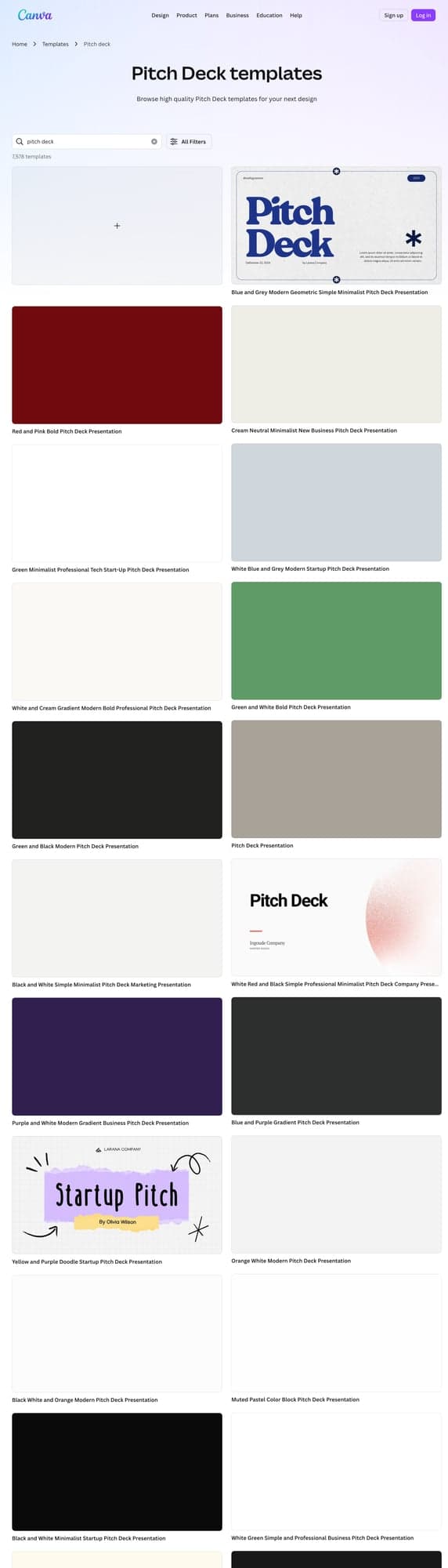
Alternatively, go directly to Canva's template gallery and search "pitch deck" or "investor presentation."
Filter options:
When selecting a template, consider:
Style match — Does it fit your brand personality? A fintech startup might want clean and professional. A creative agency might want bold and colorful.
Slide variety — Does the template include slides for all your sections? Look for: title, problem, solution, traction, team, and financials slides.
Customizability — Can you easily swap colors, fonts, and layouts?
Pro tip: Preview multiple templates before committing. You can always switch later, but starting with the right foundation saves time.
Now the real work begins. For each slide:
Make the deck feel like yours:
Click on any element and use the color picker to match your brand colors. For consistency:
Change fonts by selecting text and choosing from Canva's library. Stick to:
Upload your logo once and reuse it across slides. Place it consistently (usually top corner).
Canva includes built-in chart tools:
For better charts:
Adding images:
Before exporting, check:
Preview mode: Click Present to see how your deck looks in presentation mode.
Canva offers several export options:
PDF preserves formatting and works everywhere.
Useful if you need to edit in PowerPoint later.
Note: Recipients can see you used Canva. For investor decks, PDF is more professional.
Use the grid — Canva shows alignment guides. Use them to keep elements lined up.
Duplicate slides — Found a layout you like? Duplicate it and modify for consistency.
Lock elements — If you're happy with a logo position, lock it to prevent accidental moves.
Mobile preview — Check how your deck looks on mobile. Some investors review decks on phones.
Version history — Canva saves versions automatically. You can restore previous versions if needed.
Some popular free templates to start with:
Search these terms in Canva's template gallery to find them.
You've created your deck in Canva. Now what?
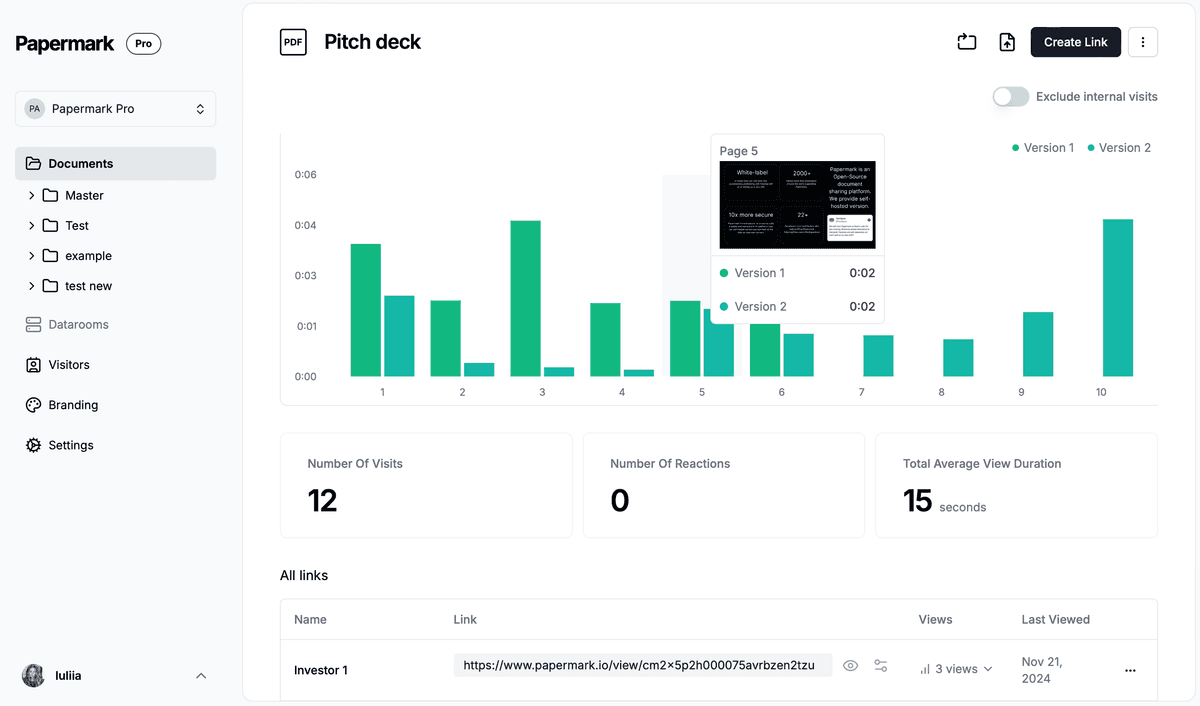
Don't just email the PDF. You lose all visibility into:
Use a pitch deck sharing tool like Papermark to:
| Feature | Free | Pro ($12.99/mo) |
|---|---|---|
| Templates | 250,000+ | 610,000+ |
| Brand Kit | ✗ | ✓ |
| Background Remover | ✗ | ✓ |
| Resize Designs | ✗ | ✓ |
| Premium Elements | Limited | Full access |
| Storage | 5 GB | 1 TB |
For a single pitch deck, free is usually enough. Pro becomes valuable when you're creating multiple versions or need premium elements.
Canva makes creating a professional pitch deck accessible to everyone. Choose a template that fits your brand, customize it with your content and colors, and export as PDF for sharing.
The design tool is just the beginning. How you share your deck matters just as much. Use analytics to track investor engagement and prioritize follow-ups.
Learn how to create a professional pitch deck in Google Slides. Free templates, collaboration tips, and best practices for sharing with investors.
Learn what a pitch deck presentation is, why it matters for fundraising, and how to create one that wins investors over.

In this article we will learn how to create a pitch deck using AI