BlogFundraisingHow to Create a Pitch Deck in Google Slides - Step-by-Step Guide
How to Create a Pitch Deck in Google Slides - Step-by-Step Guide
·5 min read
Marc Seitz
Google Slides is a solid choice for creating pitch decks. It's free, collaborative, and works on any device. Most importantly, investors can open it without special software.
This guide shows you how to create an investor-ready pitch deck using Google Slides.
Why Use Google Slides for Your Pitch Deck?
Advantages:
Completely free
Real-time collaboration with your team
Works in any browser
Easy sharing and permissions control
Automatic saving and version history
Familiar interface for most people
Disadvantages:
Fewer templates than Canva
Basic design tools compared to Figma/Keynote
Requires Google account to edit
Some advanced features missing
For most founders, Google Slides offers the best balance of features and accessibility.
Add slides using Slide → New slide (or Ctrl/Cmd + M)
Choose layouts that fit each section
Reorder by dragging in the left panel
Step 4: Add Content Slide by Slide
Title Slide
Add your logo: Insert → Image
Type company name as heading
Add your one-line description
Include your name and email
Problem Slide
Use a large heading for the problem statement
Add an icon or image that represents the pain
Keep text to 2-3 bullet points max
Solution Slide
Clear headline stating your solution
Brief description (one sentence)
Visual showing the product or concept
Traction Slide
Insert a chart: Insert → Chart
Choose bar, line, or column chart
Click the chart → Open source to edit data
Add key metrics as callout text
Team Slide
Insert photos: Insert → Image
Arrange in a grid
Add names, titles, and brief credentials
Link to LinkedIn if appropriate
Ask Slide
State clearly: "We're raising $X"
List 3-4 milestones the funding will achieve
Include your contact information again
Step 5: Customize Design Elements
Colors
Go to Slide → Edit theme
Click Colors to set your palette
Apply consistently across all slides
Tip: Use your brand's primary color for headings and accents.
Fonts
Select text you want to change
Use the font dropdown in the toolbar
Stick to 2 fonts maximum
Good font pairings:
Montserrat (headings) + Open Sans (body)
Roboto (headings) + Lato (body)
Poppins (headings) + Inter (body)
Backgrounds
Slide → Change background
Choose solid color, gradient, or image
Keep it subtle — content should stand out
Step 6: Add Charts and Visuals
Inserting Charts
Insert → Chart
Select chart type (bar, line, pie)
Click the chart → Open source (opens linked Google Sheet)
Edit data in the sheet
Changes update automatically in your slides
Adding Images
Insert → Image
Upload from computer or search the web
Resize by dragging corners
Right-click → Format options for more control
Using Shapes and Icons
Insert → Shape for basic shapes
For icons, try: Insert → Special characters or use external icon libraries
Group elements: Select multiple → Right-click → Group
Step 7: Review and Finalize
Check for consistency
Same fonts throughout
Colors match your brand
Alignment is clean (use guides)
Text is readable from a distance
Proofread
No typos or grammatical errors
All data is accurate
Company name spelled correctly everywhere
Contact info is current
Test presentation mode
Click Present (top right) or press Ctrl/Cmd + Enter
Click through all slides
Check that animations work (if used)
Verify readability on full screen
Step 8: Export and Share Your Pitch Deck
Download as PDF (Recommended)
File → Download → PDF Document
Save to your computer
This preserves formatting perfectly
Download as PowerPoint
File → Download → Microsoft PowerPoint (.pptx)
Useful for offline presentations
Share a link
Click Share (top right)
Set permissions (Viewer, Commenter, Editor)
Get shareable link
Warning: Direct Google Slides links show investors you're using Google Slides. For a more polished impression, export to PDF.
Pro Tips for Google Slides Pitch Decks
Use Master Slides
Edit the master to change all slides at once:
Slide → Edit theme
Modify layouts in the master view
Changes apply to all slides using that layout
Keyboard shortcuts
Ctrl/Cmd + M: New slide
Ctrl/Cmd + D: Duplicate slide
Ctrl/Cmd + Enter: Start presentation
Collaboration tips
Use Comments to get feedback (Ctrl/Cmd + Alt + M)
Check Version history to see changes over time
Set permissions carefully before sharing externally
Keep a clean file
Delete unused slides
Remove hidden elements
Clear the Notes section of confidential info
After Google Slides: Tracking Your Pitch Deck
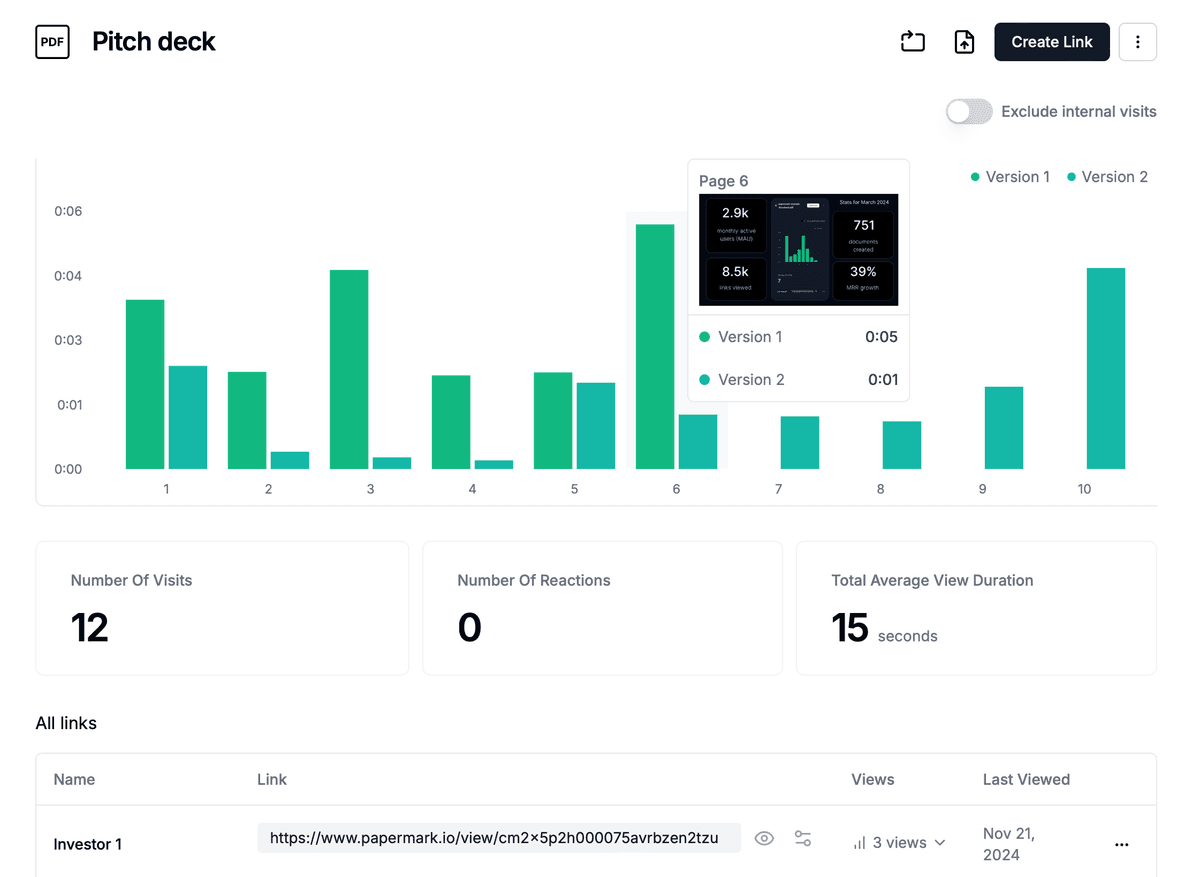
Once you export your deck, you lose visibility. Emailing a PDF tells you nothing about:
Who opened your deck
Which slides they viewed
How long they spent reading
Use a pitch deck sharing platform like Papermark:
Benefits of pitch deck analytics:
See exactly when investors view your deck
Identify which slides get attention
Know when to follow up
Protect your deck with passwords
Google Slides vs. Other Tools
Feature
Google Slides
Canva
PowerPoint
Price
Free
Free + $12.99/mo
$6.99/mo (Microsoft 365)
Templates
Limited
Extensive
Good
Collaboration
Excellent
Good
Good (cloud)
Offline Access
Limited
Limited
Full
Design Flexibility
Medium
High
High
Learning Curve
Low
Low
Medium
Choose Google Slides if: You want free, easy collaboration, and don't need advanced design features.
Conclusion
Google Slides is a practical choice for creating pitch decks. It's free, collaborative, and produces professional results. Focus on content clarity over design complexity, and your deck will serve you well.
Remember: the deck is just the first step. How you share and track it matters too. Export your Google Slides deck as PDF and use analytics tools to understand investor engagement.


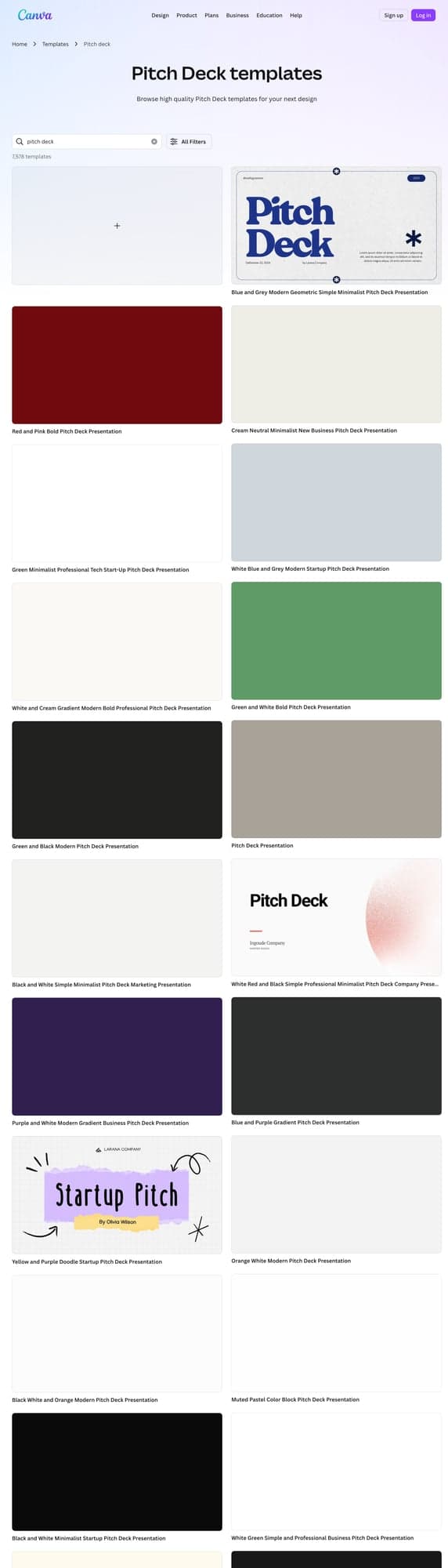
 2. Click the + button or Blank to create a new presentation
3. Name your deck by clicking "Untitled presentation" at the top
2. Click the + button or Blank to create a new presentation
3. Name your deck by clicking "Untitled presentation" at the top