

security
How to encrypt a Word file in 2026
Learn how to encrypt Word documents with password protection and access restrictions. This comprehensive guide covers Microsoft Word built-in encryption, third-party tools, and secure sharing platforms.
Sharing a financial spreadsheet or customer database as an Excel file without encryption is like leaving your office door unlocked—anyone who gains access can view and modify your sensitive data. Excel encryption protects your spreadsheets by requiring a password to open them, preventing unauthorized access even if the file is shared, lost, or stolen.
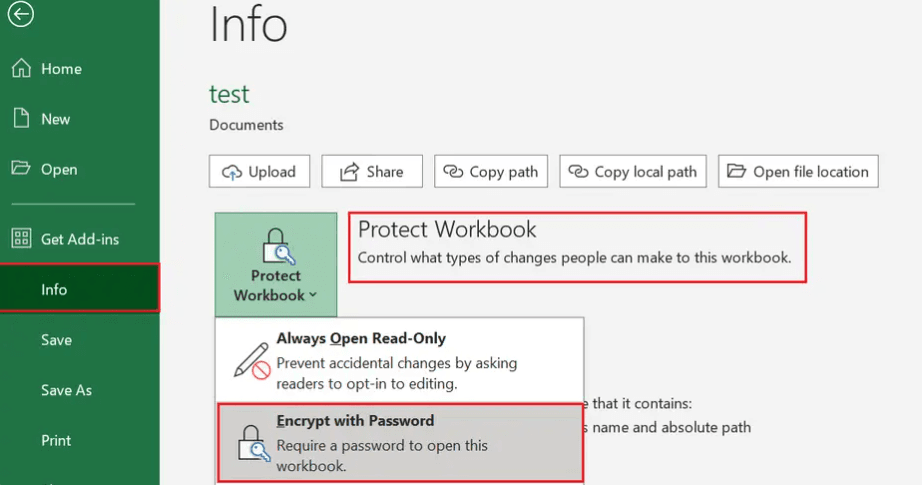
Excel encryption transforms your spreadsheet into unreadable code that can only be decrypted with the correct password. Whether you're protecting financial data, customer information, or proprietary formulas, encrypting Excel files adds a crucial security layer. This guide covers multiple methods to encrypt Excel files, from built-in Microsoft Office features to secure cloud-based solutions with advanced protection features.
Microsoft Excel provides built-in encryption options that offer strong security without requiring additional software.
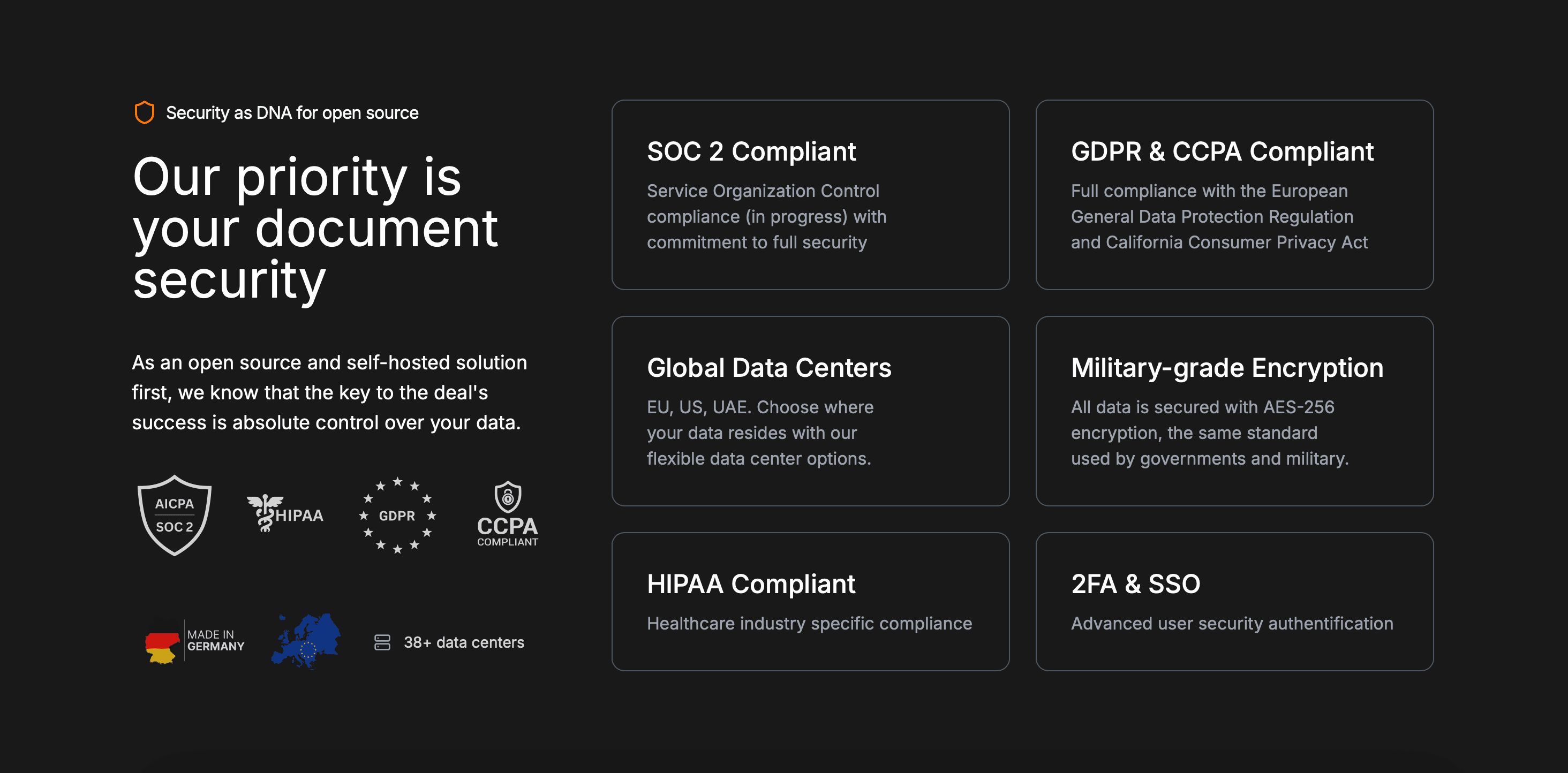
Microsoft Excel uses AES-256 encryption for password-protected files, making it extremely difficult for unauthorized users to access your spreadsheet without the password. This encryption applies to the entire workbook, protecting all worksheets and data within the file.
Worksheet-level protection (restricts editing but not viewing):
Workbook structure protection (prevents adding/deleting worksheets):
Note: Excel's built-in encryption is strong, but it doesn't provide access tracking or the ability to revoke access after sharing. For business use cases, consider Method 4 for additional features.
Creating password-protected ZIP archives is a simple way to encrypt Excel files without modifying the spreadsheet itself.
Note: Windows built-in ZIP encryption is relatively weak. For stronger security, use third-party tools like 7-Zip.
7-Zip uses AES-256 encryption, which is much stronger than Windows' default ZIP encryption. The encrypted archive will require the password to extract and view the Excel file.
Archive encryption provides an additional layer of protection, but recipients must extract the archive before opening the Excel file. This method is best for email transmission or basic file storage.
For advanced encryption needs, specialized software provides additional features and flexibility beyond Excel's built-in options.
VeraCrypt is a free, open-source disk encryption software that can create encrypted containers for Excel files.
VeraCrypt provides military-grade encryption and is ideal for highly sensitive Excel files that require maximum security.
AxCrypt provides simple file encryption with cloud storage integration.
AxCrypt is user-friendly and integrates well with cloud storage services, making it convenient for encrypting Excel files stored in Dropbox, Google Drive, or OneDrive.
Papermark provides a secure way to encrypt and share Excel files with advanced security features beyond basic password protection, including analytics, access controls, and dynamic watermarking.
Create your Papermark account:
Upload your Excel file:
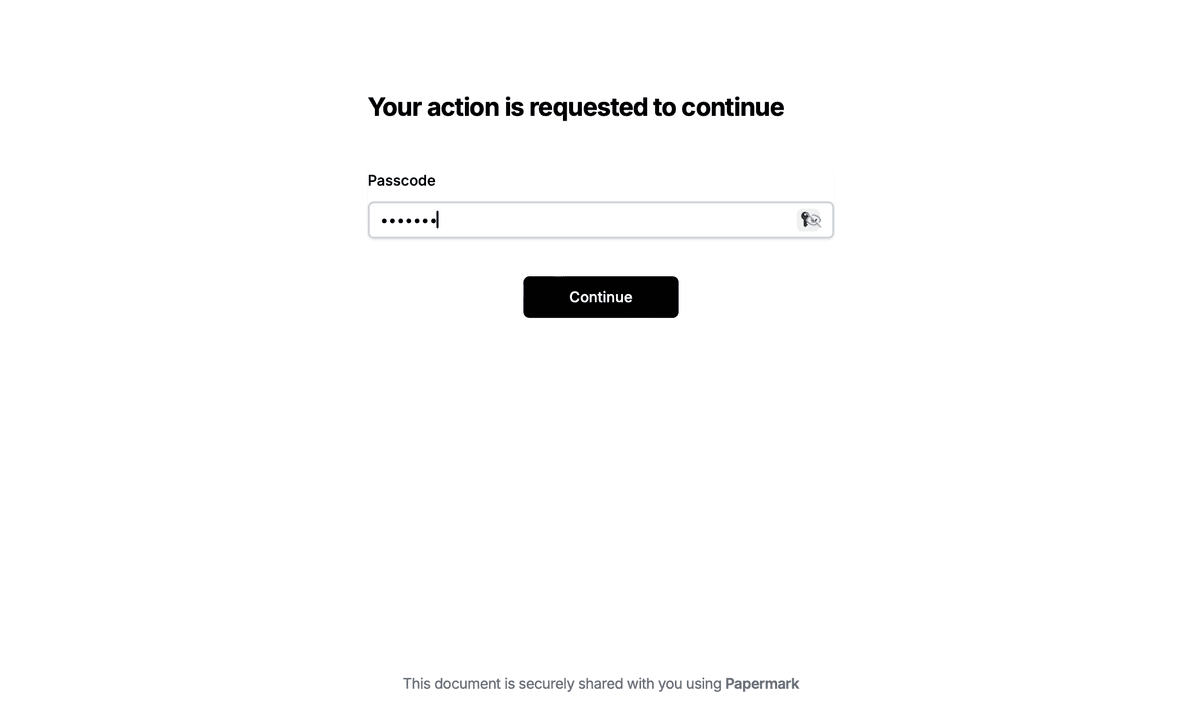
Configure encryption and security settings:
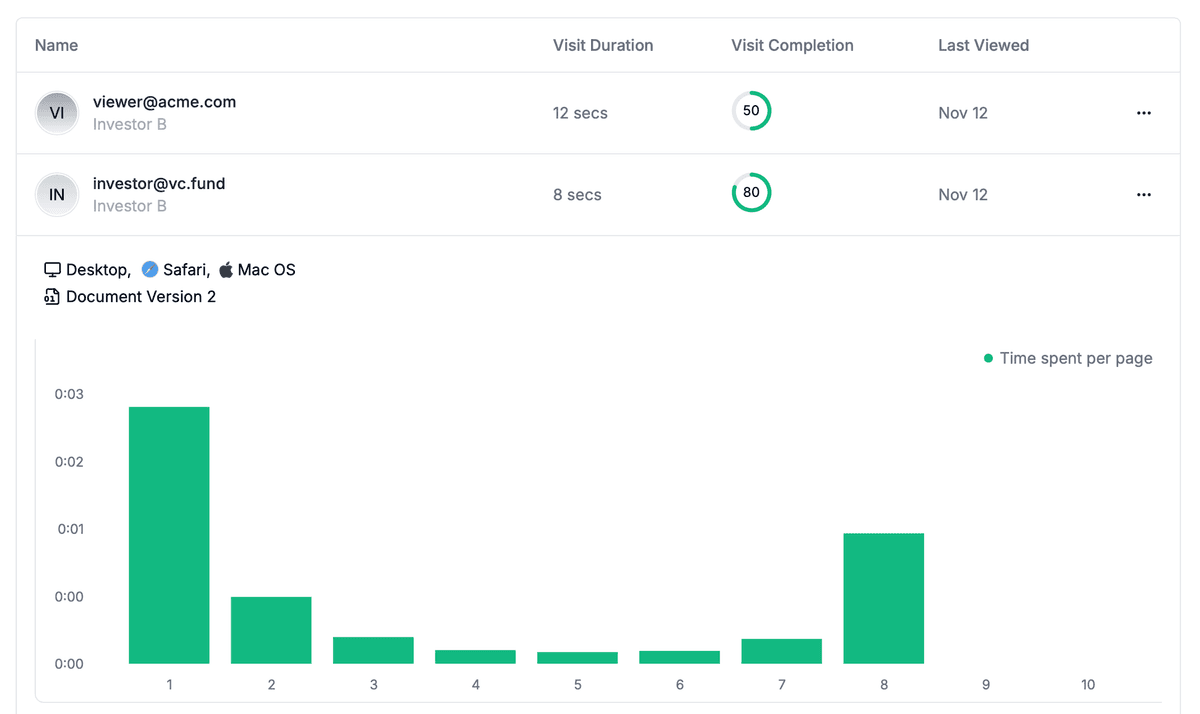
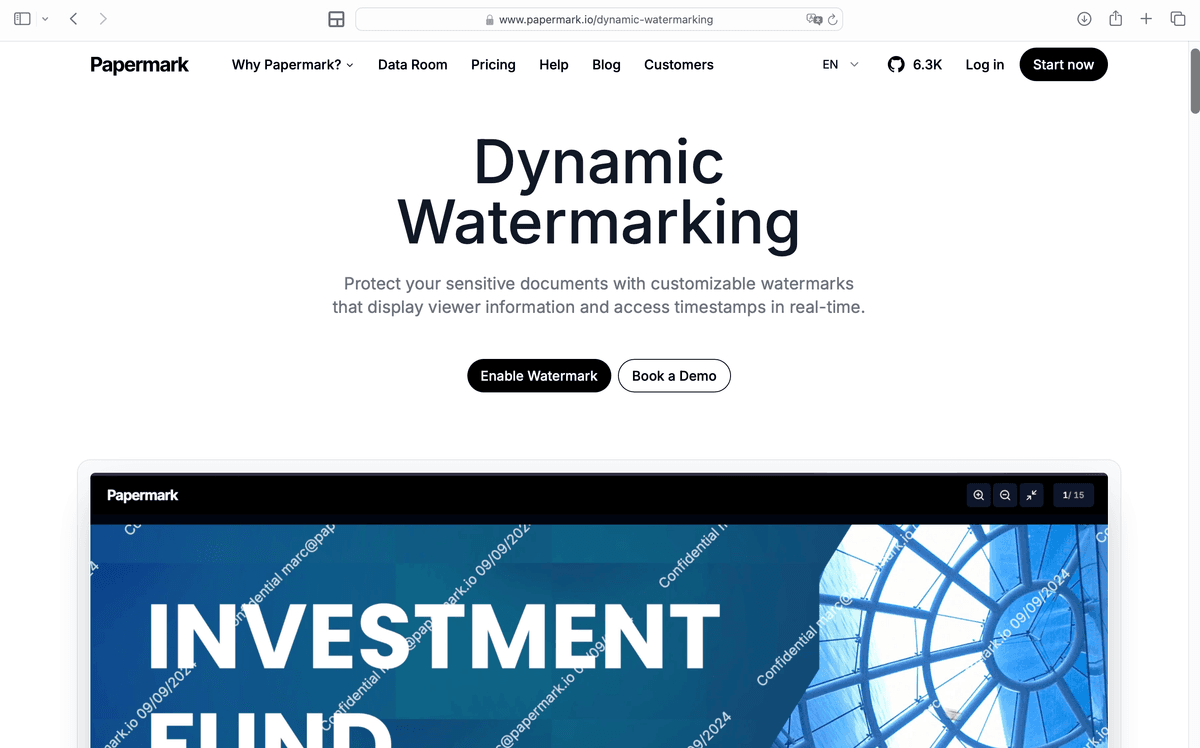
Papermark uses server-side AES-256 encryption combined with comprehensive access controls. While it doesn't use end-to-end encryption, it provides strong security with the added benefit of document analytics, engagement tracking, and access revocation—making it ideal for business use cases where you need to track who viewed your Excel file and when.
Many cloud storage services offer encryption features that can protect Excel files stored in the cloud.
OneDrive uses encryption at rest and in transit, but the level of protection depends on your Microsoft 365 plan. Enterprise plans offer more advanced security features.
Google Drive encrypts files in transit and at rest, but doesn't offer password protection for individual files. For stronger security, combine Google Drive with archive encryption (Method 2) or use a secure sharing platform.
Security considerations: Cloud storage encryption protects files stored on servers, but doesn't provide the same level of access control and tracking as dedicated secure sharing platforms. For sensitive business Excel files, consider using Papermark's secure file sharing for enhanced protection.
| Method | Encryption strength | Ease of use | Cost | Best for |
|---|---|---|---|---|
| Microsoft Excel built-in | AES-256 | Easy | Included with Office | Personal use, local file protection |
| Archive encryption (7-Zip) | AES-256 | Easy | Free | Email transmission, basic file storage |
| Third-party tools (VeraCrypt/AxCrypt) | AES-256 | Moderate to advanced | Free to paid | Advanced users, maximum security |
| Papermark | AES-256 (server-side) | Very easy | Free plan available | Business Excel sharing with analytics and access controls |
| Cloud storage encryption | Varies (AES-256 typical) | Easy | Free to paid plans | Team collaboration, cloud storage |
Follow these practices to maximize the security of your encrypted Excel files.
Use strong passwords: Create passwords with at least 16 characters, mixing uppercase, lowercase, numbers, and special characters. Avoid dictionary words, personal information, or common patterns. Consider using a password manager to generate and store strong passwords.
Backup passwords securely: Always store passwords in a secure location separate from your encrypted Excel files. Use a password manager or encrypted note-taking app. Never share passwords in the same email or message as the file link.
Choose appropriate encryption strength: For highly sensitive data, use AES-256 encryption. Excel's built-in encryption uses AES-256 by default, which is recommended for financial data, customer information, and proprietary formulas.
Protect formulas and structure: Use Excel's worksheet and workbook protection features in addition to file encryption. This prevents unauthorized users from viewing formulas or modifying the spreadsheet structure even if they gain access.
Verify encryption is working: Test that encrypted Excel files cannot be opened without the correct password before relying on encryption for sensitive data. Try opening the file without the password to confirm protection is active.
Combine encryption with other security measures: Encryption protects Excel files at rest, but also use secure transmission methods (HTTPS, secure email), access controls, and consider dynamic watermarking for additional protection against unauthorized sharing when using secure sharing platforms.
Encrypting Excel files protects your sensitive spreadsheets from unauthorized access, whether they're stored locally or shared online. Choose Microsoft Excel's built-in encryption for local file protection, archive encryption for email transmission, or Papermark for encrypted Excel sharing with analytics and advanced access controls. For business use cases where you need to track access and control sharing, Papermark's secure file sharing provides encryption plus comprehensive security features for your Excel files.
Learn how to encrypt Word documents with password protection and access restrictions. This comprehensive guide covers Microsoft Word built-in encryption, third-party tools, and secure sharing platforms.
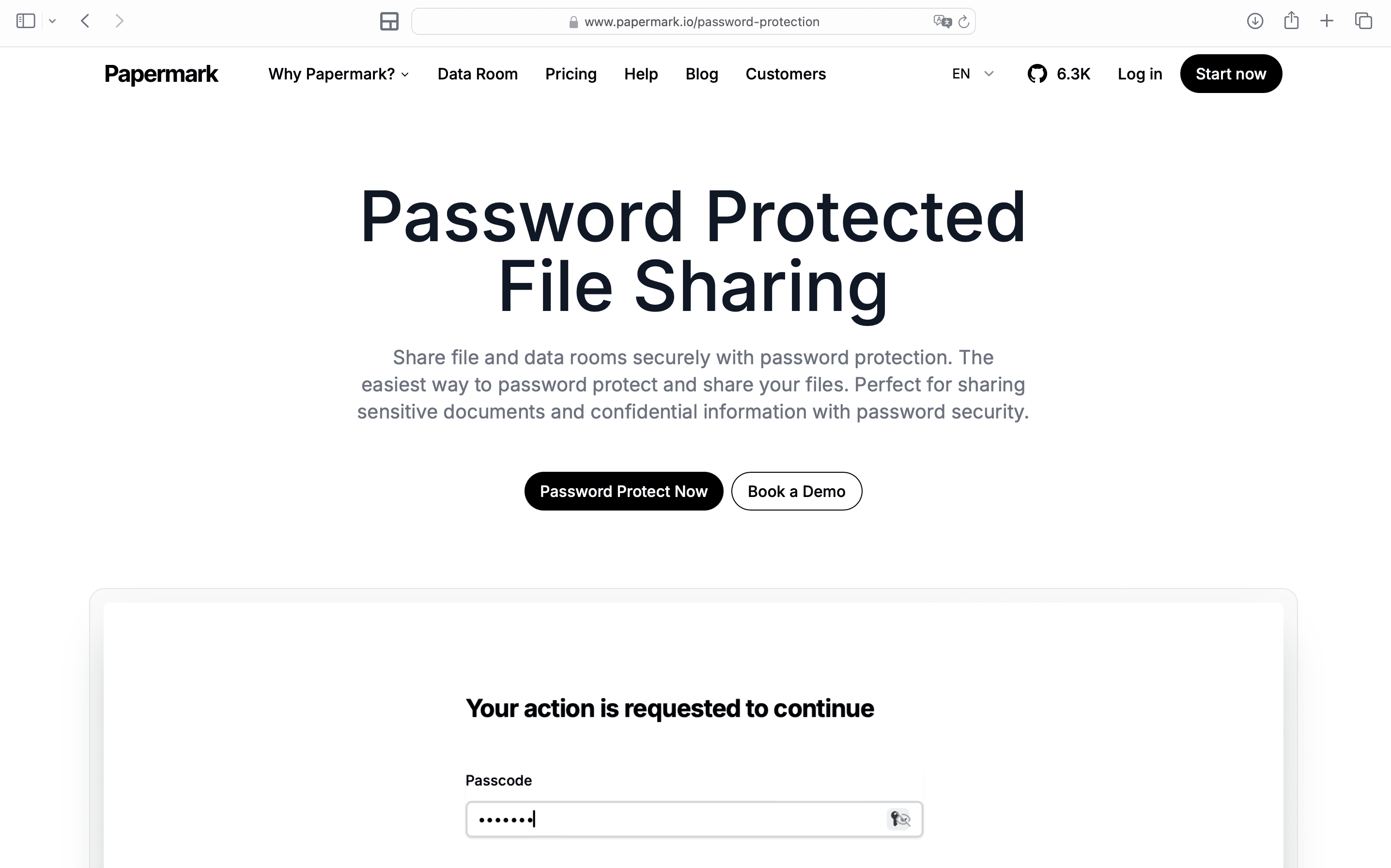
Learn how to encrypt PDF files with password protection and access restrictions in 2026. Covers Adobe Acrobat, online tools, built-in methods, and secure sharing platforms.
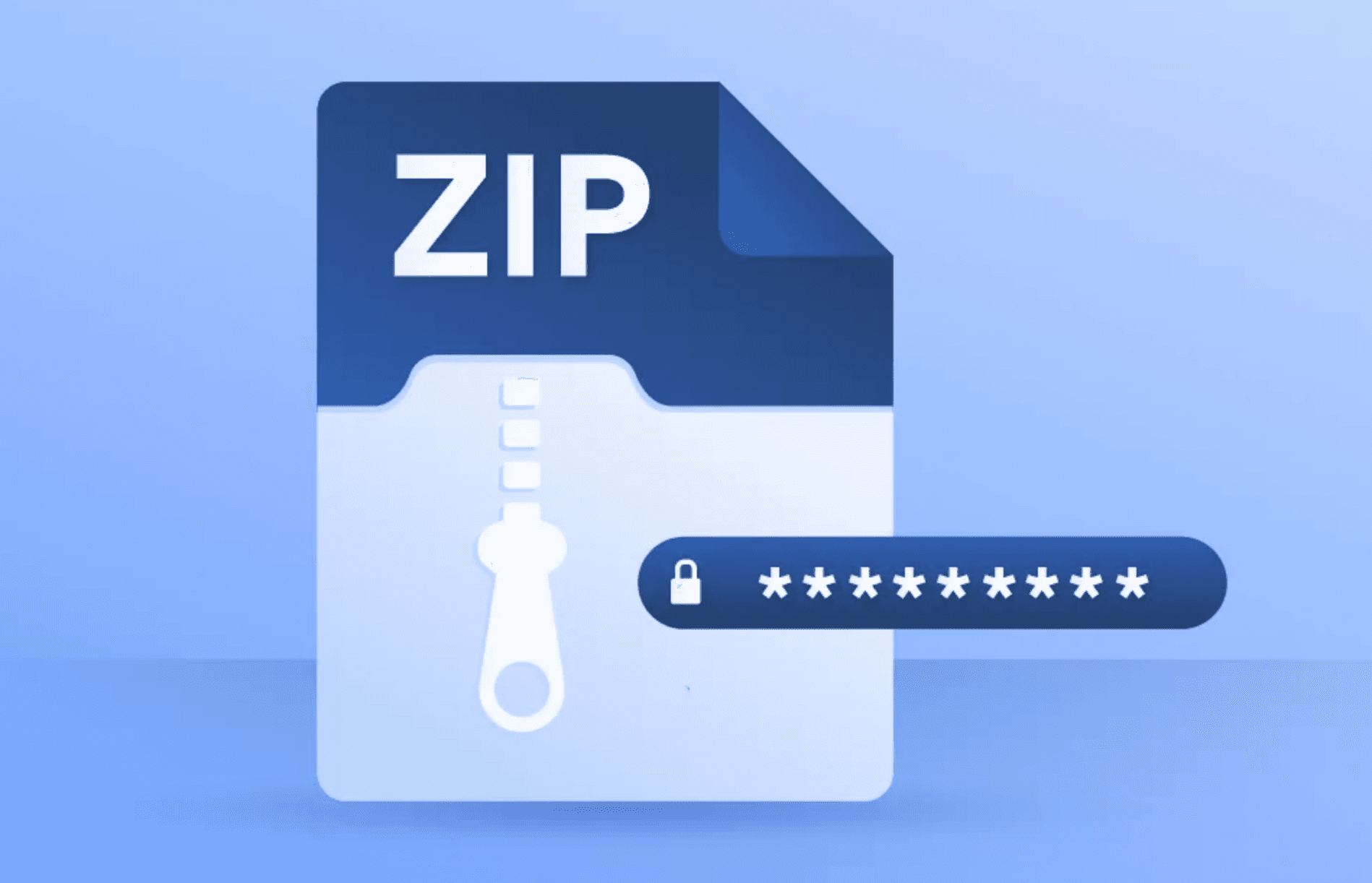
Learn how to encrypt ZIP files with password protection and secure compression. This comprehensive guide covers 7-Zip, WinRAR, built-in OS tools, and secure sharing platforms.