Sending a confidential contract or financial report as a PDF without encryption is like mailing a postcard-anyone who intercepts it can read your sensitive information. PDF encryption protects your documents by requiring a password to open them, preventing unauthorized access even if the file is shared, lost, or stolen.
PDF encryption transforms your document into unreadable code that can only be decrypted with the correct password. Whether you're protecting business contracts, financial reports, or personal documents, encrypting PDFs adds a crucial security layer. This guide covers multiple methods to encrypt PDF files, from built-in tools to secure cloud-based solutions with advanced protection features.
Quick recap of PDF encryption methods
Adobe Acrobat: Professional PDF encryption with password protection and permission restrictions
Online PDF tools: Free web-based encryption services for quick password protection
Built-in OS tools: Use Preview (Mac) or Microsoft Office to create encrypted PDFs
Secure sharing platforms: Use Papermark for encrypted PDF sharing with analytics and access controls
Command-line tools: Advanced encryption using PDFtk or QPDF for batch processing
Protect your documents with advanced security
No credit card required
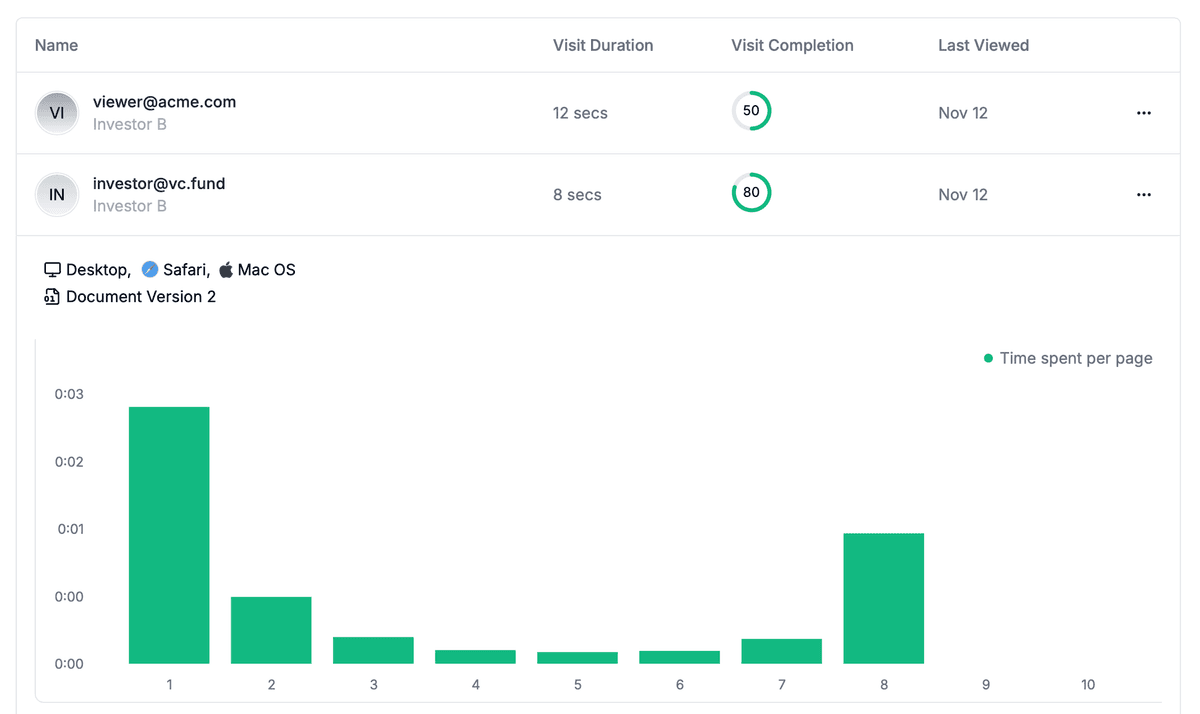
Page by page analytics
Require email verification
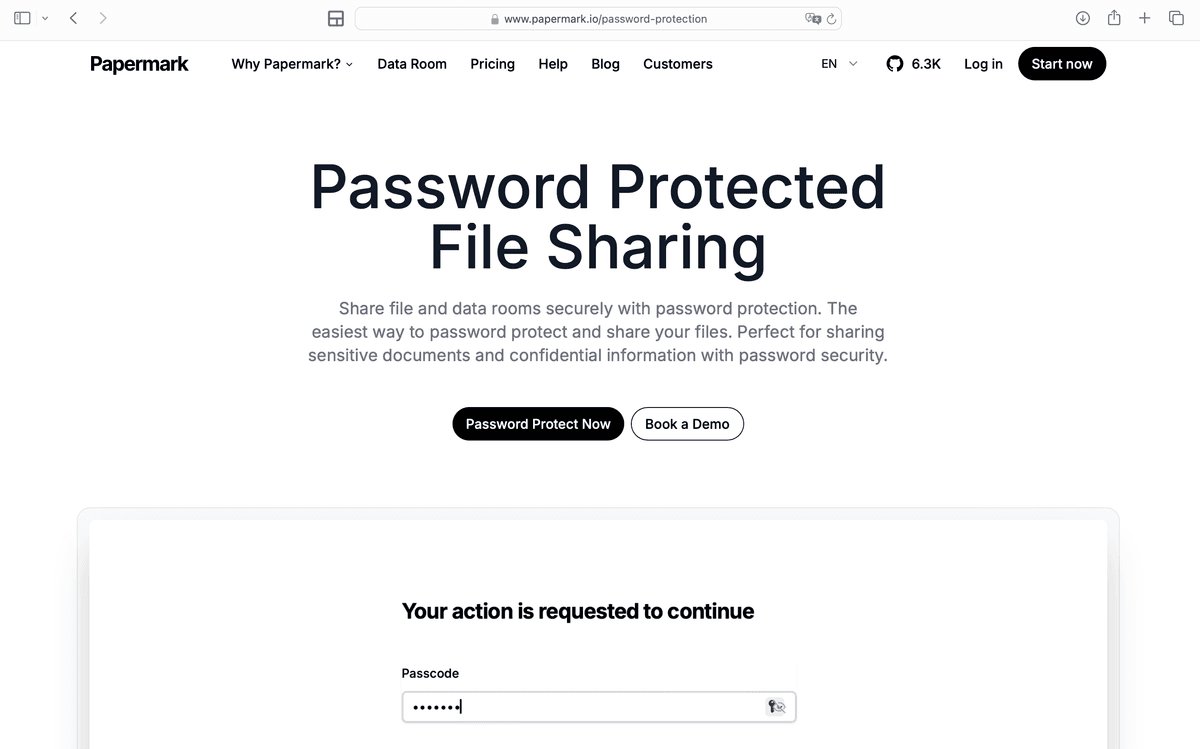
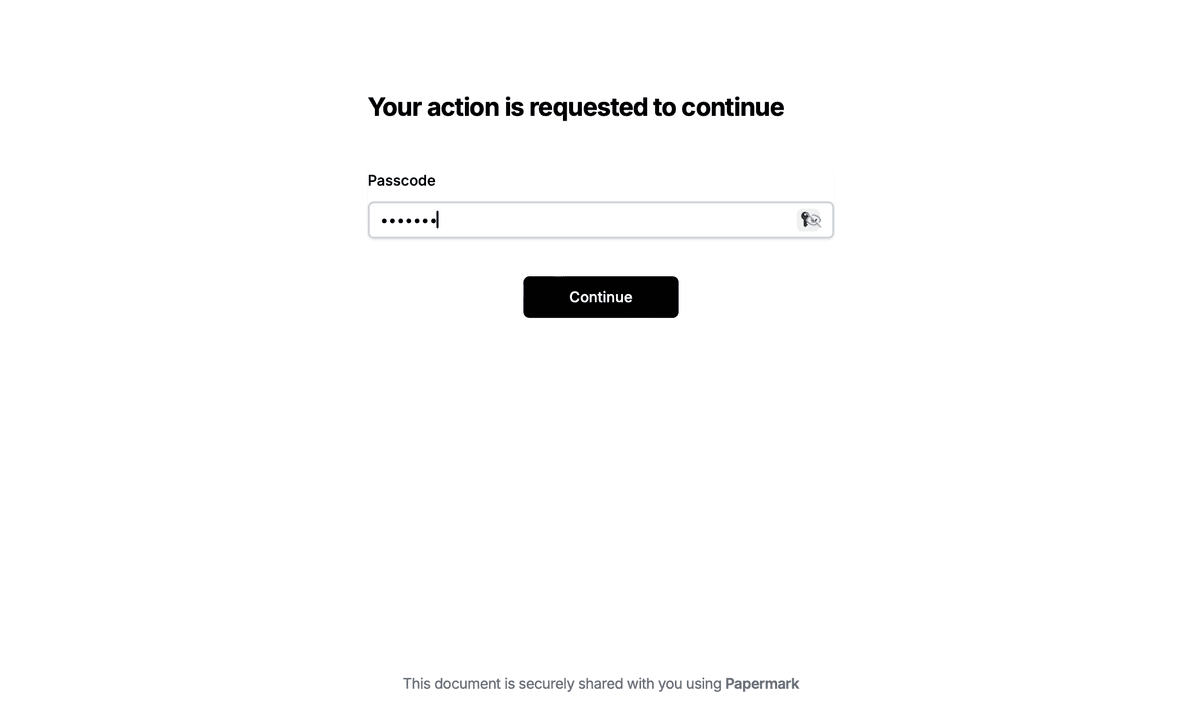
Require password to view
Allow/Block specified viewers
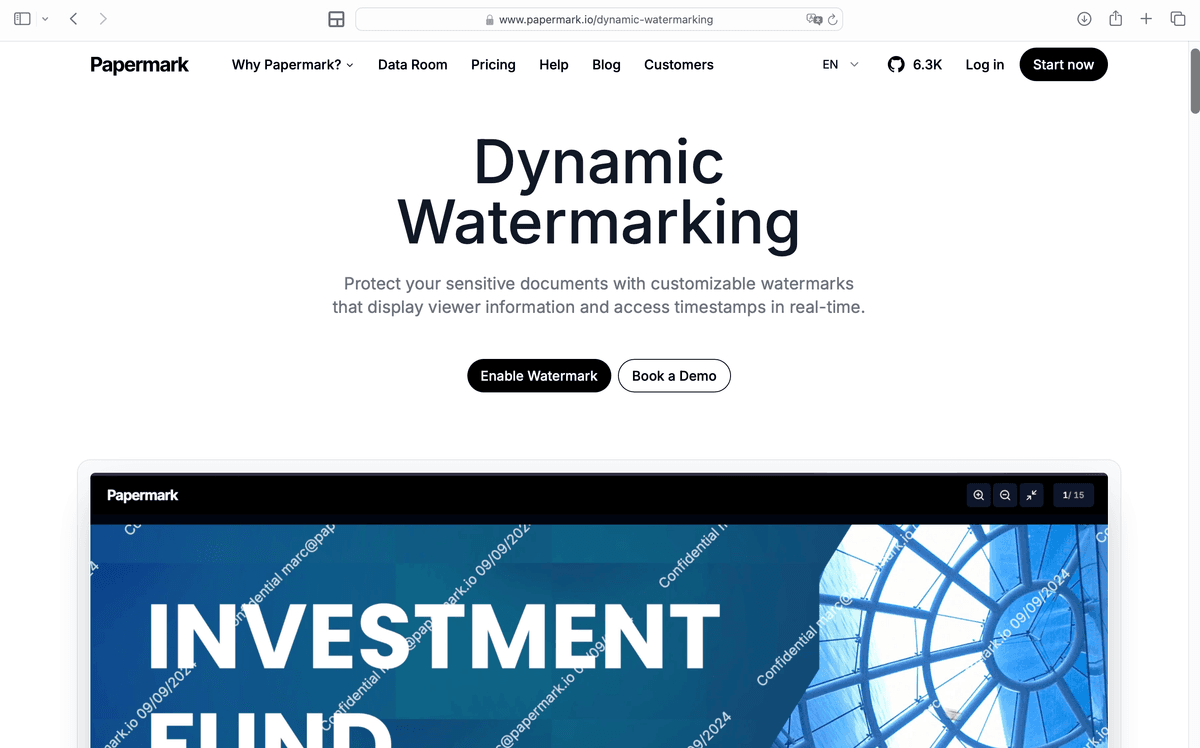
Apply Watermark
Require NDA to view
Custom Welcome Message
Method 1: Encrypt PDF using Adobe Acrobat
Adobe Acrobat provides the most comprehensive PDF encryption options with strong security features.
Step-by-step guide for encrypting PDFs with Adobe Acrobat:
Open your PDF in Adobe Acrobat (Pro or Standard)
Navigate to security options:
Go to File > Protect Using Password (or Tools > Protect > Encrypt > Encrypt with Password)
Alternatively, click All tools > Protect a PDF in the left pane
Choose encryption type:
Select "Encrypt with Password"
Choose whether to require password for viewing, editing, or both
Set password protection:
Check "Require a password to open the document"
Enter a strong password (minimum 8 characters, mix of letters, numbers, and symbols)
Confirm the password
Configure permissions (optional):
Restrict printing (allow or disallow)
Restrict editing (allow or disallow)
Restrict copying of text and images
Restrict document assembly
Choose encryption level:
AES-256 (recommended for maximum security)
AES-128 (faster, still secure)
128-bit RC4 (older, less secure)
Click "OK" and save the encrypted PDF
Adobe Acrobat uses industry-standard AES encryption, making it extremely difficult for unauthorized users to access your PDF without the password. The permissions settings allow you to control what recipients can do with the document even after opening it.
Note: Adobe Acrobat Pro requires a paid subscription. For free alternatives, see Method 2 or Method 4.
Method 2: Encrypt PDF using online tools
Free online PDF encryption tools provide quick password protection without installing software.
Upload your PDF file by clicking "Select a file" or dragging and dropping
Enter a password in the password field
Confirm the password by entering it again
Click "Protect PDF" to encrypt the file
Download the encrypted PDF once processing is complete
Using other online PDF encryption services:
Popular free online tools include SmallPDF, ILovePDF, and PDF24. The process is similar across platforms:
Visit the encryption service website
Upload your PDF file
Set encryption options: Choose password protection and permission restrictions
Enter and confirm a strong password
Click encrypt or protect to process the file
Download the encrypted PDF
Security considerations: Be cautious when using online tools with highly sensitive documents. These services process files on their servers, which means your PDF content is temporarily accessible to the service provider. For confidential business documents, consider using local software or secure file sharing platforms that offer better privacy controls.
Method 3: Encrypt PDF using built-in OS tools
Both Mac and Windows include built-in tools that can create encrypted PDFs without additional software.
Mac: Encrypt PDF using Preview
Open your PDF in Preview (default PDF viewer on Mac)
Go to File > Export (or press Command + Shift + E)
Click the "Permissions" button in the export dialog
Set encryption options:
Check "Require password to open document"
Enter a strong password and confirm it
Optionally restrict printing and copying
Choose encryption level: Select "128-bit RC4" or "AES-128"
Click "Save" to create the encrypted PDF
Preview uses AES-128 encryption, which provides strong security for most use cases. The encrypted PDF will require the password to open, and you can set additional restrictions on printing and copying.
Windows: Create encrypted PDF from Office documents
If you have Microsoft Office, you can create encrypted PDFs directly:
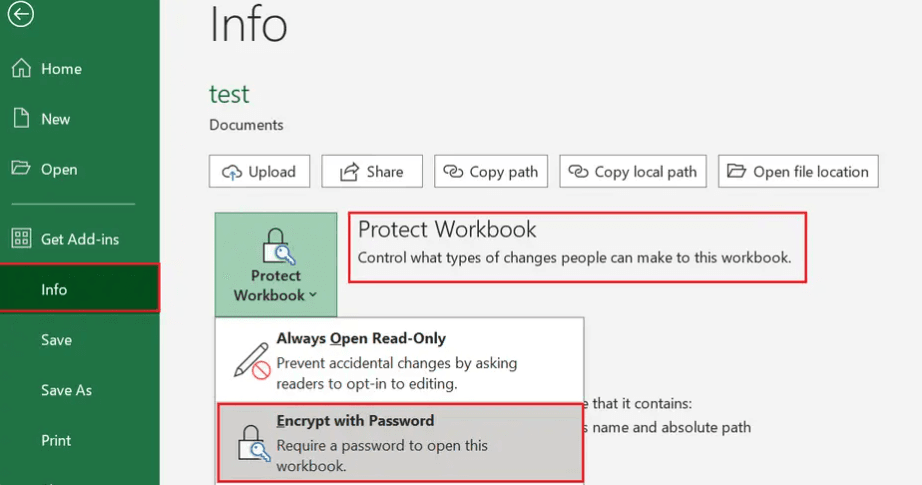
Open your document in Word, Excel, or PowerPoint
Go to File > Save As (or Export)
Choose PDF format from the file type dropdown
Click "Options" before saving
Check "Encrypt the document with a password"
Enter a password and confirm it
Click "OK" and save the PDF
This method creates a password-protected PDF that requires the password to open. However, it doesn't offer the same granular permission controls as Adobe Acrobat.
Method 4: Encrypt PDF using Papermark
Papermark provides a secure way to encrypt and share PDFs with advanced security features beyond basic password protection, including analytics, access controls, and dynamic watermarking.
Step-by-step guide for encrypting PDFs with Papermark:
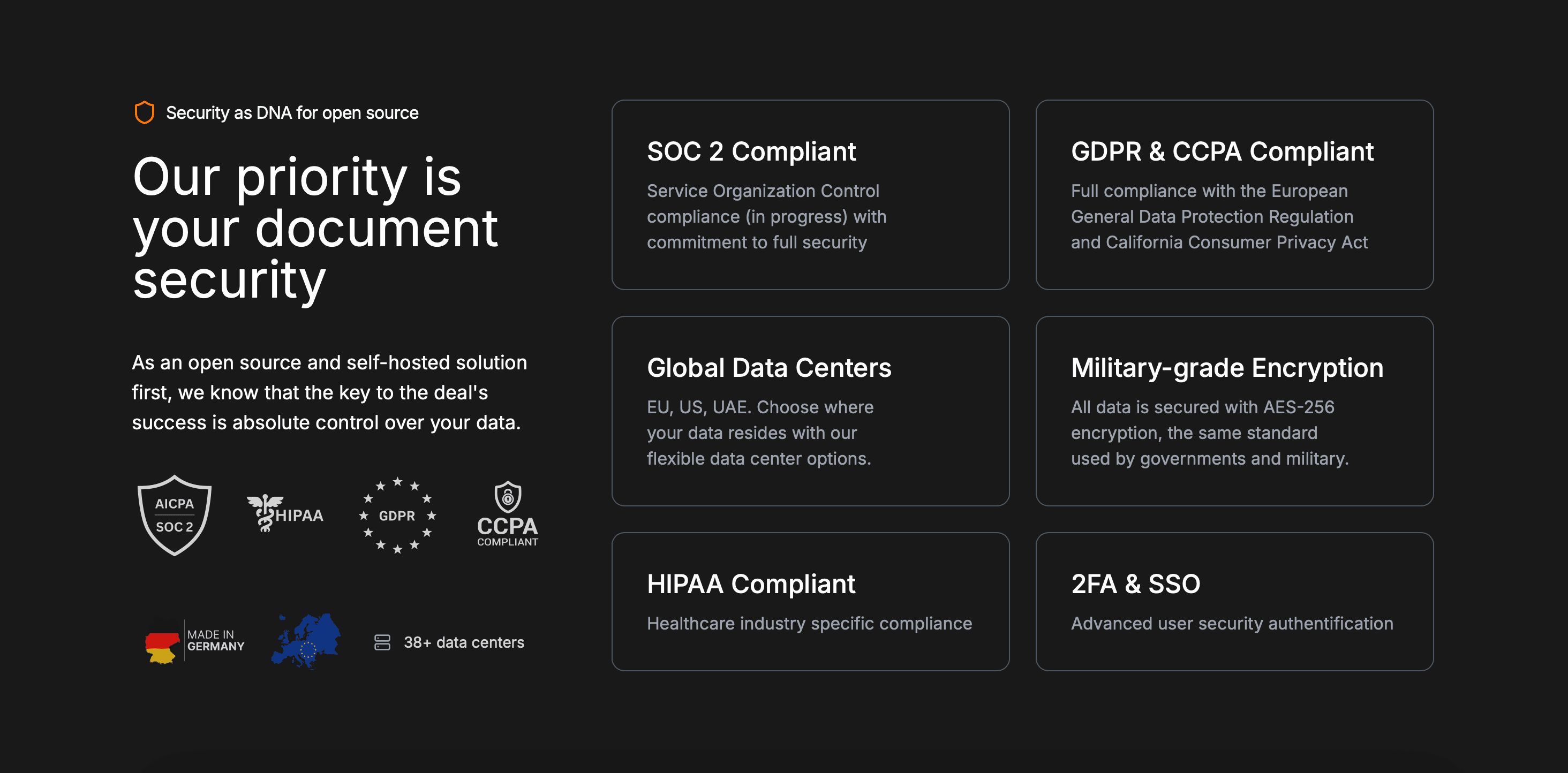
Papermark uses server-side AES-256 encryption combined with comprehensive access controls. While it doesn't use end-to-end encryption, it provides strong security with the added benefit of document analytics, engagement tracking, and access revocation-making it ideal for business use cases where you need to track who viewed your PDF and when.
Method 5: Encrypt PDF using command-line tools
For advanced users or batch processing, command-line tools provide programmatic PDF encryption.
Command-line tools are powerful for automating PDF encryption across multiple files but require technical knowledge to use effectively.
Comparison: PDF encryption methods
Method
Encryption strength
Ease of use
Cost
Best for
Adobe Acrobat
AES-256
Easy
Paid subscription
Professional PDF editing and encryption
Online PDF tools
AES-128 or AES-256
Very easy
Free (with limitations)
Quick one-time encryption, non-sensitive files
Built-in OS tools (Preview/Office)
AES-128 or RC4
Easy
Free
Basic encryption, personal use
Papermark
AES-256 (server-side)
Very easy
Free plan available
Business PDF sharing with analytics and access controls
Command-line tools
AES-256
Advanced (requires technical knowledge)
Free
Batch processing, automation, advanced users
Best practices for PDF encryption
Follow these practices to maximize the security of your encrypted PDFs.
Use strong passwords: Create passwords with at least 16 characters, mixing uppercase, lowercase, numbers, and special characters. Avoid dictionary words, personal information, or common patterns. Consider using a password manager to generate and store strong passwords.
Backup passwords securely: Always store passwords in a secure location separate from your encrypted PDFs. Use a password manager or encrypted note-taking app. Never share passwords in the same email or message as the PDF link.
Choose appropriate encryption strength: For highly sensitive data, use AES-256 encryption. For less sensitive files, AES-128 may be sufficient and faster. Avoid older encryption standards like 40-bit RC4, which are no longer considered secure.
Set appropriate permissions: Configure document permissions based on your needs. Restrict printing, copying, or editing if recipients don't need these capabilities. This adds an extra layer of protection even if someone gains access to the PDF.
Verify encryption is working: Test that encrypted PDFs cannot be opened without the correct password before relying on encryption for sensitive data. Try opening the file without the password to confirm protection is active.
Combine encryption with other security measures: Encryption protects PDFs at rest, but also use secure transmission methods (HTTPS, secure email), access controls, and consider dynamic watermarking for additional protection against unauthorized sharing.
Conclusion
Encrypting PDF files protects your sensitive documents from unauthorized access, whether they're stored locally or shared online. Choose Adobe Acrobat for professional-grade encryption with granular permissions, online tools for quick password protection, or Papermark for encrypted PDF sharing with analytics and advanced access controls. For business use cases where you need to track access and control sharing, Papermark's secure PDF sharing provides encryption plus comprehensive security features.
FAQ
When PDF encryption is not enough: virtual data rooms
PDF password protection works for a single document shared with one trusted recipient. It does not scale to deal workflows with multiple bidders, scoped access tiers, audit trails, or NDA enforcement. A leaked password unlocks the file for anyone, with no way to trace the leak back to a specific viewer.
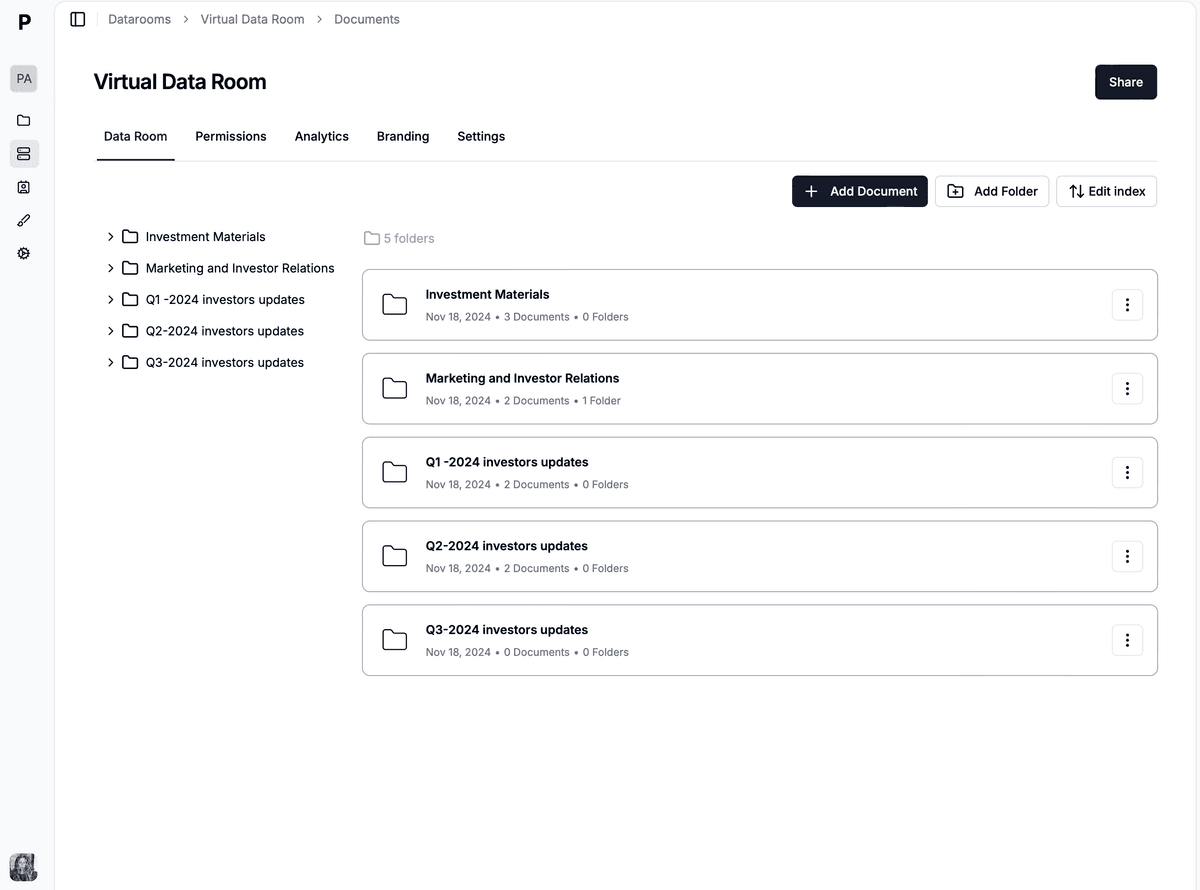
For high-stakes document sharing (M&A diligence, fundraising, regulated workflows), upgrade from PDF password protection to a virtual data room (VDR). A VDR layers per-session dynamic watermarking, NDA gates, granular permissions, and a tamper-proof audit log on top of AES-256 + TLS 1.3 encryption.