Ready to move beyond Dropbox's 250GB folder limits and basic sharing features? This guide will walk you through migrating to Papermark, ensuring proper handling of your files while unlocking professional document tracking and analytics.
Learn why businesses are switching from Dropbox's storage-focused approach to Papermark's comprehensive document engagement platform.
Dropbox has a 250 GB folder size limit for downloads
Folders with more than 10,000 files cannot be downloaded at once
Downloaded files are separate from your Dropbox account
All sharing settings need to be reconfigured after migration
Links will need to be updated after migration
Log in to dropbox.com
For individual files:
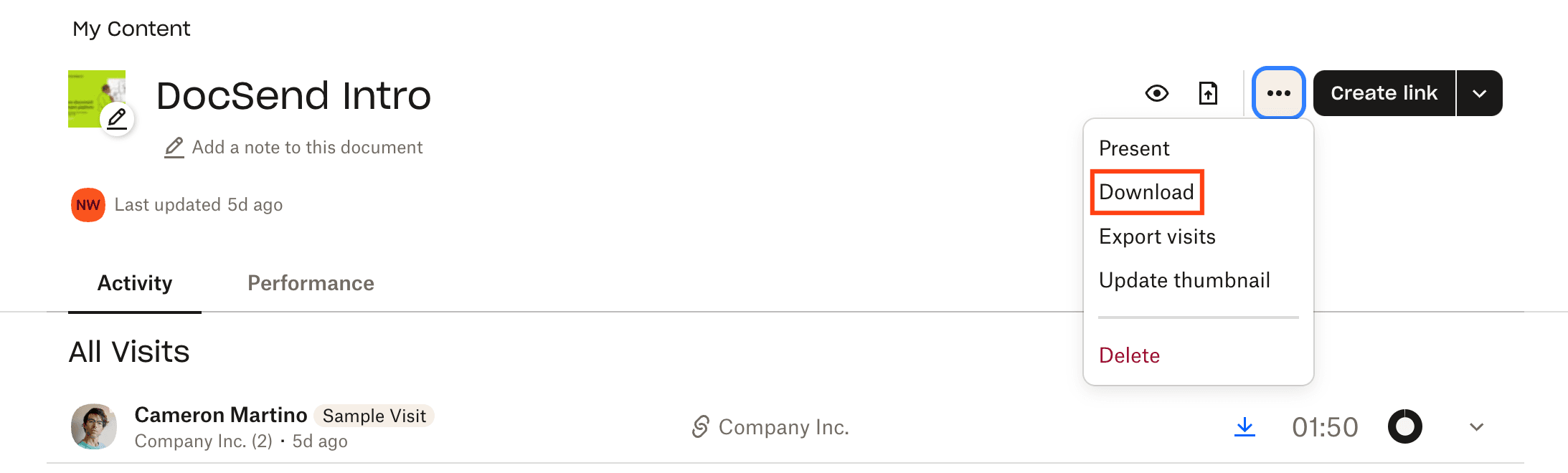
Hover over the file you want to download
Click the checkbox next to it
Click "Download"
For multiple files or folders:
Select multiple items using checkboxes
Click "Download"
Files will be downloaded as a .zip file
Important limitations:
Folders must be under 250 GB (uncompressed)
Maximum of 10,000 files per download
Downloads go to your computer's default download folder
Before uploading to Papermark, organize your files. Papermark supports:
PDF documents (.pdf)
Microsoft Office files (.doc, .docx, .xls, .xlsx, .ppt, .pptx)
Spreadsheets (.csv, .ods)
Images (.png, .jpg, .jpeg)
Videos (.mp4, .mov, .avi, .webm)
CAD files (.dwg, .dxf)
Compressed files (.zip)
And more
Start your migration to Papermark
Read case study → Papermark made our fundraising process seamless, providing a clean interface and document analytics we loved.
Founder of CompAI
Log in to your Papermark account
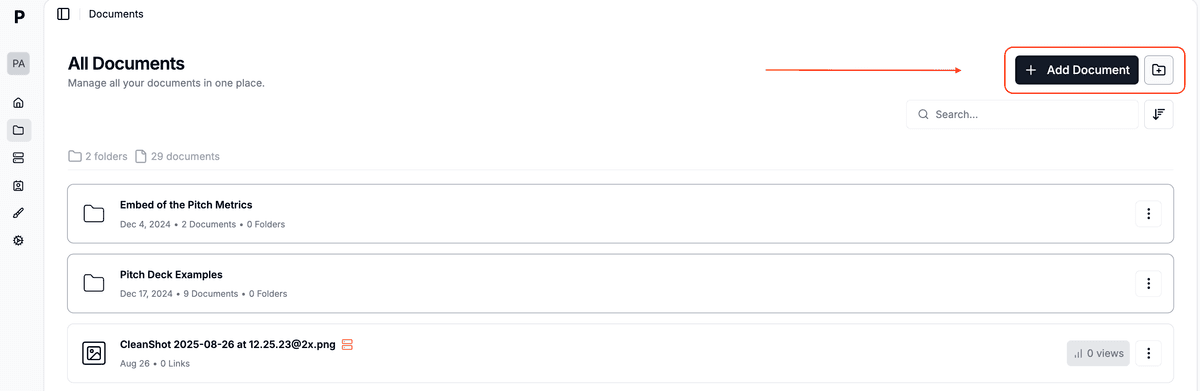
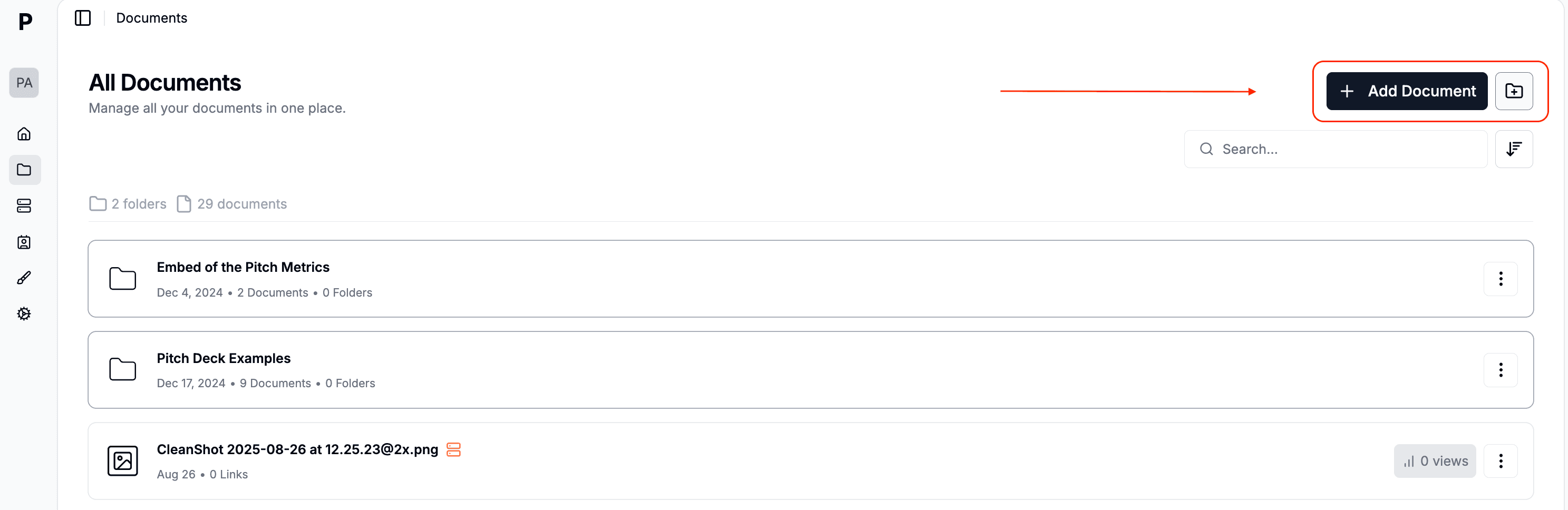
Navigate to "Documents" in the sidebar
Click "Add Document" in the top right corner
You can then:
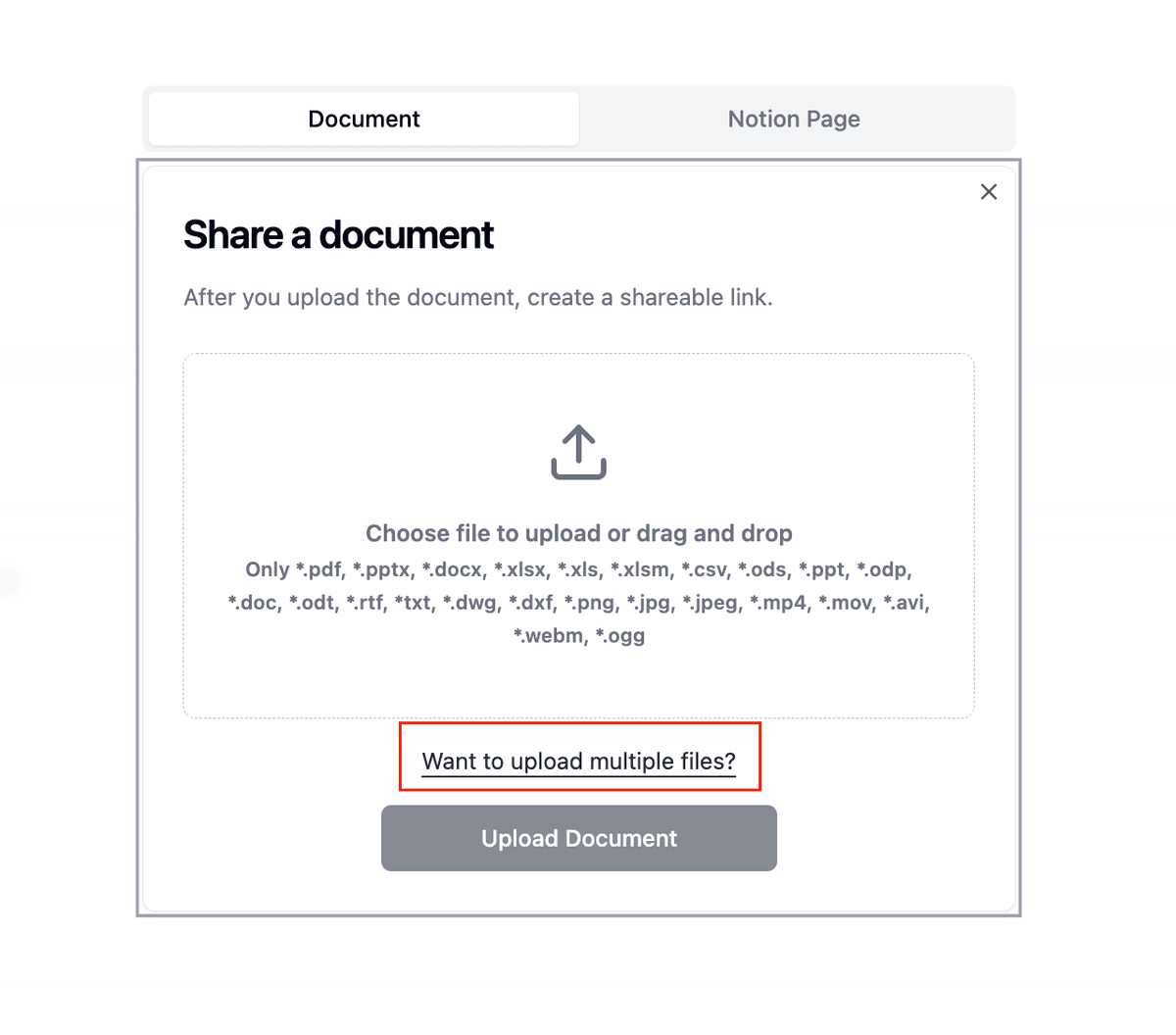
Upload individual files by clicking or dragging
Create folders to organize your documents
Upload multiple files simultaneously
Maintain folder structure when dragging folders
The Documents page shows you all your files in one place, with details like:
Number of folders and documents
Creation dates
View counts
Quick access to sharing options
Configure document settings:
Set up viewing permissions
Enable watermarking if needed
Configure access controls
Set expiration dates
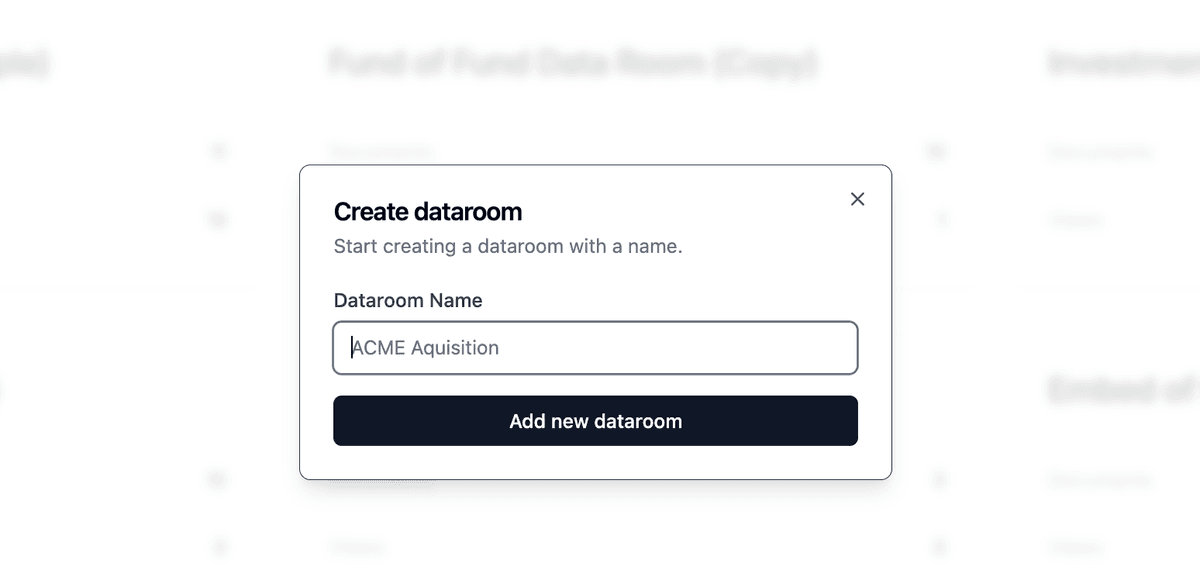
Create data rooms (if needed):
Click "New Data Room"
Organize documents into folders
Set granular permissions
Enable NDA requirements
Feature Dropbox Papermark Free storage 2GB free storage Unlimited document storage on all plans Starting price $11.99/month (Personal) Free, with paid plans available Document analytics Basic version history only Comprehensive analytics on all plans Security features Basic password protection [Dynamic watermarking](/dynamic-watermarking), NDA, granular permissions Viewer tracking Not available Detailed viewer analytics and engagement tracking Data rooms Not available Available on Business plans Access control Basic sharing permissions Advanced access controls and expiration settings Self-hosting option Not available Available (open-source) White labeling Not available Available on Business plans Document engagement No engagement tracking Real-time engagement analytics
Startups: Share pitch decks and company documents with enhanced trackingSales teams: Track document engagement and viewer behaviorLegal teams: Secure sensitive documents with watermarking and NDAsMarketing teams: Share and track marketing materials with analyticsConsultants: Professionally present and track client deliverables
Try Papermark's advanced features
What happens to my existing Dropbox links?
Can I keep my folder structure when migrating?
What if my Dropbox folder is larger than 250 GB?
How do I handle shared folders in Dropbox?
Can I migrate file version history?
What about my Dropbox Paper documents?
Transitioning from Dropbox to Papermark opens up new possibilities for secure document sharing and analytics. While Dropbox excels at basic file storage and sharing, Papermark provides specialized features for professional document sharing, tracking, and security. The migration process is straightforward, and the benefits of enhanced document control and analytics make it a worthwhile upgrade for businesses and professionals.