Ready to upgrade from OneDrive's basic file storage to a professional document sharing platform? This guide will walk you through migrating to Papermark, ensuring proper handling of your local OneDrive sync settings and files.
Learn why businesses are switching from OneDrive's limited capabilities to Papermark's comprehensive document management features.
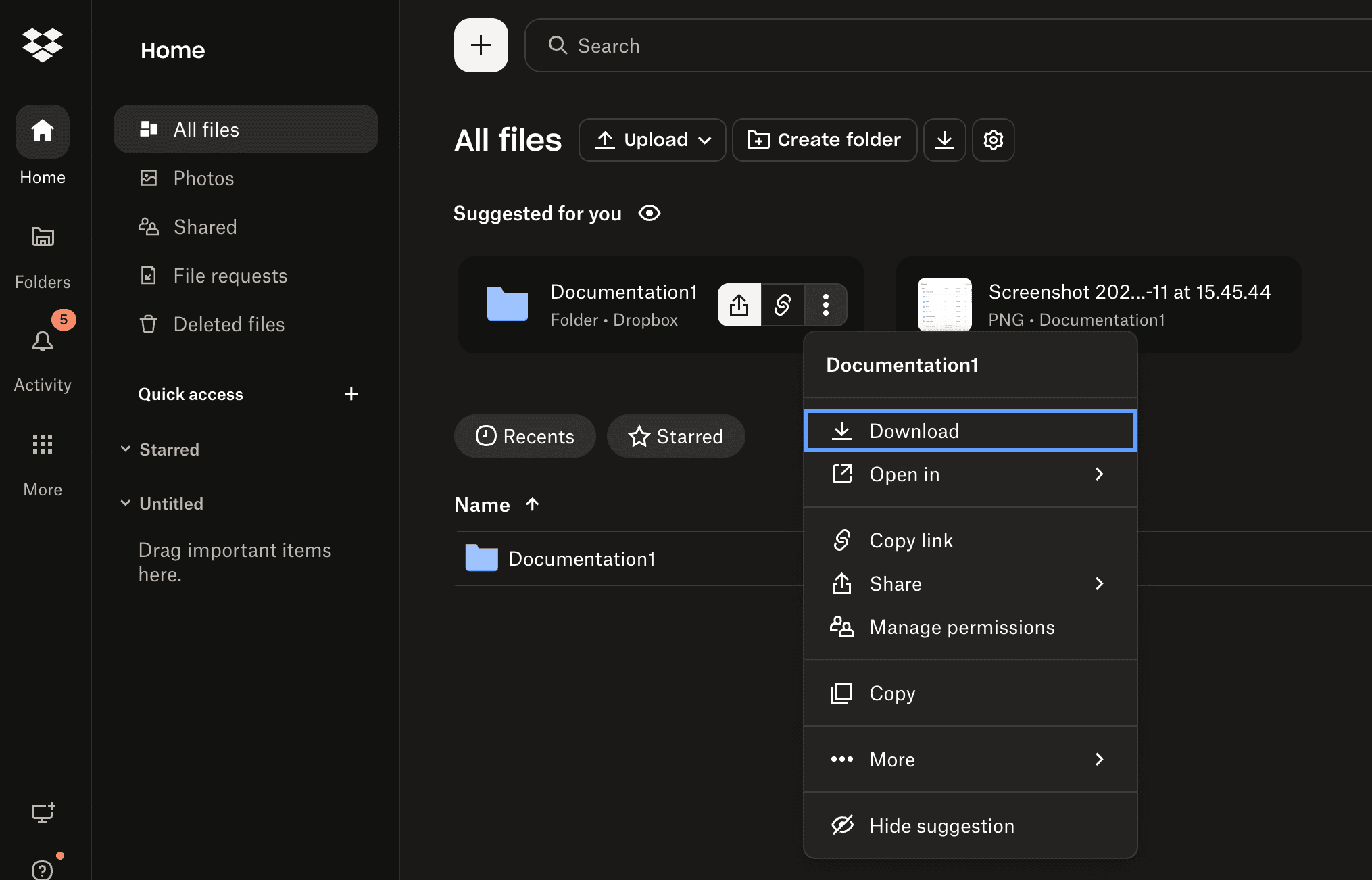
OneDrive files can be downloaded in bulk or individually
Local copies of files should be secured before migration
All file versions and sharing settings should be reviewed
Papermark supports all major file formats that OneDrive does
Links will need to be updated after migration
Ensure all files are downloaded locally:
Right-click the OneDrive icon in the taskbar
Select "Settings"
Go to "Sync and Backup" > "Manage Backup"
Click "Advanced settings"
Select "Download all files"
Verify local storage:
Check your OneDrive folder at C:\Users\[Your Username]\OneDrive
Ensure all files are available offline
Look for any sync issues or pending downloads
Before uploading to Papermark, organize your files. Papermark supports:
PDF documents (.pdf)
Microsoft Office files (.doc, .docx, .xls, .xlsx, .ppt, .pptx)
Spreadsheets (.csv, .ods)
Images (.png, .jpg, .jpeg)
Videos (.mp4, .mov, .avi, .webm)
CAD files (.dwg, .dxf)
Compressed files (.zip)
And more
Start your migration to Papermark
Log in to your Papermark account
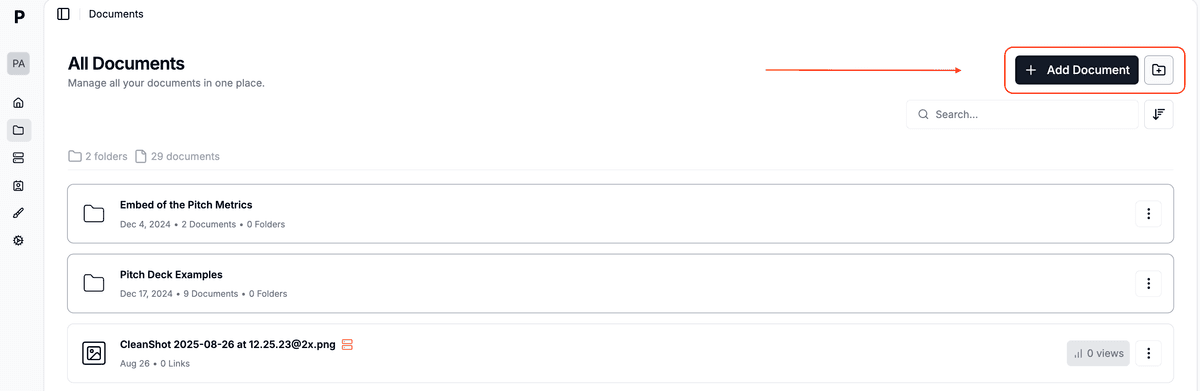
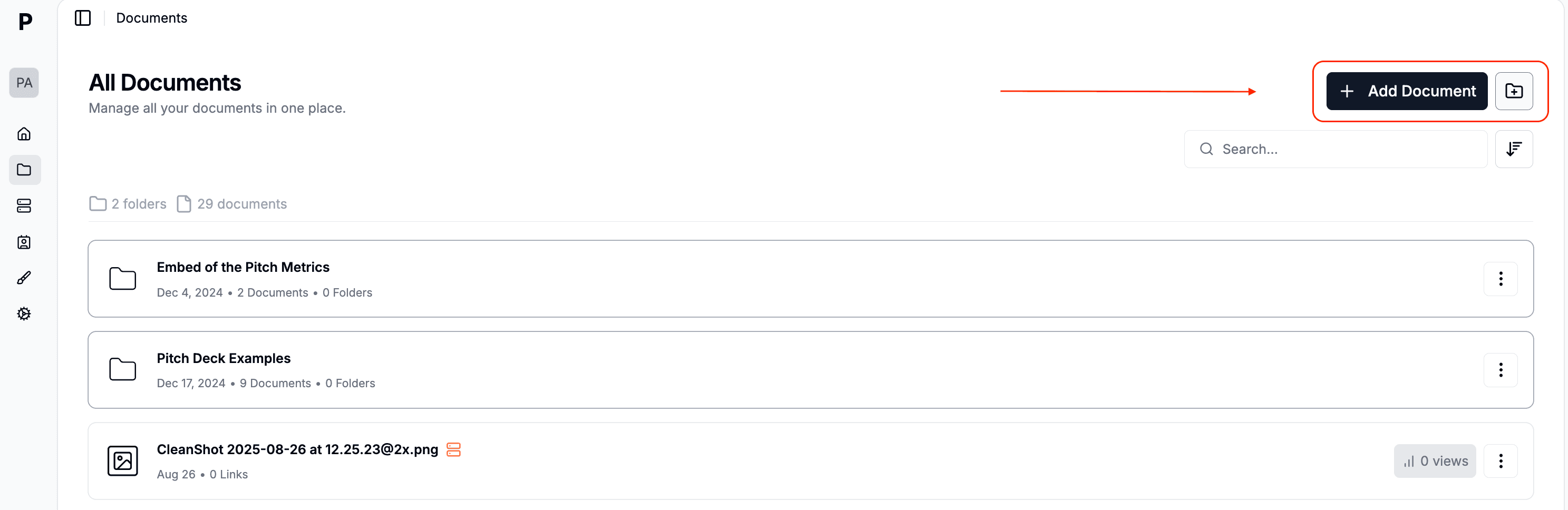
Navigate to "Documents" in the sidebar
Click "Add Document" in the top right corner
You can then:
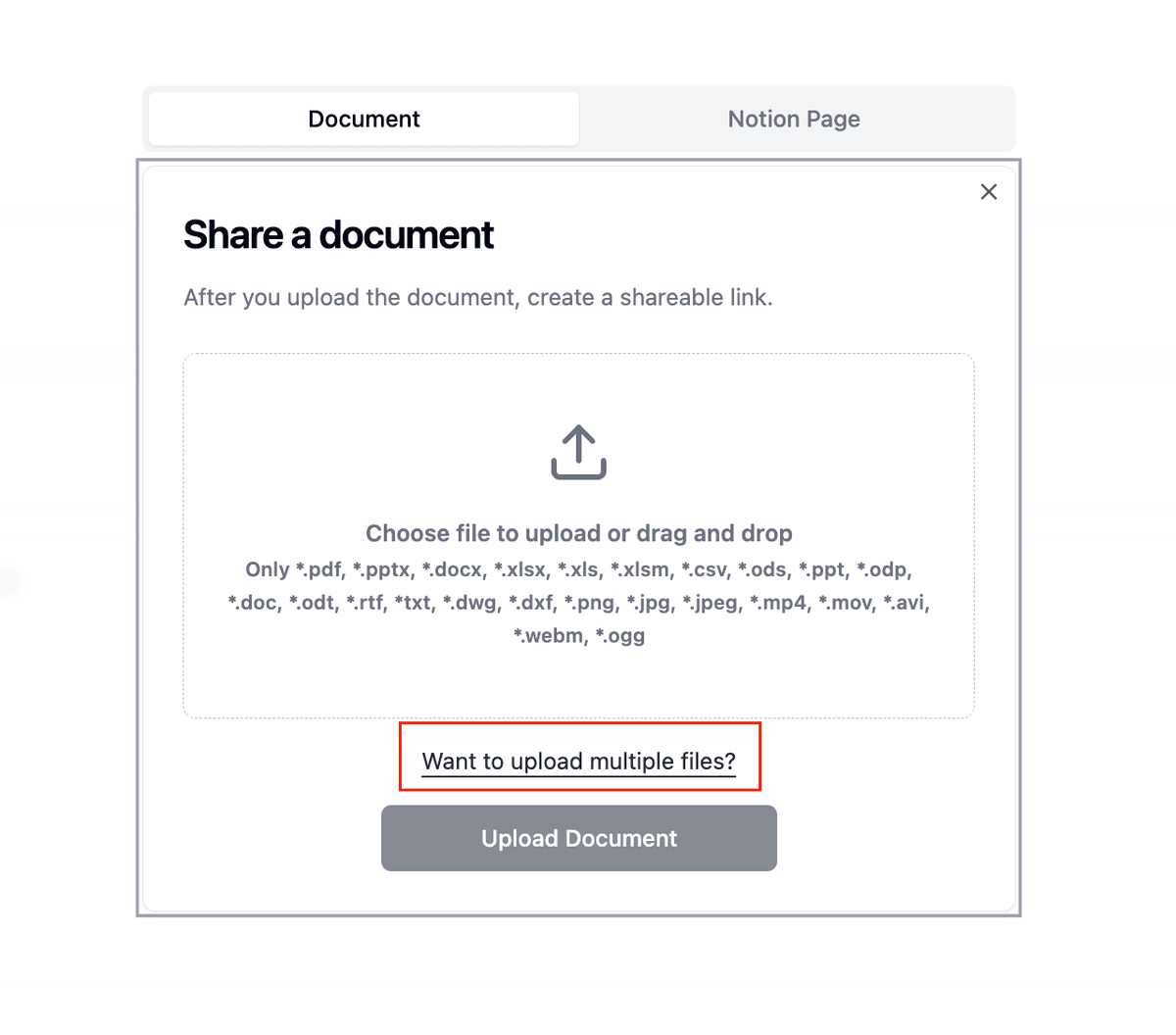
Upload individual files by clicking or dragging
Create folders to organize your documents
Upload multiple files simultaneously
Maintain folder structure when dragging folders
The Documents page shows you all your files in one place, with details like:
Number of folders and documents
Creation dates
View counts
Quick access to sharing options
Configure document settings:
Set up viewing permissions
Enable watermarking if needed
Configure access controls
Set expiration dates
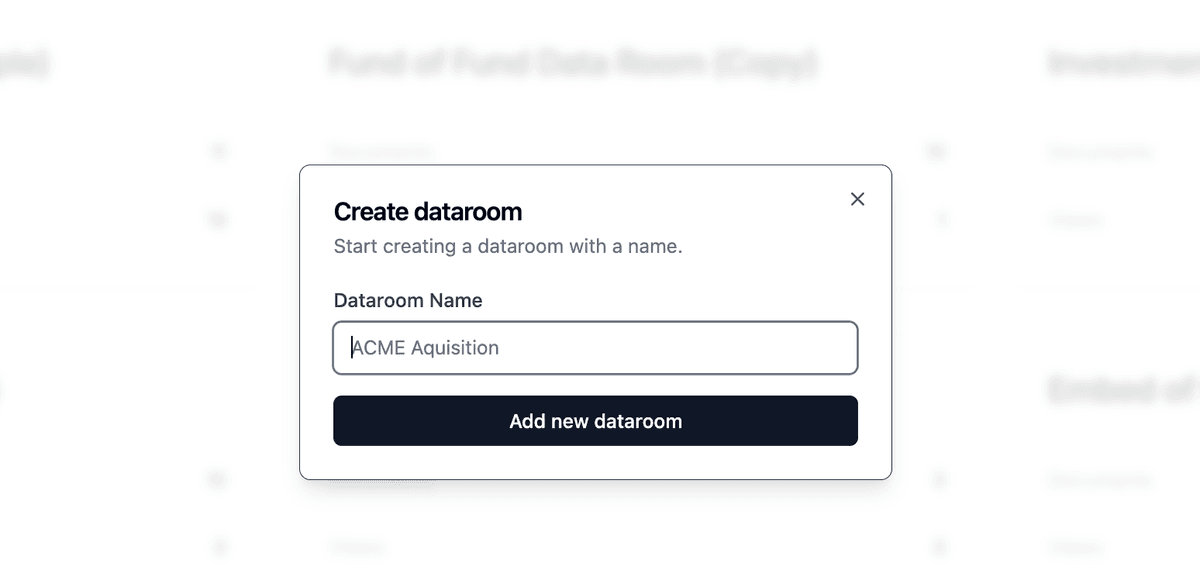
Create data rooms (if needed):
Click "New Data Room"
Organize documents into folders
Set granular permissions
Enable NDA requirements
Feature OneDrive Papermark Free storage 5GB free storage Unlimited document storage on all plans Starting price $1.99/month (100GB) Free, with paid plans available Document analytics Basic version history only Comprehensive analytics on all plans Security features Basic password protection [Dynamic watermarking](/dynamic-watermarking), NDA, granular permissions Viewer tracking Not available Detailed viewer analytics and engagement tracking Data rooms Not available Available on Business plans Access control Basic sharing permissions Advanced access controls and expiration settings Self-hosting option Not available Available (open-source) White labeling Not available Available on Business plans Document engagement No engagement tracking Real-time engagement analytics
Papermark team listens to their users and build what they need. Thanks for solving a big pain point. Docsend monopoly will end soon!
Founder
Startups: Share pitch decks and company documents with enhanced trackingSales teams: Track document engagement and viewer behaviorLegal teams: Secure sensitive documents with watermarking and NDAsMarketing teams: Share and track marketing materials with analyticsConsultants: Professionally present and track client deliverables
Try Papermark's advanced features
What happens to my existing OneDrive links?
Can I keep my folder structure when migrating?
Will I lose access to my OneDrive files after migration?
How do I handle shared folders in OneDrive?
Can I migrate file version history?
What about my OneDrive backup settings?
Transitioning from OneDrive to Papermark opens up new possibilities for secure document sharing and analytics. While OneDrive excels at file storage and basic sharing, Papermark provides specialized features for professional document sharing, tracking, and security. The migration process is straightforward, and the benefits of enhanced document control and analytics make it a worthwhile upgrade for businesses and professionals.