

document-sharing
How to set up PDF version control in 2026
Learn practical ways to control PDF versions, why PDFs don’t have built-in versioning, and how Papermark adds secure external sharing with audit trails and watermarks.
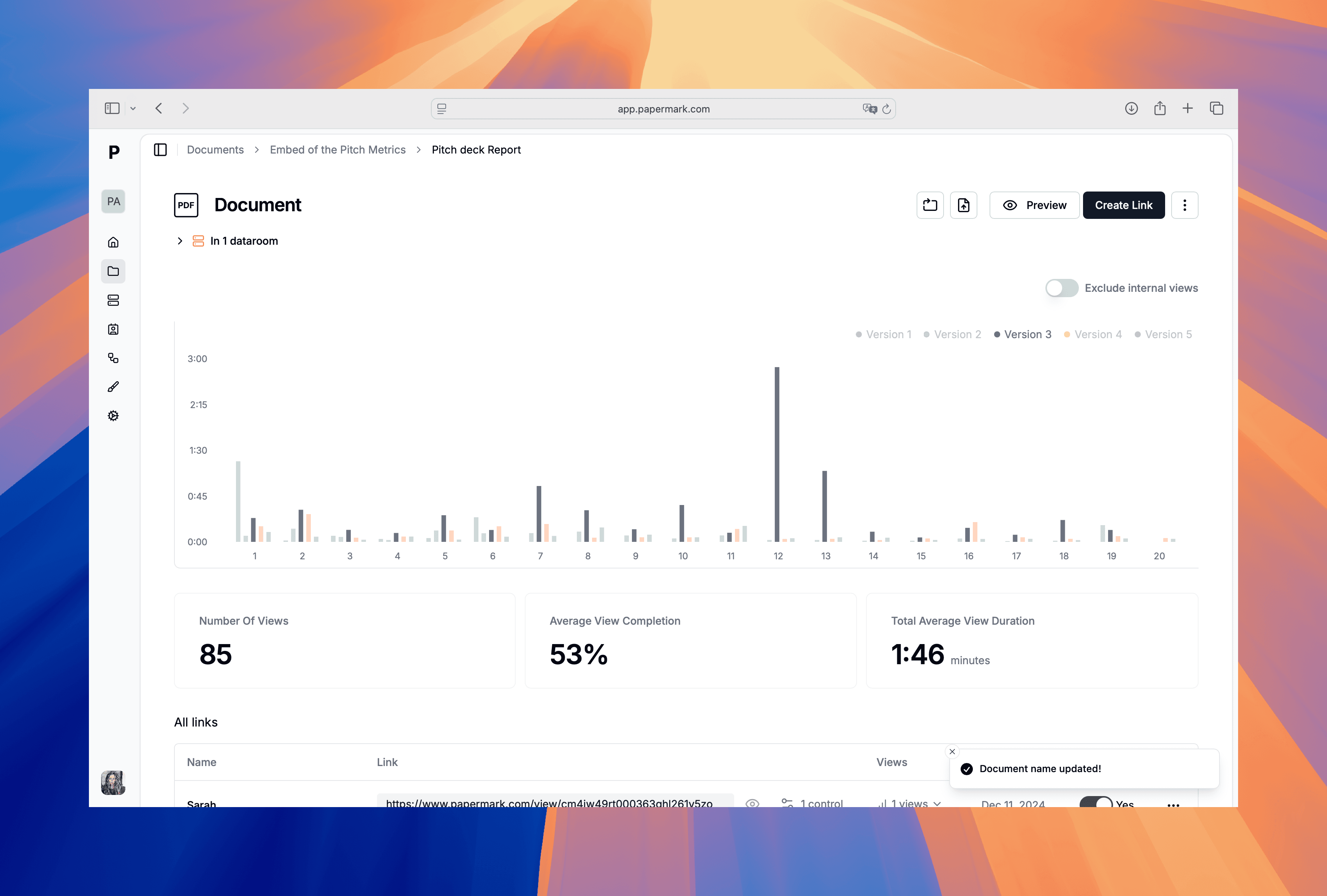
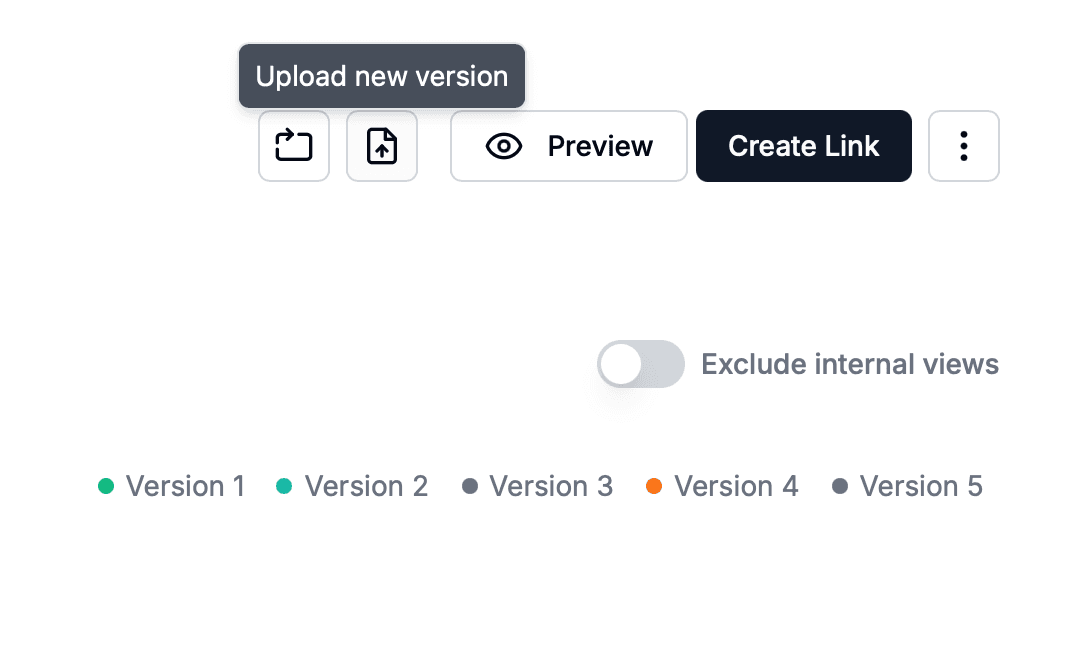
Word documents move through many hands—legal, finance, sales, and external partners. Without version control you risk overwrite conflicts, missing approvals, and unclear ownership. This guide shows how to enable Word document version control across three common setups: native Word version history, Microsoft 365 (SharePoint/OneDrive), and Papermark secure document sharing for external collaboration with audit trails and watermarks.
| Method | Best for | Version history | External sharing | Security |
|---|---|---|---|---|
| Word local files | Solo or quick drafts | Limited (Track Changes snapshots) | Email/attachments | Basic file password |
| SharePoint / OneDrive | Internal teams on M365 | Full version history | Links with permissions | M365 controls |
| Papermark links | External reviewers, clients | Version history + audit logs | Secure links, VDR | Watermark, email verify, expiry |
Word’s built-in tools work for drafts and small teams, but they rely on discipline.
Project_v1.0_author_date.
SharePoint and OneDrive add automatic version history, check-in/out, and link permissions for internal collaboration.

Papermark adds secure external sharing, audit trails, and watermarks so you keep control after the file leaves Microsoft 365.
Short, enforced rules prevent version sprawl and confusion.
Title_vMajor.Minor_owner_date (e.g., MSA_v1.2_jane_2025-12-20).When mistakes happen, version tools save time.
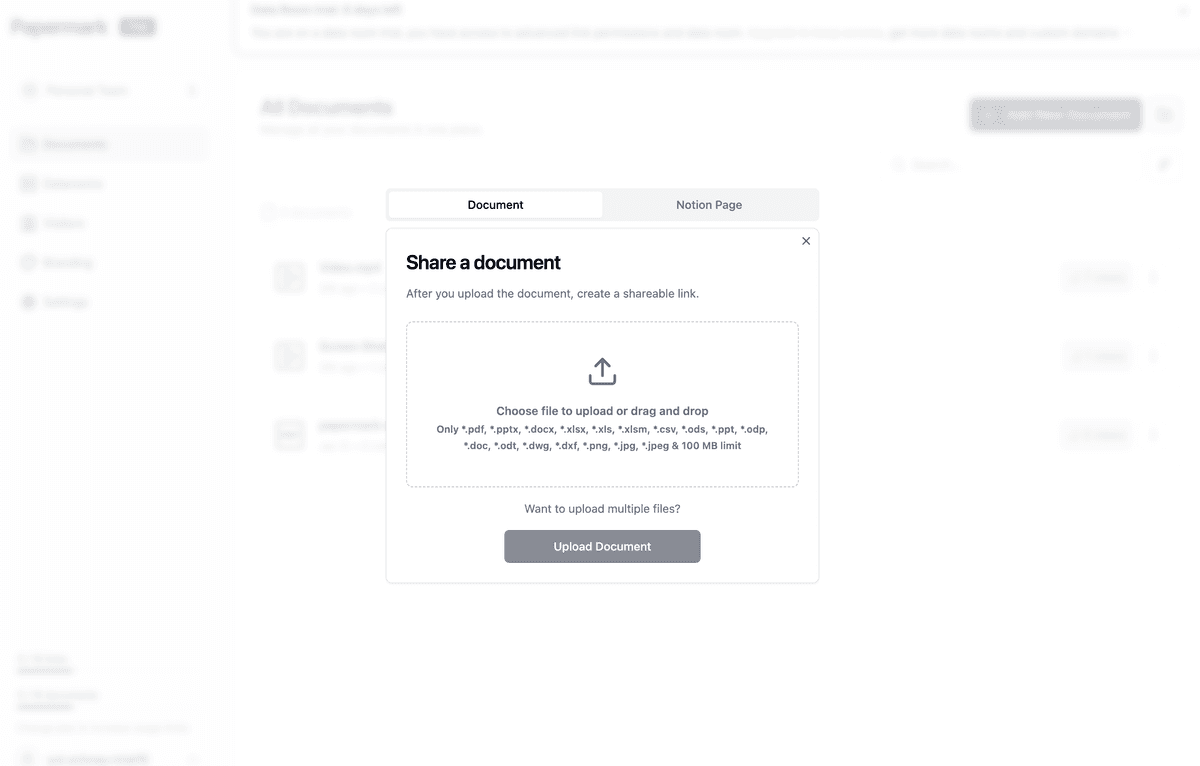
Use SharePoint or OneDrive for internal editing and Papermark for external sharing. Keep one source of truth per document, avoid emailing attachments, and watermark external copies. Regularly review permissions, rotate passwords, and verify recipients. Align approvals to major versions and preserve an immutable PDF when deals close. When collaborating with clients, place files in a secure data room to keep access contained.
Word alone is fine for drafts, but sustained version control needs shared storage and governance. Microsoft 365 adds structured history and permissions; Papermark extends that control to external stakeholders with watermarks, analytics, and link governance. Pair clear naming, single ownership, and approval checkpoints with secure links to reduce risk and confusion—and route sensitive deals through a data room for tighter oversight.
Learn practical ways to control PDF versions, why PDFs don’t have built-in versioning, and how Papermark adds secure external sharing with audit trails and watermarks.
Compare the best document version control software for teams that need secure sharing, audit trails, and change history. See how Papermark, Microsoft SharePoint, Box, Alfresco, and OpenText handle versioning, permissions, and compliance.
Learn how to keep folders versioned with clear naming, structured storage, and Papermark links for secure external sharing with audit trails and watermarks.