
How to add an introduction page to your data room?
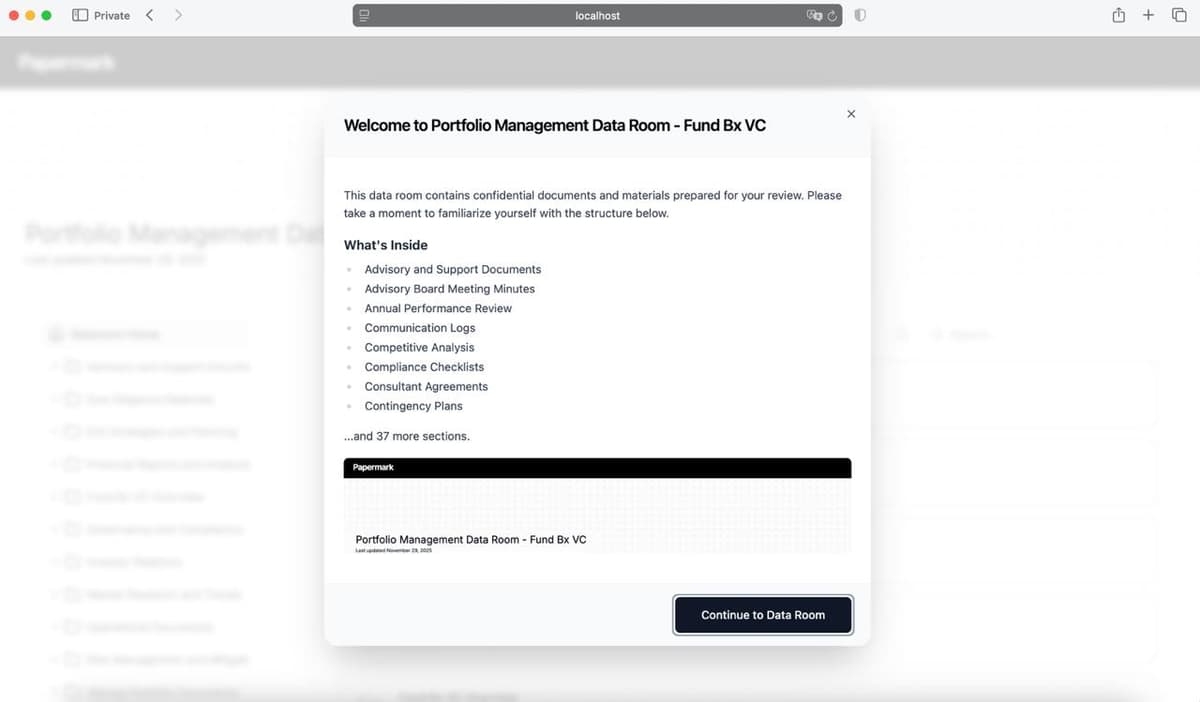
The introduction page is a welcome screen that visitors see when they first access your data room. It helps set context, explain what's inside, and guide navigation before they dive into documents.
Why use an introduction page?
- Set expectations: Visitors immediately understand what the data room contains
- Guide navigation: List key sections so visitors know where to start
- Add video walkthroughs: Embed YouTube videos explaining complex structures
- Build trust: A polished welcome shows professionalism
- Reduce questions: Answer common questions upfront
Step 1: Go to data room settings
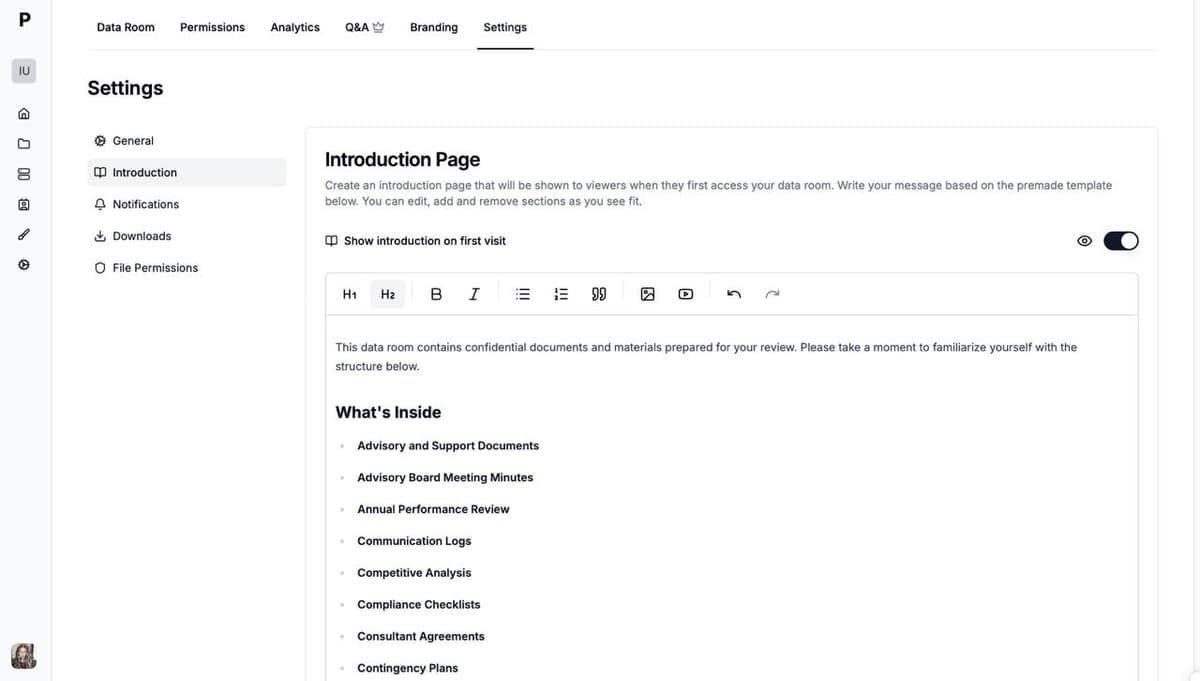
Open your data room and navigate to Settings in the top menu, then click Introduction in the left sidebar.
Step 2: Enable the introduction page
Toggle "Show introduction on first visit" to enable the feature. When enabled, visitors will see the introduction modal before accessing the data room.
Step 3: Edit your introduction content
Use the rich text editor to customize your introduction:
- Headings (H1, H2) for structure
- Bold and italic text for emphasis
- Bulleted and numbered lists
- Images
- YouTube video embeds
- Block quotes
Papermark auto-generates a template based on your data room structure, including folder names and document counts. You can edit this or write your own.
Step 4: Add a video (optional)
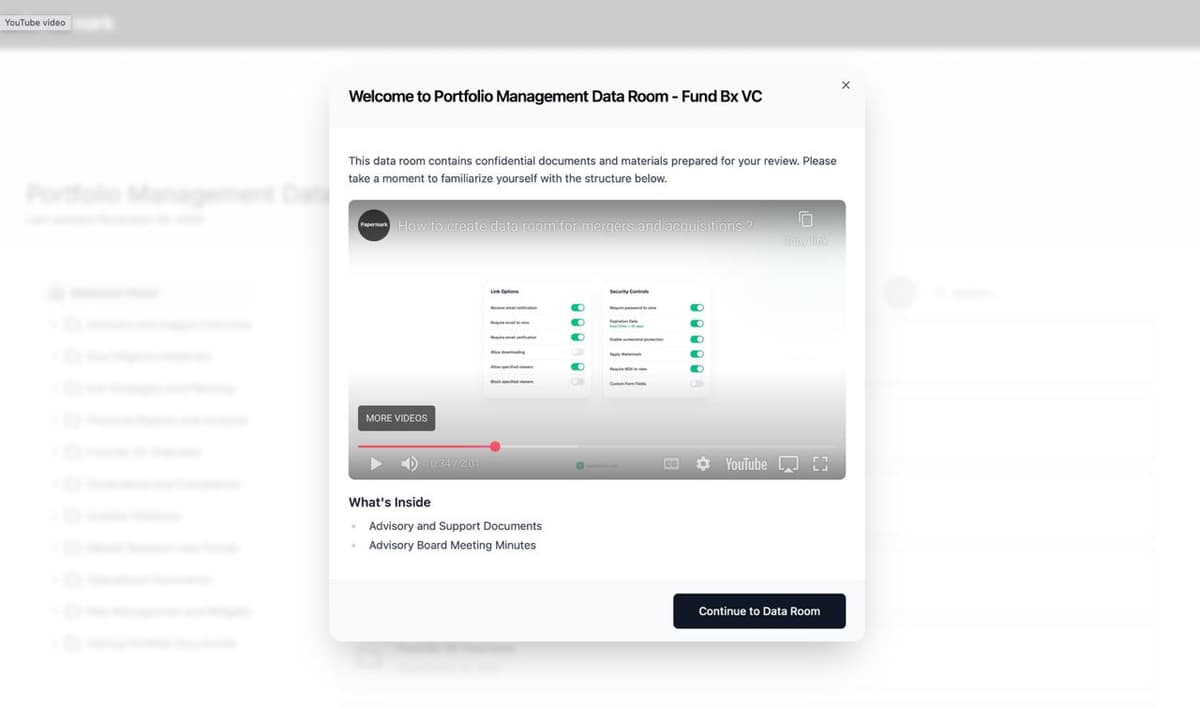
Click the video icon in the editor toolbar and paste a YouTube URL. The video will appear as an embedded player in your introduction.
Step 5: Preview your introduction
Click the preview button (eye icon) to see exactly what visitors will see. Changes save automatically.
What visitors see
When a visitor opens your data room link for the first time:
- The introduction modal appears with your welcome message
- They see the "What's Inside" section listing your folders
- If you added a video, they can watch it in the modal
- They click "Continue to Data Room" to access documents
The introduction shows only on their first visit. Returning visitors go directly to the data room.
Best practices
- Keep it scannable: Use bullet points and short paragraphs
- Include a document count: "This data room contains 47 documents across 12 sections"
- Mention the last update: Builds confidence the information is current
- Add contact info: Let visitors know who to reach with questions
- Use video for complex rooms: A 2-minute walkthrough can save hours of confusion
Use cases
- Fundraising data rooms: Welcome investors and highlight key documents
- M&A due diligence: Guide buyers through extensive documentation
- Board materials: Introduce quarterly packs and highlight urgent items
- Client portals: Explain how files are organized
- Partnership deals: Set context for potential partners