

document-sharing
How to Password Protect a Folder in OneDrive in 2026
Learn how to password protect folders in OneDrive using premium features and discover enhanced security with Papermark's advanced document protection solutions.
OneDrive is Microsoft's cloud storage solution, used by over 250 million users worldwide for document sharing and collaboration. When working with external partners, clients, or stakeholders, knowing how to properly share OneDrive folders is essential while enabling effective collaboration.
This comprehensive guide will walk you through OneDrive's folder sharing features and introduce advanced protection options with Papermark for when you need enhanced security for sensitive documents shared with external users.
Before you can share folders, ensure you have proper OneDrive access:
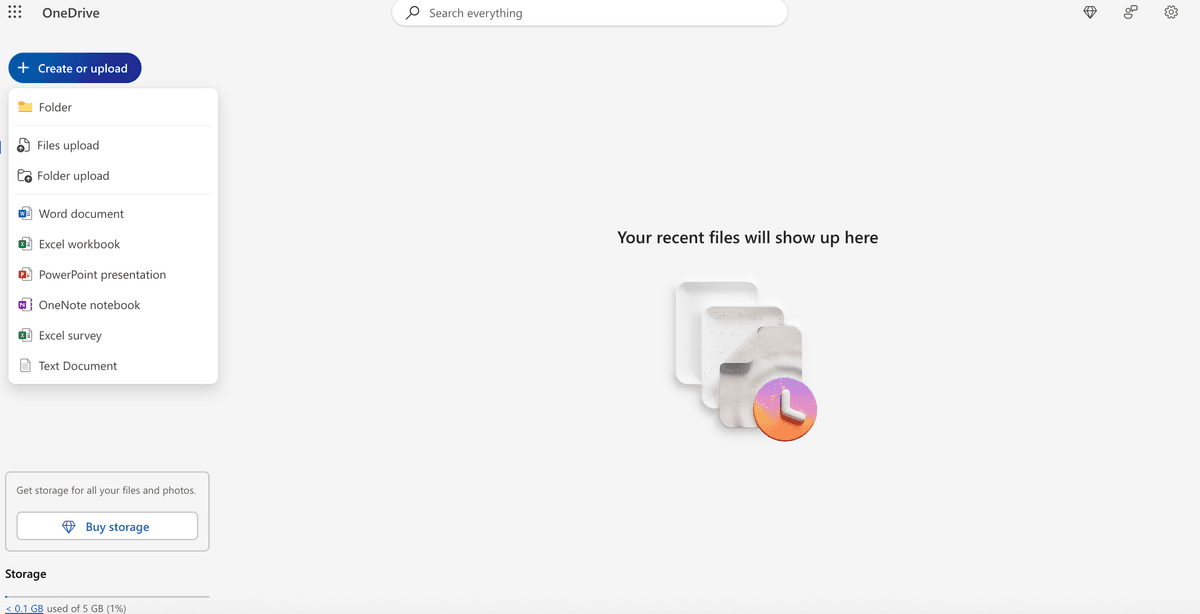
Proper organization is crucial when sharing folders with external users:
For detailed guidance on organizing documents, see our guide on how to share documents on OneDrive.
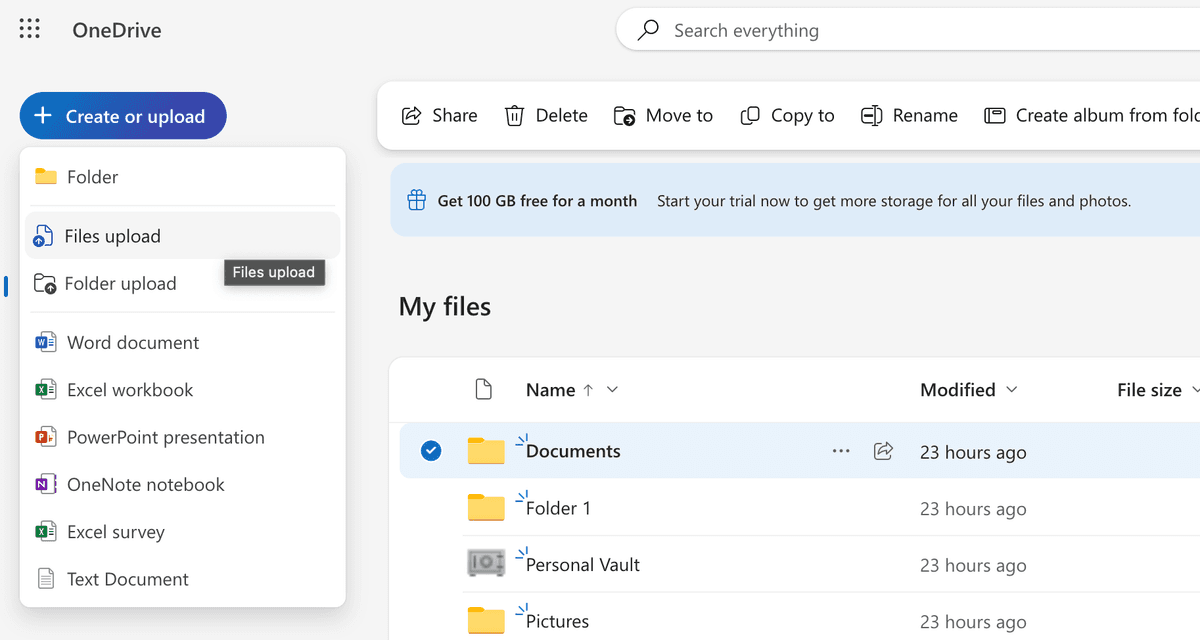
Configure the appropriate sharing settings for your folder:
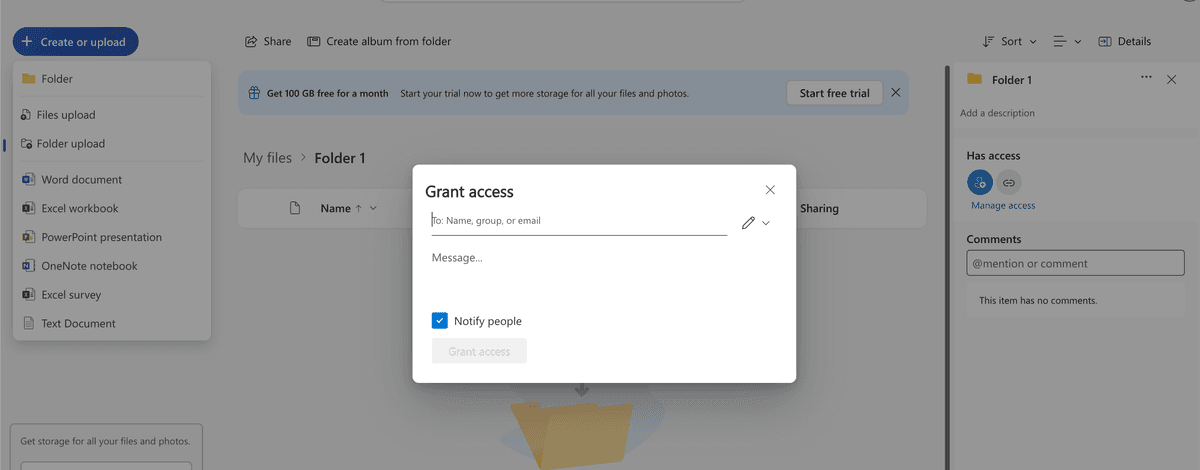
Set appropriate permission levels for external users:
For read-only access (recommended for most external sharing):
For collaborative work:
For review and feedback:
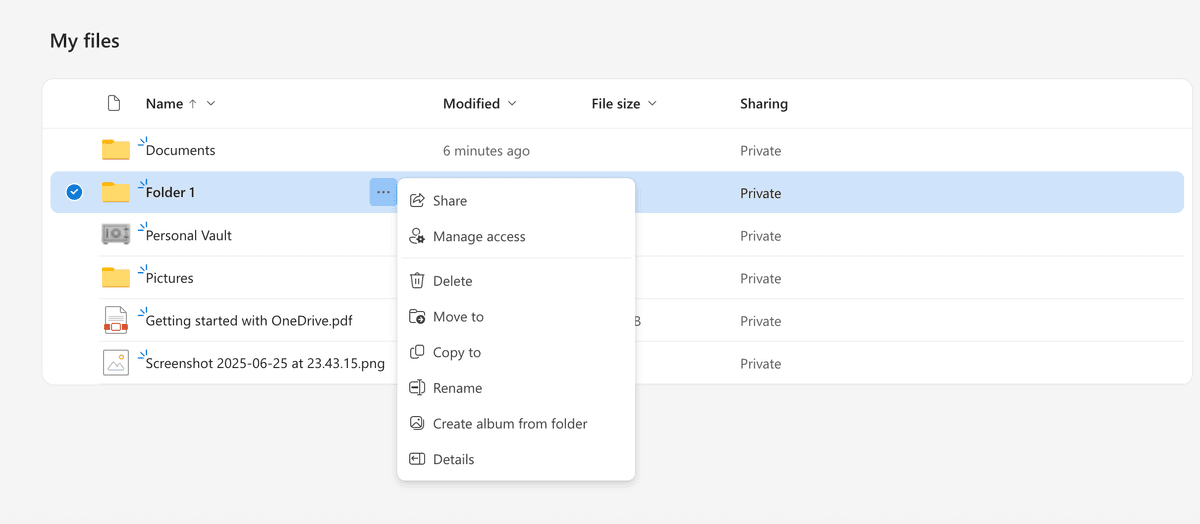
For broader sharing without specific email addresses:
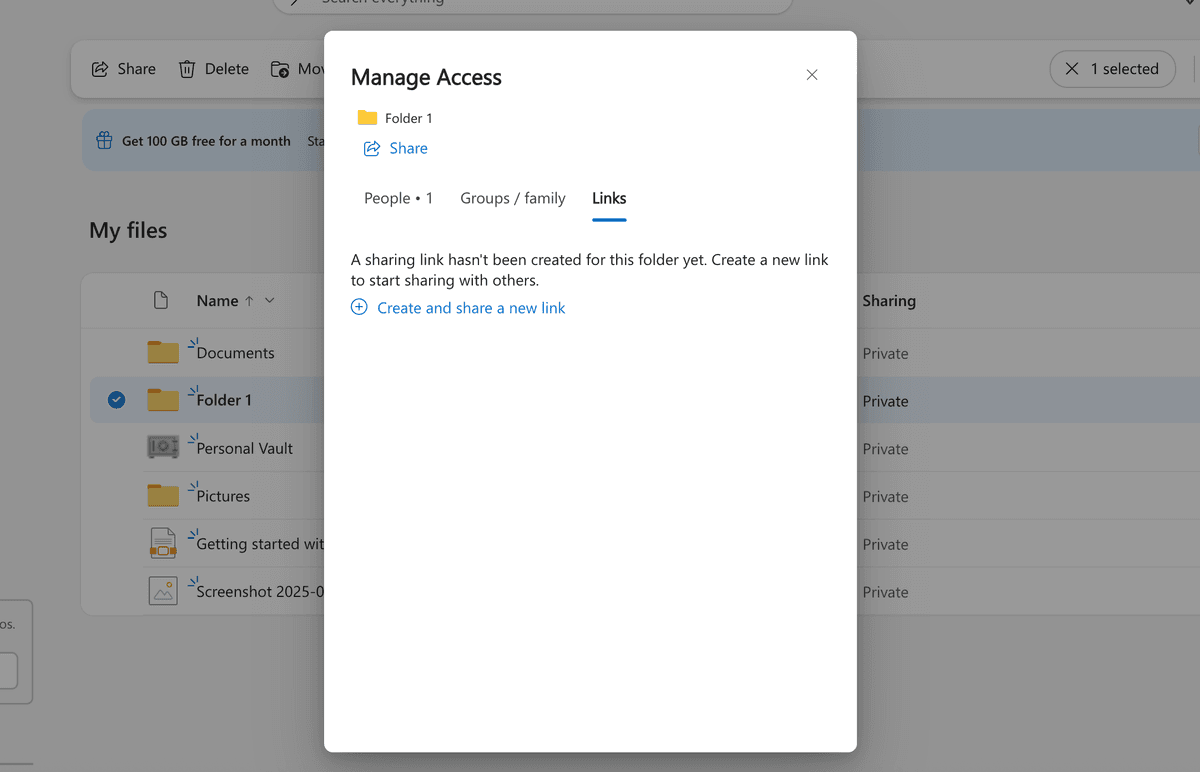
Configure advanced security settings for external sharing:
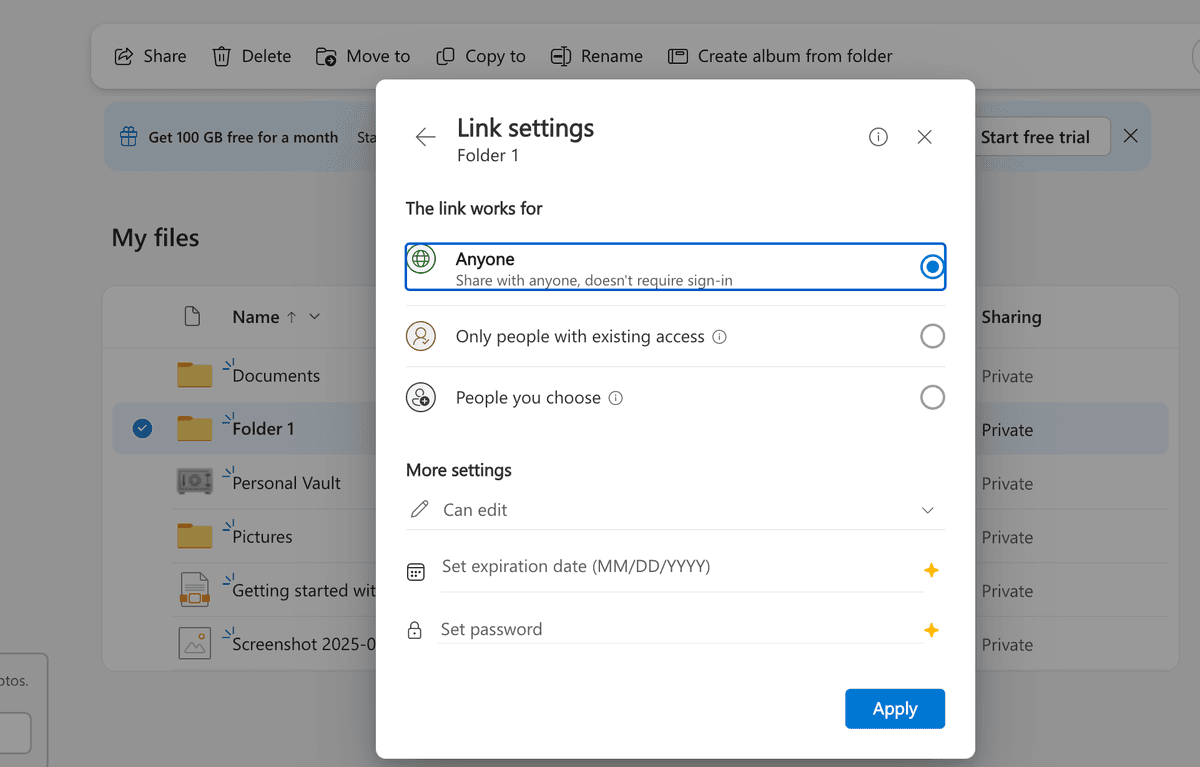
Share the folder with external users:
Track and control external user access:
While OneDrive provides basic folder sharing functionality, it has several security limitations when working with external users:
OneDrive's analytics are primarily designed for internal users. When sharing folders with external users, you have limited visibility into:
For comprehensive tracking of external user engagement, consider using Papermark's advanced analytics features.
OneDrive's security features for external sharing are limited:
OneDrive's audit capabilities for external users are restricted:
For a comprehensive analysis of OneDrive's security features, check out our detailed guide on is OneDrive secure.
When sharing sensitive folders with external users, OneDrive's basic features may not provide sufficient protection. Papermark offers advanced security features specifically designed for external document sharing:
Papermark provides comprehensive control over external user access:
Unlike OneDrive, Papermark automatically adds viewer-specific watermarks:
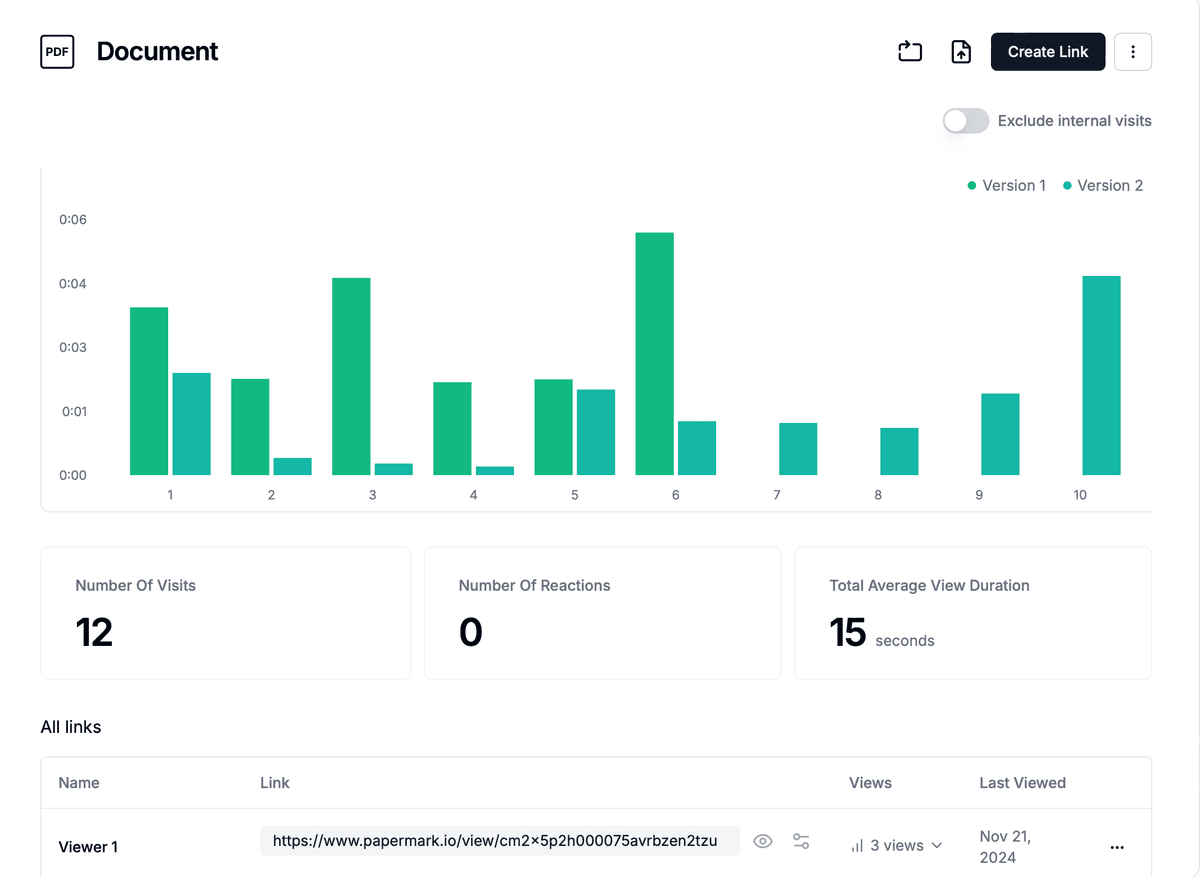
Papermark offers detailed insights into external user engagement:
| Security feature | OneDrive | Papermark |
|---|---|---|
| External user tracking | Limited to basic access logs | Comprehensive real-time analytics |
| Watermarking | Dynamic, viewer-specific watermarks | |
| Link security | Basic password and expiration | Advanced protection with IP restrictions |
| Page-level analytics | Detailed engagement tracking | |
| External authentication | Microsoft account required | Multiple authentication options |
| Audit trail | Basic logs (Business accounts only) | Comprehensive audit logs with exports |
Instead of creating open links, invite specific external users by email address. This provides better control and tracking of who has access to your folders.
Always set expiration dates for shared folders, especially when sharing sensitive information. This ensures access is automatically revoked after the intended period.
Periodically check who has access to your shared folders and remove access for users who no longer need it.
Create clear, professional folder names that external users will understand. Avoid generic names like "Documents" or "Files."
Add a document explaining the folder contents, purpose, and any instructions for external users.
Regularly check the activity logs to ensure the folder is being used as intended and to identify any potential security issues.
OneDrive provides a solid foundation for sharing folders with external users, offering basic security features and easy collaboration tools. However, organizations handling sensitive information often require additional security measures, especially when working with external stakeholders.
Papermark complements OneDrive by adding advanced security features, detailed analytics, and comprehensive external user management. Whether you're sharing confidential business documents, legal contracts, or investor materials, choosing the right security features is crucial for protecting your information while maintaining effective collaboration.
For organizations requiring enhanced security and detailed tracking of external user engagement, Papermark offers a robust solution that addresses the limitations of OneDrive's basic sharing features.
Learn how to password protect folders in OneDrive using premium features and discover enhanced security with Papermark's advanced document protection solutions.
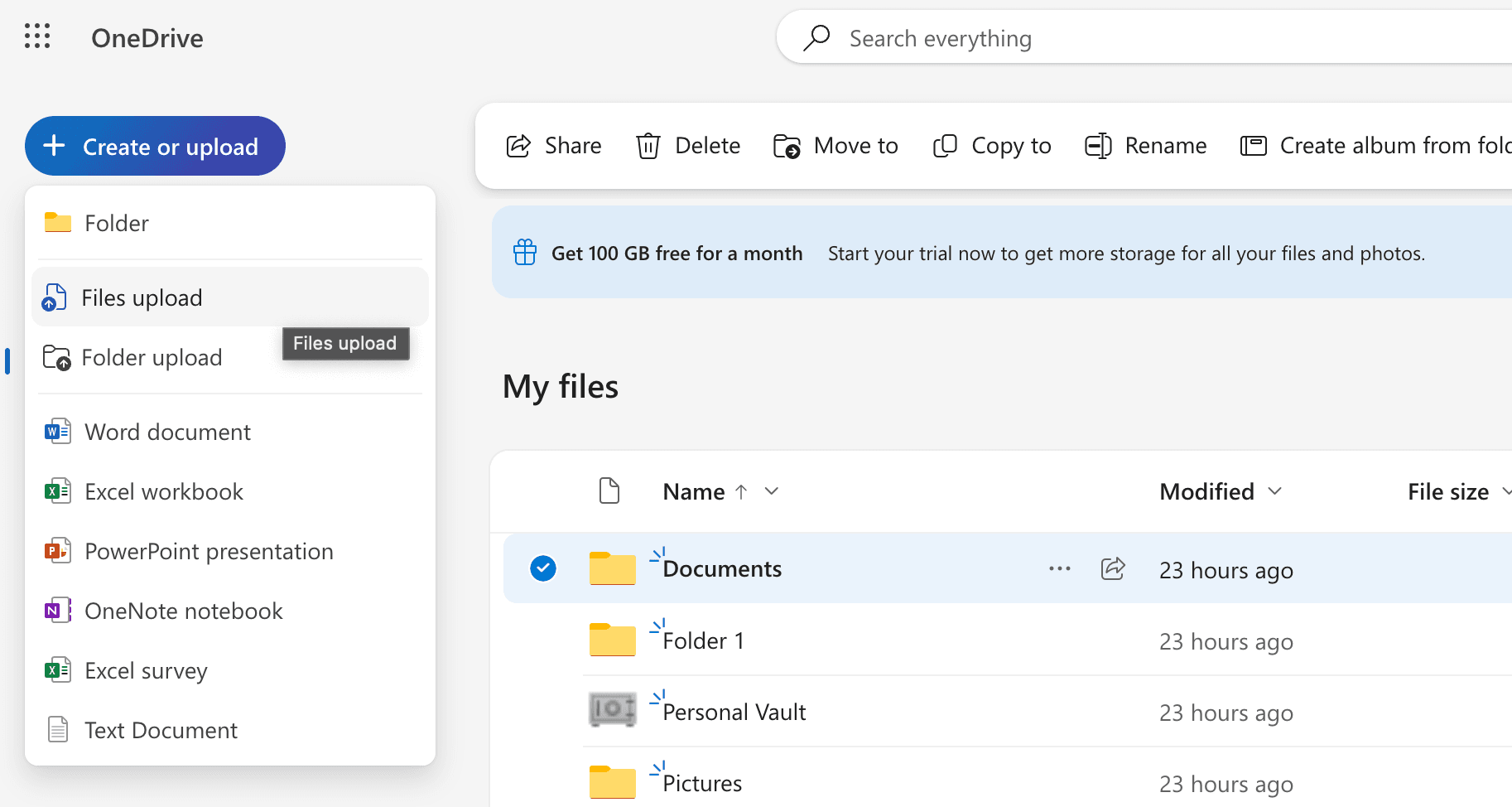
Learn how to share documents using OneDrive's sharing features and discover enhanced protection with Papermark's advanced document security solutions.
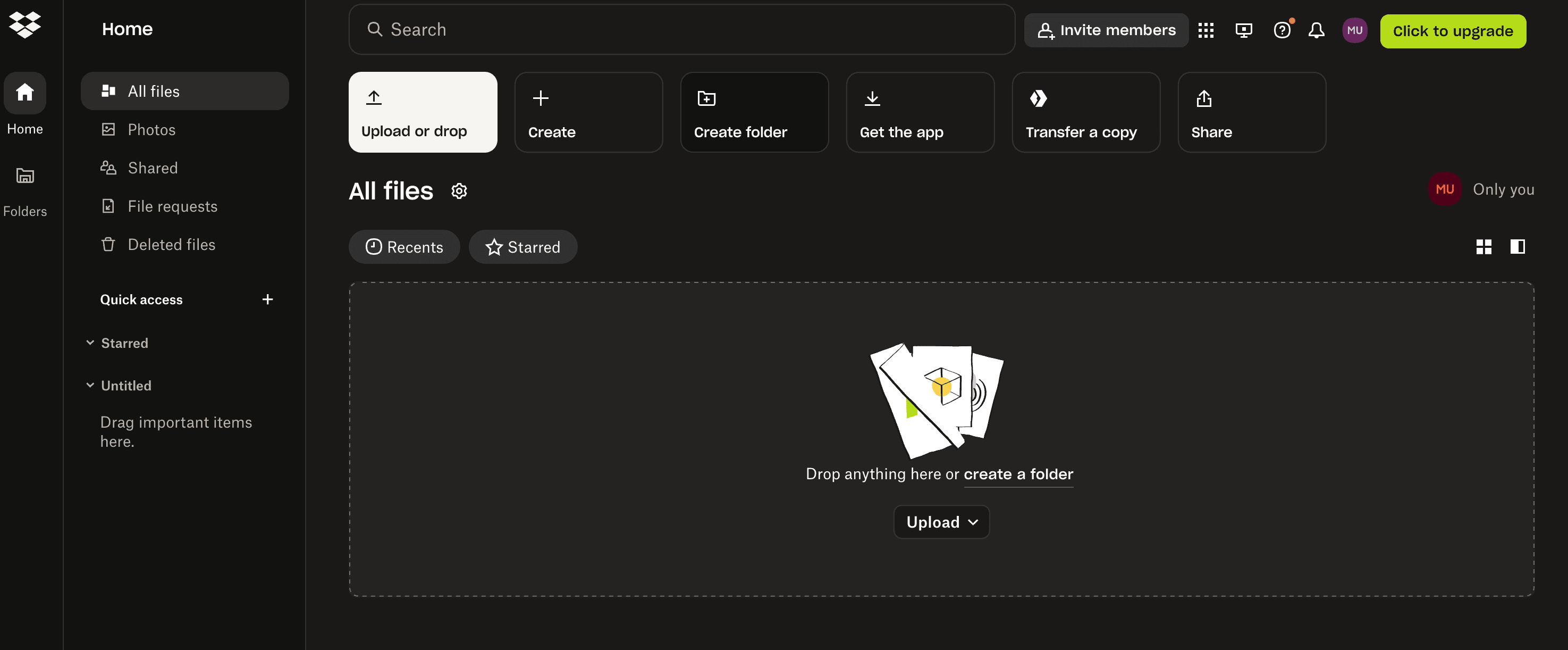
Discover the three best ways to share Dropbox folders in 2026, including step-by-step instructions, screenshots, and advanced security tips. Learn how to use Dropbox Transfer, link sharing, and email invites, plus how Papermark can enhance your document security.