

security
How to send encrypted email in Gmail in 2026
Learn how to send encrypted emails in Gmail using confidential mode, S/MIME, and secure file sharing. This comprehensive guide covers multiple methods to protect sensitive information in Gmail.
Encrypting emails in Outlook is essential for protecting sensitive information like financial documents, legal contracts, or confidential business communications. While standard Outlook uses TLS encryption during transmission, it doesn't provide end-to-end encryption or password protection for your email content by default. Understanding how to properly encrypt emails in Outlook helps you protect confidential information from unauthorized access.
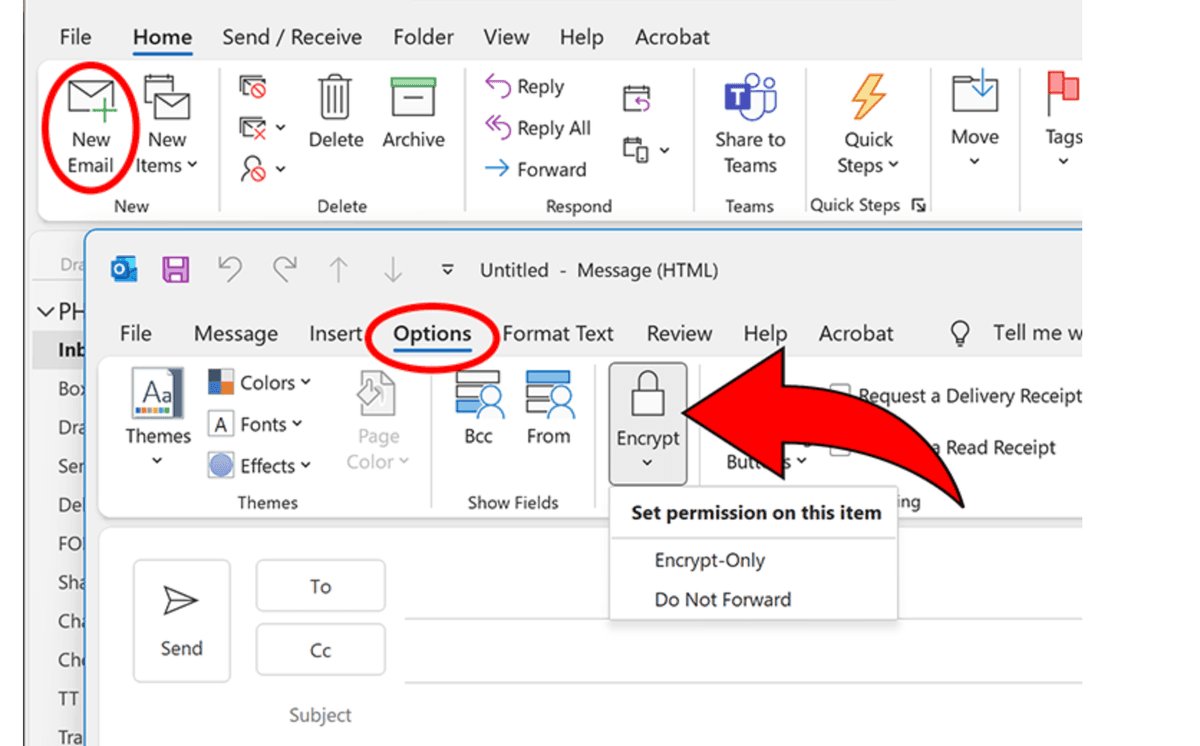
Outlook offers several methods to enhance email security, from S/MIME encryption to Office 365 Message Encryption (OME). However, for highly sensitive documents, combining Outlook with secure file sharing platforms provides the strongest protection. This guide covers multiple approaches to sending encrypted emails in Outlook, helping you choose the right method for your security needs.
S/MIME (Secure/Multipurpose Internet Mail Extensions) provides true end-to-end encryption for Outlook, ensuring only the intended recipient can read your email.
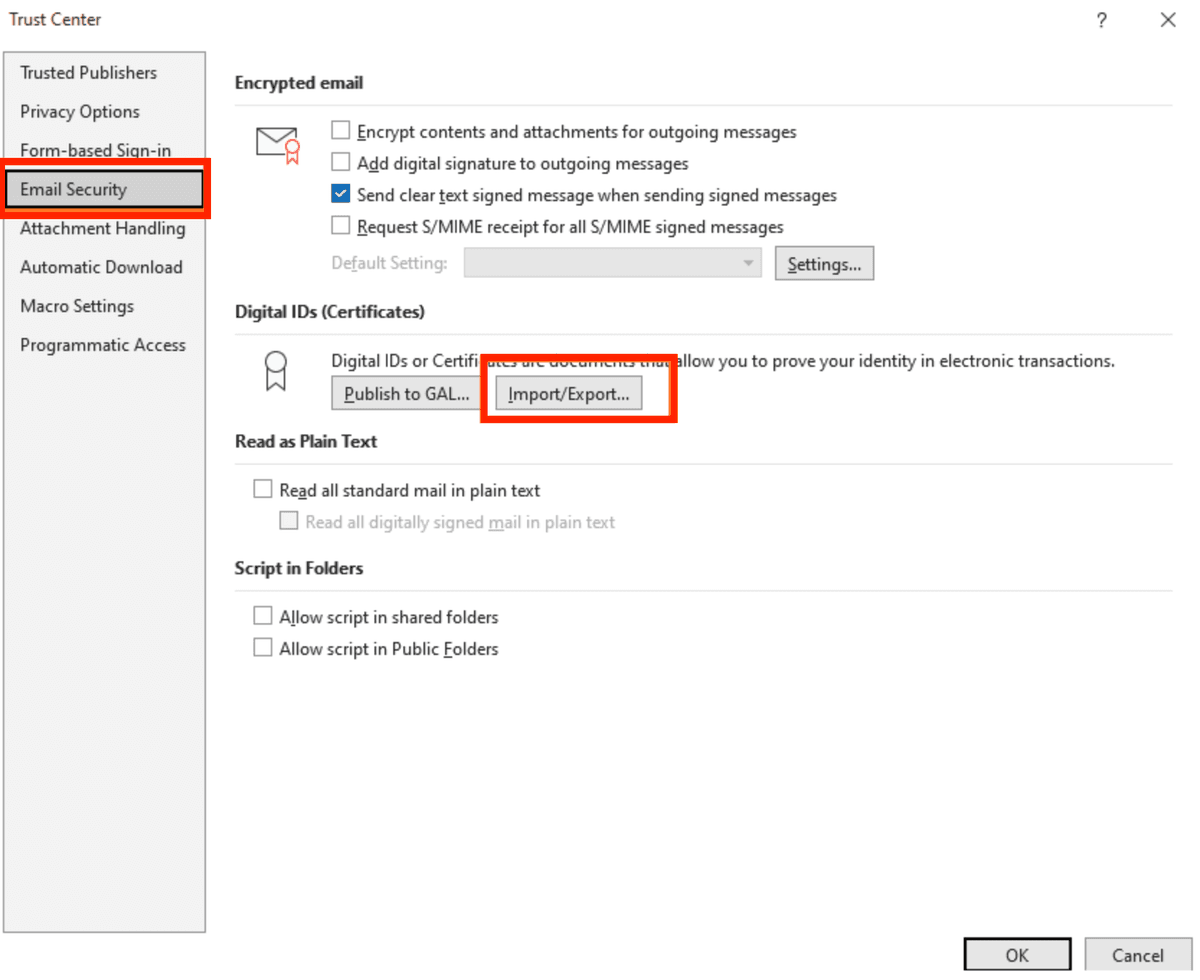
Obtain a digital certificate:
Configure S/MIME in Outlook:
Compose an encrypted email:
Verify encryption status:
Important note: S/MIME requires both sender and recipient to have digital certificates installed. For recipients without S/MIME, consider using Office 365 Message Encryption or secure file sharing links instead.
Office 365 Message Encryption provides encryption for Microsoft 365 users without requiring digital certificates.
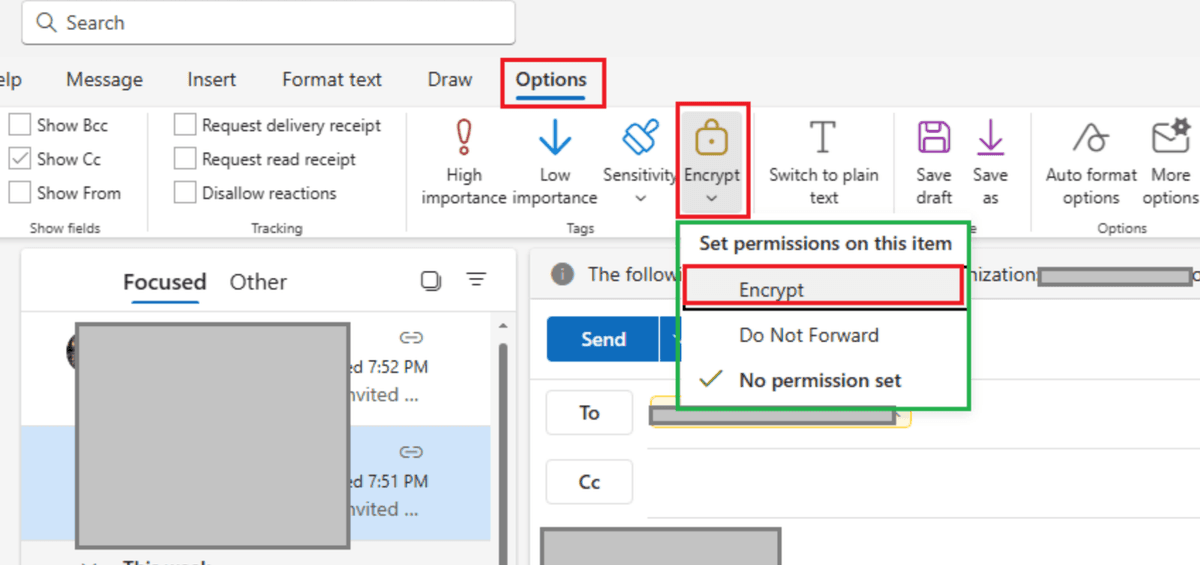
Verify OME availability:
Compose an encrypted email:
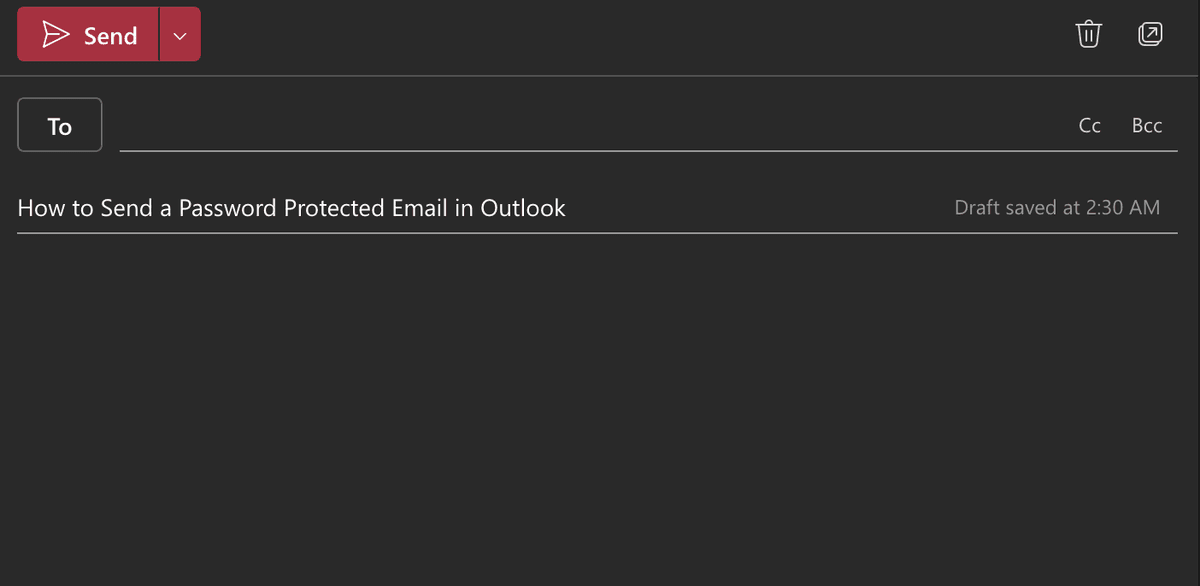
Send your encrypted email:
Recipient experience:
Benefits: OME works with any email address, not just Outlook users. Recipients can view encrypted emails through a web browser without additional setup.
Instead of attaching files directly to Outlook, you can share encrypted documents through secure links that provide stronger protection and tracking capabilities.
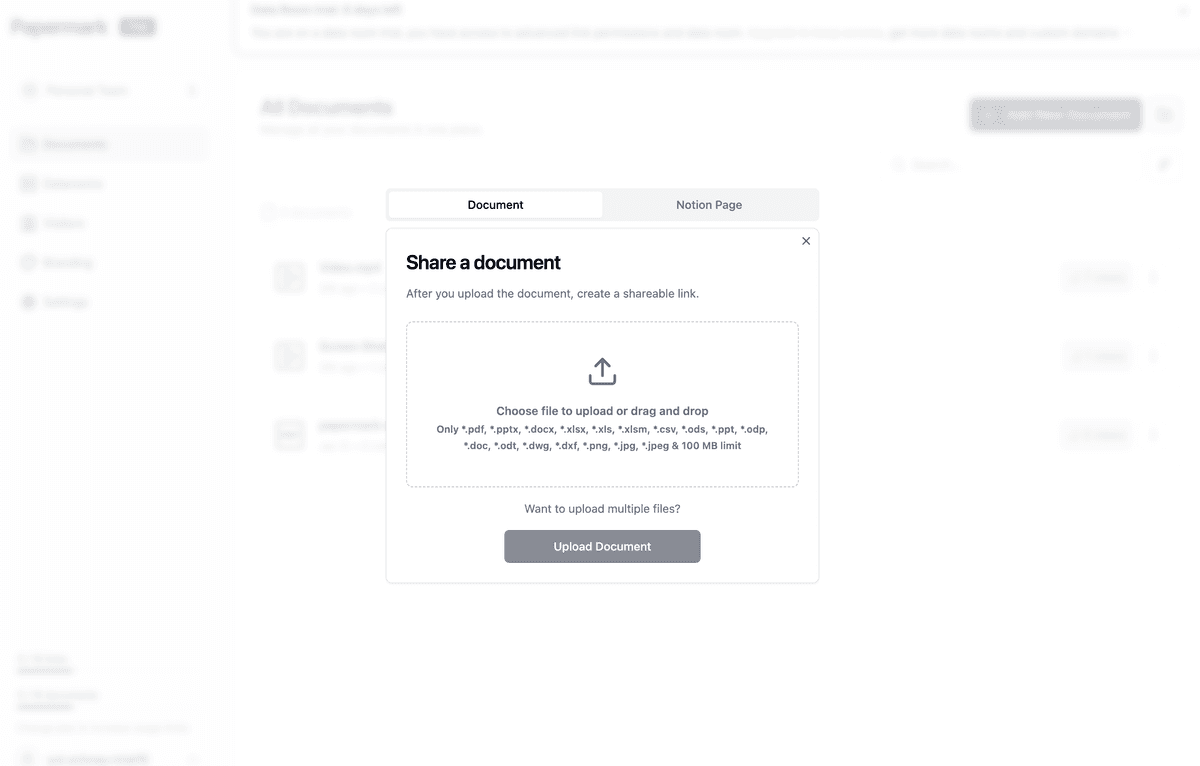
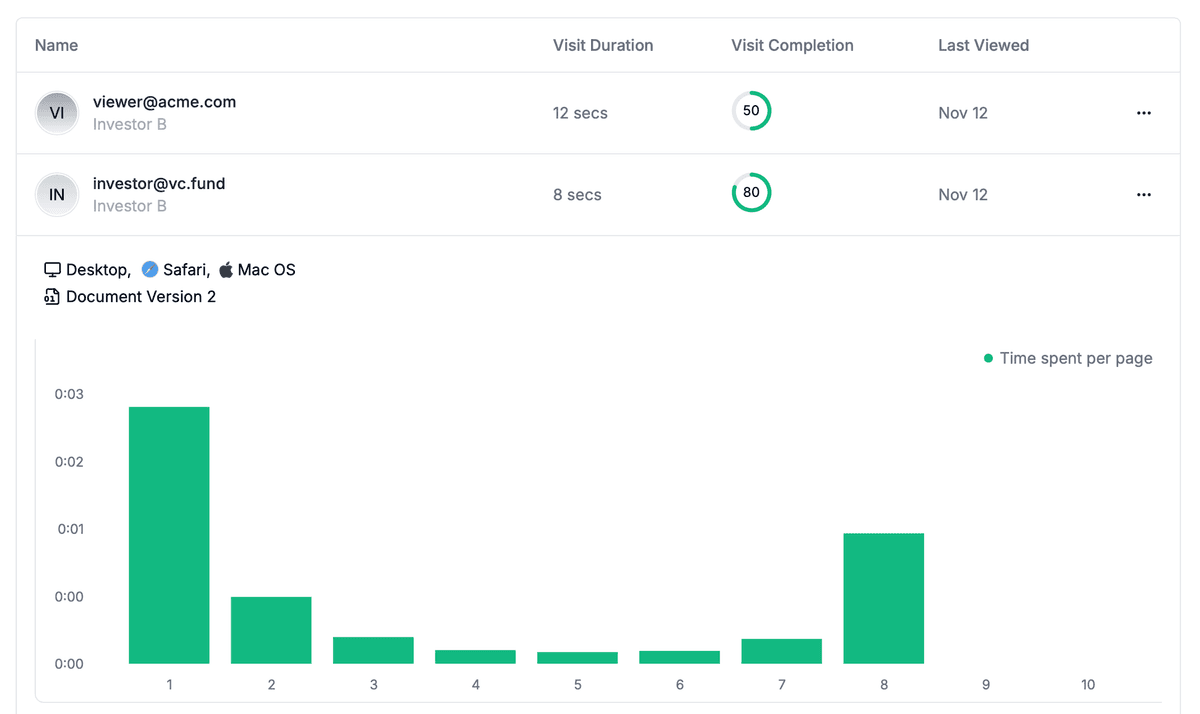
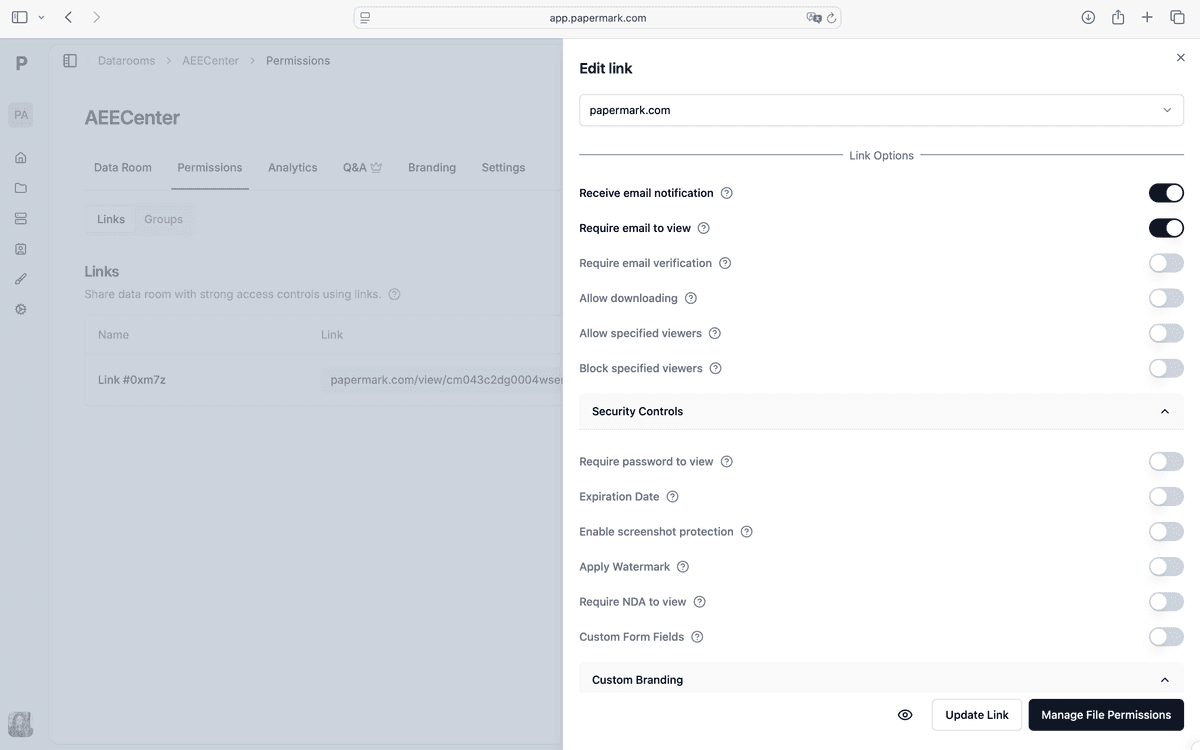
Generate secure link:
https://www.papermark.com/view/[unique-id]Compose your Outlook email:
Share password separately:
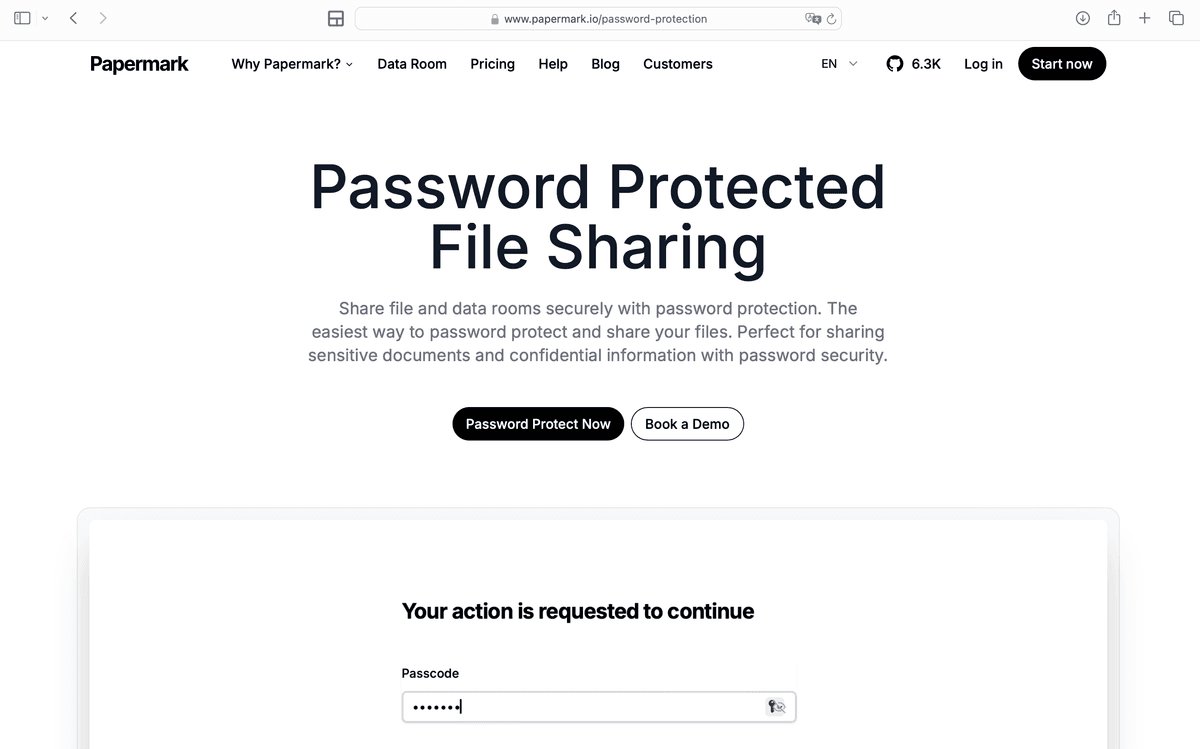
Benefits: This method provides stronger encryption than Outlook's built-in features, includes access tracking and analytics, and allows you to revoke access even after sending the email. Learn more about which files need encryption to determine when to use this approach.
| Method | Encryption level | Ease of use | Availability | Best for |
|---|---|---|---|---|
| S/MIME encryption | End-to-end encryption | Moderate (requires setup) | Outlook desktop with certificates | Enterprise email encryption |
| Office 365 Message Encryption | Server-side encryption | Easy | Microsoft 365 Business/Enterprise | Business email encryption |
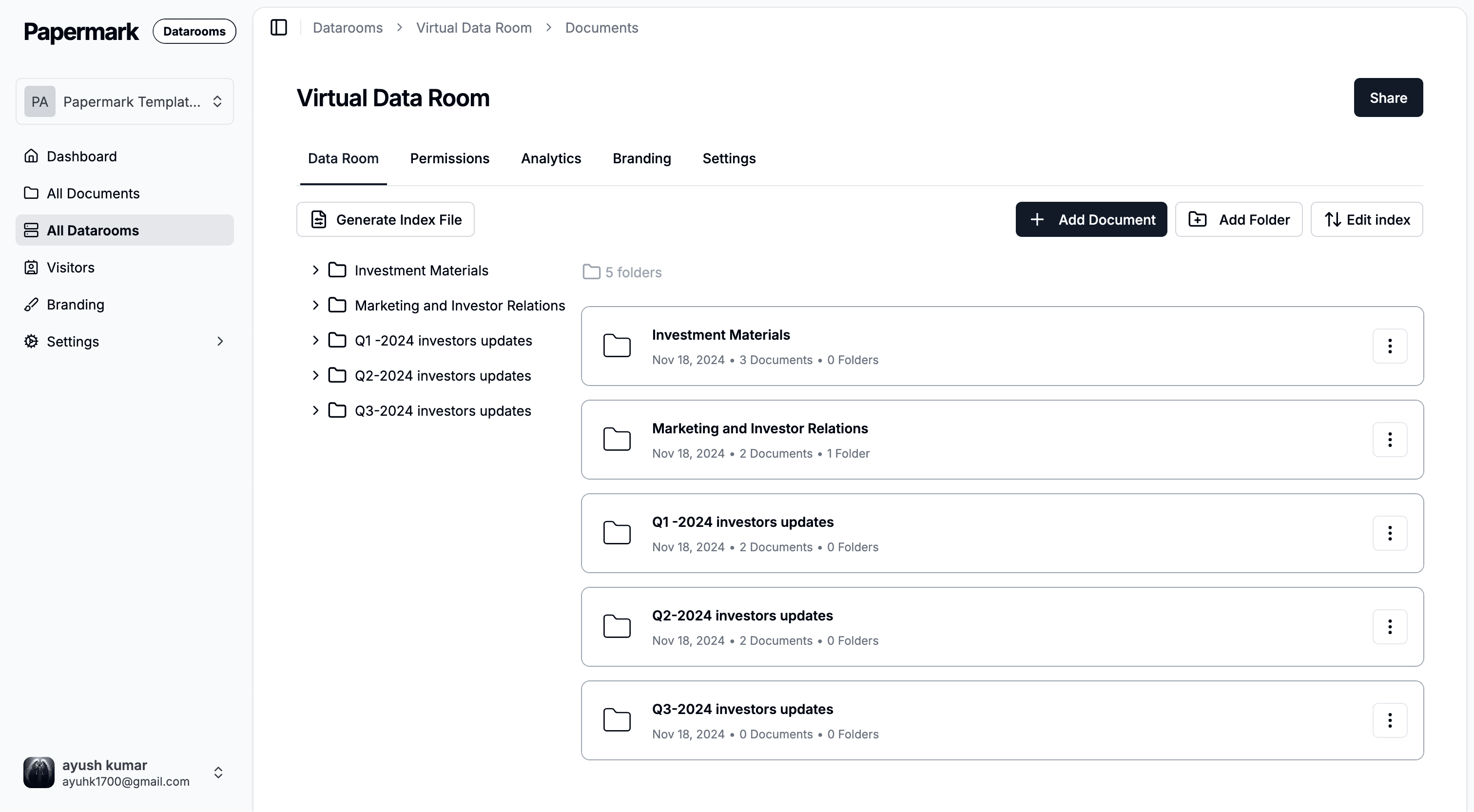
| Secure file sharing links | AES-256 encryption | Easy | All accounts | Sensitive documents with tracking |
Follow these practices to maximize the security of your encrypted Outlook communications.
Use strong passwords: When using password protection with secure file sharing, create strong, unique passwords. Never reuse passwords across different files or accounts.
Share passwords separately: Always share passwords through a different channel than the email containing the link. Use phone calls, text messages, or encrypted messaging apps.
Enable two-factor authentication: Protect your Outlook account with two-factor authentication (2FA) to prevent unauthorized access to your email account.
Verify recipient identity: Before sending sensitive encrypted emails, verify the recipient's email address and identity to ensure you're sending to the correct person.
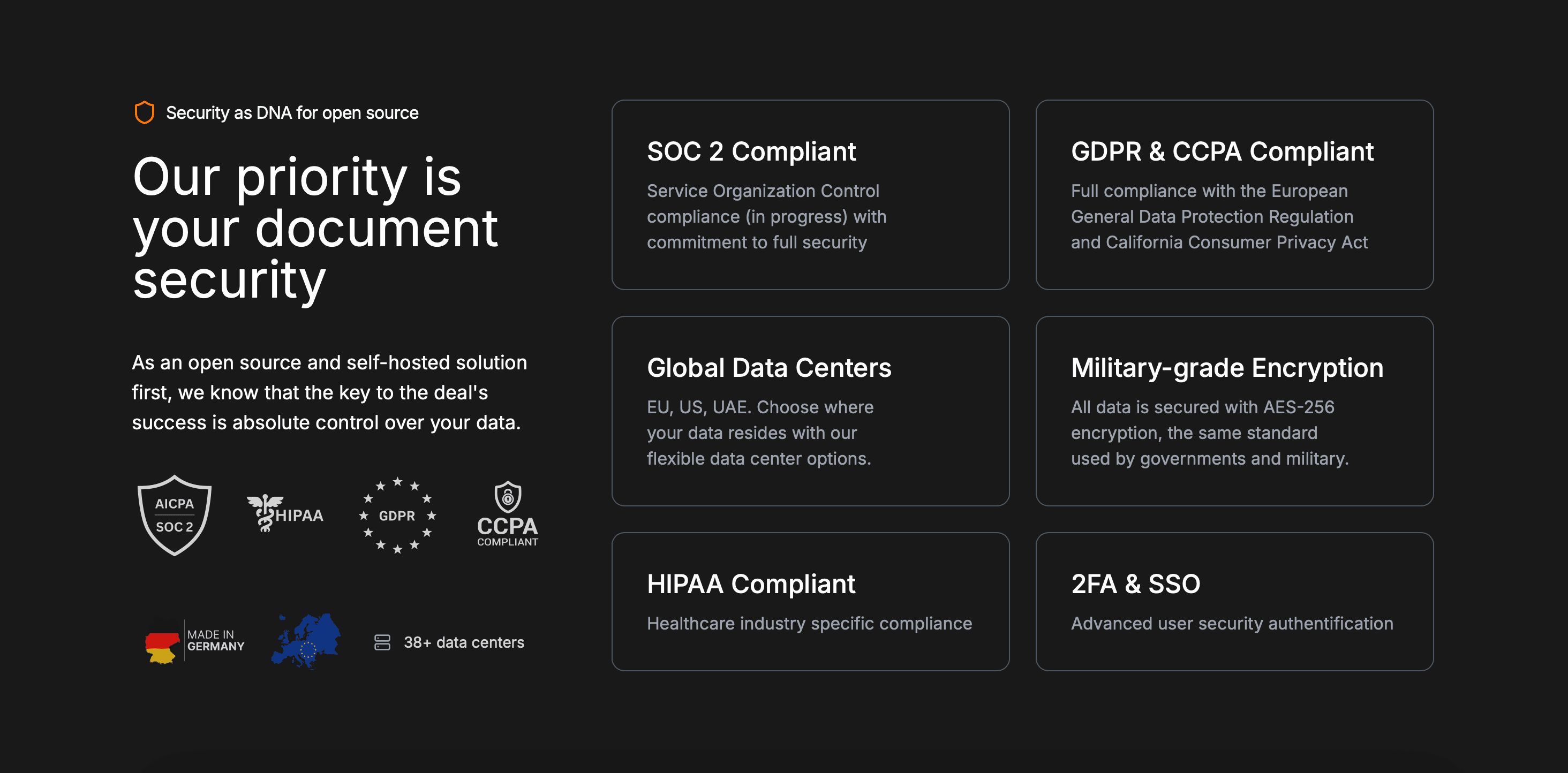
Use secure file sharing for sensitive documents: For highly sensitive files like financial documents or legal contracts, use secure file sharing platforms that provide encryption, access controls, and tracking capabilities.
Set appropriate expiration dates: Use expiration dates for time-sensitive information. Secure file sharing platforms offer expiration features, and OME supports message expiration.
Monitor access when possible: Use platforms that provide access analytics to track who viewed your encrypted files and when. This helps identify unauthorized access attempts.
Keep software updated: Ensure your Outlook app and any encryption tools are kept up to date with the latest security patches.
Combine encryption methods: For maximum security, combine email encryption with file encryption to protect both the message and attachments.
Encrypting emails in Outlook requires understanding the available options and their limitations. S/MIME provides true end-to-end encryption for users with digital certificates, while Office 365 Message Encryption offers convenient server-side encryption for Microsoft 365 users. For highly sensitive documents, combining Outlook with secure file sharing platforms provides the strongest protection with encryption, access controls, and detailed tracking capabilities.
Choose the encryption method that matches your security needs, and always follow best practices like sharing passwords separately and verifying recipient identities. For comprehensive file encryption with advanced security features, consider using platforms like Papermark that combine encryption with password protection, access controls, and detailed analytics.
Learn how to send encrypted emails in Gmail using confidential mode, S/MIME, and secure file sharing. This comprehensive guide covers multiple methods to protect sensitive information in Gmail.
Learn how to encrypt files on Mac using FileVault, Disk Utility, and secure file sharing. This comprehensive guide covers multiple methods to protect sensitive documents on macOS.
Learn how to encrypt files to protect sensitive data. This guide covers built-in tools (BitLocker, FileVault, LUKS), archive encryption, third-party software, and secure cloud sharing.