Online document editors make it easy to create, edit and work together on docs. There's a ton of options out there and it can be hard to pick the right one. So I rounded up the top 10 for 2026, plus 4 other ones worth checking out, to help you find your perfect match.
I looked at stuff like how easy they are to use, what features they have, how well they work with other apps, security, mobile versions and pricing. This list has something for everybody, whether you're a student, professional or aspiring novelist.
Share secure documents
No credit card required
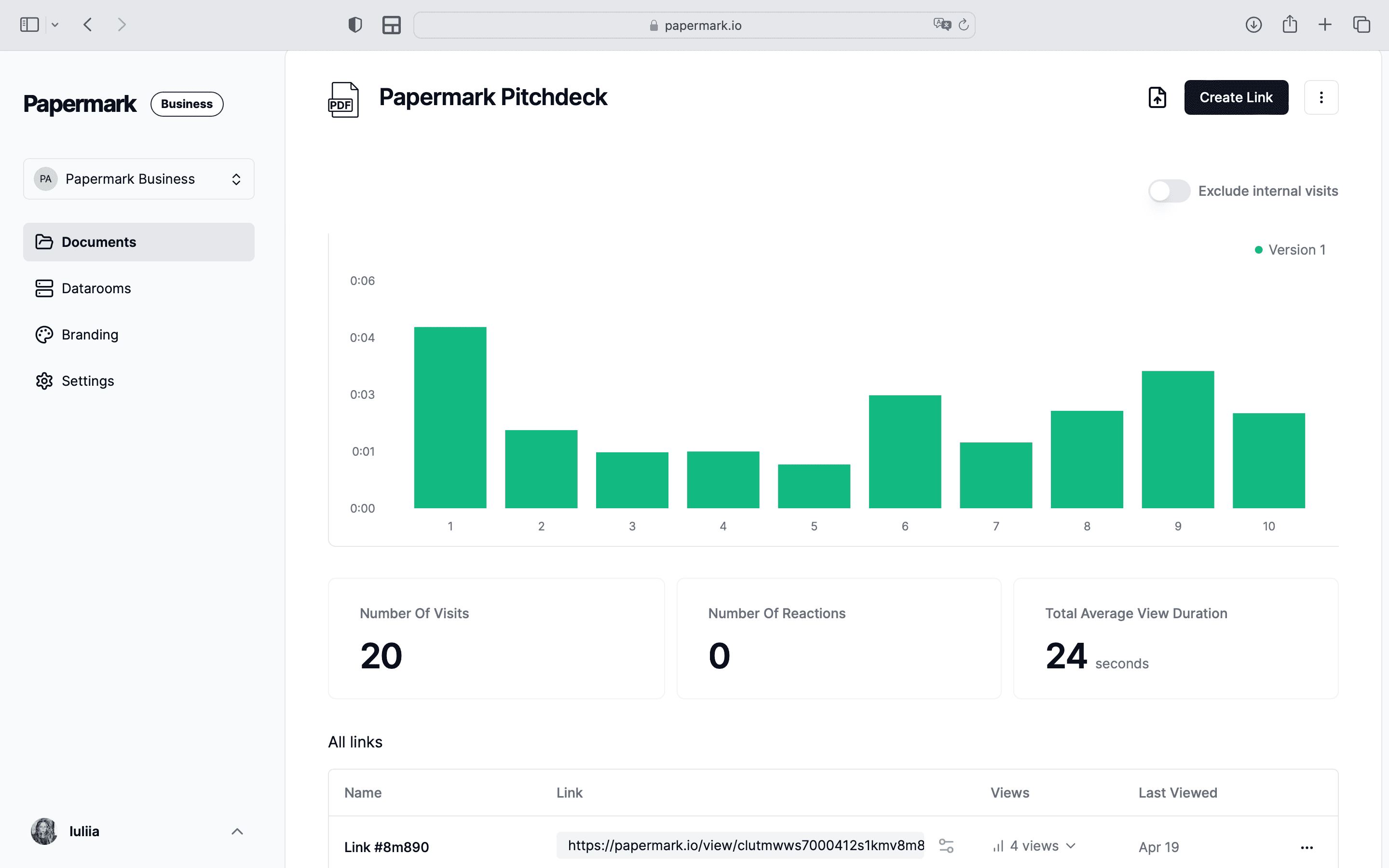
Page by page analytics
Require email verification
Require password to view
Allow/Block specified viewers
Apply Watermark
Require NDA to view
Custom Welcome Message
TL;DR
Papermark has secure sharing, page analytics, custom branding and AI to improve your docs.
Google Docs is user-friendly, works with Google apps and great for collaboration.
Microsoft Word is the industry standard with powerful features and formatting.
LibreOffice Writer is a free, open-source alternative to Microsoft Office that supports many file types.
Apache OpenOffice Writer is another popular free and open-source office suite alternative.
WPS Office Writer is a lightweight, free Microsoft Office alternative that's good with Office file formats.
Zoho Writer is a cloud-based editor with strong collaboration features, part of Zoho's office suite.
Dropbox Paper is a simple editor and collaboration tool that integrates with Dropbox.
Evernote is a versatile note-taking and organization app with team collaboration.
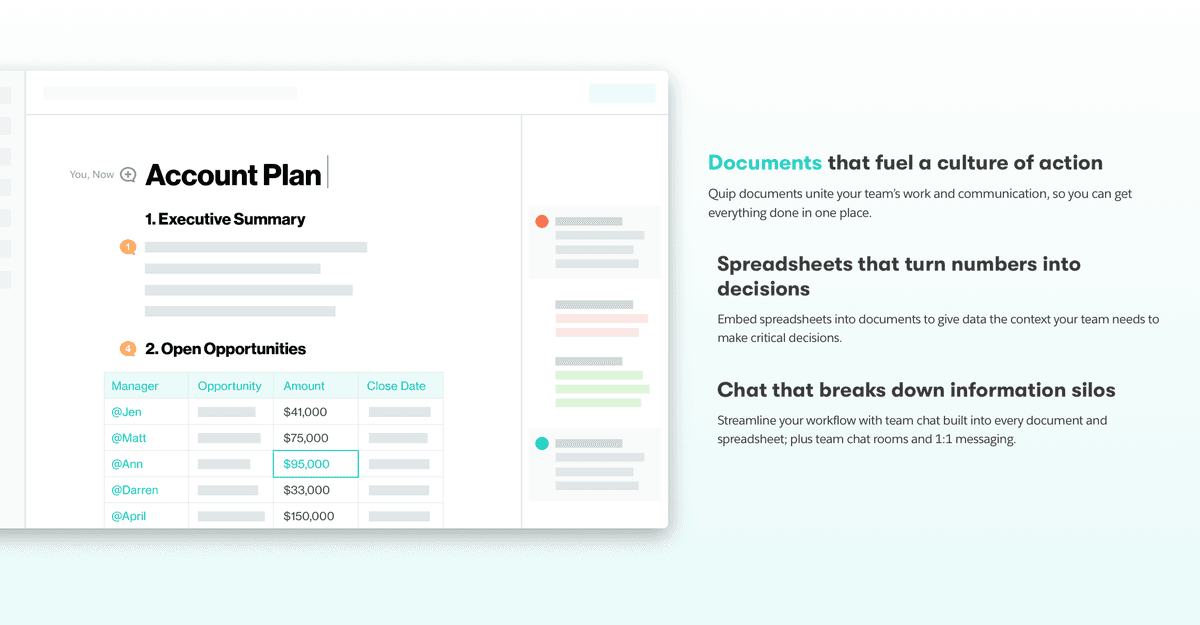
Quip focuses on team document editing and sharing, and works with Salesforce apps.
When you're looking at online document editors, think about what matters most to you. Are you doing a lot of writing solo or working with a team? Do you need something simple or are you tackling big, complex projects?
I checked each option based on key criteria like:
Ease of use - how simple is it to navigate and do common tasks
Features - from basic formatting to advanced stuff like adding media
File formats - how well it opens, edits and saves different file types
Cloud sync - integration with Google Drive, Dropbox, etc.
Mobile - apps or browser interface for editing on phones/tablets
Price - free vs paid plans
The comparison table gives you a quick look at how they all stack up. Use it to zero in on the best fit for you.
Comparison Table
Feature
Papermark
Google Docs
Microsoft Word
LibreOffice Writer
Apache OpenOffice Writer
WPS Office Writer
Zoho Writer
Dropbox Paper
Evernote
Quip
Ease of Use
4/5
5/5
4/5
4/5
4/5
4/5
4/5
5/5
4/5
4/5
Feature Set
5/5
4/5
5/5
4/5
4/5
3/5
3/5
3/5
4/5
3/5
File Formats
4/5
4/5
5/5
5/5
5/5
5/5
4/5
3/5
4/5
4/5
Cloud Sync
5/5
5/5
4/5
2/5
2/5
4/5
5/5
5/5
5/5
5/5
Collaboration
4/5
5/5
3/5
2/5
2/5
2/5
5/5
5/5
4/5
5/5
Security
5/5
3/5
4/5
3/5
3/5
3/5
4/5
4/5
4/5
4/5
Mobile Apps
4/5
5/5
4/5
3/5
2/5
4/5
5/5
5/5
5/5
5/5
Pricing
from $0
from $0
from $6.99/m
Free
Free
Free
from $4/m
from $5/m
from $7.99/m
from $10/user/m
Criteria Breakdown
Let's break down what those key criteria actually mean and why they matter:
Ease of use: A simple, intuitive interface helps you get stuff done faster. I looked at how easy it is to navigate and do common tasks without a steep learning curve.
Feature set: From basic text formatting to advanced things like adding media, more features = more flexibility. I checked the range of tools to see how versatile each editor is.
File format support: You need your editor to play nicely with other apps. I tested how well they open, edit and save file types like .docx, .pdf, .odt and more for smooth integration.
Cloud integration: Connecting to Google Drive, Dropbox or OneDrive makes access and sharing easy. I looked at sync features for streamlined workflows.
Collaboration tools: Features like real-time co-editing, comments and track changes are key for teamwork. I evaluated how each editor handles collaborative editing.
Security/privacy: Protecting sensitive info is critical. I explored encryption, password protection, access controls and more to gauge security.
Mobile access: We all work on the go. I checked if each editor has a mobile app or responsive design so you can edit from anywhere.
Pricing: Free is great but sometimes extra features are worth paying for. I broke down free vs paid plans and subscription models to compare value.
Use this breakdown to think about your top priorities and choose the criteria that matter most for your needs.
Papermark
Best Known For
Papermark.io is a modern, open-source document sharing platform. It's known for secure sharing, page-level analytics, custom branding and AI features to enhance your docs. It works great for individuals and enterprises.
Features
Papermark.io has a solid set of tools for secure sharing and collaboration:
Access controls to share sensitive documents safely
Page-level analytics to see how people engage with your docs
Custom domains and URLs for consistent branding
AI assistant to improve readability, catch errors and generate content
Real-time collaboration features for seamless teamwork
Pros
User-friendly, modern interface
Strong security and privacy features
Open-source, self-hosted options for flexibility
AI tools to enhance documents
Freemium plan available
Ratings
Ease of Use: 4/5
Feature Set: 5/5
File Format Support: 4/5
Cloud Integration: 5/5
Collaboration Tools: 4/5
Security/Privacy: 5/5
Mobile Access: 4/5
Pricing/Plans: 4/5
Community Reviews
Papermark.io has 5,000+ happy customers like founders, investors and experts. They love the clean UI, efficient document management and custom branding. The open-source, self-hosted setup with strong security is a big draw.
Industry pros praise the page-level analytics and AI features as game-changers for document insights and improvements. The innovative approach gets a thumbs up.
Pricing
Papermark.io has a freemium model - the basic plan is free, with paid plans from $8/user/month for more advanced features like custom branding and extra data rooms. Pricing is meant to scale for individuals up to enterprises.
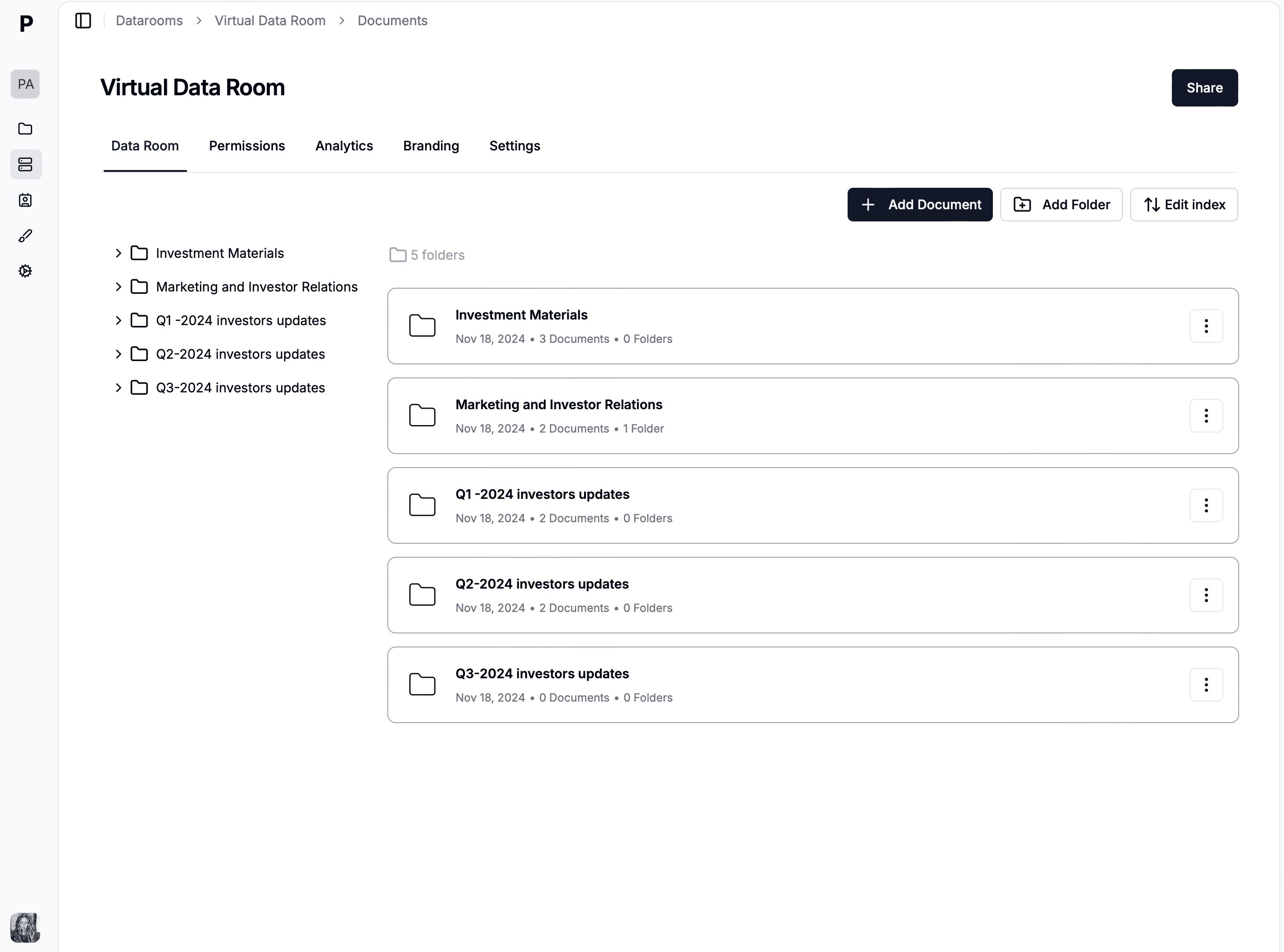
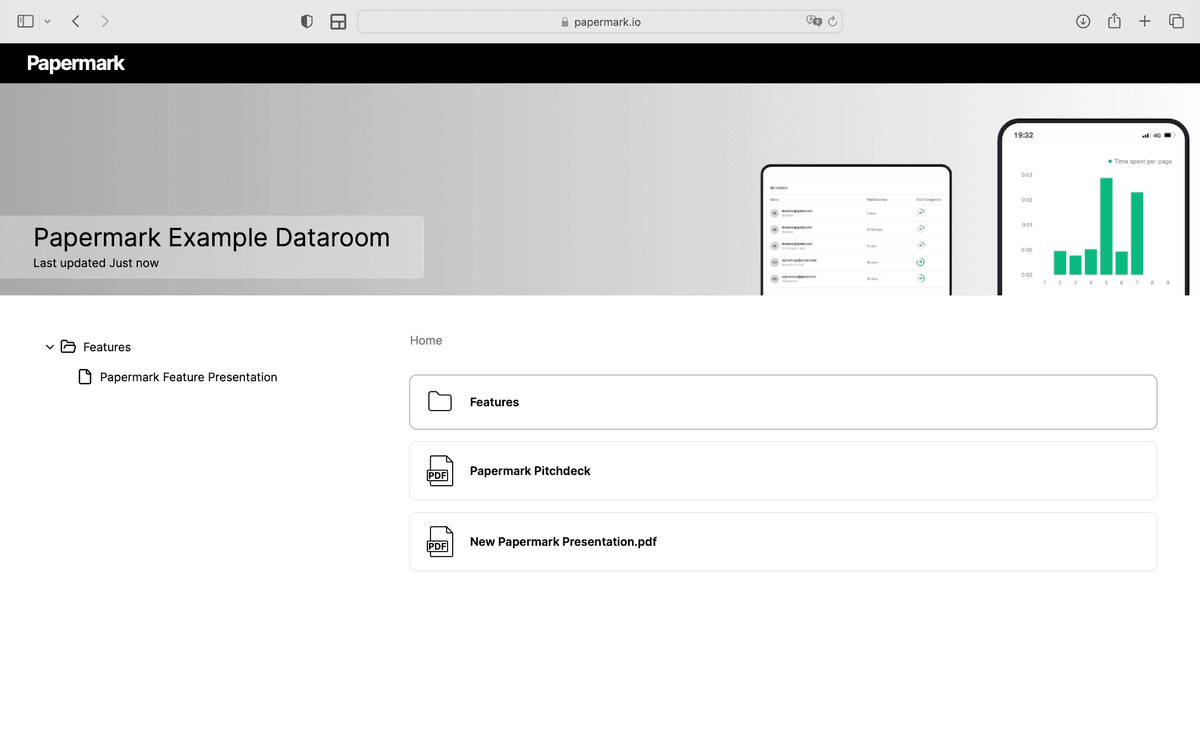
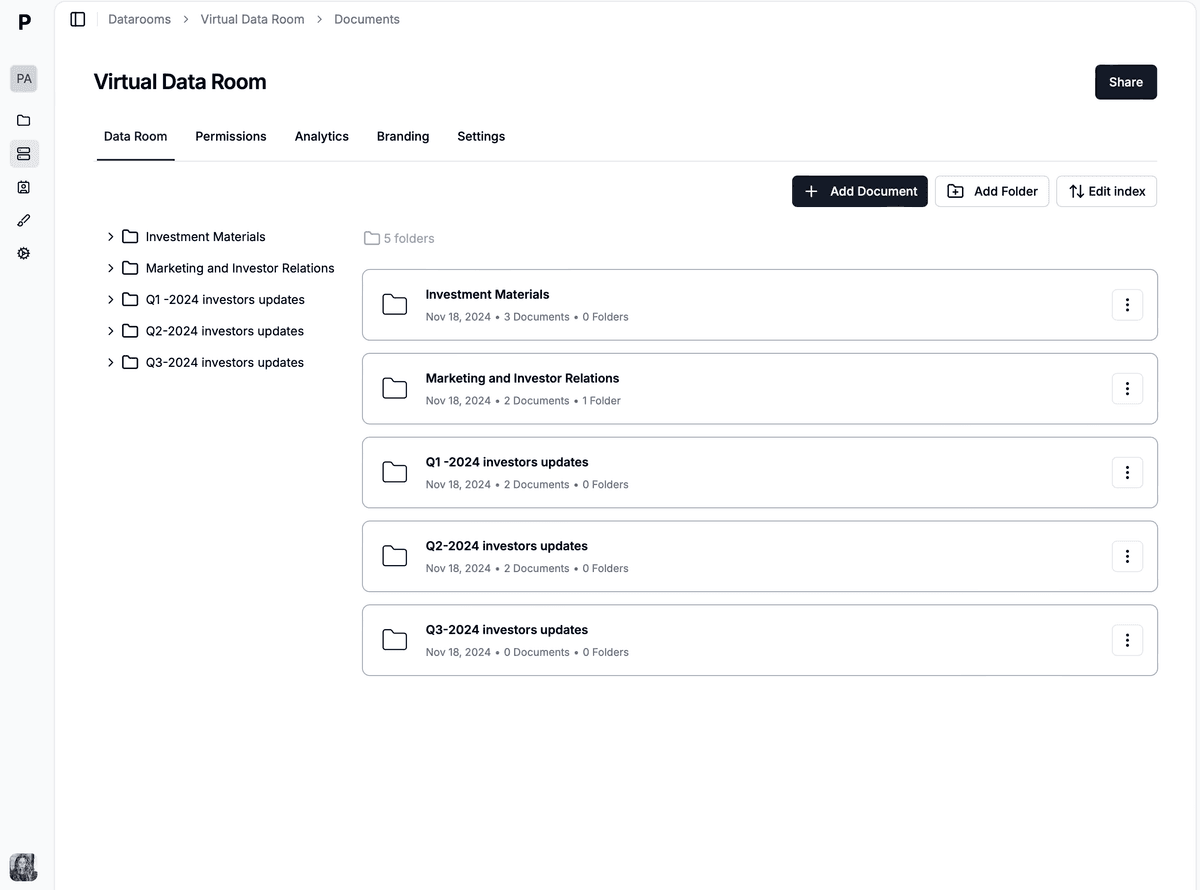
Papermark is loved and used by over 15000 companies for creating data room and sharing pitch deck decurely.
It is highly rated by startup founders and investors.
Startups sharing there Pitch Deck and documents with top investors out there.
Google Docs
Best Known For
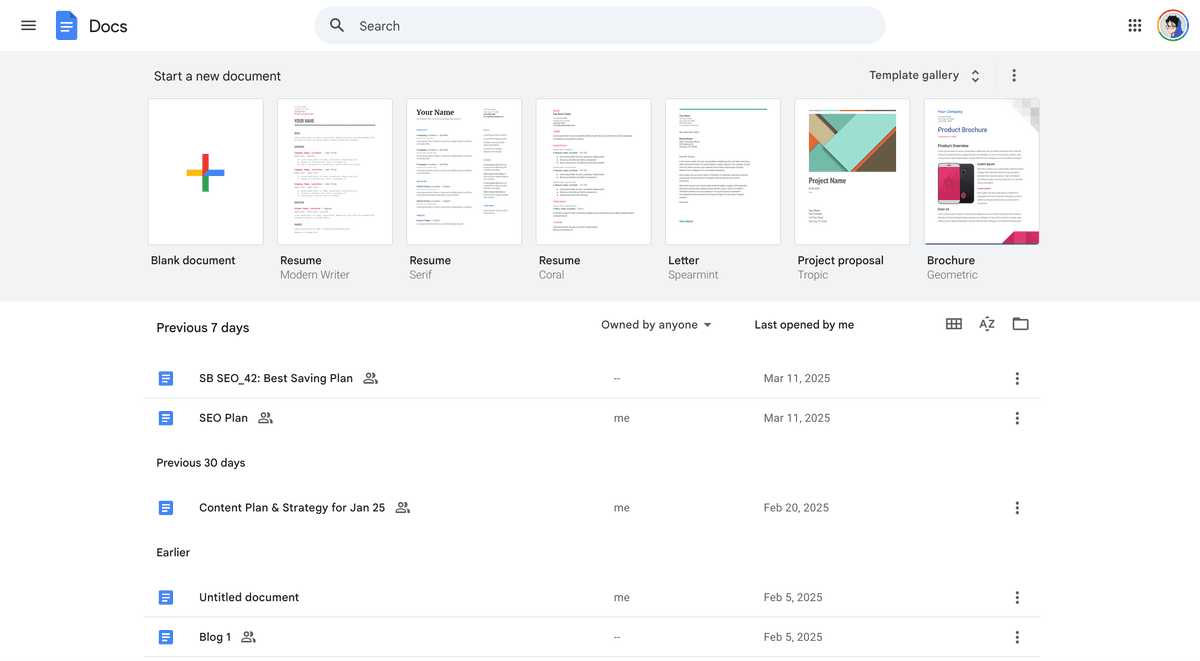
Google Docs is part of Google's wildly popular productivity suite. It's a collaborative online word processor that integrates seamlessly with other Google apps. The simple interface and real-time collaboration make it a go-to for individuals and teams working together from anywhere.
Features
Google Docs covers all the document creation and editing essentials:
Real-time collaboration - multiple users can edit simultaneously
Add images, tables, charts and other visuals
Seamless integration with Google Drive, Sheets, Slides, etc.
Access and edit from any device with an internet connection
Pros
100% free to use
User-friendly, intuitive interface
Deeply integrated with Google's ecosystem
Easily accessible from anywhere online
Powerful real-time collaboration tools
Cons
More limited formatting vs. desktop apps like Microsoft Word
Requires internet connection, no offline mode
Fewer advanced features compared to full-fledged word processors
Ratings
Ease of Use: 5/5
Feature Set: 4/5
File Format Support: 4/5
Cloud Integration: 5/5
Collaboration Tools: 5/5
Security/Privacy: 3/5
Mobile Access: 5/5
Pricing/Plans: 5/5
Community Reviews
Google Docs is a hit for its simplicity, collaboration features and integration with the Google-verse. Users of all skill levels find it intuitive. Teams rave about the efficient real-time co-editing.
Experts recommend it for the rock-solid cloud integration, easy access and $0 price tag. Individuals and organizations alike appreciate the free, cohesive experience across Google apps.
Pricing
You really can't beat free. Google Docs lets you access all the features without spending a dime, which is a huge draw for individuals, students and budget-conscious organizations. You get 15 GB of storage included and can upgrade if you need more space.
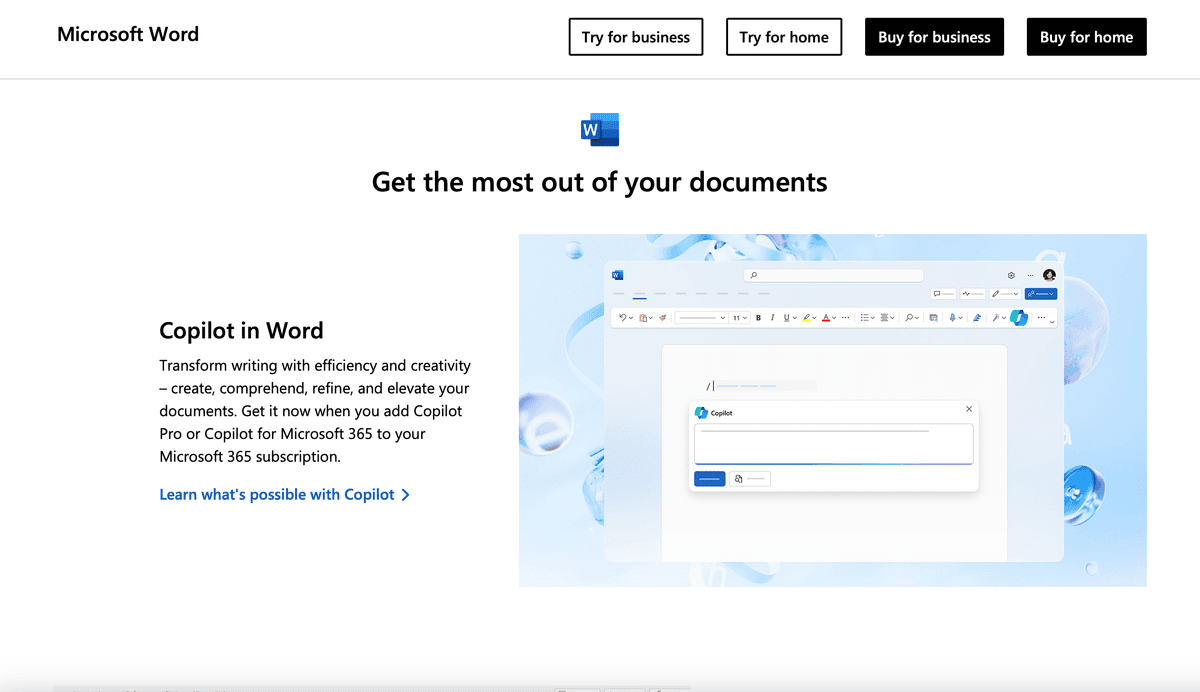
Microsoft Word is the industry-standard word processor and part of the Microsoft Office suite. It's famous for its powerful formatting and editing tools. Professionals across industries rely on it for all kinds of documents, from basic memos to complex reports.
Features
Microsoft Word has an extensive array of document creation and editing capabilities:
Advanced text formatting and styling with customizable templates
Insert tables, images, charts and other multimedia elements
Track changes, comments and collaboration tools for teamwork
Integration with Excel and PowerPoint for data and presentations
Pros
Extensive professional-level feature set
Familiar interface for Microsoft Office veterans
Macros and add-ins for deep customization
Huge range of templates and design options
Cons
Subscription-based pricing, no permanent license
Limited real-time collaboration vs. cloud-native tools
Can be resource-intensive on older systems
Steep learning curve for new users
Ratings
Ease of Use: 4/5
Feature Set: 5/5
File Format Support: 5/5
Cloud Integration: 4/5
Collaboration Tools: 3/5
Security/Privacy: 4/5
Mobile Access: 4/5
Pricing/Plans: 3/5
Microsoft Word Community Reviews
Microsoft Word has been the go-to for ages. Professionals and organizations praise its robust features and formatting for high-quality docs. The familiar interface and Microsoft integrations make it a natural fit for many.
Experts give it high marks for its extensive customization, macros and add-ins. But some note the subscription pricing and limited real-time collaboration may not work for all, especially teams or budget-conscious users.
Microsoft Word Pricing
Microsoft Word is part of Microsoft 365 subscriptions. Personal plans start at $6.99/month or $69.99/year for core Office apps. Family plans are $9.99/month or $99.99/year. You can also make a one-time purchase of Office Home & Student 2021 with Word, Excel and PowerPoint for $149.99, but without updates.
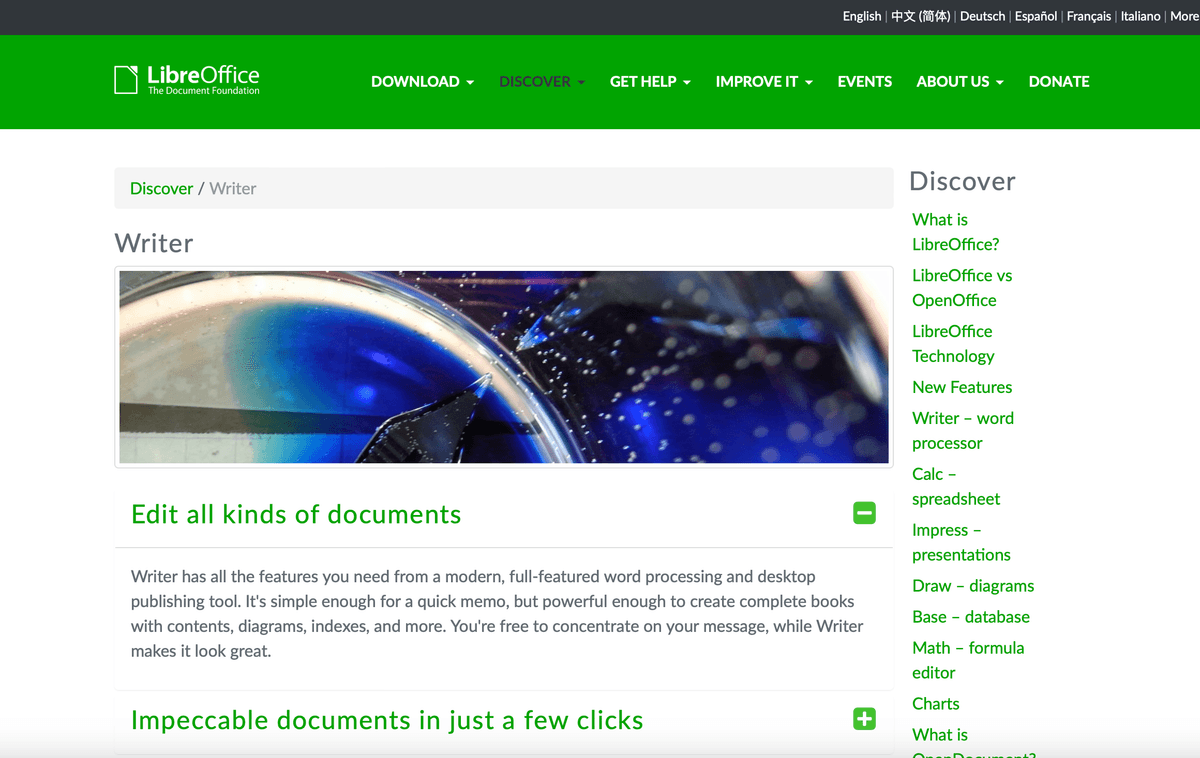
LibreOffice Writer is a popular free and open-source alternative to Microsoft Word. It's part of the LibreOffice productivity suite. Users love its compatibility with Microsoft Office formats and wide range of supported file types.
Features
LibreOffice Writer packs in a solid set of word processing features:
Advanced formatting tools for professional-looking docs
Mail merge and database integration for personalized documents
Export to PDF, EPUB, HTML and other formats
Cross-platform compatibility - works on Windows, Mac, Linux
Pros
Totally free to use
Open-source with options for community contributions and customization
Full-featured alternative to commercial office suites
Familiar interface for Microsoft Office expats
Cons
Limited real-time collaboration tools
Some compatibility hiccups with complex Microsoft Office docs
Fewer updates and support vs. paid alternatives
Older-school interface and design
Ratings
Ease of Use: 4/5
Feature Set: 4/5
File Format Support: 5/5
Cloud Integration: 2/5
Collaboration Tools: 2/5
Security/Privacy: 3/5
Mobile Access: 3/5
Pricing/Plans: 5/5
Community Reviews
LibreOffice Writer has a loyal fan base in the open-source community. Users praise its robust features that go toe-to-toe with premium tools while being compatible with key Microsoft formats.
Experts recommend it for the $0 price tag and flexibility, especially for cash-strapped individuals and organizations. But they caution its limited collaboration, lack of mobile apps and dated UI may not fit more demanding use cases.
Pricing
LibreOffice Writer is 100% free to download and use. The open-source model means a collaborative community for improvements too. It's a go-to for individuals, students and organizations watching their budgets.
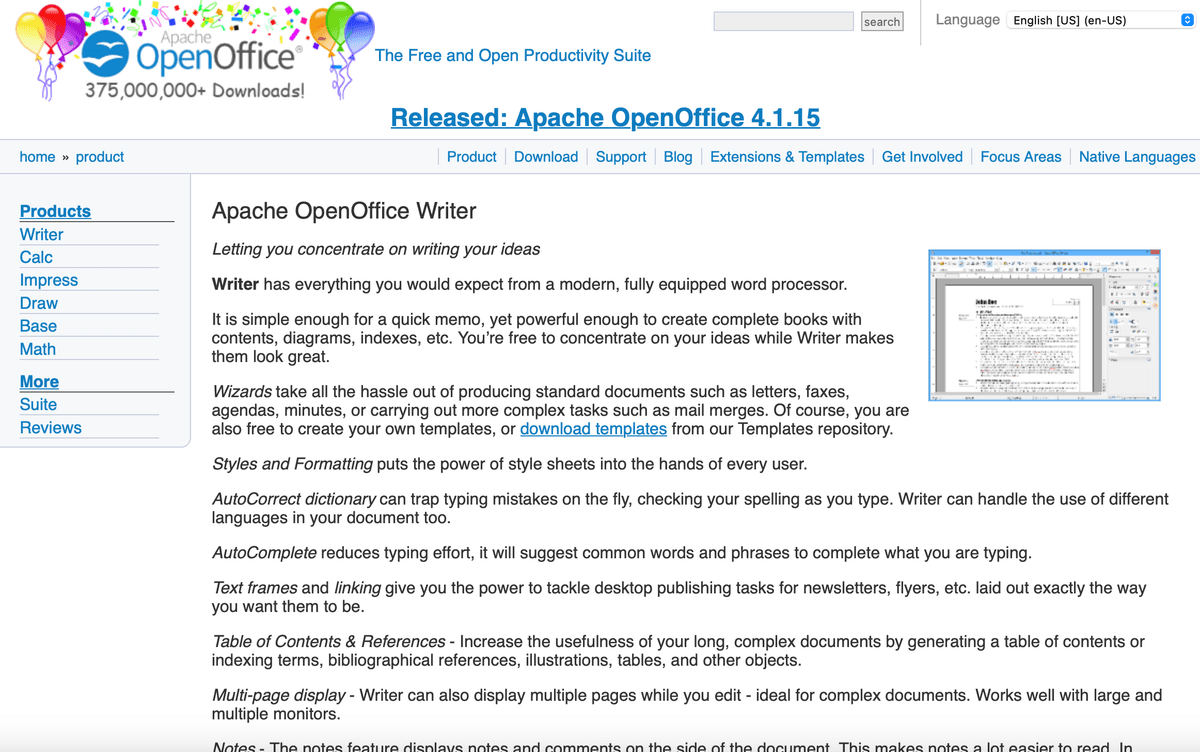
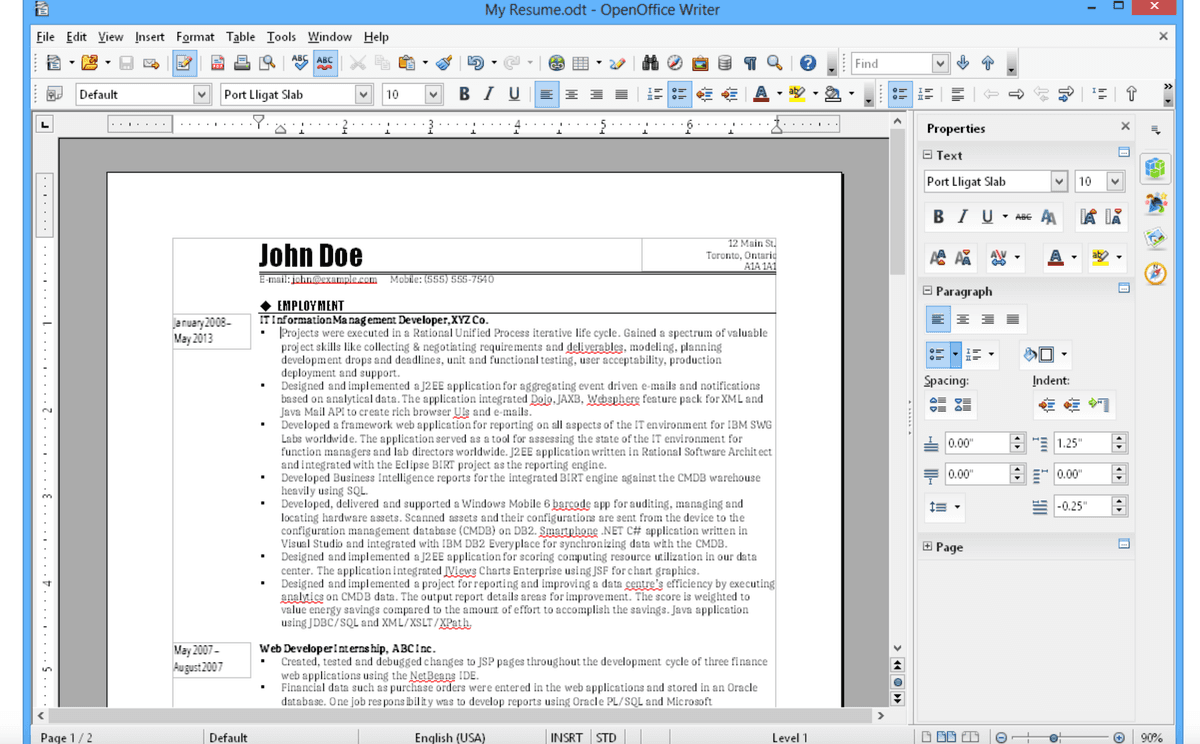
Apache OpenOffice Writer is another well-known free and open-source alternative to Microsoft Office. It's widely recognized for its compatibility with Microsoft formats at a budget-friendly $0 price point.
Features
Apache OpenOffice Writer offers a well-rounded set of word processing tools:
Customizable formatting, styles, tables and multimedia support
Mail merge and database integration for custom docs and mailing lists
Cross-platform compatibility across Windows, macOS and Linux
Export to PDF, HTML and various image formats
Pros
Completely free to use
Open-source flexibility and community contributions
Familiar look and feel for Microsoft Office users
Good compatibility with Microsoft Office file types
Cons
Limited real-time collaboration features
Fewer updates and support vs. paid alternatives
Dated interface and design
Limited cloud integration and mobile access
Ratings
Ease of Use: 4/5
Feature Set: 4/5
File Format Support: 5/5
Cloud Integration: 2/5
Collaboration Tools: 2/5
Security/Privacy: 3/5
Mobile Access: 2/5
Pricing/Plans: 5/5
Community Reviews
Apache OpenOffice Writer has a dedicated open-source following. The community appreciates the free, flexible alternative to commercial suites, especially its compatibility with Microsoft Office docs.
Industry experts tout its cost-effectiveness for individuals and organizations on tight budgets. However, they note the limited collaboration, lack of mobile apps and older interface may not suit those with more advanced needs.
Pricing
Apache OpenOffice Writer is completely free to download and use. The open-source approach fosters a collaborative environment for the community to pitch in on improvements and customizations.
WPS Office Writer is a free, lightweight alternative to Microsoft Word. It's popular for its compatibility with Microsoft Office formats while being more nimble than the full Microsoft suite.
Features
WPS Office Writer delivers essential word processing and document creation features:
Formatting tools for pro-quality docs with visuals and multimedia
PDF creation and editing capabilities built-in
Lightweight, resource-efficient design for speed on any system
Cloud storage and mobile apps for easy access anywhere
Pros
Free to use
Streamlined and resource-efficient performance
Good compatibility with Microsoft Office file types
Integrated cloud storage and mobile apps for on-the-go access
Cons
Limited real-time collaboration tools
Fewer advanced features vs. Microsoft Word
Some users may find the interface slightly dated
Fewer updates and support compared to paid alternatives
Ratings
Ease of Use: 4/5
Feature Set: 3/5
File Format Support: 5/5
Cloud Integration: 4/5
Collaboration Tools: 2/5
Security/Privacy: 3/5
Mobile Access: 4/5
Pricing/Plans: 5/5
Community Reviews
WPS Office Writer has a following among users wanting a free, no-frills alternative to Microsoft Word. The community praises its Microsoft Office compatibility and smooth performance even on older systems.
Experts recommend it as a cost-effective option, especially for its Microsoft format support. But they point out its limited collaboration and fewer bells and whistles vs. Word may not fit power users or complex use cases.
Pricing
WPS Office Writer is free to download and use. While there are some paid plans with extra features, the free version covers all the essentials for most users' basic document needs.
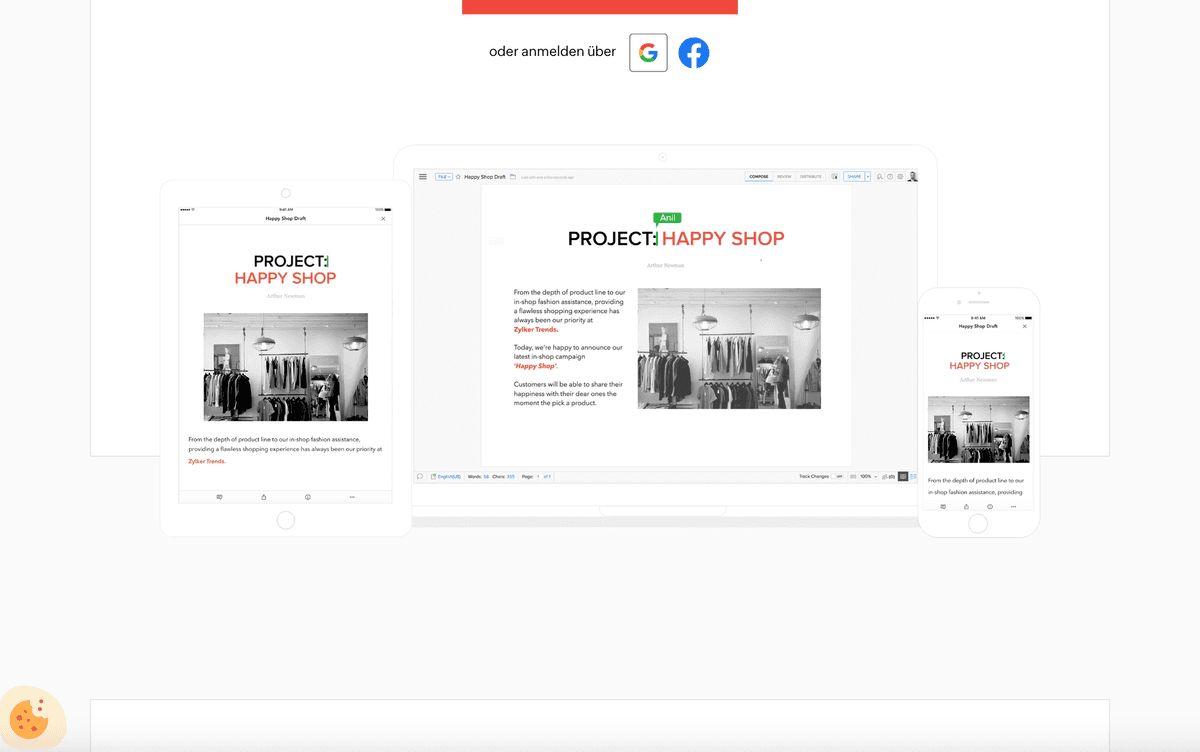
Zoho Writer is a cloud-based word processor that's part of Zoho's wider productivity suite. It's known for its strong real-time collaboration and tight integration with other Zoho tools, making it popular for teams already using Zoho.
Features
Zoho Writer focuses on collaborative document creation and editing:
Real-time co-editing tools for live collaboration
Add visuals like images, tables and charts
Seamless sync with Zoho Sheet, Zoho Show and other apps
Mobile apps for editing docs on the go
Pros
Cloud-based for easy access anywhere
Powerful real-time collaboration features
Deep integration with Zoho's app ecosystem
Mobile apps for on-the-go productivity
Cons
More limited formatting vs. desktop word processors
Learning curve for users new to Zoho's interface and apps
Some may have privacy concerns with cloud storage
Limited offline editing capabilities
Ratings
Ease of Use: 4/5
Feature Set: 3/5
File Format Support: 4/5
Cloud Integration: 5/5
Collaboration Tools: 5/5
Security/Privacy: 4/5
Mobile Access: 5/5
Pricing/Plans: 4/5
Community Reviews
Zoho Writer gets praise from users for its slick collaboration tools and integration with Zoho's other apps. Teams dig the efficient real-time co-editing and unified workflows across Zoho tools like Sheets and Show.
Experts give it a thumbs up for the robust cloud features and collab focused on teams. But they note the limited formatting, potential Zoho learning curve and cloud storage may not jive for all users and needs.
Pricing
Zoho Writer has a limited free plan and paid plans from $3/user/month. Paid tiers open up advanced collaboration, Zoho app integrations and more storage. Teams may find the paid plans worthwhile for the full Zoho experience.
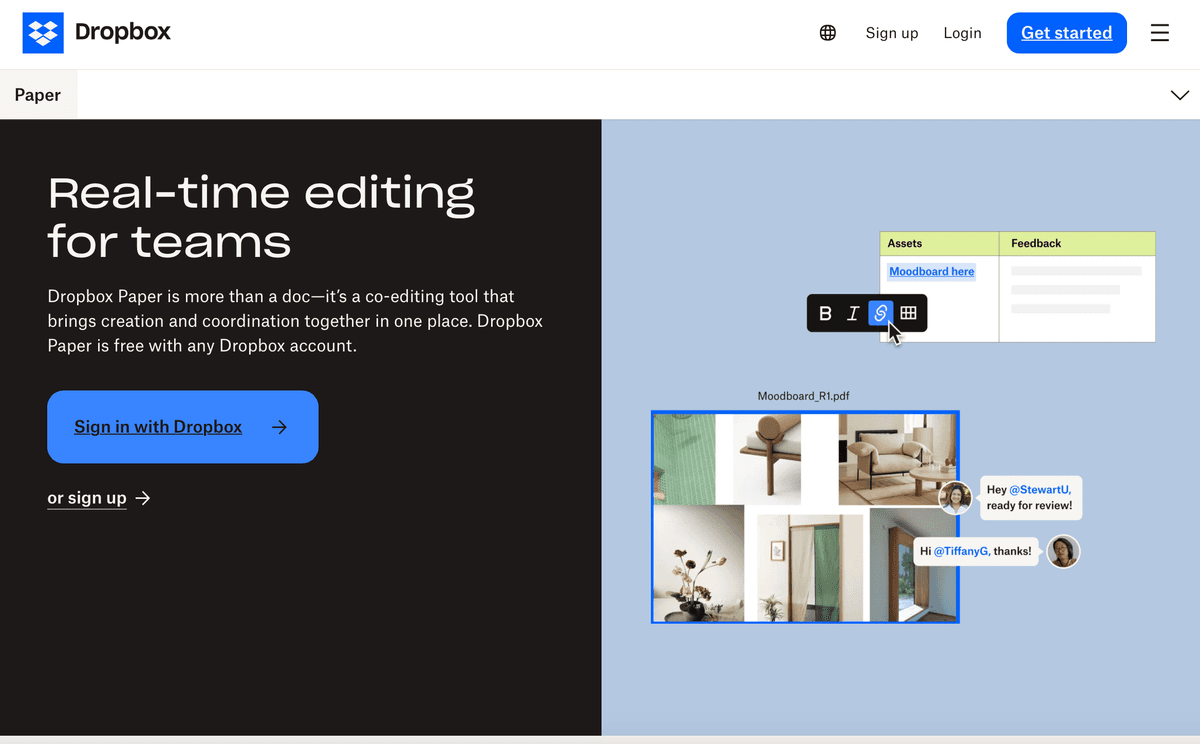
Dropbox Paper is a minimalist document editor and collaboration tool connected with Dropbox's cloud storage. Its streamlined interface and collaboration features make it popular for team-based document editing and info-sharing.
Features
Dropbox Paper offers a focused toolset for collaborative document creation:
Real-time co-editing for live collaboration
Add images, tables, code snippets and other helpful visuals
Seamless integration with Dropbox cloud storage and file-sharing
Mobile apps for on-the-go document access and editing
Pros
Clean, user-friendly interface
Strong real-time collaboration tools
Tight integration with Dropbox's ecosystem
Mobile apps for anytime, anywhere productivity
Cons
Limited formatting and customization options
Lacks some advanced features vs. full-fledged word processors
Limited offline editing capabilities
Some may have privacy concerns with cloud storage
Ratings
Ease of Use: 5/5
Feature Set: 3/5
File Format Support: 3/5
Cloud Integration: 5/5
Collaboration Tools: 5/5
Security/Privacy: 4/5
Mobile Access: 5/5
Pricing/Plans: 3/5
Community Reviews
Dropbox Paper has fans who love its simplicity for seamless team document editing and collaboration. Users praise the intuitive interface and integration with Dropbox's ecosystem for streamlined workflows.
Experts recommend it for the slick UI and powerful collaboration, especially for teams already using Dropbox. But they caution its limited formatting, fewer features vs. heavy-duty word processors and cloud-only access may not suit all use cases.
Pricing
Dropbox Paper is included with Dropbox's paid plans, which start at $12.50/user/month for additional storage, advanced sharing and other perks on top of the limited free plan. Teams may find the paid tiers worthwhile for the full feature set and Dropbox integration.
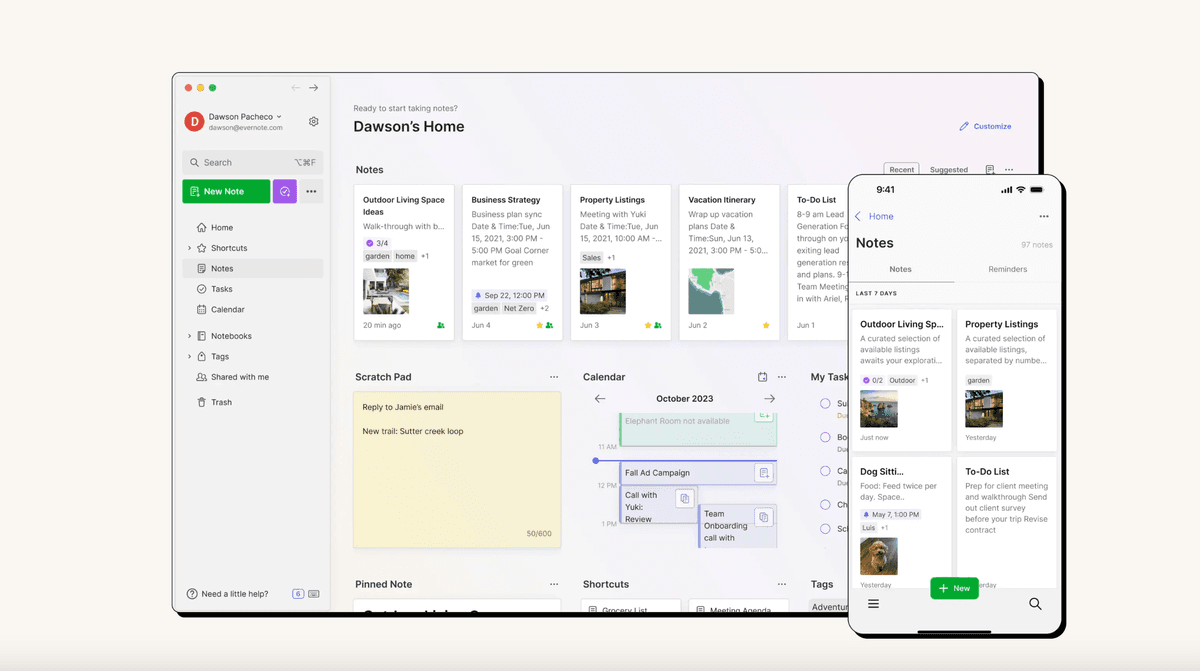
Evernote is a popular cross-platform note-taking and organization app. It's known for its ability to capture various types of content and information and sync seamlessly across devices. Evernote's collaboration features also make it useful for team-based knowledge sharing.
Features
Evernote packs a lot of utility into its note-taking and organization toolset:
Rich text formatting and multimedia support for visuals and audio
Web clipper to save online content directly to notes
Powerful search and organization for easy note retrieval
Collaboration and sharing for seamless teamwork
Pros
Versatile content capture and organization
Syncs across devices and platforms
Good collaboration features for team knowledge-sharing
Robust search tools to quickly surface notes
Cons
Limited formatting vs. dedicated word processors
Steeper learning curve for organizing larger note collections
Some may have privacy concerns with cloud storage
Free plan has limited offline access
Ratings
Ease of Use: 4/5
Feature Set: 4/5
File Format Support: 4/5
Cloud Integration: 5/5
Collaboration Tools: 4/5
Security/Privacy: 4/5
Mobile Access: 5/5
Pricing/Plans: 4/5
Community Reviews
Evernote has a loyal user base that values its flexibility and cross-platform syncing. The community appreciates its content capture and organization for note-taking, research and document creation, as well as the collaboration features for efficient team info-sharing.
Experts recommend Evernote for its powerful search and organization to quickly find and retrieve notes across devices. However, some point out its limited formatting for complex documents, learning curve for larger note collections and cloud storage may not work for all needs.
Pricing
Evernote has a limited free plan and paid tiers starting at $7.99/month for individuals. Paid plans unlock more upload capacity, advanced search and collaboration tools. Teams with bigger demands may find the paid options worthwhile for the full feature set.
Quip is a cloud-based document editor and collaboration platform that's part of Salesforce's productivity suite. It's known for its team-focused document editing and tight integration with Salesforce's ecosystem, making it popular with organizations already using Salesforce.
Features
Quip offers a solid set of tools for collaborative document creation:
Real-time co-editing for seamless teamwork
Add images, tables, code snippets and other multimedia elements
Deep integration with Salesforce and related productivity apps
Mobile apps for on-the-go document access and editing
Pros
Powerful real-time collaboration features
Tight integration with Salesforce's ecosystem
Good organizational tools for managing docs and projects
Mobile apps for anytime, anywhere access
Cons
Limited formatting and customization options
Lacks some advanced features vs. full-fledged word processors
Limited offline editing capabilities
Some may have privacy concerns with cloud storage
Ratings
Ease of Use: 4/5
Feature Set: 3/5
File Format Support: 4/5
Cloud Integration: 5/5
Collaboration Tools: 5/5
Security/Privacy: 4/5
Mobile Access: 5/5
Pricing/Plans: 4/5
Community Reviews
Quip gets kudos from users for its slick collaboration and integration with Salesforce's apps. Teams appreciate the efficient real-time co-editing and unified workflow within the Salesforce ecosystem.
Industry pros recommend Quip for its powerful team collaboration tools and deep Salesforce integration, especially for organizations already bought into the Salesforce universe. But they note its limited formatting, fewer features vs. dedicated word processors and cloud-centric model may not be ideal for all use cases.
Pricing
Quip has a limited free plan and paid tiers from $10/user/month for additional features like advanced collaboration, Salesforce integration and more storage. Teams may find the paid plans worthwhile for the full experience and Salesforce synergy.
While the top 10 got the spotlight, there are a few other online document editors worth a quick shoutout:
Etherpad - A simple, open-source and privacy-focused collaborative editor
HackMD - A markdown-based editor aimed at developers and technical writers
OnlyOffice - An open-source office suite with a Microsoft Office-style interface
Calmly Writer - A minimalist, distraction-free editor for focused writing sessions
FAQs
What's the difference between a PDF and Word document?
Word docs (.docx) and PDFs are different beasts:
Word docs are made for creating and editing. They let you freely change text, formatting, etc.
PDFs are basically digital printouts - they're meant more for viewing or sharing in a locked layout.
You'd use a Word doc while drafting and editing, then "print" to PDF for a clean final version that looks the same everywhere.
Can I edit a PDF document?
Yes, but to a point. You can use PDF editors to:
Add comments, text or annotations
Redact (black out) sensitive info
Rearrange, insert or delete pages
But for major content changes, it's usually better to edit the original source file (like a Word doc) if you can. Editing PDFs can sometimes mess up formatting.
How can I share a PDF online?
You've got options:
Upload to cloud storage (Papermark, Google Drive, Dropbox, etc.) and share a link
Use a dedicated document-sharing service like DocSend or Papermark.io for extra control and analytics
Embed the PDF directly on a webpage with embed code or an iframe
Just watch out for sensitive info - most platforms have privacy settings to lock down who can access your doc.
In most apps, go to File > Print and choose "Print to PDF" or "Save as PDF" as your printer
Or go to File > Export and select PDF as the export format
Some tools like Adobe Acrobat or online converters let you combine multiple docs into one PDF
And most modern operating systems and browsers can "print" any file or webpage to PDF too. Easy peasy.
Can I use Google Docs as a free PDF editor?
Sort of, but it's a bit of a workaround:
Upload your PDF to Google Drive
Open with Google Docs to convert to an editable document
Make your changes in the Google Doc
Go to File > Download > PDF to convert back to a PDF
Heads up though - this can mess with the original PDF's formatting, especially for complex layouts. For major edits, it's usually smoother to change the original source file if possible.
Final Thoughts
The right online document editor can be a game-changer for your workflow, whether you're writing solo or collaborating with a team. We've covered a lot of ground here, but the key is to prioritize the features and experience that matter most for your specific needs. When the finished document has to leave the team, team document sharing software adds access controls and view tracking.
Think about factors like ease of use, collaboration tools, file format support and integrations with the other apps in your toolkit. Don't forget security and privacy too, especially if you're working with sensitive info.
The good news? With so many great options out there, you're sure to find an online document editor that checks all your boxes. Whether you go for an all-in-one heavyweight like Microsoft Word or Google Docs, an open-source alternative like LibreOffice, or a collaboration-focused tool like Quip or Dropbox Paper, you can't really go wrong.
So go forth and find your document editing soulmate! Your productivity (and maybe even your sanity) will thank you.


 It is highly rated by startup founders and investors.