Bills, drafts, and committee materials need to reach members securely with verified identity. Drafts should auto-expire after the session, and sensitive versions need password protection.
With Papermark you can share documents via email-verified links with password protection and automatic expiration after the session ends.
How it works
Step by step
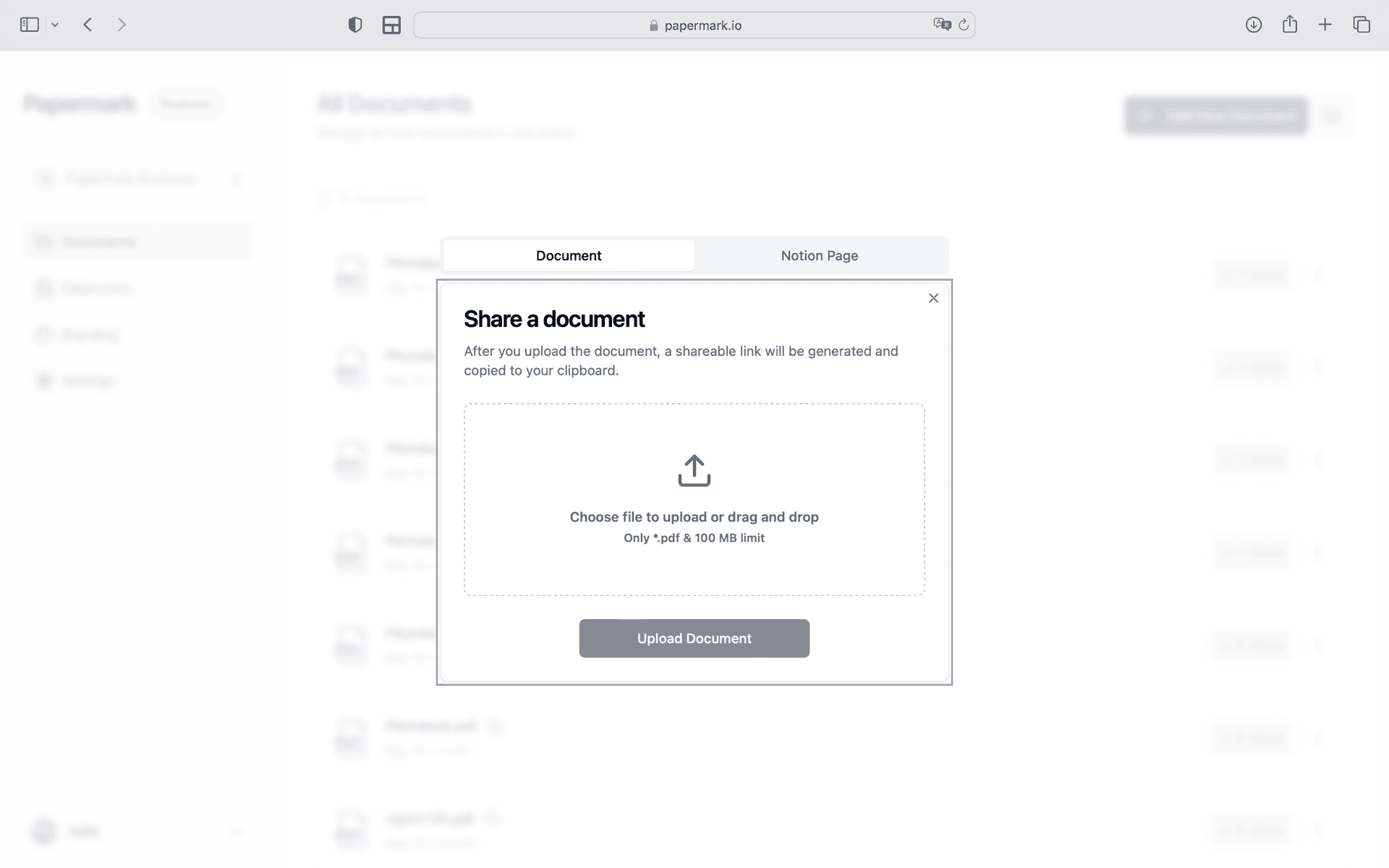
Step 1. Upload your briefings
Open Papermark and create a new data room. Upload classified or sensitive documents. Use drag-and-drop to add files, then organize them into folders. Papermark automatically indexes everything and supports bulk upload of entire folder structures.
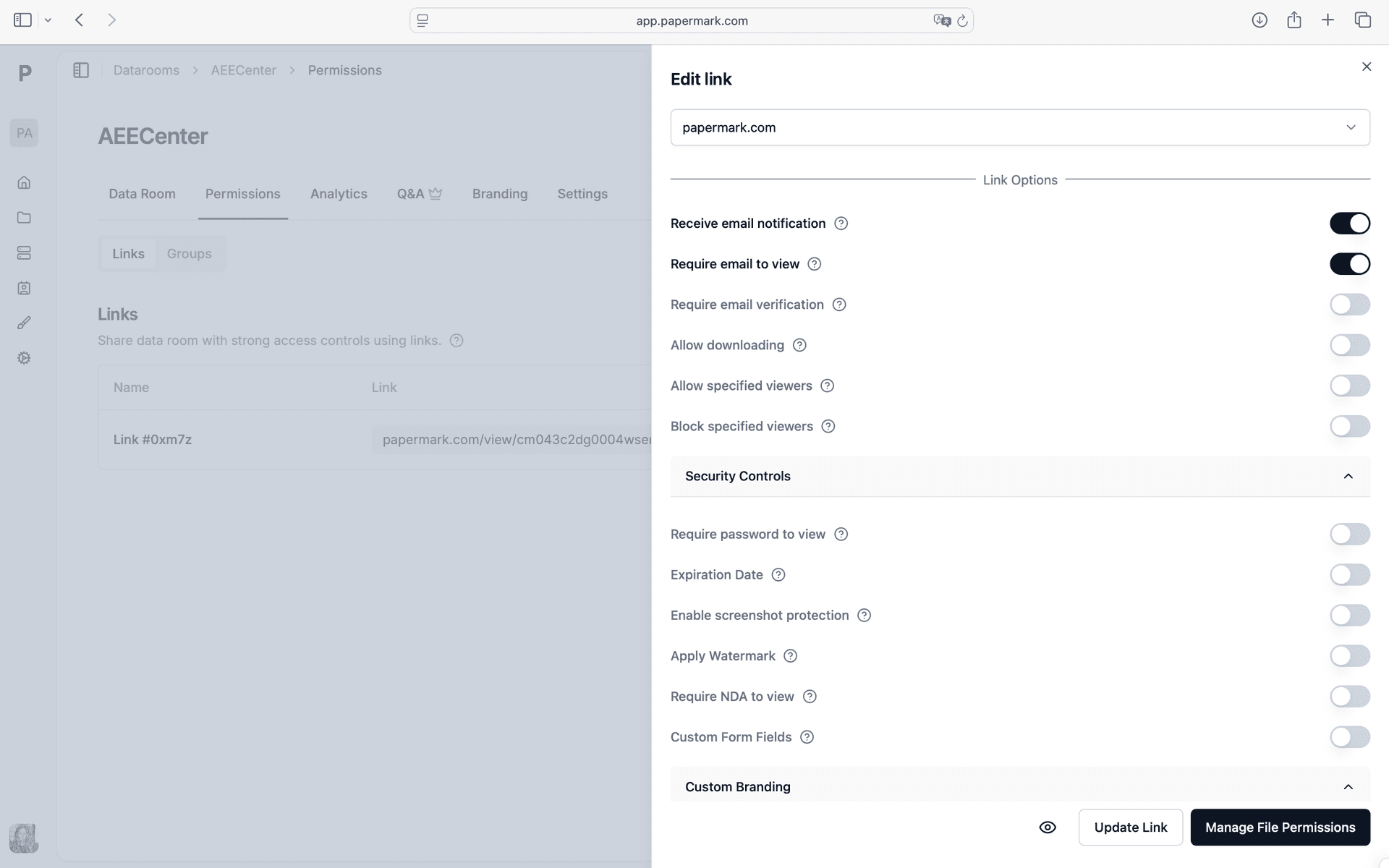
Step 2. Set up access controls for authorized personnel and committee members
Configure your security settings. In Papermark link settings, enable Email verification, Password protection, Link expiration, Access revocation. Every viewer is verified before they can access a single page. You control exactly who among your authorized personnel and committee members sees which documents.
Step 3. Distribute via email-verified, domain-restricted links and track engagement
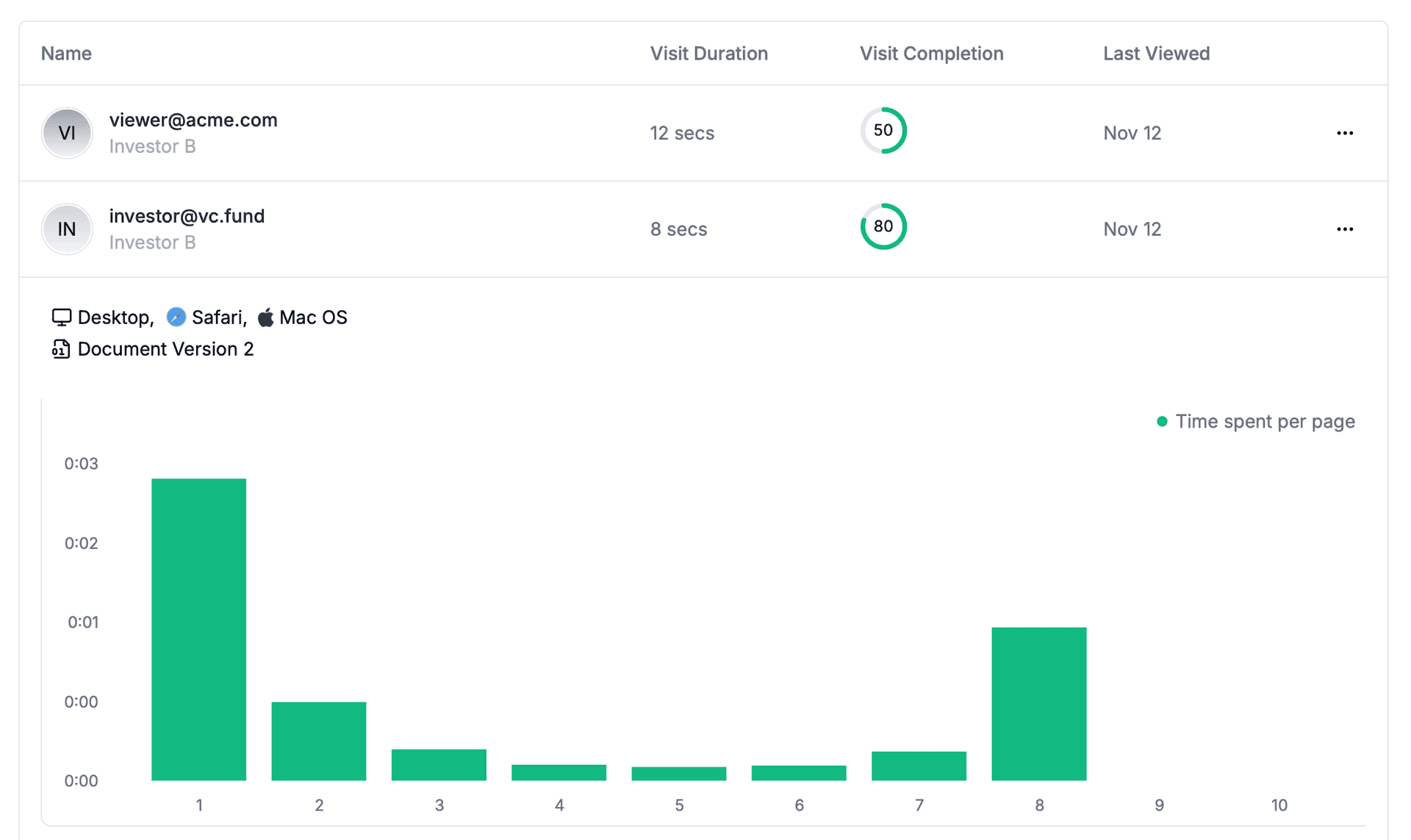
Generate a secure link and distribute via email-verified, domain-restricted links. Papermark tracks every interaction in real-time. Monitor who accessed each document with full IP and timestamp logging. Open the analytics dashboard to see all engagement data as it happens.
Step 4. Create a webhook to connect external tools
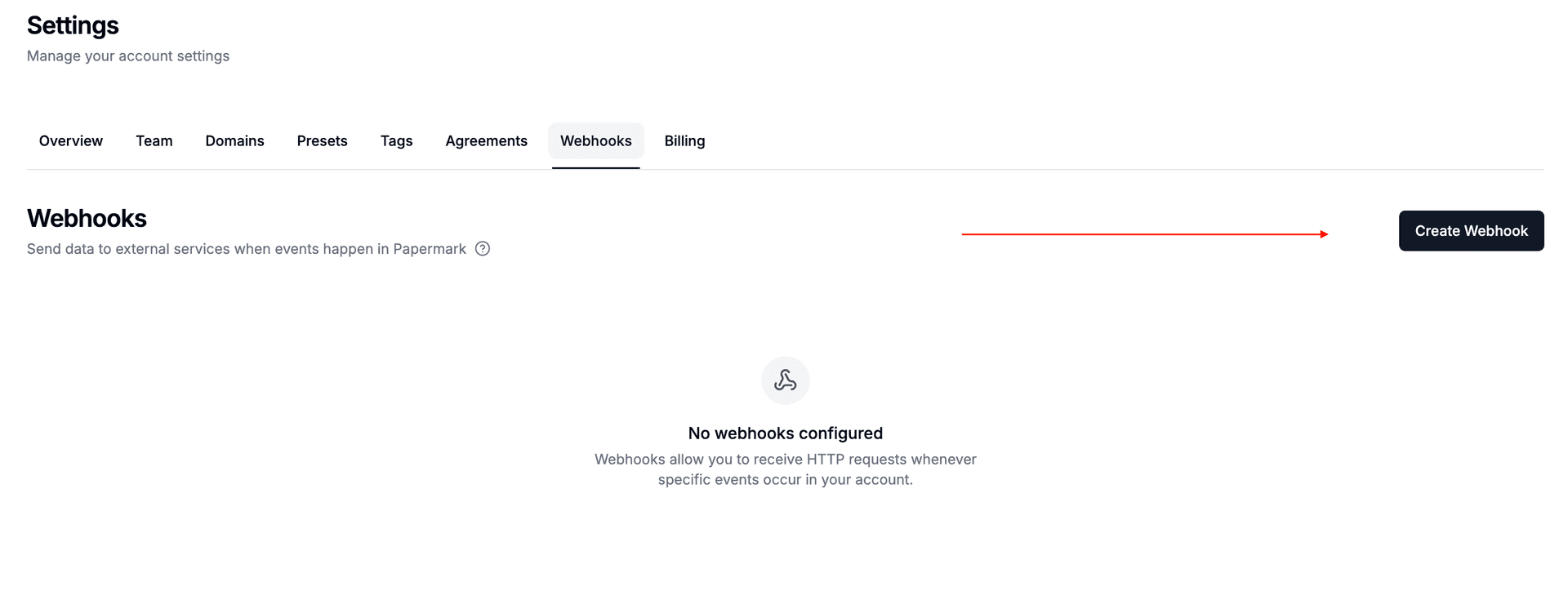
Go to Settings > Webhooks in Papermark. Create a new webhook endpoint pointing to your automation tool (Zapier, Make, or n8n). Select which events should trigger: "Link Viewed" fires when authorized personnel and committee members open your documents, "Document Downloaded" when they download. Papermark sends a signed payload with viewer email, document name, pages viewed, and time spent.
Step 5. Choose which events trigger your automation
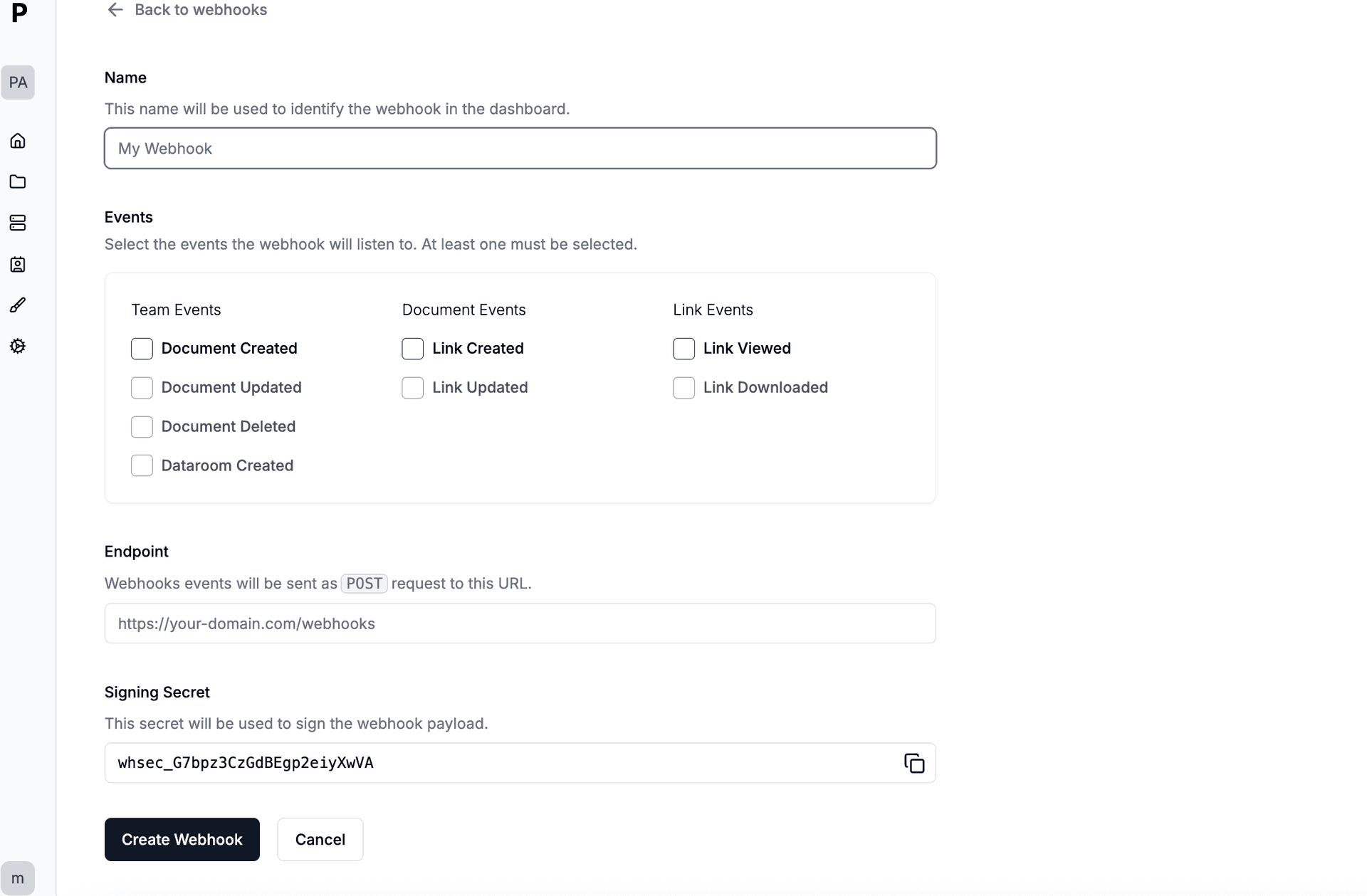
Pick the events relevant to your workflow. For tracking authorized personnel and committee members engagement, select "Link Viewed". For monitoring downloads of sensitive briefings, add "Document Downloaded". Each payload is signed with HMAC-SHA256 for security. You can create multiple webhooks for different tools.
Step 6. Alert staff on views
Alert staff on views. Connect Google Chat through Zapier, Make, or n8n as middleware. When authorized personnel and committee members view your documents, the webhook payload delivers their email, document name, pages viewed, time spent, and completion percentage to Google Chat automatically.
Tools and integrations
Papermark connects to external tools via outgoing webhooks (HMAC-SHA256 signed). Slack has a native integration with OAuth. For all other tools, connect Papermark webhooks through Zapier, Make, or n8n.
Google Chat via webhook
Alert staff on views
Connect through Papermark webhooks via Zapier, Make, or n8n