Every quarter you need to distribute fund updates to LPs, but managing email threads and attachments is chaotic. You have no idea which LPs actually read the report, and your GP team needs to know before the next advisory board meeting.
With Papermark you can upload new versions to the same link and automatically notify LPs, while tracking who reads each update in real-time.
How it works
Step by step
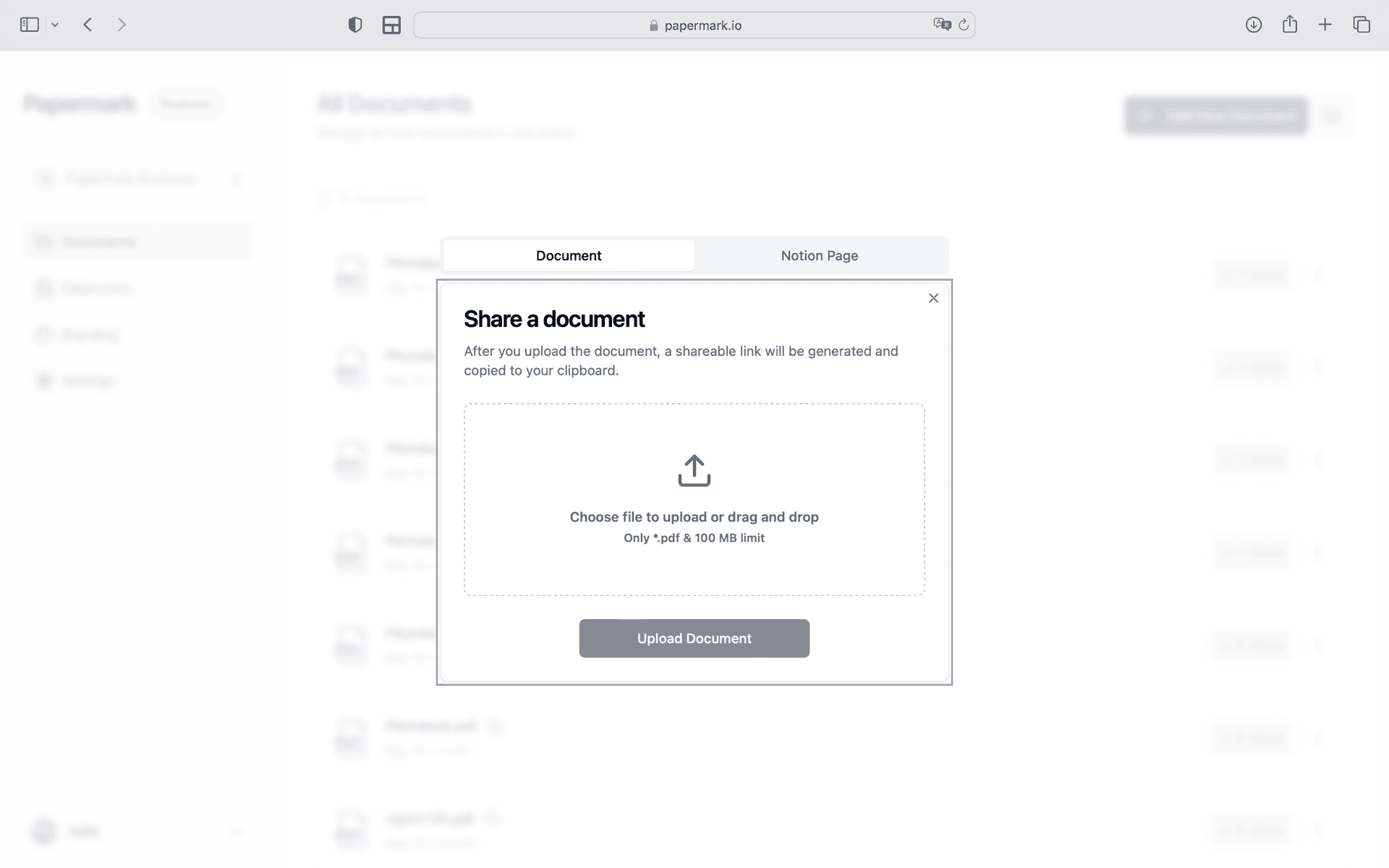
Step 1. Upload your ppm
Open Papermark and create a new data room. Upload your fund documents including the PPM, subscription docs, and track record. Use drag-and-drop to add files, then organize them into folders. Papermark automatically indexes everything and supports bulk upload of entire folder structures.
Step 2. Set up access controls for LPs and prospective investors
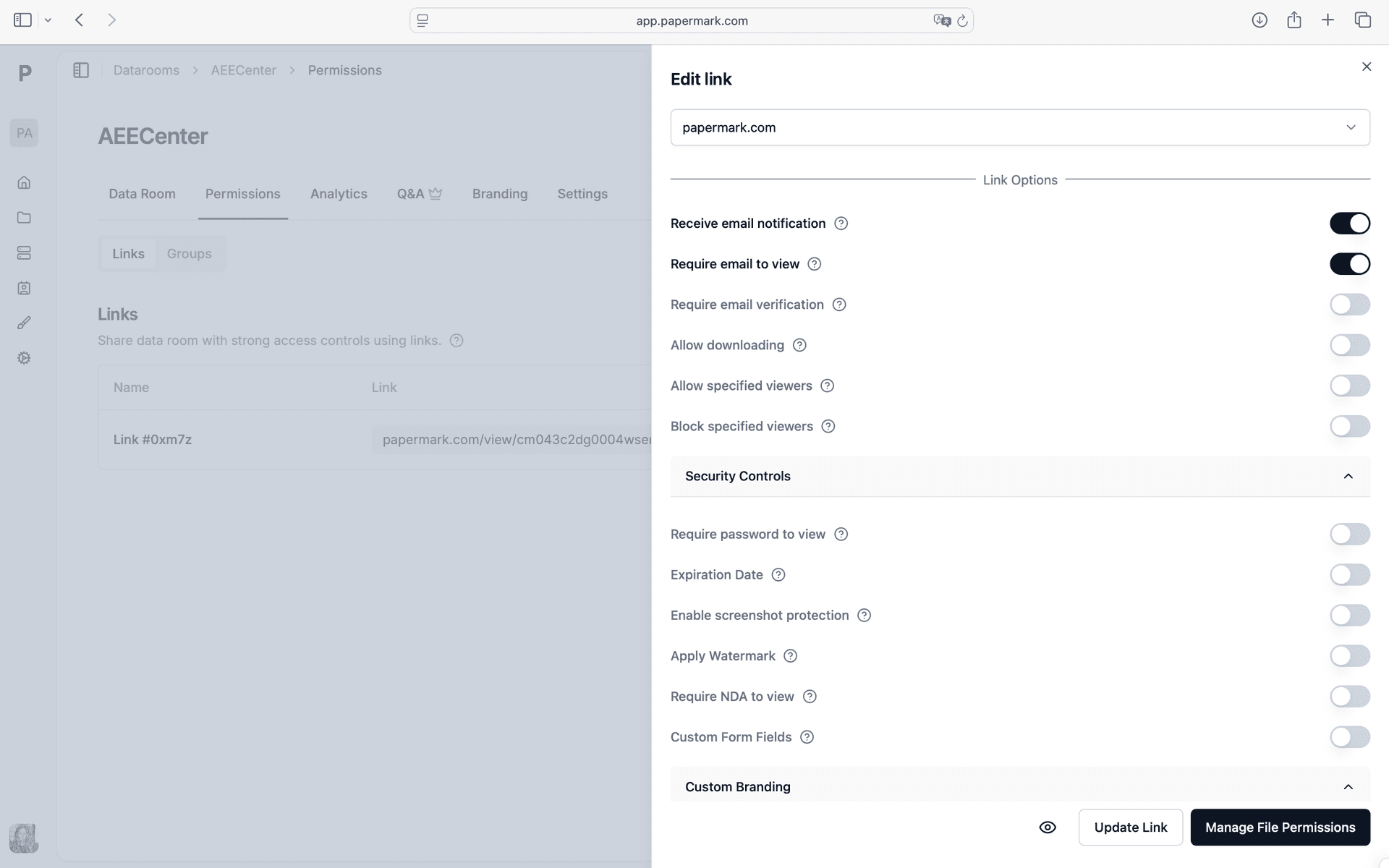
Configure your security settings. In Papermark link settings, enable Version control, Email notifications, Engagement export. Every viewer is verified before they can access a single page. You control exactly who among your LPs and prospective investors sees which documents.
Step 3. Share the portal link with your LPs and track engagement
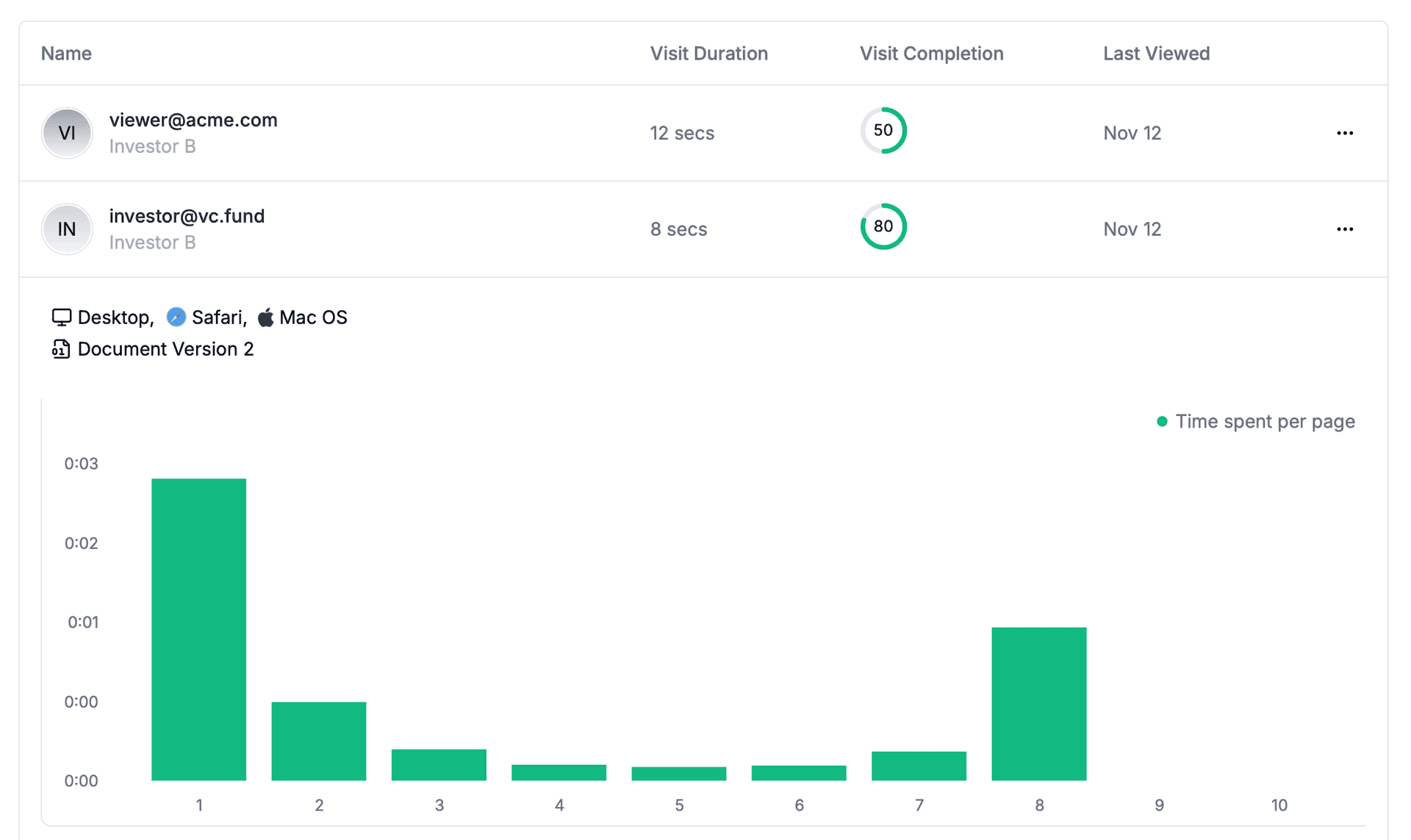
Generate a secure link and share the portal link with your lps. Papermark tracks every interaction in real-time. See which LPs opened your fund documents, how long they spent on each page, and which sections they revisited. Open the analytics dashboard to see all engagement data as it happens.
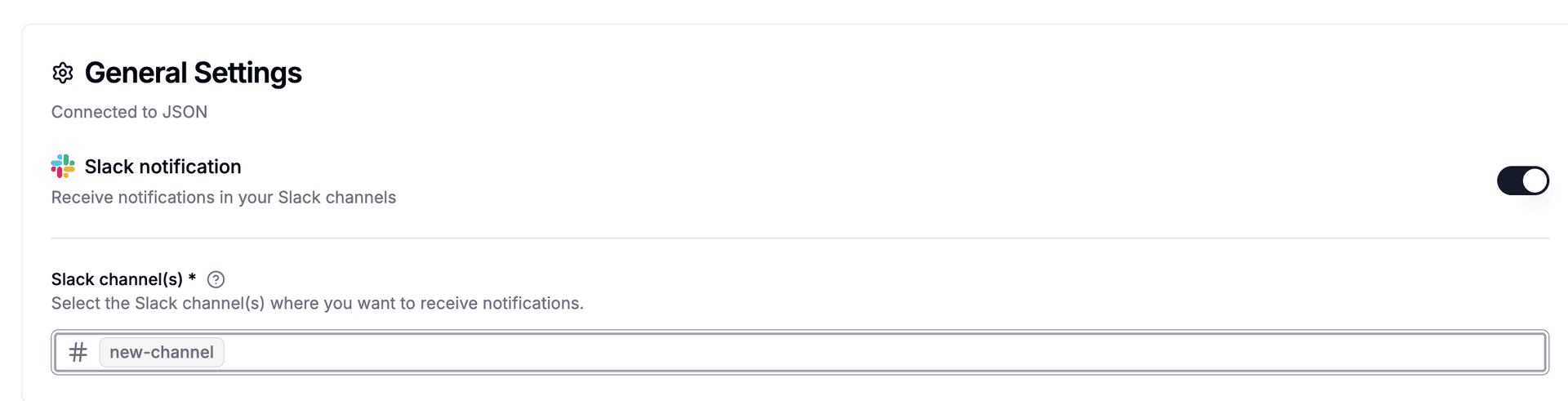
Step 4. Connect Slack to get notified instantly
Go to Settings > Integrations > Slack in Papermark. Click "Connect Slack" and authorize via OAuth. Select the team channel where you want to receive alerts. Papermark sends formatted messages when LPs and prospective investors view, download, or access your documents.
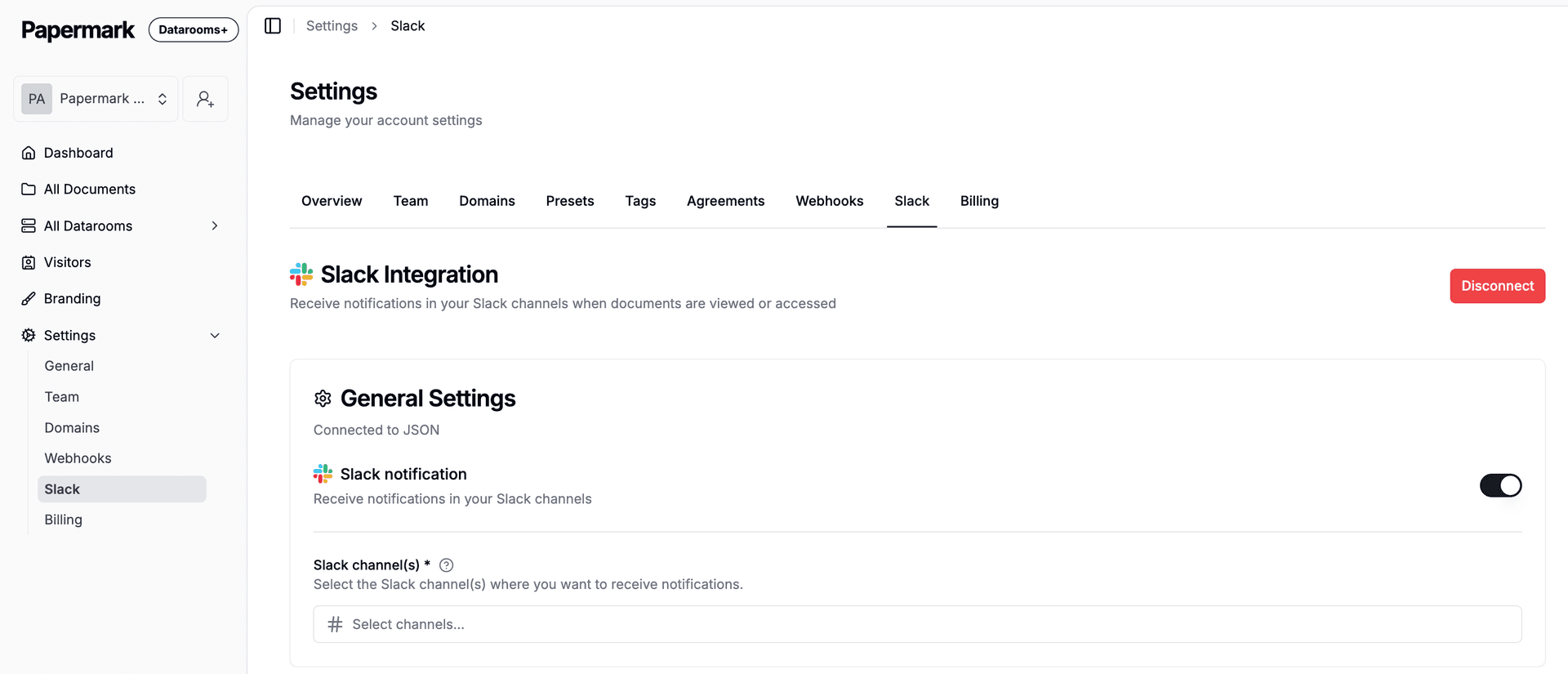
Step 5. See who among your LPs and prospective investors is engaging
Every time someone opens your ppm, a Slack notification appears in your channel. It shows the viewer's email, which document they opened, how long they spent, and a link to full analytics. Your team knows immediately who is engaged without checking the dashboard.
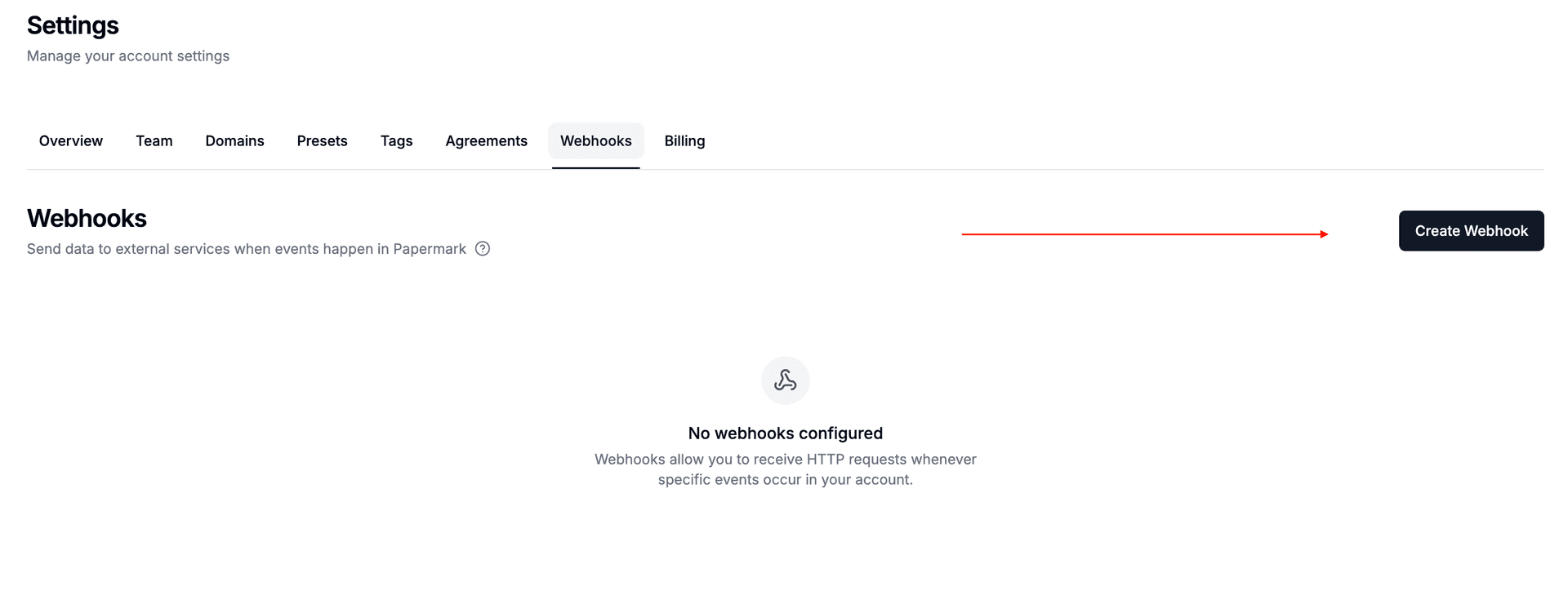
Step 6. Create a webhook to connect external tools
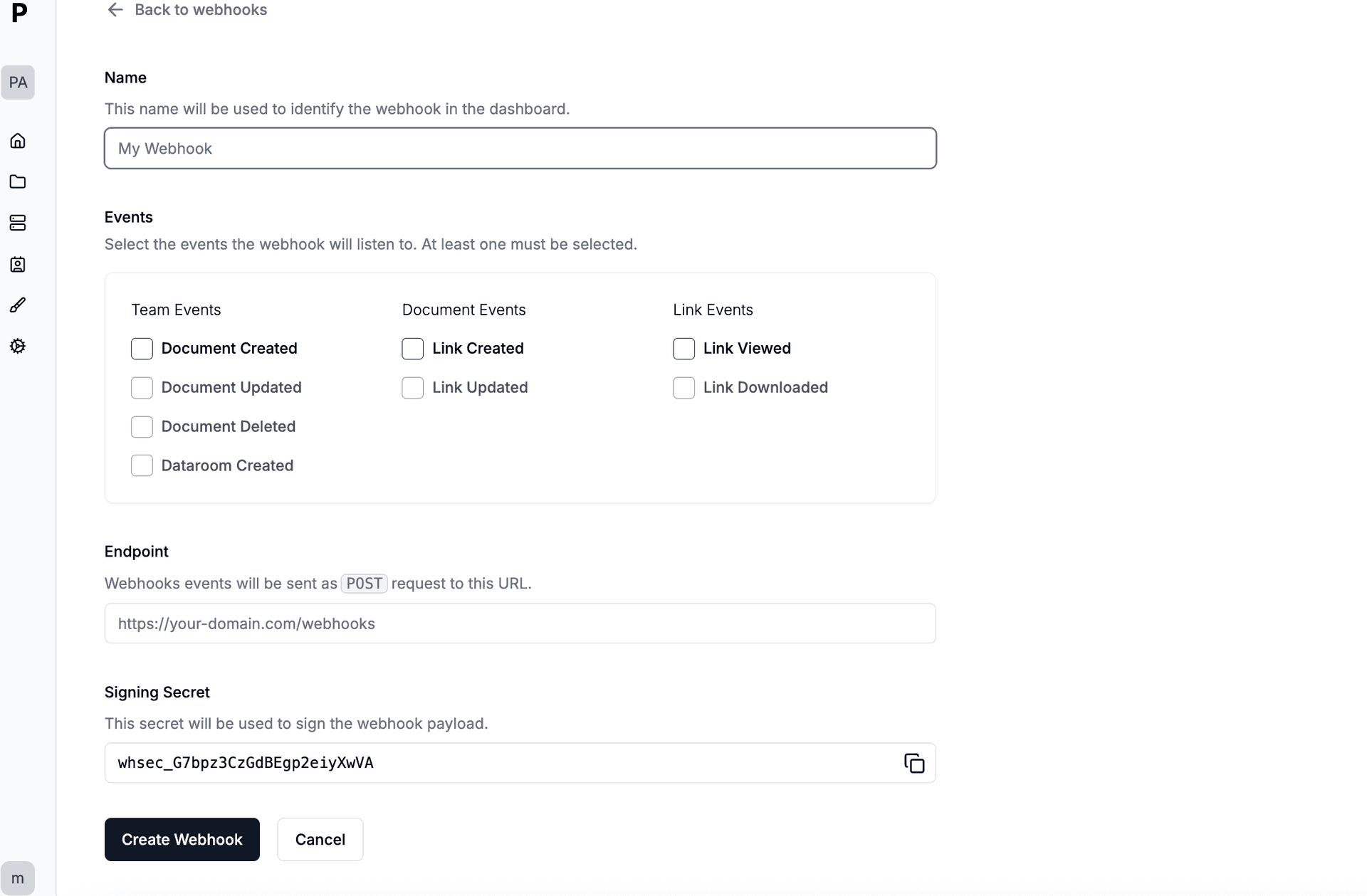
Go to Settings > Webhooks in Papermark. Create a new webhook endpoint pointing to your automation tool (Zapier, Make, or n8n). Select which events should trigger: "Link Viewed" fires when LPs and prospective investors open your documents, "Document Downloaded" when they download. Papermark sends a signed payload with viewer email, document name, pages viewed, and time spent.
Step 7. Choose which events trigger your automation
Pick the events relevant to your workflow. For tracking LPs and prospective investors engagement, select "Link Viewed". For monitoring downloads of sensitive ppm, add "Document Downloaded". Each payload is signed with HMAC-SHA256 for security. You can create multiple webhooks for different tools.
Step 8. Automated notification workflows
Automated notification workflows. Connect Relay through Zapier, Make, or n8n as middleware. When LPs and prospective investors view your documents, the webhook payload delivers their email, document name, pages viewed, time spent, and completion percentage to Relay automatically.
Tools and integrations
Papermark connects to external tools via outgoing webhooks (HMAC-SHA256 signed). Slack has a native integration with OAuth. For all other tools, connect Papermark webhooks through Zapier, Make, or n8n.
Slack Native integration
Alert IR team when key LPs view reports
Relay via webhook
Automated notification workflows
Connect through Papermark webhooks via Zapier, Make, or n8n