Folders keep teams organized, but without version control you still risk overwrites and lost history. This guide shows how to manage folder version control with disciplined naming, structured storage, and Papermark links for secure external sharing with audit trails and watermarks.
Share secure documents
No credit card required
Page by page analytics
Require email verification
Require password to view
Allow/Block specified viewers
Apply Watermark
Require NDA to view
Custom Welcome Message
Quick recap of steps
Standardize folder and file naming so every version is clear.
Keep one source of truth for active work; archive superseded versions.
Use access controls and avoid emailing attachments.
Share externally with Papermark links for watermarks and audit logs.
Lock major versions and review permissions regularly.
Comparison: folder version control options
Method
Best for
Version history
External sharing
Security
Naming + archive
Small teams
Manual (v1, v2, v3)
Attachments or links
Folder permissions
Structured folders
Growing teams
Organized majors/minors
Internal links
Role-based access
Papermark links
External reviewers
Version history + audit logs
Secure folders (links), [data room](/data-room)
Watermark, email verify, expiry
1. Standardize naming and structure
Clear names and folders prevent confusion.
Step-by-step guide
Use a template: Title_vMajor.Minor_owner_date.
Keep one Active folder; move superseded versions to Archive.
Label milestone folders (e.g., v1.0_Approved) and keep them read-only.
Avoid emailing attachments—share a link to the active folder.
Review the folder quarterly to prune obsolete copies.
2. Control access and edits
Limit who can change what to reduce conflicts.
Step-by-step guide
Restrict edit rights to owners; most collaborators get view or comment access.
For sensitive work, require sign-in and prevent downloads where possible.
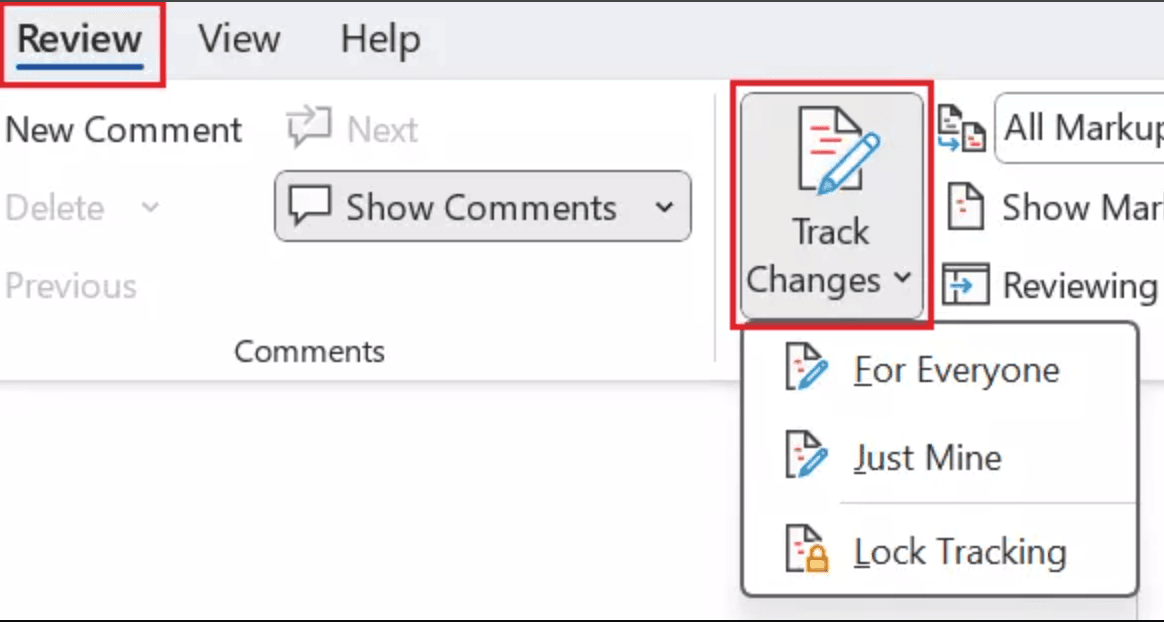
Keep a short changelog in a text file at the root for major updates.
When handing off, freeze the approved folder and start a new minor version.
Back up the approved version before large edits.
3. Share folders externally with Papermark
Papermark turns a folder handoff into a controlled, auditable share: one link that maintains complete version history, dynamic watermarks, and revoke-on-demand access. Every upload creates a new version while keeping all previous versions accessible in the audit trail.
Step-by-step guide
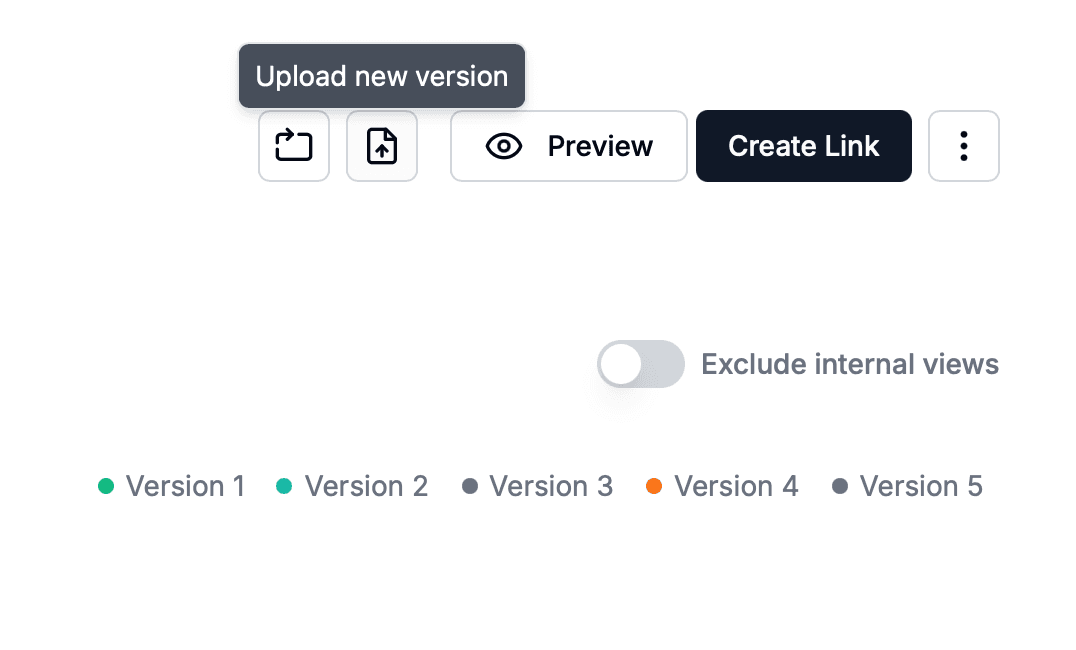
Upload key files to Papermark and organize them in folders or a data room. Each upload creates a new version while keeping everything under one live link, so recipients always see the latest without you needing to resend.
Enable email verification, link expiry, and optional password to gate access.
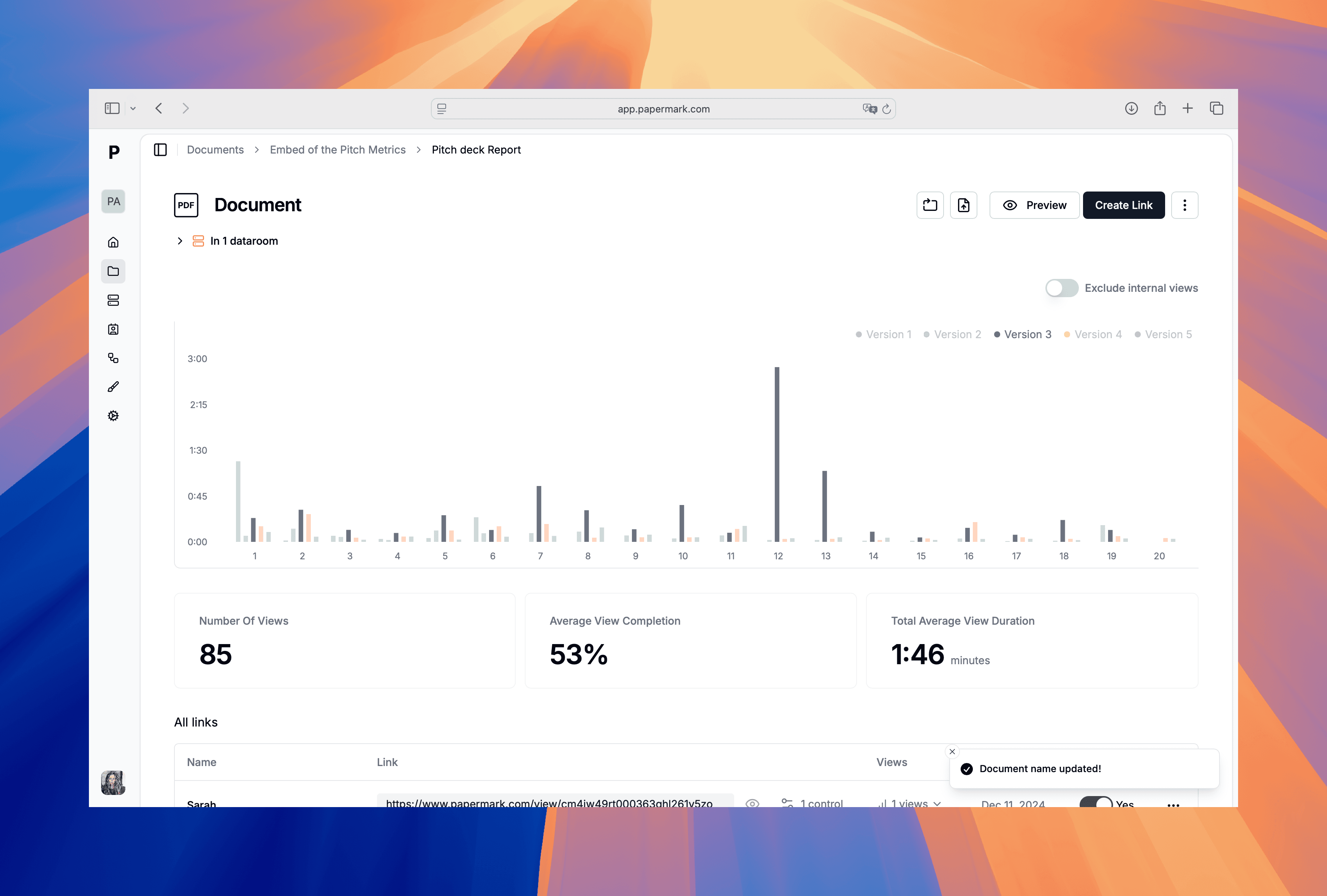
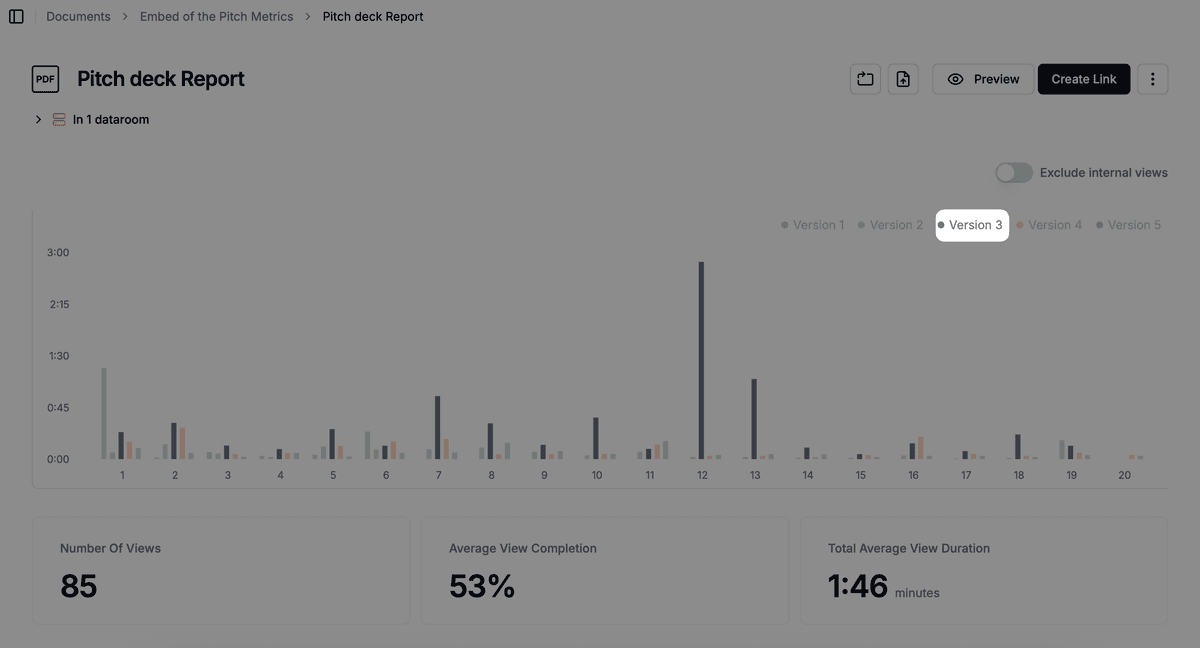
Track page-level analytics, downloads, and view the complete version history with a full audit log showing who accessed what and when. Every version upload is recorded, making it easy to see which version was shared at any point in time.
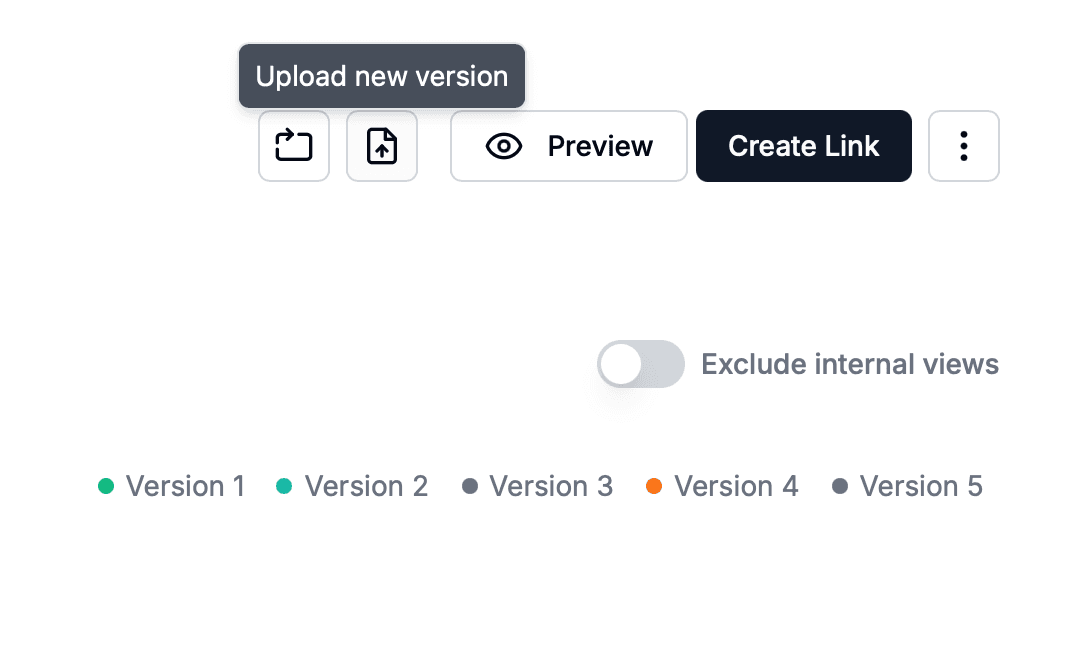
When you need to update files, simply upload a new version to the same link. Recipients automatically see the latest version, while previous versions remain accessible in the history for reference or rollback.
For multi-file projects, group documents into a data room, set granular permissions per file/folder, and keep everything branded.
If you need approvals, pair the data room with read-only finals and keep drafts in a separate, lower-permission folder.
Protect your documents with advanced security
No credit card required
Page by page analytics
Require email verification
Require password to view
Allow/Block specified viewers
Apply Watermark
Require NDA to view
Custom Welcome Message
Best practices for folder version control
Keep one source of truth, avoid attachments, and watermark external copies. Align approvals to major versions, archive superseded folders, and review access quarterly. Use Papermark links for external reviewers so you retain audit trails and control.