
How to create an allow list in Papermark?
Creating an allow list in Papermark helps you control who can access your shared document and data room links. This guide will walk you through the steps to set up and manage an allow list for your links.
What is an allow list?
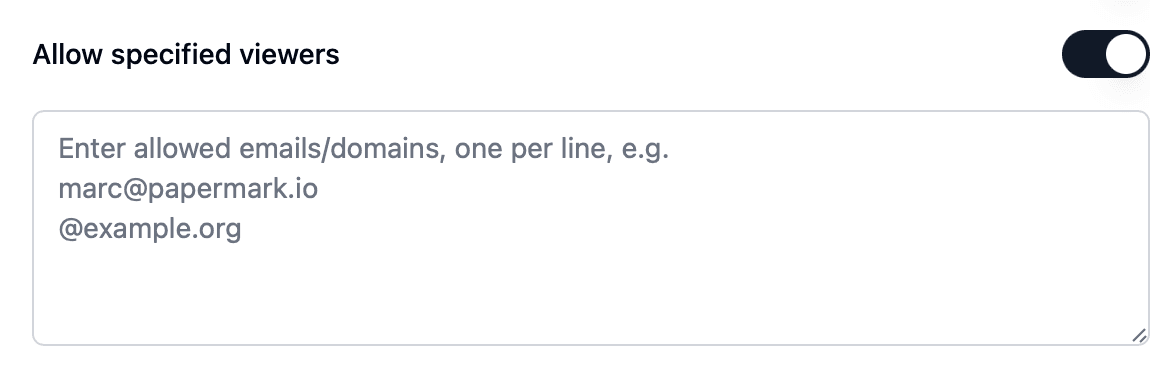
An allow list is a security feature that lets you specify which email addresses are permitted to view your document or data room link. You can add individual email addresses or allow access to all users under a specific domain (e.g., "@company.com"). This ensures that only authorized users can access your sensitive information.
Accessing the allow list feature
- Log into your Papermark account.
- Open the document or data room link you want to restrict.
Creating an allow list
Data room links
- Open the data room and go to Permissions, then edit the link (or click Share to create one).
- Under Who can access (allow and block list), choose Invite people.
- In Allow and Block Access, add emails,
@company.comdomains, or visitor groups. - Save the link.
Choose Anyone with the link if you do not want an allow list. Anyone who opens the URL can view, except people on the block list.
Document links
- In the link settings, find the Allow & block list section.
- Turn it on and enter emails or domain names with an
@prefix (e.g.@company.com). - Save to apply the changes.
Managing your allow list
You can update your allow list at any time:
- Open the same link settings.
- For a data room link, choose Invite people and click Manage if the access panel is closed.
- Add or remove emails, domains, or visitor groups.
- Save the link.
Best practices for using allow lists
- Regularly Update: Keep your allow list up to date to ensure only current team members have access.
- Inform Users: Notify users when they are added to or removed from the allow list.
- Combine with Other Security Features: Use allow lists in conjunction with other security features like password protection and email authentication for enhanced security.
Conclusion
Creating and managing an allow list in Papermark is a straightforward process that significantly enhances the security of your shared document and data room links. By following these steps, you can ensure that only authorized users have access to your sensitive information.
For more information on securing your documents, check out our articles on document analytics and feedback from visitors. If you have any questions or need further assistance, please contact our support team.