
How to Invite Visitors to your Data Room via Email
Papermark lets you send email invitations directly from your data room so visitors receive a branded, professional email with a link to your content. Instead of copying a link and composing your own email, you can invite multiple recipients at once with an optional personal message, all without leaving Papermark.
This is especially useful for fundraising, due diligence, and deal flow where you want to track exactly who was invited and who actually opened your data room.
Requirements
- A data room with at least one document
- A shareable link already created for the data room
- Business, Data Rooms, or Data Rooms Plus plan
If you haven't set up a data room yet, start with How to create a data room. If your data room is ready but you haven't created a link yet, follow the steps in How to share your data room first.
Step 1: Open the link actions menu
- Open your data room
- Click on the Permissions tab
- Find the link you want to use for invitations
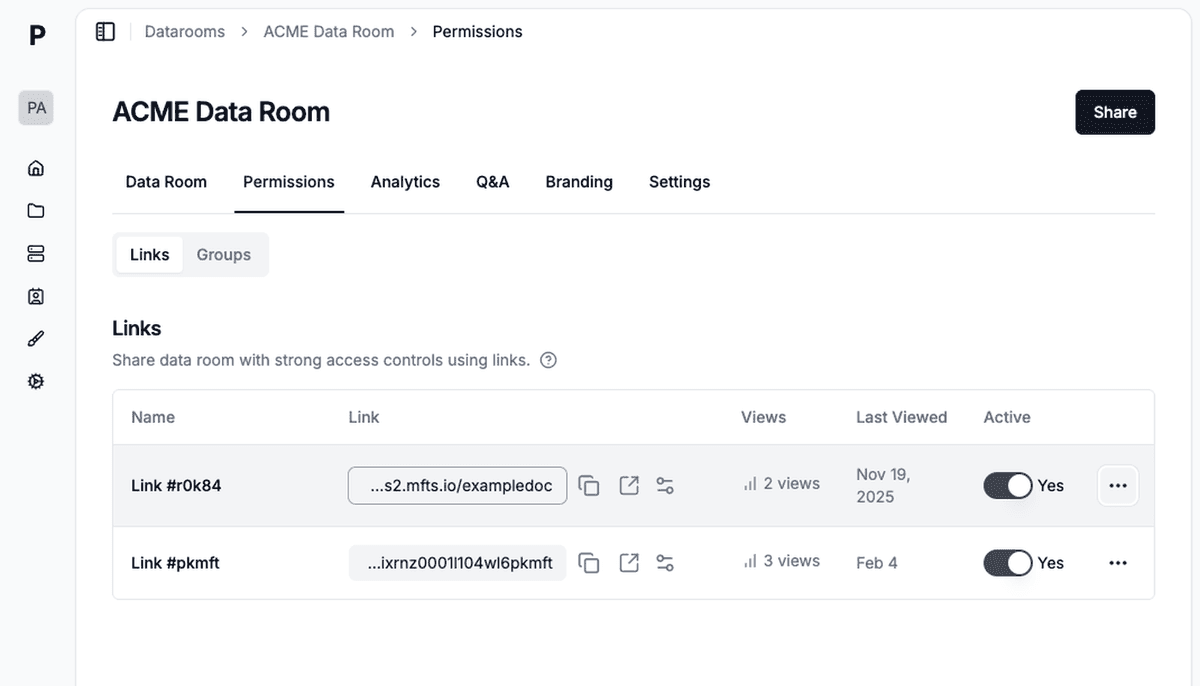
- Click the three dots menu (⋯) on the right side of the link row
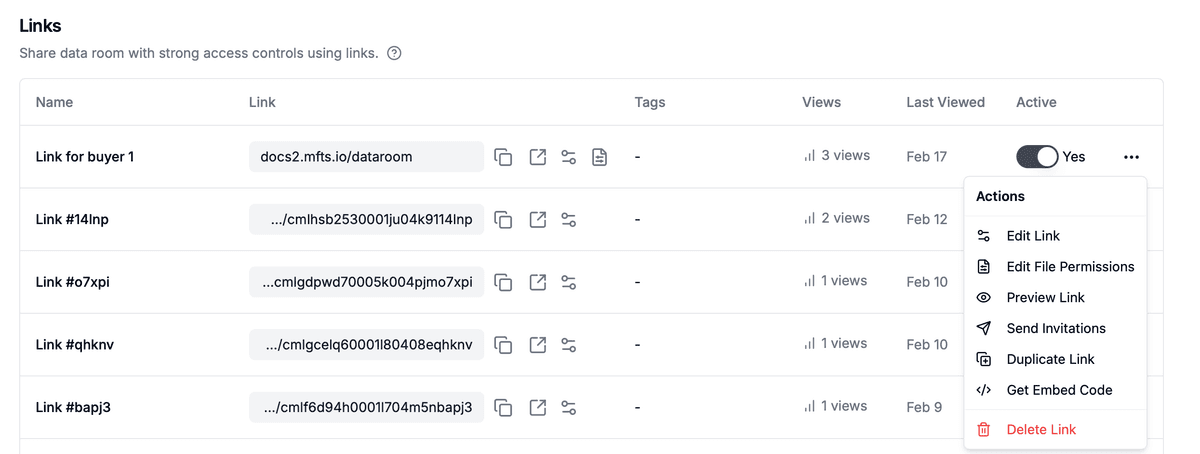
- Select Send Invitations from the dropdown
Step 2: Add recipients
In the invitation modal you'll see two panels. The left side is where you compose your invitation, and the right side shows a live preview of the email your recipients will receive.
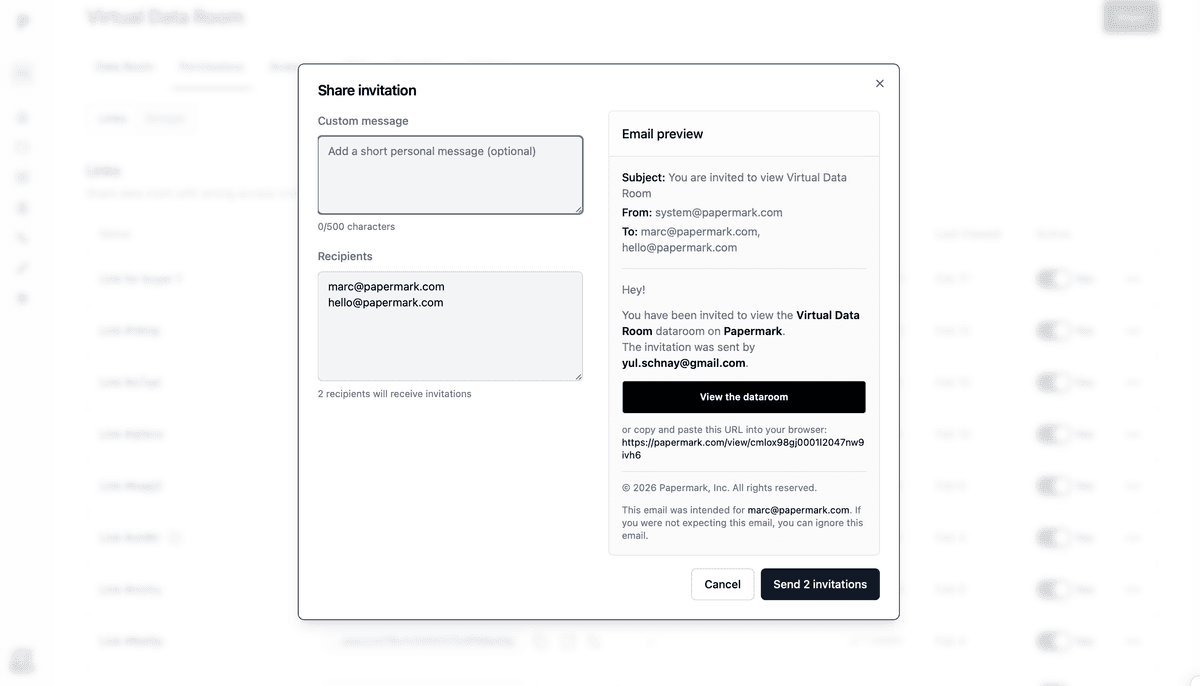
Enter the email addresses of the people you want to invite in the Recipients field. You can add multiple addresses by typing one per line or separating them with commas. There's no strict limit on how many recipients you can add in one batch.
Step 3: Write a custom message (optional)
The Custom Message field lets you add a personal note to your invitation. This message appears in the email body, above the link to your data room. You can write up to 2,500 characters.
A few ideas for your message:
- Introduce yourself and your company
- Explain what the data room contains
- Mention a timeline or deadline for review
- Reference a recent conversation or meeting
Leaving this field empty is fine too. Recipients will still receive a clean, branded email with a direct link to your data room.
Step 4: Preview and send
Before sending, check the email preview on the right side of the modal. It shows exactly what your recipients will see, including your custom message and the data room link.
When everything looks good, click Send Invitations. Papermark delivers the email to all recipients immediately.
What visitors receive
The invitation email is branded and includes:
- Your name as the sender
- Your custom message (if provided)
- A direct button to open the data room
- A plain-text link as a fallback
Visitors click the link and land directly in your data room. If you've enabled security settings on the link (like email verification, password protection, or NDA requirements), visitors will go through those steps before accessing documents.
Personalized unique links per recipient
Each invitation generates a unique link tied to the recipient's email address. This means:
- Track who's accessed what per recipient instead of guessing whose visit it was
- Revoke access individually: if a deal falls through with one party, revoke just their link without affecting others
- Personalized branding and permissions: each recipient gets the same view, but you can override permissions per recipient if needed
- No link forwarding: if a recipient forwards their link to someone else, the new visitor still goes through email verification and is recorded separately
You can see invitation status (pending, accepted, viewed) for each recipient in the Permissions tab. Use this to follow up with anyone who hasn't accepted the invitation yet.
Revoke a single invitation
If you need to remove access for one recipient:
- Open the data room and go to the Permissions tab.
- Find the recipient in the invitations list.
- Click the three-dot menu next to their name.
- Choose Revoke access.
The recipient's unique link is invalidated immediately. Other recipients on the same campaign keep working as expected.
Tracking who was invited vs. who viewed
One of the biggest benefits of sending invitations through Papermark is the ability to compare who was invited with who actually opened the data room.
After sending invitations, go to the Analytics tab in your data room to see:
- Which recipients have viewed the data room
- How long each person spent on each document
- Which pages received the most attention
- Whether documents were downloaded
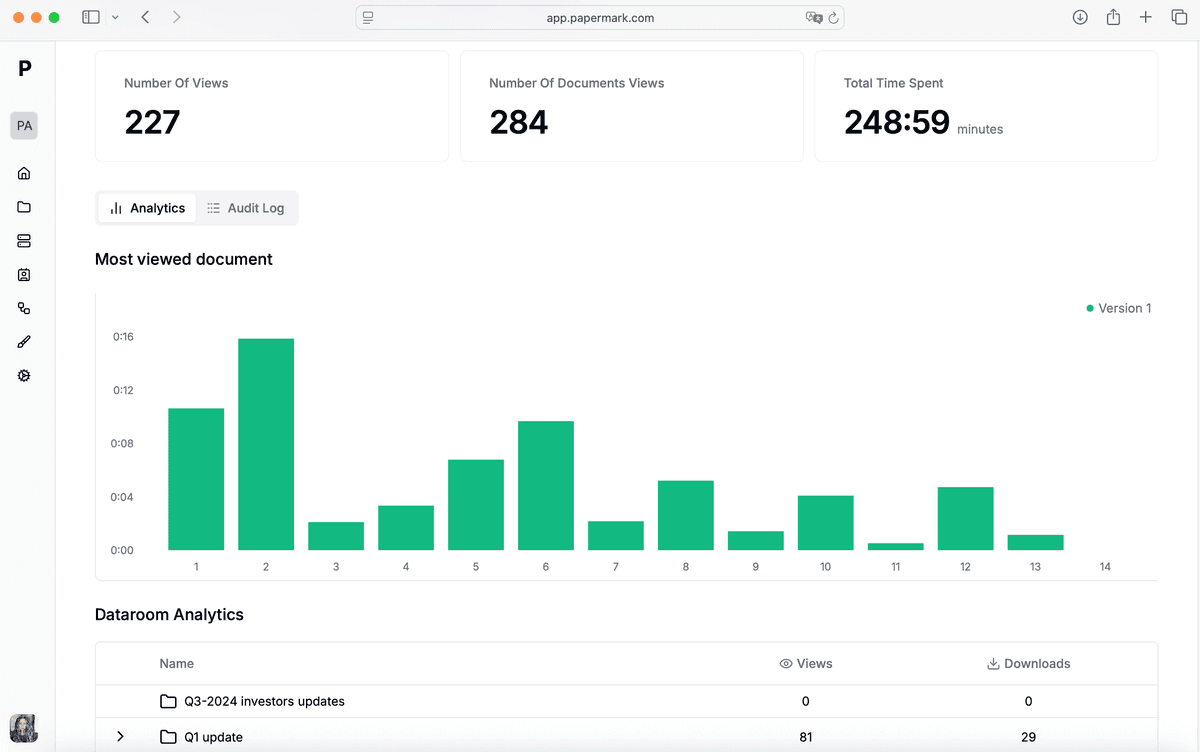
This gives you a clear picture of engagement and helps you follow up with the right people at the right time.
Learn more about document analytics and viewer analytics.
Tips for effective email invitations
Name your links descriptively. Before sending invitations, give your link a clear name like "Series A - Sequoia" or "Due Diligence - Buyer Group A." This makes it easy to track which link corresponds to which audience in your analytics.
Use separate links for different audiences. Rather than sending everyone the same link, create distinct links with appropriate security settings for each group. This way you can control file permissions and track engagement per audience.
Enable email verification on the link. When email verification is turned on, you get confirmed identity for every viewer, not just the people you invited but anyone the link gets forwarded to.
Set an expiration date for time-sensitive deals. If documents are only relevant for a limited window, add an expiration date to the link before sending invitations. Learn more in expiration date settings.
Follow up based on analytics. Check your analytics a day or two after sending invitations. If key recipients haven't viewed the data room yet, send a gentle reminder.