
How to Share your Data Room with Visitors
Once your data room is set up with documents, you need to share it with stakeholders. Papermark gives you two ways to share: copy a link to share manually, or send email invitations directly through Groups.
Requirements
- A data room with at least one document
- Business, Data Rooms, or Data Rooms Plus plan
Step 1: Create a Link for Your Data Room
Before sharing, you need to create a shareable link with your preferred security settings.
- Open your data room
- Click on the Permissions tab
- You'll see the Links and Groups tabs
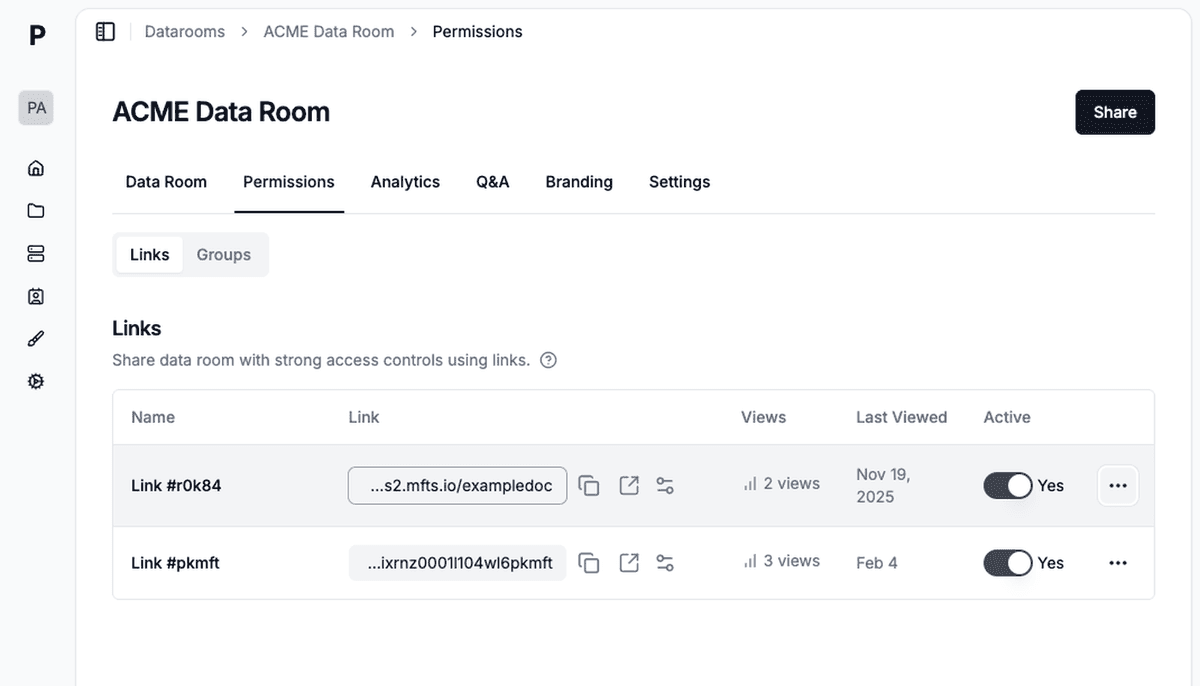
- Click Share to add a shareable link, or use Participants → Create permissions → Create link
Configure Link Settings
When creating a link, you can set:
- Link Name — Identify who this link is for (e.g., "Sequoia Partners")
- Custom Domain — Use your own domain instead of papermark.com
- Security Options:
- Require email to view
- Email verification
- Password protection
- Expiration date
- Who can access: Anyone with the link, or Invite people (allow and block list)
- NDA requirement
- Watermarking
- Screenshot protection
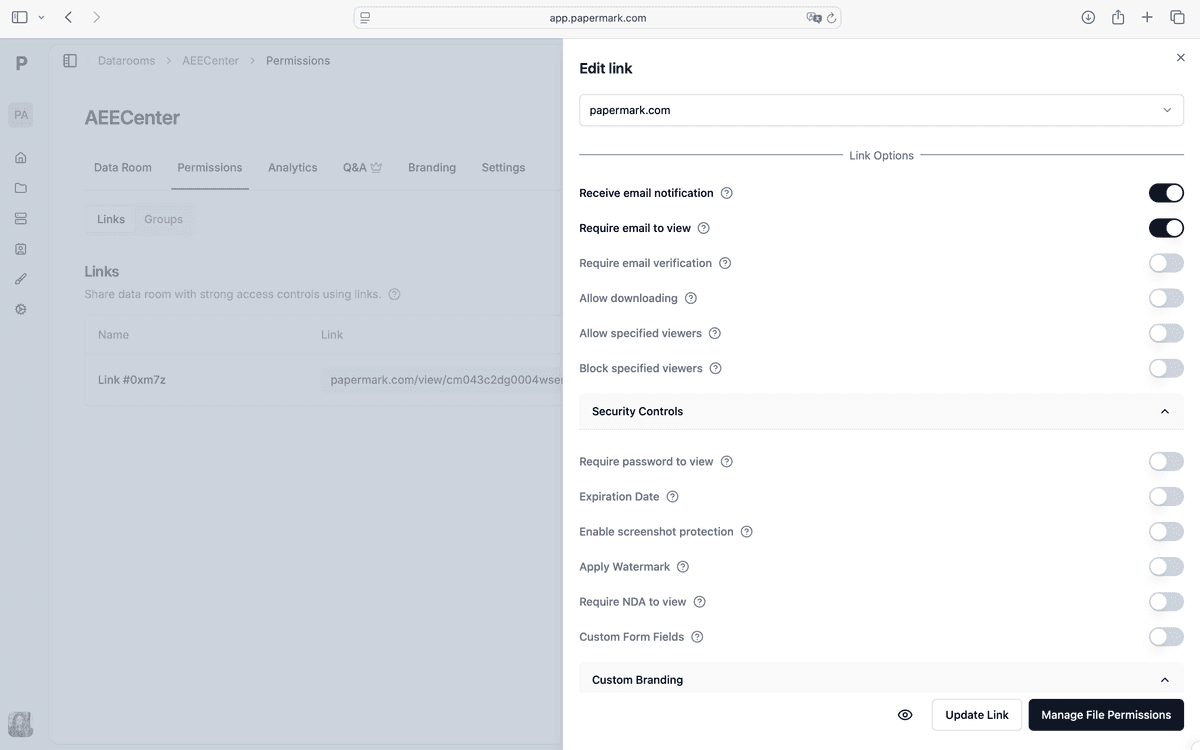
Click Save Link to create your shareable link.
Step 2: Share Your Data Room
Once you have a link, you have multiple options to share it with visitors.
Option A: Copy and Share the Link
The quickest way to share is to copy your link and send it yourself:
- Go to the Permissions tab
- Find your link in the list
- Click the Copy icon next to the link URL
You can also click the three dots menu (⋯) on any link to see more options, including Send Invitations:
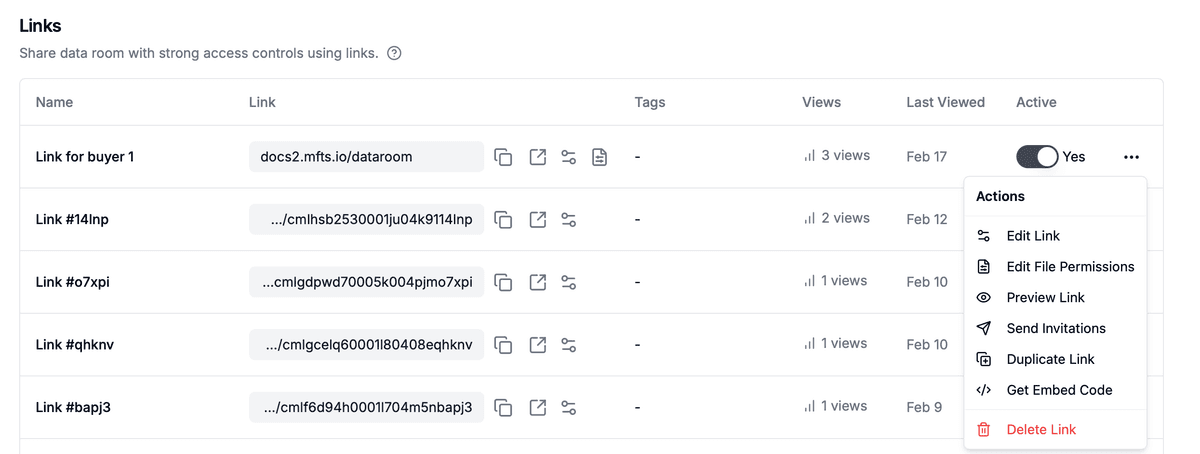
Available actions:
- Edit Link — Modify link settings
- Edit File Permissions — Control which files this link can access
- Preview Link — See what visitors will see
- Send Invitations — Send email invites directly to visitors ⭐
- Duplicate Link — Create a copy with the same settings
- Get Embed Code — Embed the data room on your website
- Delete Link — Remove the link permanently
Now paste the link wherever you communicate with visitors:
- Email — Include it in your email to investors, clients, or partners
- Slack/Teams — Share in direct messages or channels
- Calendar invites — Add the link to meeting invitations
- CRM — Log the link in your deal flow tools
Option B: Send Email Invitations Directly
For a more professional approach, send invitations directly from Papermark:
- Go to the Permissions tab
- Find your link in the list
- Click the three dots menu (⋯) on the link
- Select Send Invitations
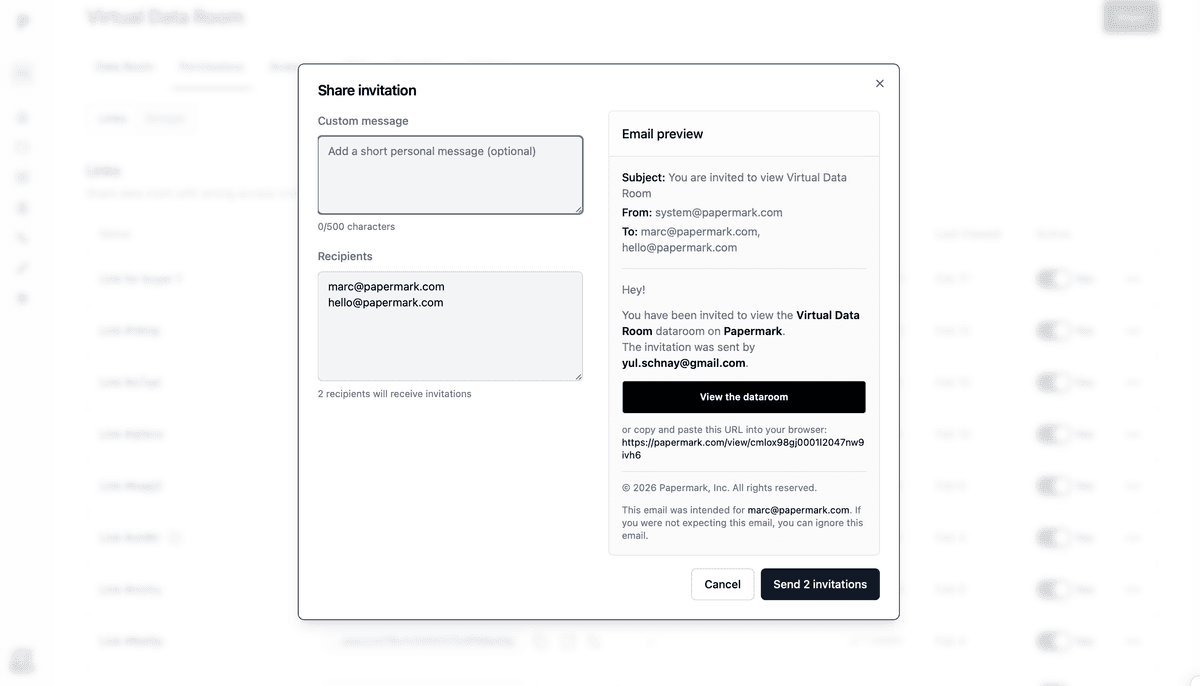
In the invitation modal:
- Custom Message — Add a personal note (optional, up to 2500 characters)
- Recipients — Enter email addresses (one per line or comma-separated)
- Preview how the email will look on the right side
Click Send Invitations to deliver branded emails to all recipients.
Benefits of email invitations:
- Branded emails from your organization
- Personal message included
- Direct link to your data room
- Track who was invited vs. who actually viewed
For a detailed walkthrough, see How to invite visitors to your data room via email.
Managing File Permissions (Data Rooms Plus)
On Data Rooms Plus, you can control which files each visitor can see:
- When creating a link, under File access, choose Limited file access
- Select which folders and files this link can access
- Set view and download permissions per file
This lets you share the same data room with different audiences while controlling what each group sees.
Learn more about granular file permissions.
Tracking Visitor Activity
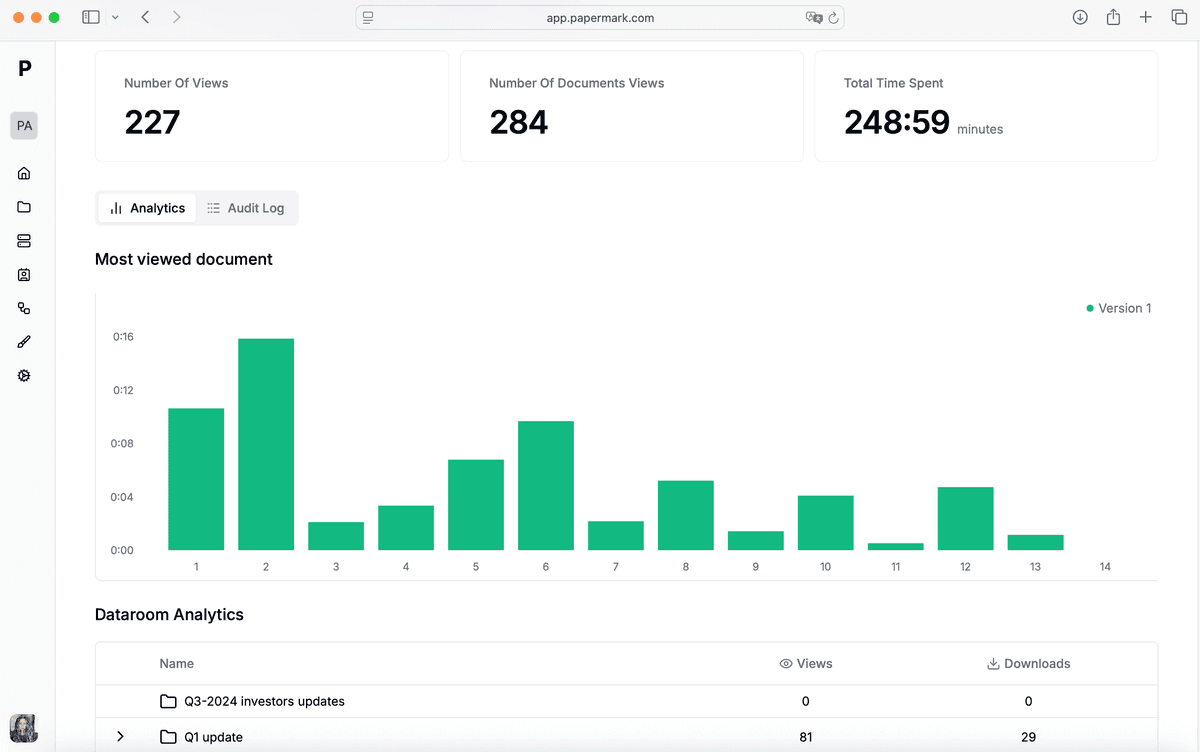
After sharing, monitor engagement in the Analytics tab:
- See who viewed your data room
- Track time spent on each document
- View page-by-page engagement
- Monitor download activity
Best Practices
- Create separate links for different stakeholders (investors, partners, clients)
- Use descriptive names so you know who each link is for
- Enable email requirement to identify visitors in analytics
- Set expiration dates for time-sensitive deals
- Use watermarks for confidential documents
- Use Send Invitations to track who was invited vs. who viewed