You manage multiple portfolio companies that need to submit regular financial reports and board materials. Chasing portcos for documents via email is manual and there's no central place to track what's been submitted.
With Papermark you can give each portfolio company a dedicated upload folder with automatic notifications when new materials arrive.
How it works
Step by step
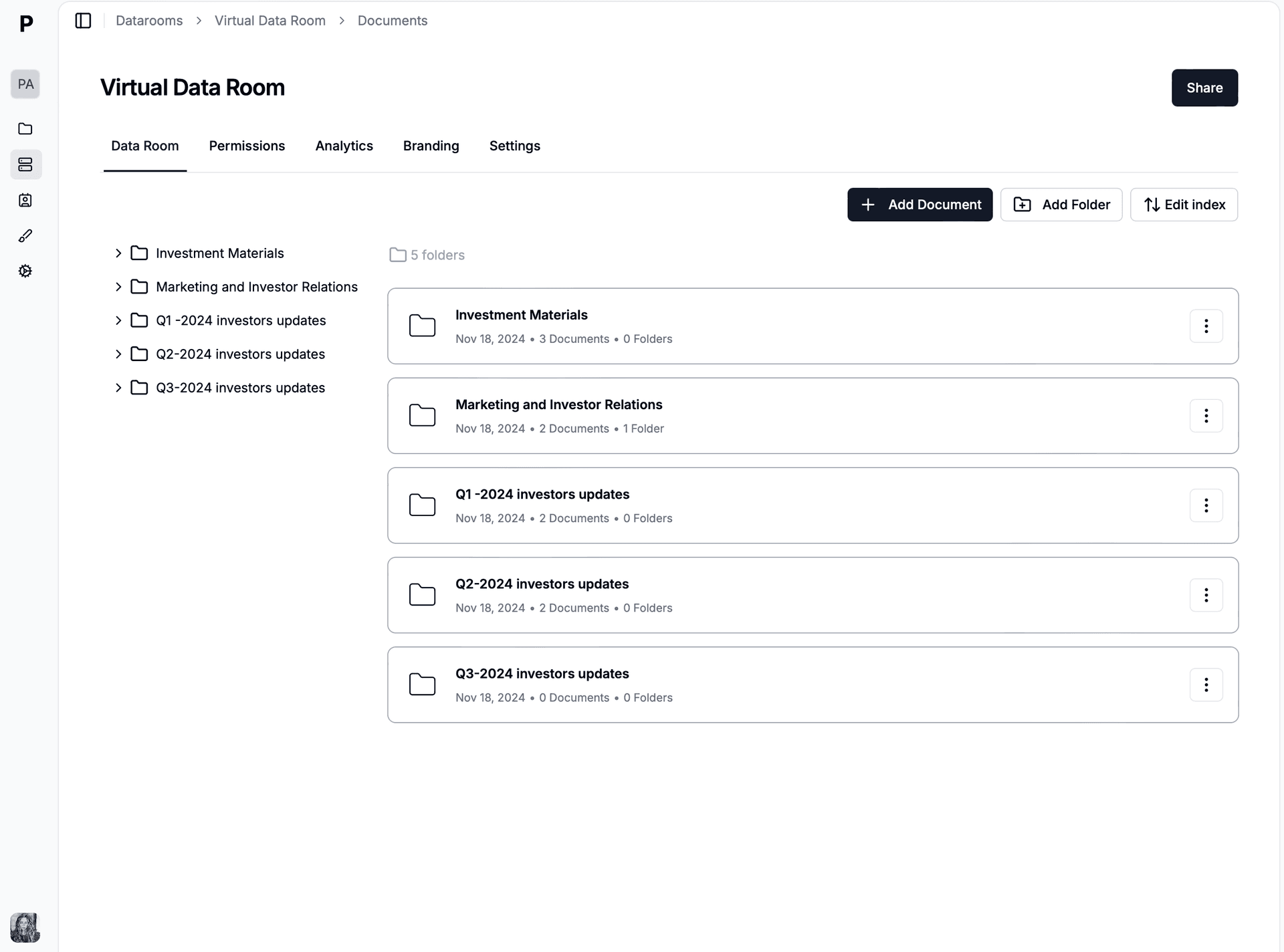
Step 1. Upload your portfolio reports
Open Papermark and create a new data room. Upload portfolio materials organized by fund and company. Use drag-and-drop to add files, then organize them into folders. Papermark automatically indexes everything and supports bulk upload of entire folder structures.
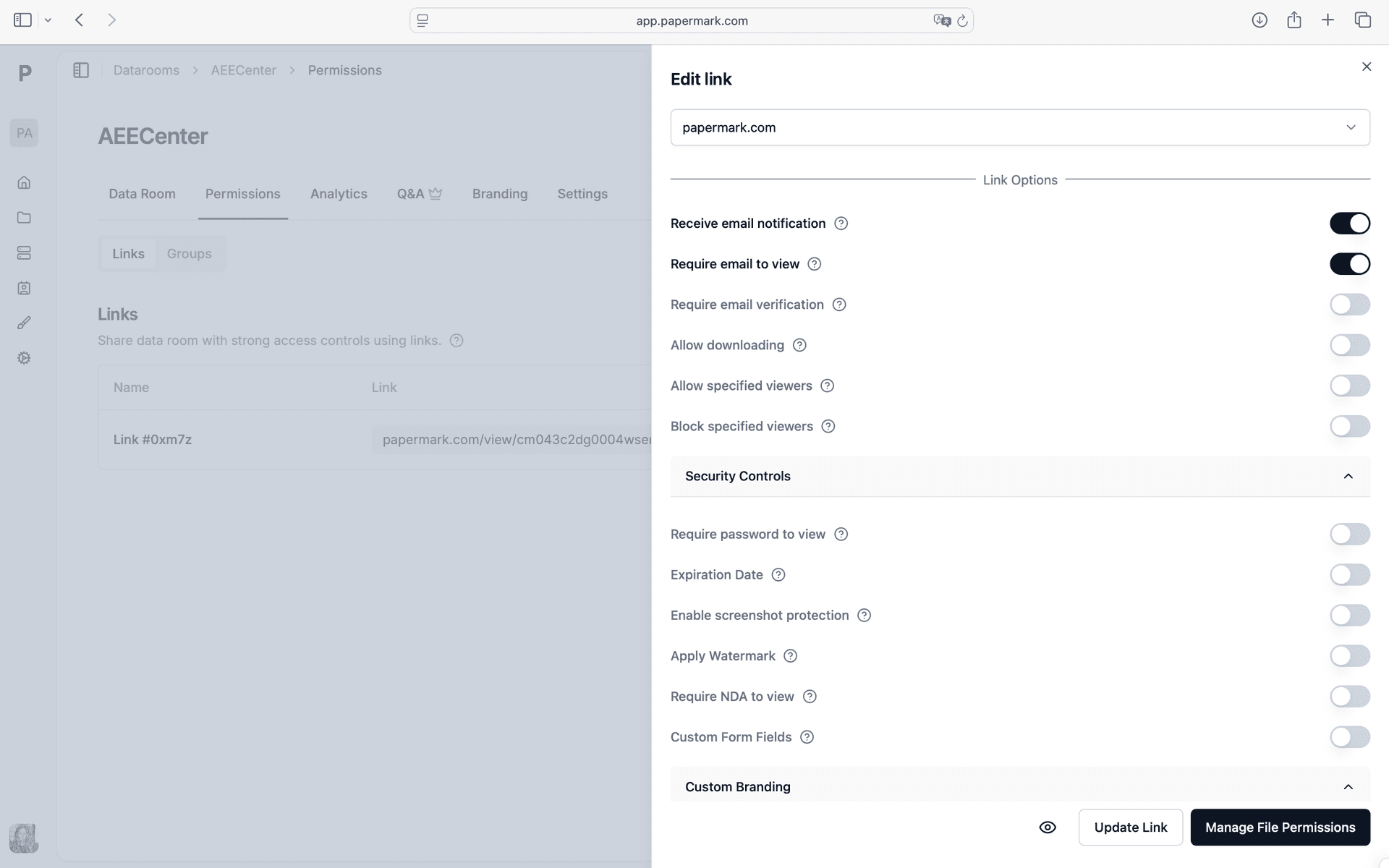
Step 2. Set up access controls for LPs, portfolio companies, and co-investors
Configure your security settings. In Papermark link settings, enable File request, Folder structure, Email notifications. Every viewer is verified before they can access a single page. You control exactly who among your LPs, portfolio companies, and co-investors sees which documents.
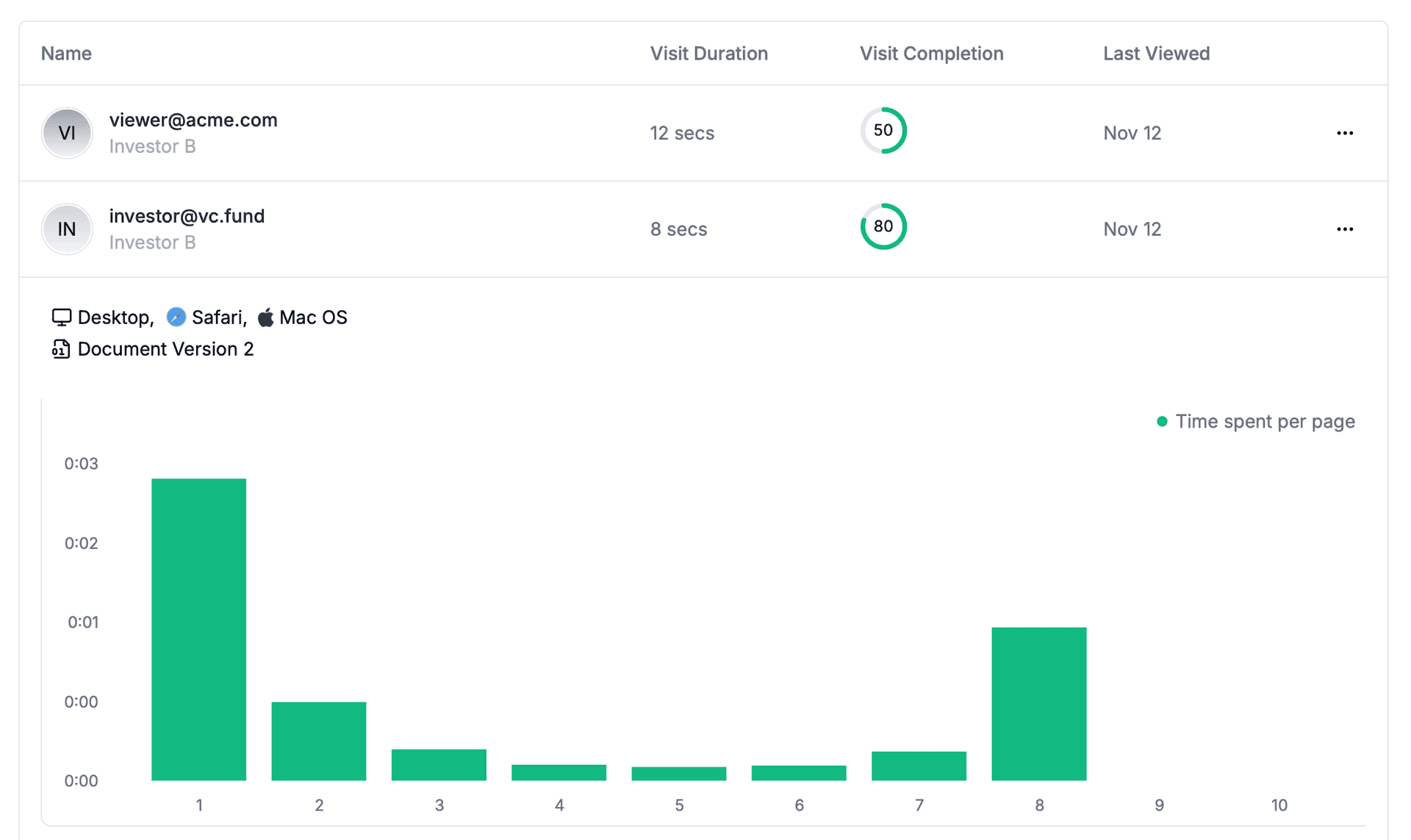
Step 3. Distribute materials to the right LP groups and track engagement
Generate a secure link and distribute materials to the right lp groups. Papermark tracks every interaction in real-time. Track LP engagement with quarterly reports and fund updates. Open the analytics dashboard to see all engagement data as it happens.
Step 4. Connect Slack to get notified instantly
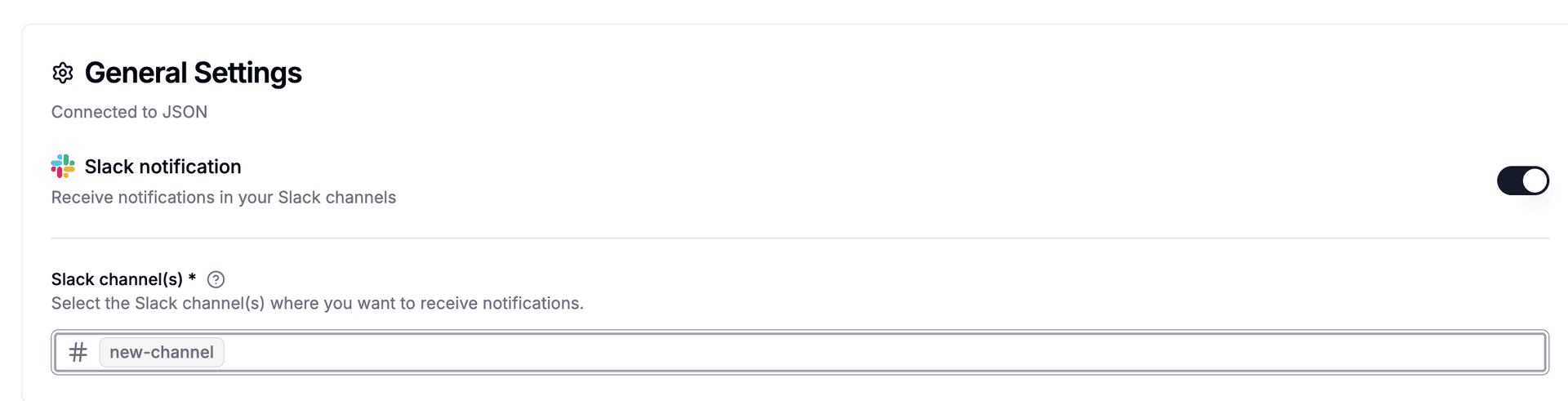
Go to Settings > Integrations > Slack in Papermark. Click "Connect Slack" and authorize via OAuth. Select the team channel where you want to receive alerts. Papermark sends formatted messages when LPs, portfolio companies, and co-investors view, download, or access your documents.
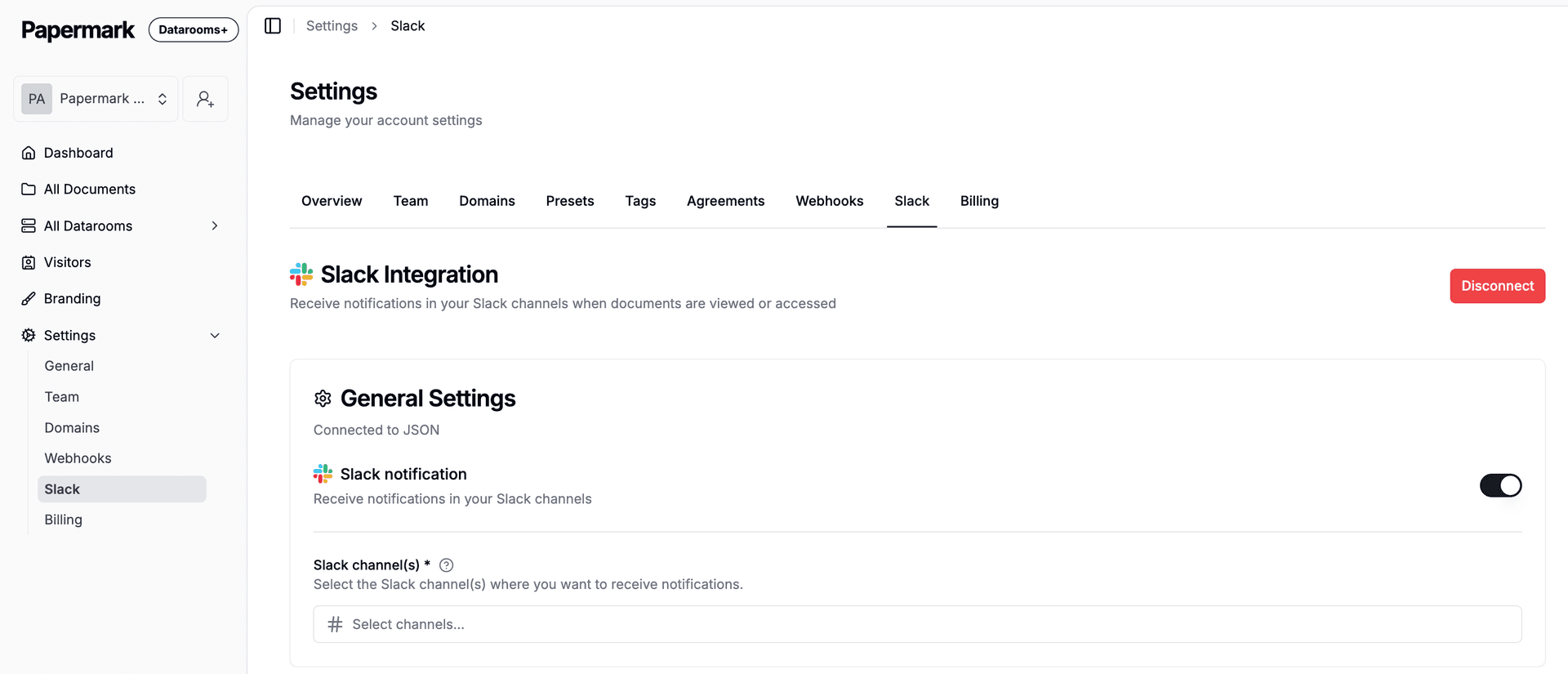
Step 5. See who among your LPs, portfolio companies, and co-investors is engaging
Every time someone opens your portfolio reports, a Slack notification appears in your channel. It shows the viewer's email, which document they opened, how long they spent, and a link to full analytics. Your team knows immediately who is engaged without checking the dashboard.
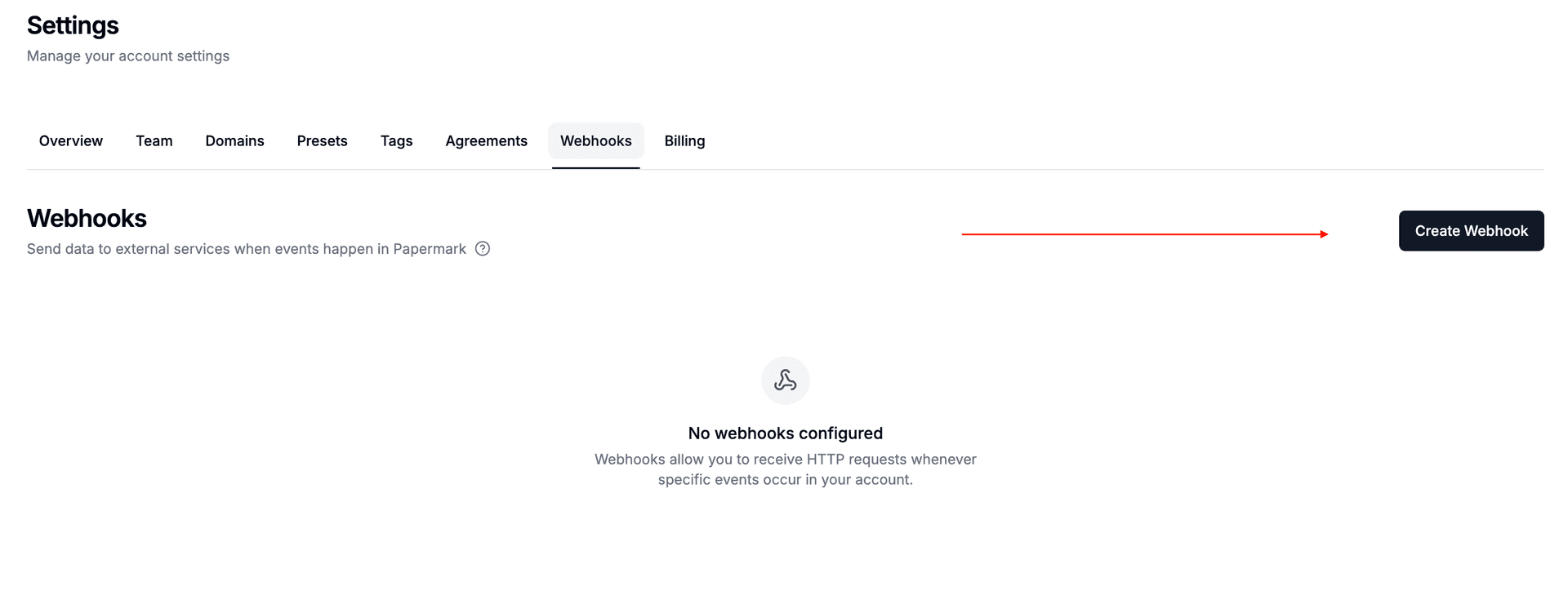
Step 6. Create a webhook to connect external tools
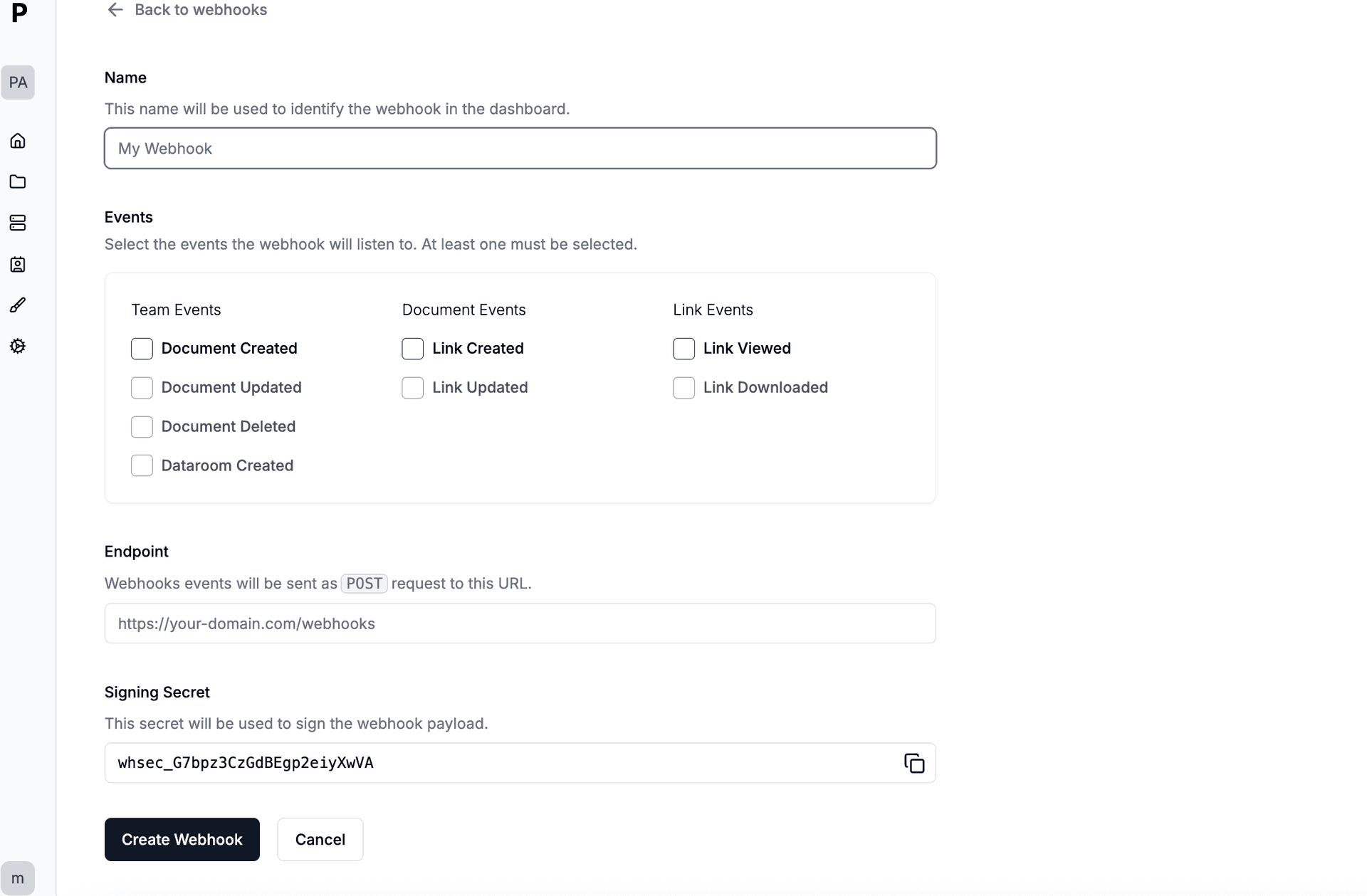
Go to Settings > Webhooks in Papermark. Create a new webhook endpoint pointing to your automation tool (Zapier, Make, or n8n). Select which events should trigger: "Link Viewed" fires when LPs, portfolio companies, and co-investors open your documents, "Document Downloaded" when they download. Papermark sends a signed payload with viewer email, document name, pages viewed, and time spent.
Step 7. Choose which events trigger your automation
Pick the events relevant to your workflow. For tracking LPs, portfolio companies, and co-investors engagement, select "Link Viewed". For monitoring downloads of sensitive portfolio reports, add "Document Downloaded". Each payload is signed with HMAC-SHA256 for security. You can create multiple webhooks for different tools.
Step 8. Route notifications by portco
In Make, create a new scenario with "Custom Webhook" as the trigger. Copy the URL and add it in Papermark. Build your automation: Route notifications by portco. Make is best when you need conditional logic, like different actions based on how much of your portfolio reports was viewed.
Tools and integrations
Papermark connects to external tools via outgoing webhooks (HMAC-SHA256 signed). Slack has a native integration with OAuth. For all other tools, connect Papermark webhooks through Zapier, Make, or n8n.
Slack Native integration
Notify deal team on uploads
Make Webhook middleware
Route notifications by portco