BlogHow to create a link to a PDF document in 2026

How to create a link to a PDF document in 2026

1 min read
Marc Seitz

Marc Seitz

Creating a link to a PDF document means uploading the file to a sharing platform like Papermark, generating a unique URL, and (optionally) setting permissions like a password, expiration date, email verification, or watermark. This guide walks you through the 5 quick steps in Papermark, plus the alternatives (Google Drive, Dropbox, OneDrive) if you don't need analytics or access controls.

Share secure documents

No credit card required

Page by page analytics
Require email verification
Require password to view
Allow/Block specified viewers
Apply Watermark
Require NDA to view
Custom Welcome Message
  1. Upload your PDF document
  2. Create your document link
  3. Set link permissions
  4. Share your PDF document
  5. Monitor document access

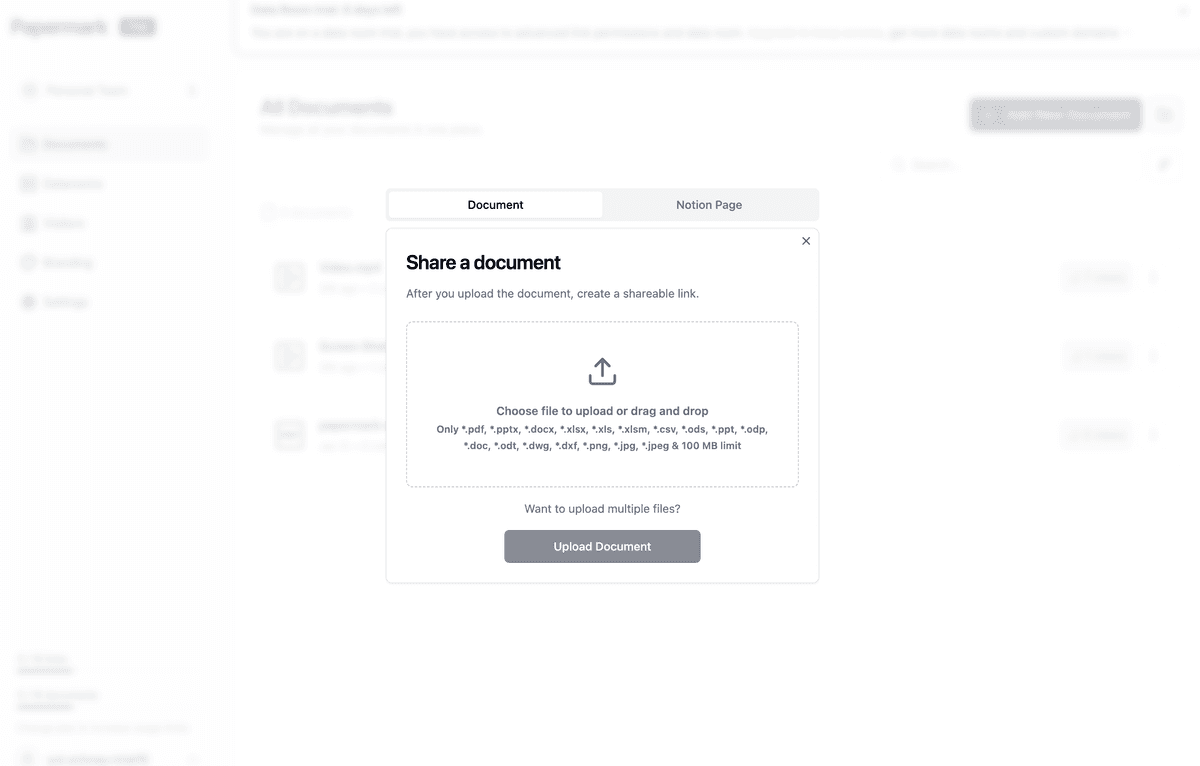
Upload PDF document interface in Papermark

Step 1: Upload your PDF document

To create a link to your PDF document, first upload it to a secure platform:

  1. Sign in to your Papermark account
  2. Select "Upload PDF Document"
  3. Choose your PDF document file
  4. Let the system process your document

Once your PDF document is uploaded, you'll get an automatic link:

Copy PDF document link in Papermark

  1. Go to your PDF document in the dashboard
  2. Look for the "Create Link" option
  3. Click to generate your document link
  4. Copy your new PDF document link

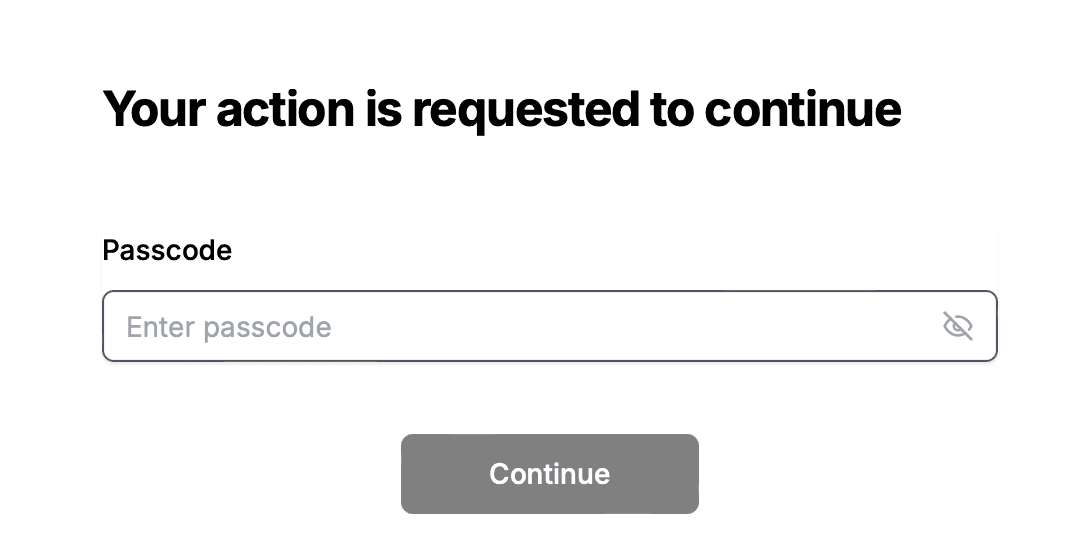
PDF link permission settings in Papermark

Customize how others can access your PDF document:

  • View settings: Control who can view your PDF document
  • Security options: Add password protection to your document link
  • Time limits: Set when your document link expires
  • Download control: Manage if viewers can download your PDF document
  • Access requirements: Set up email verification for document access

After setting permissions, share your PDF document link through:

  • Direct email sharing
  • Team collaboration tools
  • Professional networks
  • Website links
  • Company communications

Step 5: Track PDF document access

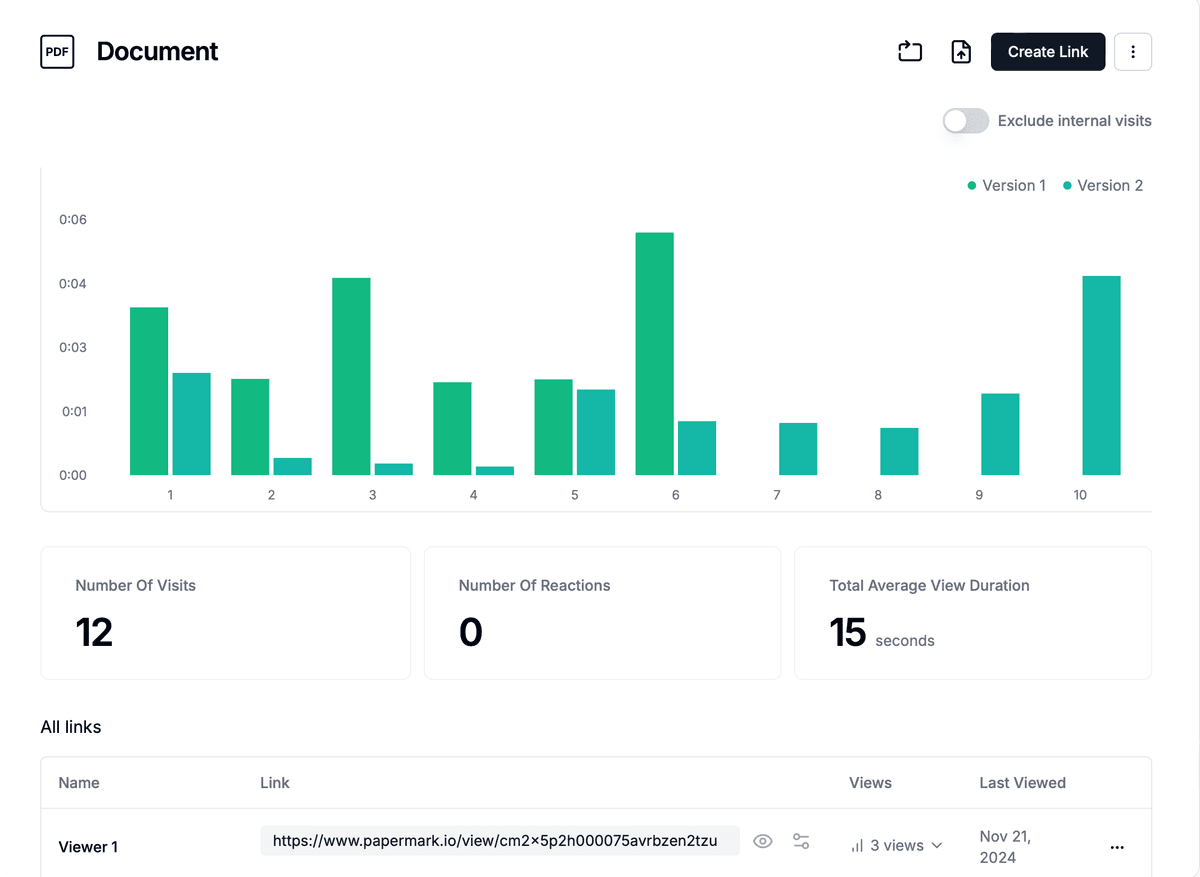
Analytics Dashboard

See how people interact with your PDF document:

  • Number of document views
  • Reading duration for your document
  • Page-specific engagement
  • Viewer details
  • PDF document access history

1. Professional document sharing

  • Branded PDF viewing
  • Clean document interface
  • Mobile PDF viewing
  • Large document support

2. Document security

  • Secure document encryption
  • PDF access management
  • Document protection options
  • Link expiration controls

3. Document analytics

  • Real-time PDF tracking
  • Document viewer insights
  • Usage reports
  • Access notifications

4. Easy management

  • Simple document updates
  • Multiple sharing methods
  • Document version tracking
  • Quick link creation

While Papermark is optimal for professional PDF document sharing, you can also use:

  1. Cloud storage for PDF documents

    • Google Drive PDF links
    • Dropbox document sharing
    • OneDrive PDF options
  2. Document hosting services

    • WeTransfer links
    • PDF hosting platforms
    • Document sharing services
  3. Website PDF hosting

    • Direct PDF uploads
    • Document management systems
    • File hosting solutions
  1. Secure your documents

    • Use document passwords
    • Set PDF access limits
    • Monitor document usage
  2. Organize your PDF documents

    • Clear document naming
    • Separate document links
    • Track shared documents
  3. Professional PDF presentation

    • Custom viewing options
    • Branded document experience
    • Mobile document access

FAQ

Conclusion

Creating a link to your PDF document is straightforward with the right tools. Using Papermark, you can quickly generate secure, trackable links for your PDF documents. Start creating professional document links today and improve how you share and track your PDF documents.

More useful articles from Papermark

Ready to share your documents?