
How to create a link to your data room?
Sharing your data room with investors, advisors, or deal participants is made easy with Papermark. By creating a link to your data room, you can track viewer engagement, control access, and ensure your confidential documents reach the right hands. Here's how to create a shareable link for your data room in Papermark:
Step 1: Create or open your data room
First, make sure you have a data room set up in Papermark. If you haven't created one yet, check out our guide on how to create a data room.
Once your data room is ready with documents uploaded and organized into folders, you can proceed to create shareable links.
Step 2: Navigate to the Links section
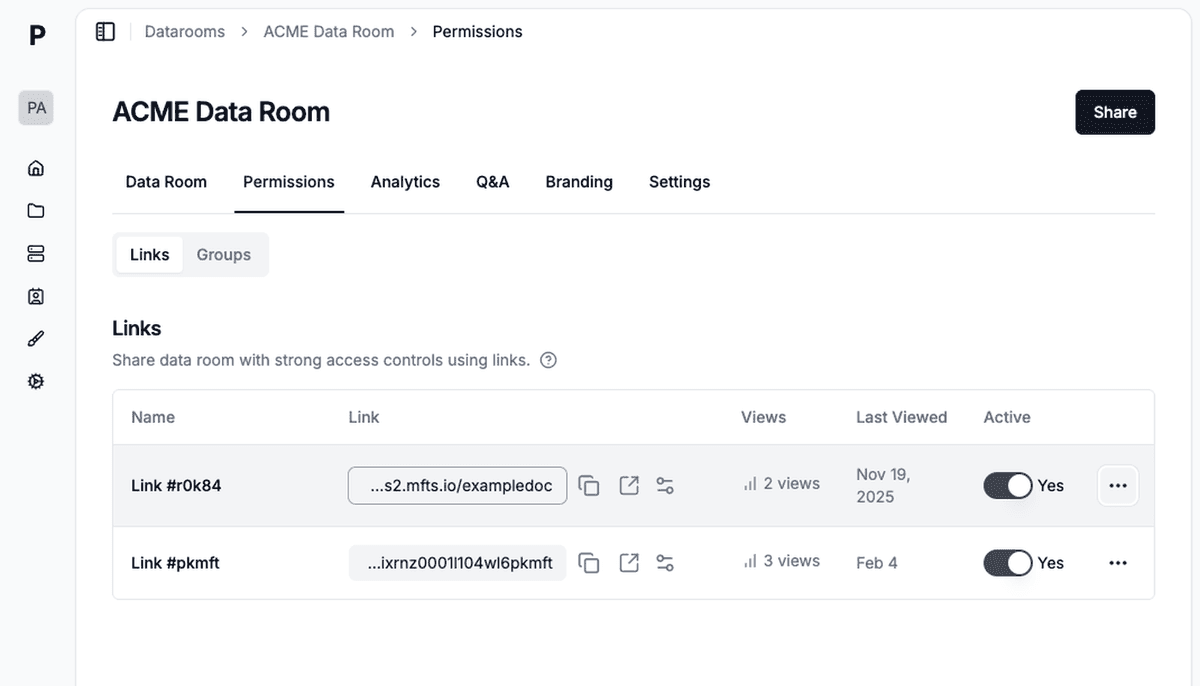
Open your data room and click on the Permissions tab in the navigation. You'll see two options: Links and Groups.
The Links tab shows all shareable links you've created for this data room, including:
- Link Name — A descriptive name to identify who this link is for
- Link URL — The shareable URL
- Views — Total number of times the link was accessed
- Last Viewed — When someone last accessed via this link
This is where you'll manage all access to your data room.
Step 3: Create a new link
Click the Share button or Create Link button to generate a new shareable link. Each link you create can have its own unique settings, so you can share the same data room with different audiences while controlling what each group sees and how they interact with your documents.
Step 4: Configure link settings
When creating a link, you can customize a variety of settings to control access and security:
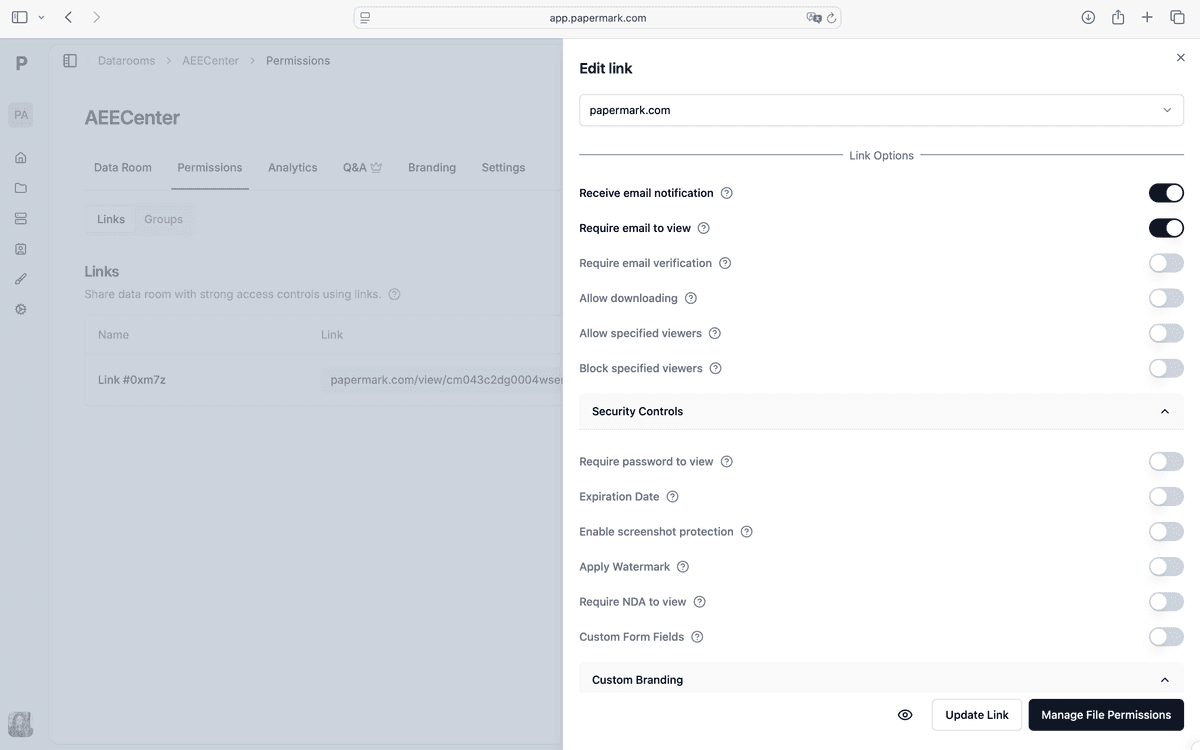
Basic settings
- Link Name — Give your link a descriptive name (e.g., "Sequoia Partners" or "Series B Investors") so you can easily track who has which link
- Custom Domain — Use your own domain instead of papermark.com for a branded experience
Access controls
- Require email to view — Viewers must provide their email before accessing the data room
- Email verification — Add an extra layer by requiring viewers to verify their email address
- Allow specified viewers — Create an allowlist of specific emails or domains that can access
- Block specified viewers — Block certain viewers from accessing the data room
Security options
- Password protection — Set a password that viewers must enter before viewing
- Expiration date — Automatically disable access after a set date
- NDA requirement — Require viewers to sign a non-disclosure agreement before accessing
- Dynamic watermarking — Apply viewer-specific watermarks with their email, IP, or custom text
- Screenshot protection — Prevent viewers from capturing screenshots
For a complete overview of all available settings, see our guide on link permissions.
Step 5: Copy and share the link
Once you've configured your settings, click Save Link to create your shareable link. You can now:
- Copy the link — Click the copy icon next to the link URL
- Share it — Send the link via email, Slack, or any communication channel
- Send invitations — Use Papermark's built-in email invitations for a branded experience
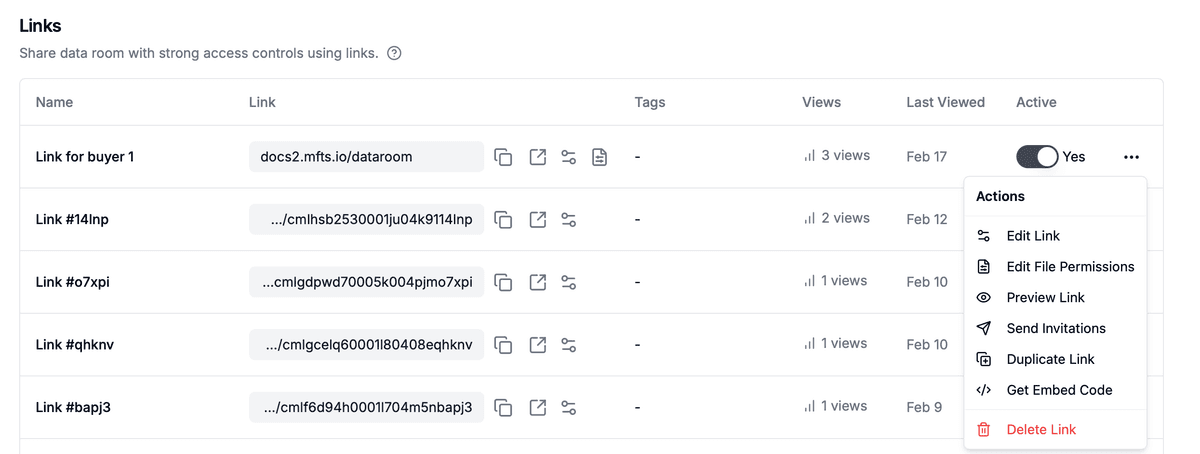
Click the three dots menu (⋯) on any link to access more options:
- Edit Link — Modify link settings
- Edit File Permissions — Control which files this link can access (Data Rooms Plus)
- Preview Link — See what visitors will experience
- Send Invitations — Send branded email invites directly to recipients
- Duplicate Link — Create a copy with the same settings
- Delete Link — Remove the link permanently
Step 6: Track engagement
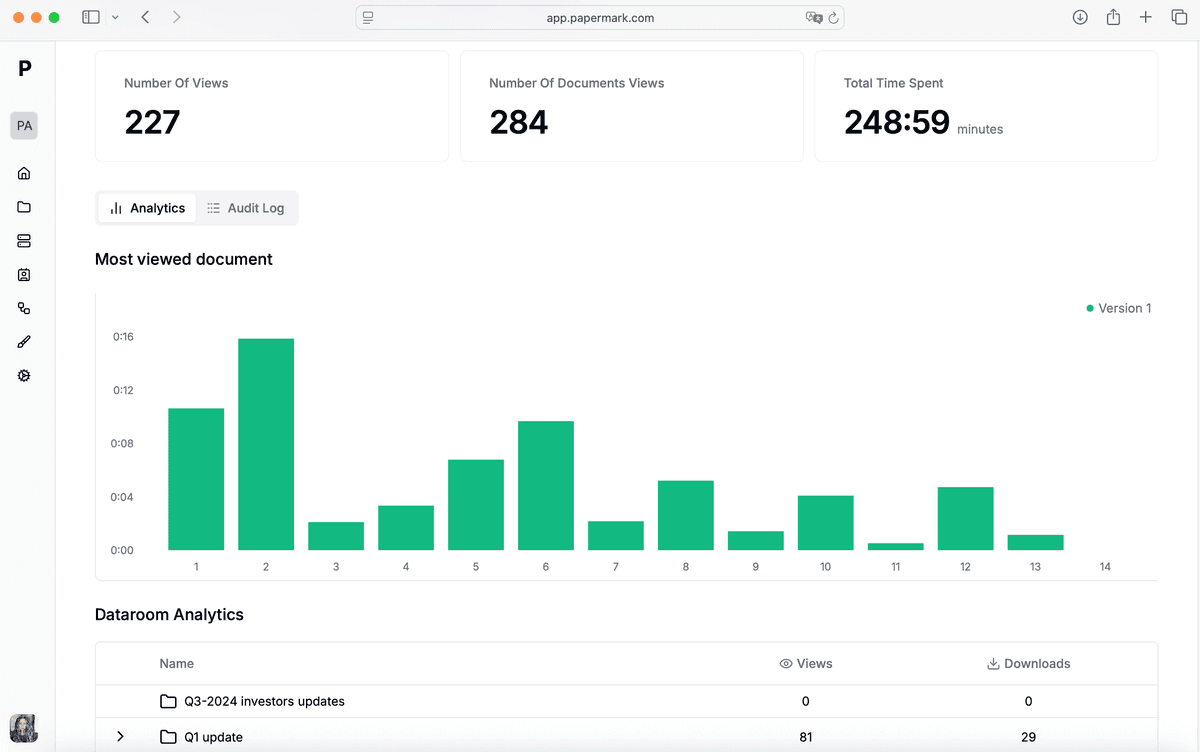
After sharing your link, monitor how viewers interact with your data room in the Analytics tab:
- Number of visits and unique viewers
- Time spent on each document
- Page-by-page engagement
- Download activity
- Geographic location of viewers
- Device and browser information
Real-time notifications alert you the moment someone opens your data room, so you can follow up at the right time.
Benefits of creating links in Papermark
- Multiple links, one data room — Create separate links for different stakeholders with unique settings for each
- Granular permissions — Control exactly which files and folders each link can access (on Data Rooms Plus)
- Complete audit trail — Track who accessed what, when, and for how long
- Professional branding — Use custom domains and white-label options for a seamless experience
- Secure sharing — Protect sensitive documents with passwords, NDAs, watermarks, and more
Conclusion
Creating a link to your data room in Papermark gives you full control over who accesses your documents and how. Whether you're sharing with a single investor or multiple stakeholders, each link can be customized with its own security settings and permissions — all while tracking engagement in real time.