
How to use custom fields in Papermark
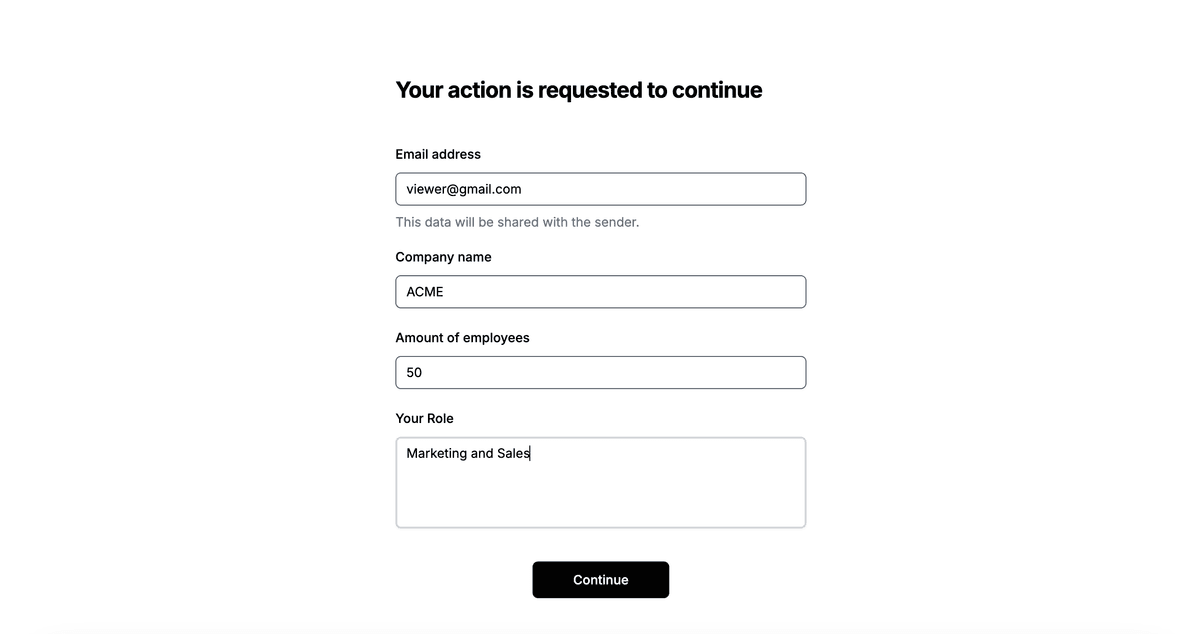
Custom fields in Papermark allow you to collect additional information from your document viewers. This guide explains how to create and manage custom fields effectively.
Available field types
Papermark supports several types of custom fields:
- Short Text: For brief responses (names, titles, etc.)
- Long Text: For detailed responses or comments
- Number: For numerical inputs
- URL: For website or link inputs
- Checkbox: For confirmations and agreements (e.g. "I am an accredited investor")
When to use a checkbox custom field
Checkbox fields are perfect for collecting quick confirmations before a viewer accesses a document or data room. Common examples:
- "I agree to keep this content confidential"
- "I am an accredited investor"
- "I confirm I am acting on behalf of [company]"
- "I have read the disclaimer"
You can mark the checkbox as required, so the viewer must check it before they get access to the document. The viewer's response (checked or not, plus the timestamp) is recorded in the audit log and exportable along with all other custom field data.
Checkbox fields are lighter-weight than full NDA agreements. Use a checkbox when you just need a confirmation, and use an NDA when you need a signed legal document.
Creating custom fields
To add custom fields to your document:
- Navigate to your document or data room
- Open link settings/share settings
- Click "Custom Field"
- Configure the field settings:
- Select field type
- Add field label
- Set placeholder text (optional)
- Toggle required status
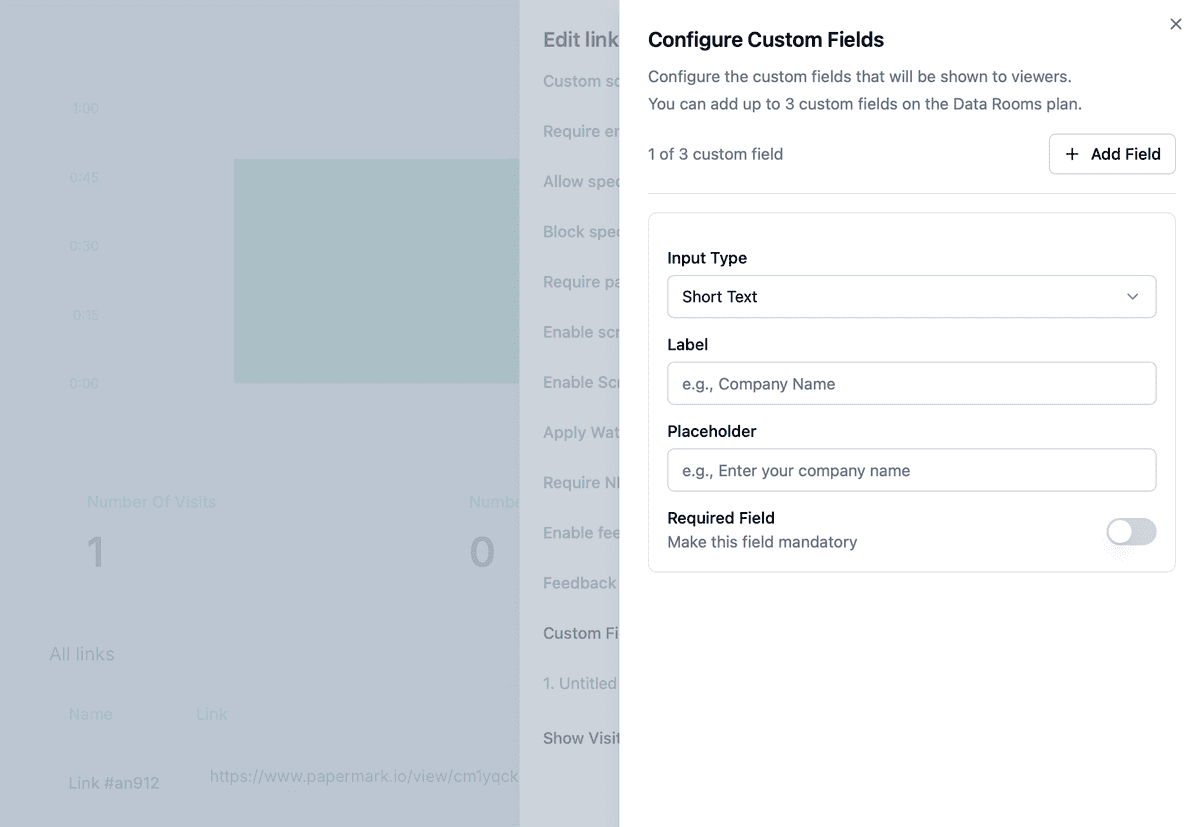
Field configuration options
Label
- Identifies your field
- Appears to viewers
- Automatically generates a system identifier
- Example: "Company Name"
Placeholder text
- Provides guidance to viewers
- Shows example inputs
- Helps clarify expected format
- Example: "Enter your company name"
Required fields
You can make fields mandatory by:
- Toggling the "Required Field" switch
- Viewers must complete required fields
- Prevents form submission without data
Viewing responses
Track custom field responses through:
- Document analytics
- Individual viewer data
- Export capabilities
- Response summaries
Analytics and Insights
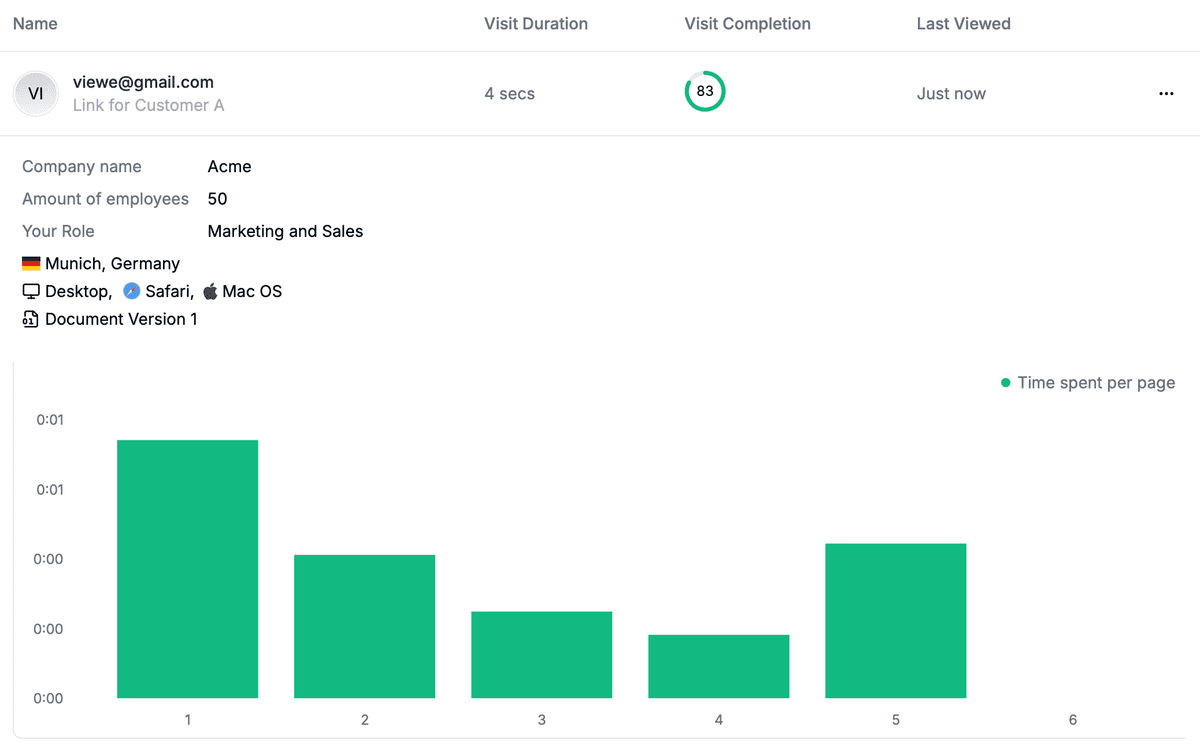
Custom fields data can be analyzed in detail through our analytics dashboard:
- Response Rate: Track completion rates for each custom field
- Field Performance: Analyze which fields are most frequently filled
- Data Visualization: View response patterns through charts and graphs
- Export Options: Download custom field data in CSV format
- Real-time Updates: Monitor responses as they come in
- Filter and Search: Find specific responses quickly
- Custom Reports: Generate reports based on field responses
Conclusion
Custom fields enhance document interaction by collecting specific information from viewers. Use them strategically to gather necessary data while maintaining a smooth user experience.