
Today we are launching enterprise single sign-on for Papermark: SAML SSO, enforced SSO and SCIM directory sync, so your team signs in to the secure, modern data room the same way it signs in to everything else.
For banks, law firms, funds and corporate development teams, single sign-on is often the last box to tick before a new tool is approved. IT wants one place to grant access, one place to remove it, and no extra passwords. With SAML and SCIM, Papermark fits into the same security setup as the rest of your stack.
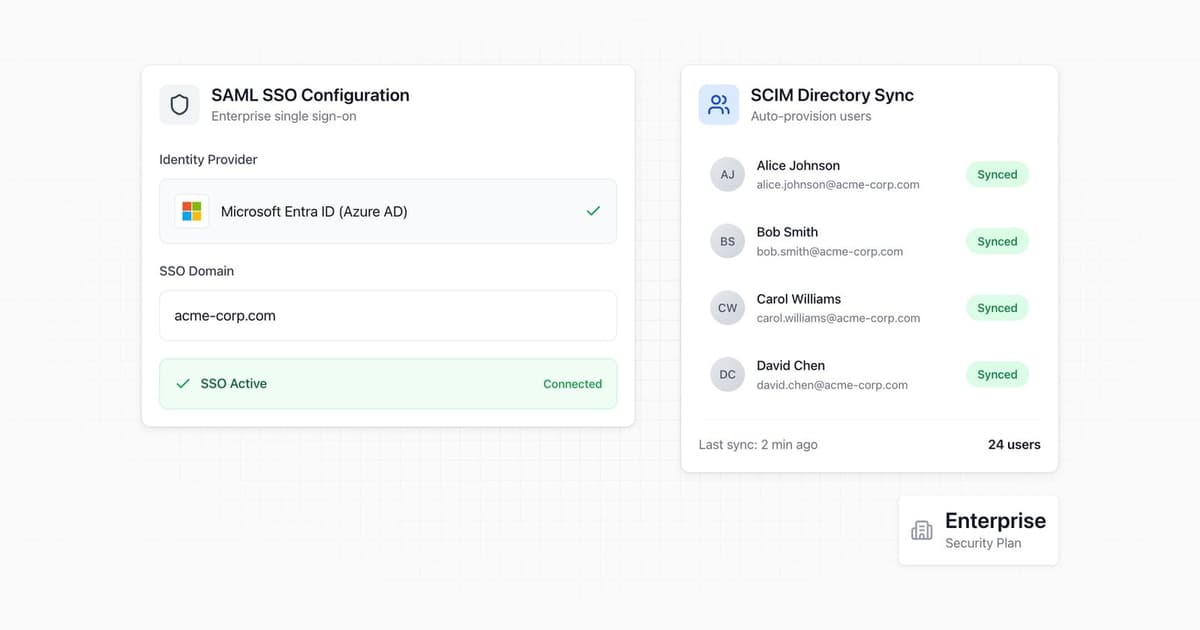
1. SAML single sign-on
Team members sign in to Papermark with your company's identity provider. On the login page they choose Continue with SAML SSO, enter your team identifier and are sent to your identity provider to authenticate.
Papermark works with SAML 2.0 identity providers and ships with presets for Okta, Microsoft Entra ID (formerly Azure AD) and Google Workspace. Each preset tells you exactly which value to paste, from an Okta metadata URL to the Entra App Federation Metadata URL or a Google XML metadata file.
2. Enforced SSO
Once SAML works, an admin can enforce it for your email domain. Every user with an address on that domain is then required to sign in through your identity provider.
Email magic links, Google, LinkedIn and passkey login are blocked for those users. Access to your deal documents follows the same rules as the rest of your company: if someone cannot sign in to your identity provider, they cannot sign in to Papermark.
3. SCIM directory sync
SCIM keeps your Papermark team in sync with your directory. When people join a group in your identity provider, their Papermark account is created. When they leave, it is removed, automatically.
No more offboarding checklists that miss the data room. The person who left last Friday no longer has access to the M&A room on Monday.
4. How to set it up
Everything lives under Settings → Security in Papermark and takes a few minutes:
- Open the SAML configuration and pick your identity provider.
- In your identity provider, create an enterprise application and paste the Entity ID and ACS URL that Papermark shows you.
- Paste your identity provider's metadata back into Papermark, assign users and groups, and test the sign-in.
- Create a directory sync connection to get a SCIM base URL and bearer token, and add both to your identity provider's provisioning settings.
- Turn on SSO enforcement once you have confirmed that sign-in works.
With Microsoft Entra ID, the first SCIM provisioning cycle can take 20 to 40 minutes. Our step-by-step guide walks through each provider.
The SAML connection in Papermark
Only team admins can set up SSO. In Settings → Security, click Configure SAML SSO. The dialog walks you through four steps:
- Add these to your IdP's SAML configuration. Copy the Entity ID and the ACS URL.
- Select SAML Provider. Choose Okta, Entra ID (formerly Azure AD) or Google Workspace.
- Add the provider's metadata. Papermark asks for the format your provider uses: a Metadata URL for Okta, an App Federation Metadata URL for Entra ID, or an XML Metadata File for Google Workspace.
- SSO Email Domain. Enter your company's email domain, for example
yourfirm.com. Only users with this domain can sign in through SSO. Public email domains such as gmail.com or outlook.com are not accepted.
Click Save Configuration. The connection now shows up with its Client ID, and the Identity Provider Configuration box keeps the Entity ID (Identifier) and Reply URL (ACS URL) at hand in case you need them again.
In today's product there is one more step: you verify that your organization owns the domain. Papermark shows a TXT record. Add it at your DNS provider and click Verify domain. Nobody can sign in through your identity provider until the domain is verified.
Okta
- In the Okta admin console, create a new SAML 2.0 app integration for Papermark.
- Paste the ACS URL from Papermark as the Single sign-on URL and the Entity ID as the Audience URI (SP Entity ID).
- Assign the users or groups who should use Papermark.
- Copy the app's metadata URL and paste it into step 3 of the Papermark dialog.
- For SCIM, choose Okta under Configure Directory Sync in Papermark and click Create Directory. Papermark shows a SCIM Base URL and a Bearer Token. Add both to the provisioning settings of your Okta app.
Microsoft Entra ID
- In the Azure Portal, create an Enterprise Application.
- Open Single Sign-On → SAML and enter the Entity ID as the Identifier and the ACS URL as the Reply URL.
- Copy the App Federation Metadata URL from SAML Certificates and paste it into the Papermark dialog.
- Assign users and groups to the application.
- For SCIM, create a directory sync connection in Papermark first. Then go to Enterprise Application → Provisioning in Azure, set Provisioning Mode to Automatic, paste the SCIM Base URL as the Tenant URL and the bearer token as the Secret Token. Click Test Connection, save, set the provisioning Status to On and assign users.
This is where the 20 to 40 minutes for the first sync cycle apply, so plan your test around it.
Google Workspace
- In the Google Admin console, add a custom SAML app for Papermark.
- Download the identity provider metadata file Google offers.
- Enter the ACS URL and Entity ID from Papermark in the service provider details.
- Turn the app on for the users or organizational units who need it.
- Upload the XML file in step 3 of the Papermark dialog.
How to test before you enforce
Keep enforcement off until you have seen SSO work end to end:
- Open a private browser window and go to the Papermark login page.
- Click Continue with SAML SSO and enter your team identifier, which is your team slug. You find it in Settings → Security, under SSO Enforcement, as "Team slug for SSO login".
- Sign in as a test user who is assigned to the Papermark app in your identity provider. If you see "SSO is not configured for this team", check the slug and the saved connection.
- For SCIM, assign a test user in your identity provider and check that they appear in your Papermark team. Then remove them and check that they are removed.
- When both work, click Enforce SSO. Papermark asks you to confirm: once enforced, all users with an address on your domain are required to sign in through your identity provider. The button stays disabled until your domain is verified.
After enforcement, a user on your domain who tries another login method sees "Your organization requires SSO login" and is pointed to the SAML SSO option.
How to roll back
If something goes wrong, you can undo each step separately in Settings → Security:
- Enforcement. Under SSO Enforcement, click Disable. SSO stays available, but users on your domain can sign in with other methods again. Do this first.
- SAML connection. Click the delete icon next to the connection. Users will no longer be able to sign in through SSO.
- Directory sync. Remove the directory sync connection to stop user provisioning. To move to a different identity provider, use Replace Directory Provider instead.
5. What it means for data room visitors
SAML SSO and SCIM control how your team signs in to Papermark. Investors, buyers and advisors who view your data room still get in through the link permissions you set, such as email verification, passwords and access controls.
That keeps internal access tied to your identity provider, while you stay in full control of who on the outside sees which file.
6. Built for enterprise security reviews
SSO sits next to the rest of our security stack: encryption, granular permissions, audit logs and compliance. Read more about how we protect your documents on our security page.
SAML SSO and SCIM are available for enterprise teams as an add-on to the Data Rooms Premium and Unlimited plans. See what else is included on our enterprise page, or compare plans on our pricing page.