BlogFile SecurityHow to Password Protect Google Sheets in 2026 (Complete Security Guide)
How to Password Protect Google Sheets in 2026 (Complete Security Guide)
·3 min read
Marc Seitz
In today's data-driven world, Google Sheets often contain critical business information - from financial records and customer data to proprietary formulas and sensitive calculations. With over 800 million active Google Workspace users sharing sensitive data daily, implementing robust security measures isn't just good practice – it's essential for business survival. Recent studies show that data breaches cost companies an average of $4.45 million in 2024, while 72% of data leaks occur due to improper document security configurations.
Protect your documents with advanced security
No credit card required
Page by page analytics
Require email verification
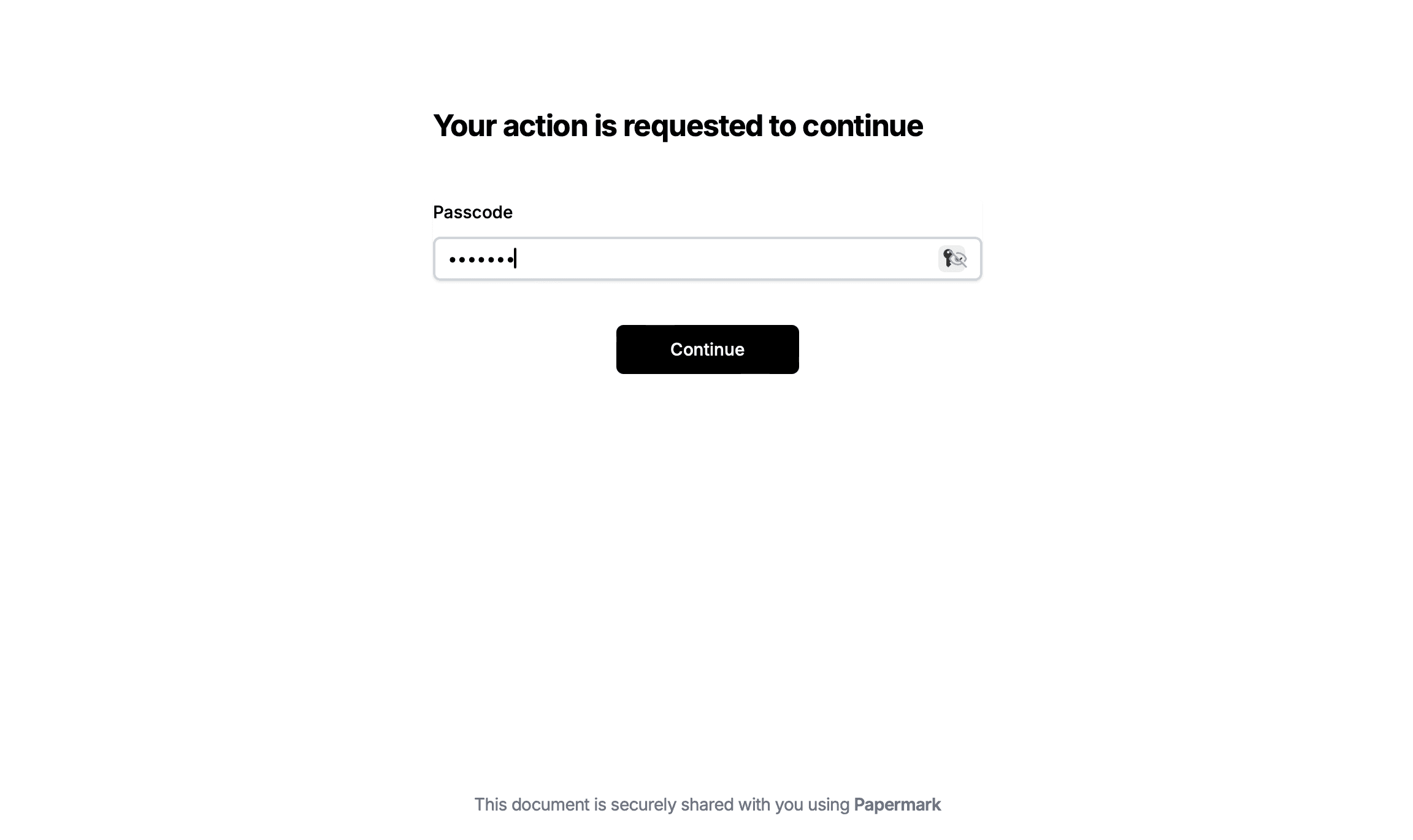
Require password to view
Allow/Block specified viewers
Apply Watermark
Require NDA to view
Custom Welcome Message
Why Password Protect Your Google Sheets in 2026?
Protecting spreadsheet data has become increasingly critical in modern business operations. Consider a Google Sheet as a digital vault containing valuable information - financial data, customer details, or proprietary business information. According to Google's latest security research in 2024, spreadsheets with proper security measures are five times less likely to experience unauthorized access.
Steps to password protect Google Sheets
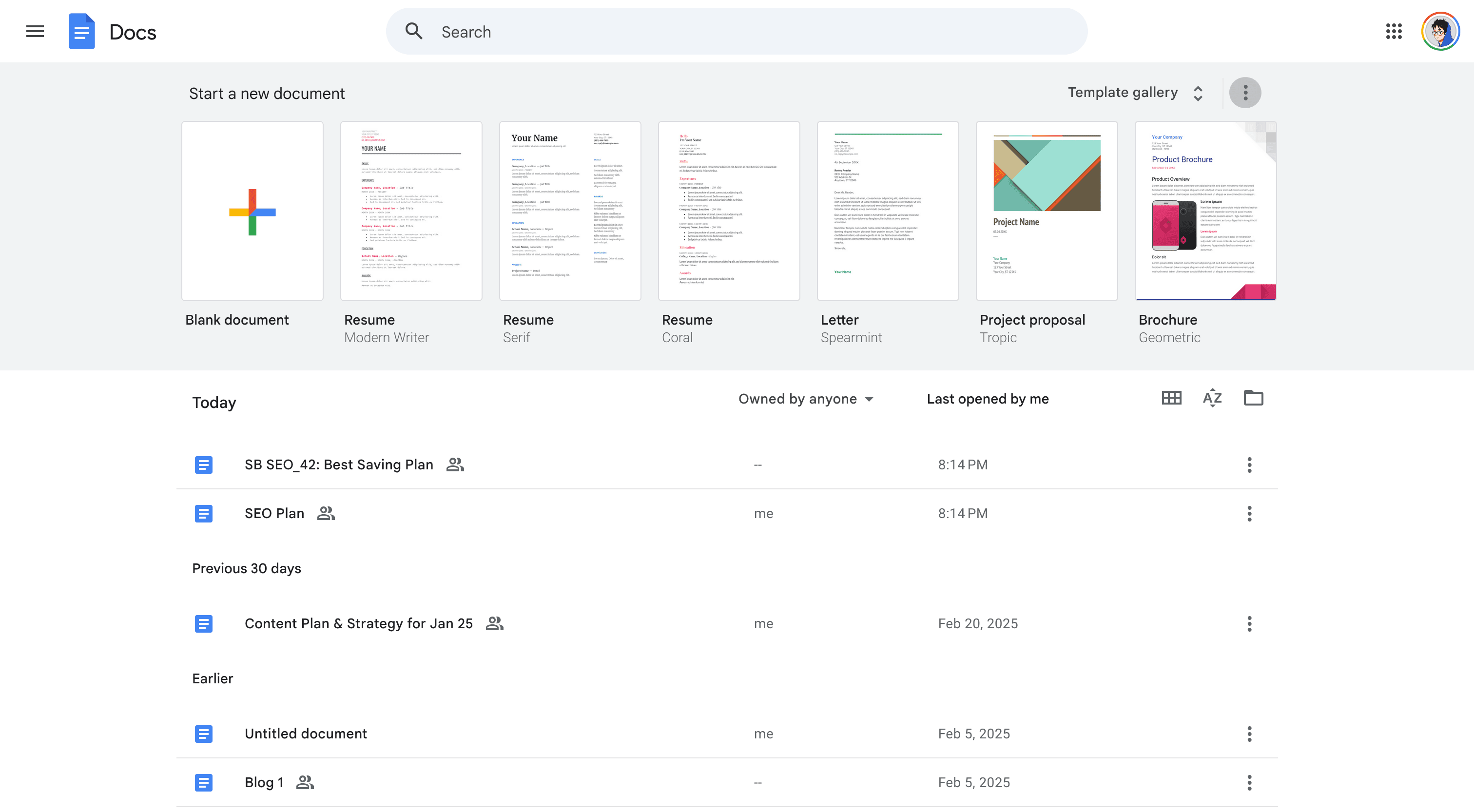
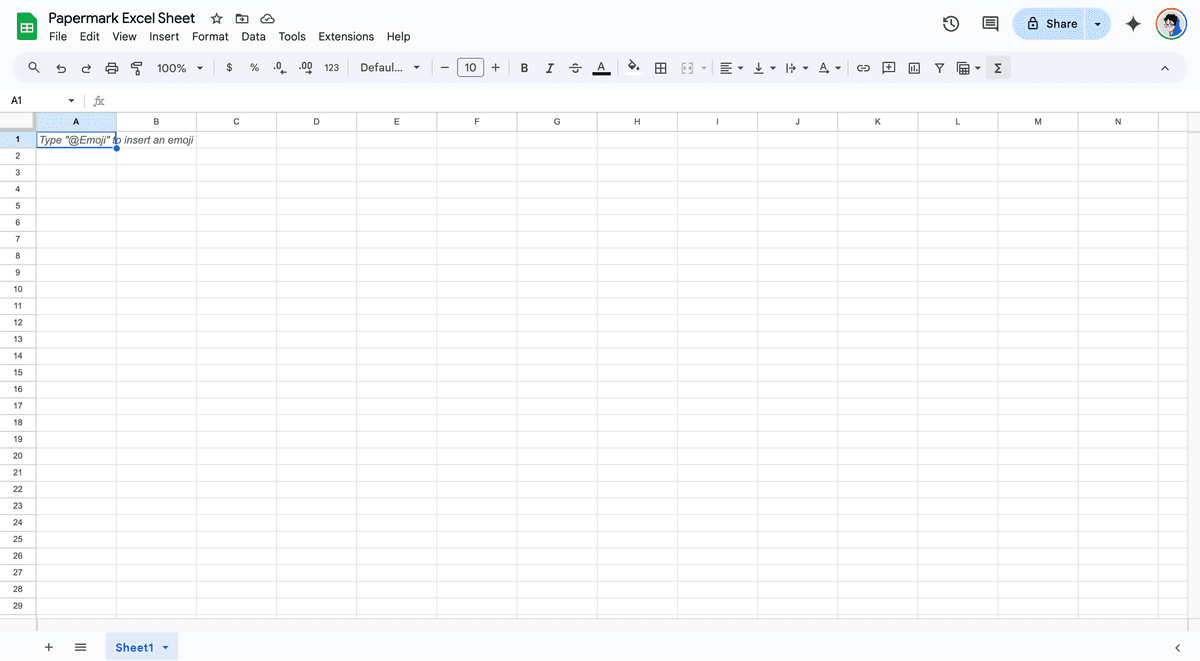
Accessing Your Google Sheet: Navigate to sheets.google.com and locate the spreadsheet you want to protect.
Export Your Google Sheet: Click File > Download to export your spreadsheet in your preferred format (Excel, CSV, etc.).
Set Up Your Papermark Account: Sign up or log in at papermark.com to access secure document management.
Create a Data Room: Use the "Create New Folder" option to organize your spreadsheets in a secure environment.
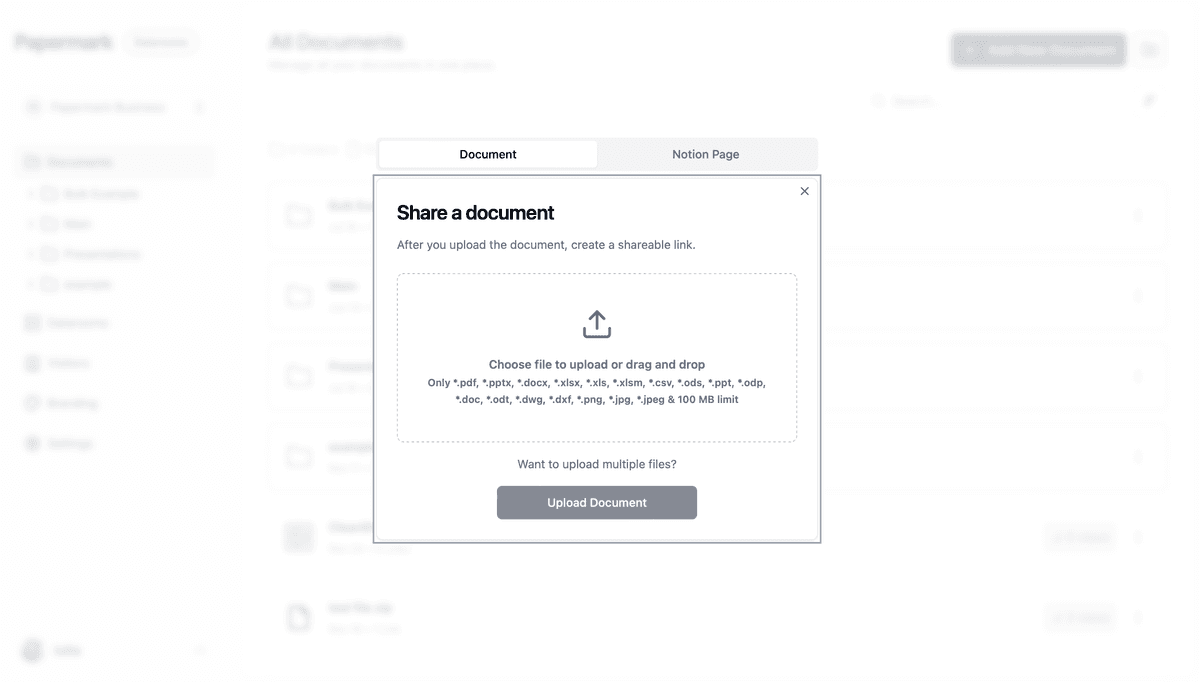
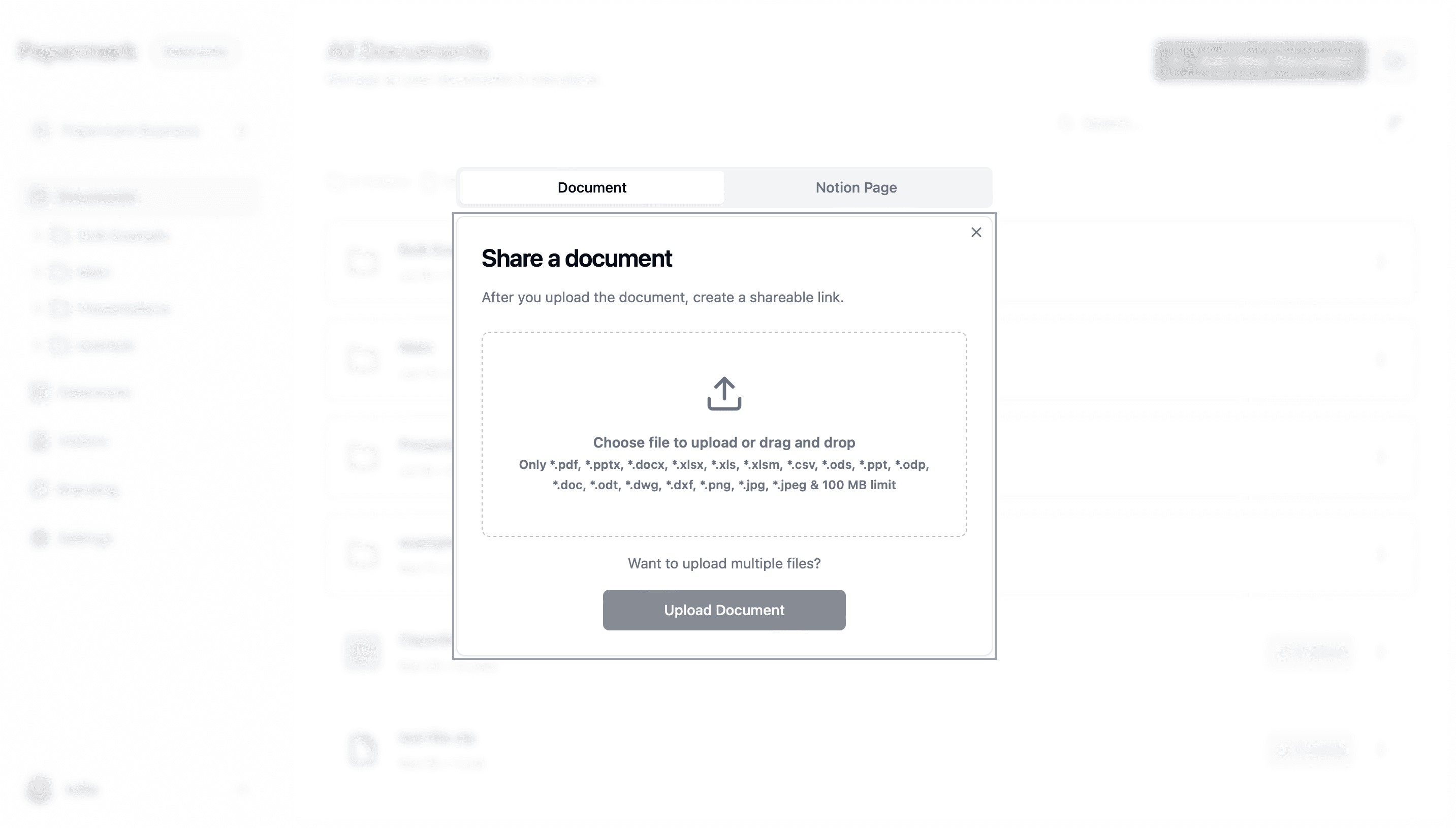
Upload Your Spreadsheet: Click "Add Document" and select your exported spreadsheet file.
Configure Password Protection: Set up password protection through the "Settings" or "Security" options.
Share Securely: Generate and share a protected link along with the password to authorized users.
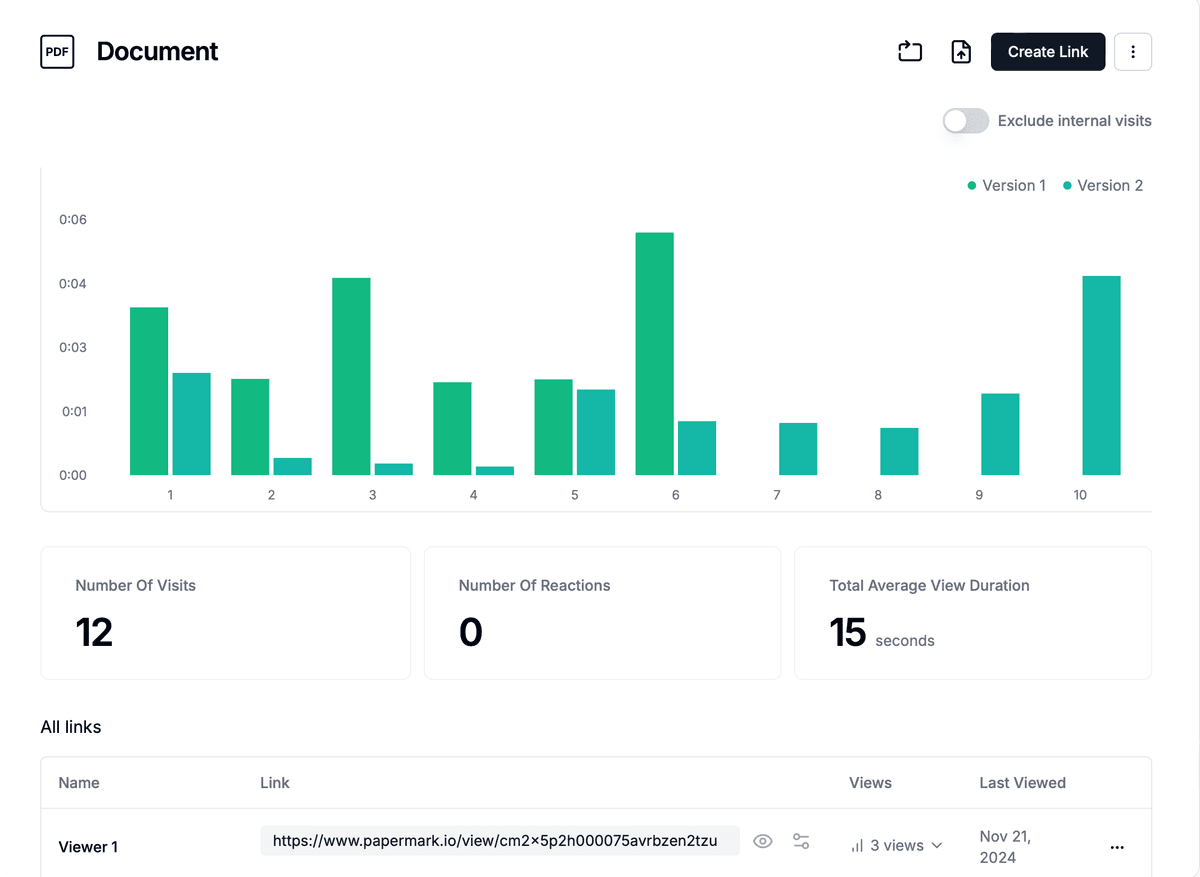
Monitor Access: Track user activity and interactions through the comprehensive analytics dashboard.
Detailed Guide on How to Password Protect Google Sheets with Papermark
In today's digital landscape, protecting spreadsheet data is crucial. While Google Sheets offers basic sharing controls, adding password protection through Papermark provides an extra layer of security for your sensitive data.
1. Accessing Your Google Sheet
First, visit sheets.google.com and log in to your Google account. Locate the spreadsheet you want to protect.
2. Exporting Your Google Sheet
To export your spreadsheet:
Open your Google Sheet
Click on File > Download
Choose your preferred format (Excel, CSV, PDF, etc.)
Save the file to your computer
3. Set Up Your Papermark Account
Visit Papermark and create an account if you haven't already. Papermark provides a secure platform for managing and protecting your documents.
4. Create a Data Room
Organize your spreadsheets by creating a dedicated space:
Look for the "Create New Folder" option in your dashboard
Name your folder appropriately (e.g., "Financial Reports 2025")
Use this space to manage all your protected spreadsheets
5. Upload Your Spreadsheet
With your data room created:
Open your folder
Click "Add Document"
Select your exported spreadsheet file
Wait for the upload to complete
6. Configure Password Protection
Protect your spreadsheet by:
Accessing the document settings
Selecting "Password Protection"
Creating a strong, unique password
Saving your security settings
7. Share Securely
Share your protected spreadsheet:
Generate a secure sharing link.
Send the link to intended recipients.
Provide the password through a separate, secure channel.
Set optional expiration dates for time-sensitive data.
For more control over how your document is accessed, check out our link settings to customize permissions and enhance security.
8. Monitor Access
Track spreadsheet activity:
View the analytics dashboard
Monitor who accessed the document
See when the spreadsheet was viewed
Track any download attempts
By following these steps, you can effectively secure your Google Sheets with password protection through Papermark. This ensures that your sensitive spreadsheets are not only safeguarded but also easily accessible to trusted individuals, all while allowing you to monitor interactions with your content.
Conclusion
While Google Sheets is a powerful tool for collaboration and data management, it lacks native password protection capabilities. Papermark bridges this gap by providing a secure platform where users can protect their spreadsheets with passwords and advanced security features. This solution is particularly valuable for businesses and individuals who need to share sensitive financial data, customer information, or proprietary calculations while maintaining strict access control.
By transitioning your Google Sheets to Papermark, you not only retain all the organizational benefits of spreadsheet functionality but also gain:
Enhanced security through password protection
Detailed activity tracking and analytics
Granular access controls
Time-based access restrictions
Professional document management features
This combination makes your spreadsheet solution both powerful and secure, ensuring your sensitive data remains protected while still being accessible to authorized users. Whether you're a small business owner protecting financial records or a large organization managing confidential data, Papermark's password protection features provide the security layer that Google Sheets users need in today's digital environment.


 In today's data-driven world, Google Sheets often contain critical business information - from financial records and customer data to proprietary formulas and sensitive calculations. With over 800 million active Google Workspace users sharing sensitive data daily, implementing robust security measures isn't just good practice – it's essential for business survival. Recent studies show that data breaches cost companies an average of $4.45 million in 2024, while 72% of data leaks occur due to improper document security configurations.