
Papermark AI launches on Product Hunt: #2 Product of the Day
Today we are launching Papermark AI on Product Hunt: an open-source AI assistant for the documents you share and the documents you receive. It finished the day as #2 Product of the Day with 426 upvotes.
Three months ago we launched Papermark as a way to share documents with one link and see who read them. Since then, the most common request was simple: help me do something with the document once it is open. Founders wanted to improve their deck before sending it. Investors wanted answers without reading forty slides. Papermark AI is our first answer to both.
1. Ask a question, get an answer
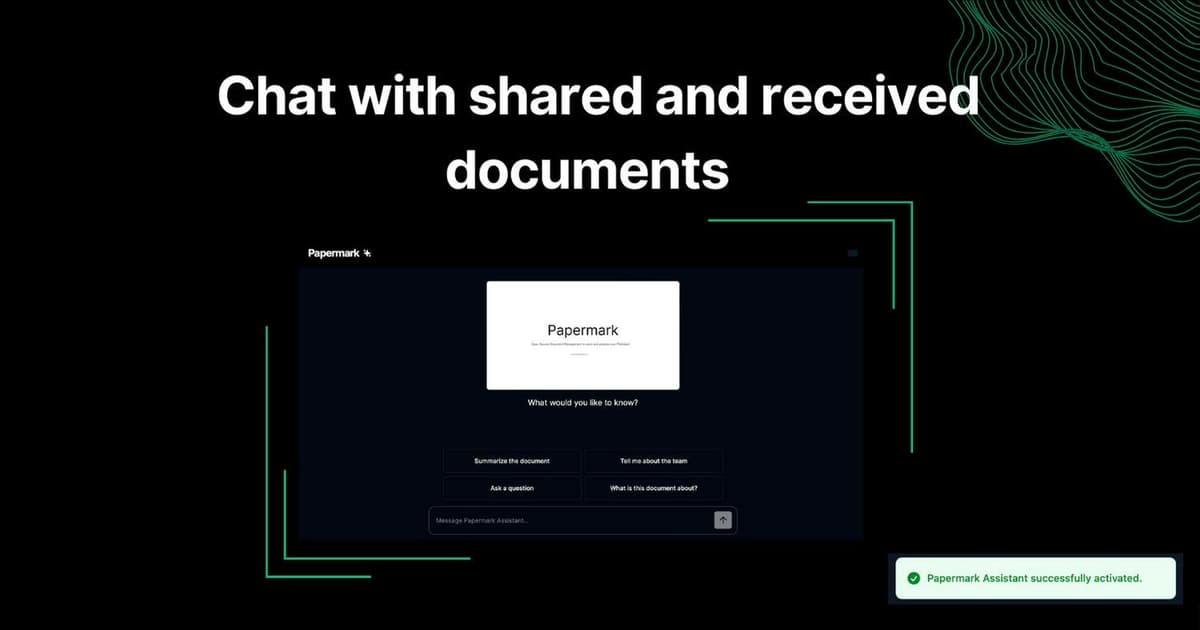
Papermark AI brings an assistant into shared documents. Instead of scrolling through a long deck or report, you ask a question about the document and get an answer based on its content.
Each document gets its own chat. The assistant only works with that document, so the answers stay grounded in what you actually shared.
A simple example: an investor opens a 30-page deck and types "What is the business model?" or "Summarize this document". Instead of reading every slide first, they get the answer and can then jump to the pages that matter for their decision.
2. For documents you receive
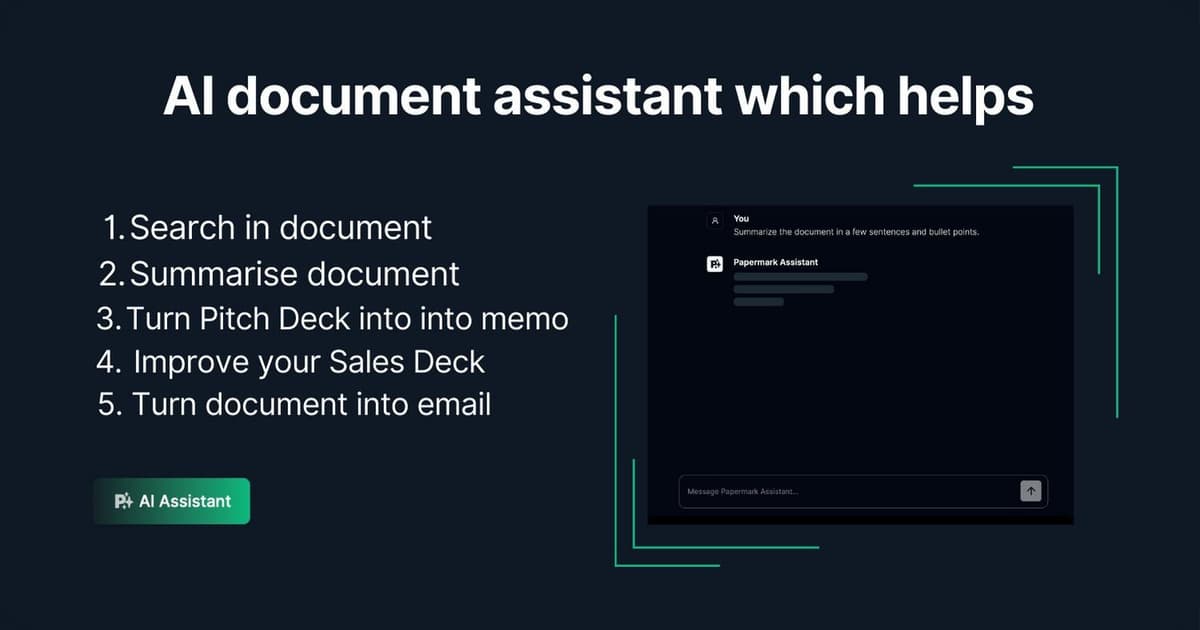
If you are on the receiving side, for example an investor reviewing pitch decks, you can:
- chat with a deck instead of reading it slide by slide,
- get a quick summary of the key points,
- find a specific piece of information without searching page by page,
- turn a deck into notes or a short memo.
The assistant is available right on the shared document view, so the reader does not need to download anything.
3. For documents you share
If you are the one sending, for example a founder with a pitch deck or a team with a sales deck, you can use the same assistant before you share:
- improve the content and structure,
- check grammar and catch mistakes,
- compare versions of your document.
The idea is to fix the weak spots before a reader finds them. If the assistant cannot answer "What is the ask?" from your deck, an investor probably cannot either.
4. You stay in control
The assistant is turned on per document. If you do not want readers to chat with a specific document, switch it off and the document is removed from the assistant. On launch day we also promised document owners more control over how the assistant responds.
In today's product, control sits at three levels, and all three must be on before a visitor can chat:
- Team: an admin turns on AI for the whole team under Settings → AI. Only team admins can change this setting.
- Document: you activate AI on each document you want to make available. Papermark then indexes the document so the assistant can read it.
- Link: you choose per link whether visitors see the chat, with the AI agents switch in the link settings.
So you can turn AI on for your pitch deck, keep it off for your financial model, and still decide link by link who gets to use it.
Papermark AI runs on OpenAI models. Like the rest of Papermark, it is open source, so the code is public and teams can self-host it.
5. Day one of our launch week
Papermark AI was day one of our launch week: five launches in five days, from December 4 to December 8. The rest of the week brought more launches, including sharing Notion pages with Papermark and signing in with passkeys or an email magic link.
6. How to turn on the AI assistant on a document, step by step
Today the assistant is built into the Papermark app, and this is how you set it up:
- Turn on AI for your team. Go to Settings → AI. On the Enable AI Agents card, switch on AI Agents for Team. You need to be a team admin.
- Open the document. Go to All Documents and open the document you want readers to chat with.
- Activate AI on the document. Click the sparkle button in the document header (its tooltip says Enable AI Agents). Papermark turns AI on for the document and indexes it in one step. When it is done, the icon turns green.
- Allow the chat on a link. Click Create Link, or edit an existing link, and open Advanced controls. Switch on AI agents. AI agents on links start on the Business plan.
- Save and share. Click Save link and send the URL. Visitors can now ask questions and get answers about your document, right in the viewer.
To check the status later, click the green sparkle button to open AI Agents Settings. You see whether the document is indexed and ready for AI chat. If the status says the document needs to be re-indexed, click Re-index. Click Disable to switch the assistant off for that document.
AI is not available on every document type. Notion pages, web links and videos do not show the AI button.
7. What happens to your data
Most founders ask this before they turn anything on, so here is how it works today, as described in Settings → AI:
- Powered by OpenAI. We use OpenAI's API to power the chat. Your document is processed so the assistant can answer questions about it.
- No training on your data. OpenAI does not use data sent through their API to train their models.
- You can delete it. The document embeddings are stored securely and are deleted when you disable AI for that document.
Tips for better answers
- Start simple. "Summarize this document" or "What are the key takeaways?" are good first questions.
- Be specific. "What are the renewal terms?" works better than "Explain this".
- Ask follow-up questions. The assistant keeps the context of the conversation, so you can dig deeper step by step.
More examples and use cases are in our guide to the AI agent for documents.
Why we launched again so soon
We believe in launching often. Every launch keeps us accountable, brings in a new wave of feedback and shows people that Papermark is moving fast.
Thank you to everyone who supported us for the second time in one autumn. Today AI is built into Papermark data rooms as well. See how the AI features work now, or read about our first launch and every launch since on our Product Hunt page.