

document-sharing
How to Send a CAD File via Email (EASY METHODS)
Learn effective methods for sending CAD files via email, including using Papermark for secure sharing and tracking.
Sending Excel files via email can sometimes be challenging, especially when dealing with large files or multiple spreadsheets. This guide will show you several methods to overcome these obstacles, with a focus on using Papermark for efficient and secure file sharing.
Papermark offers powerful solutions for sending Excel files: creating shareable links for individual files and setting up data rooms for multiple documents.
Log in to Papermark: Access your Papermark account or sign up if you don't have one.
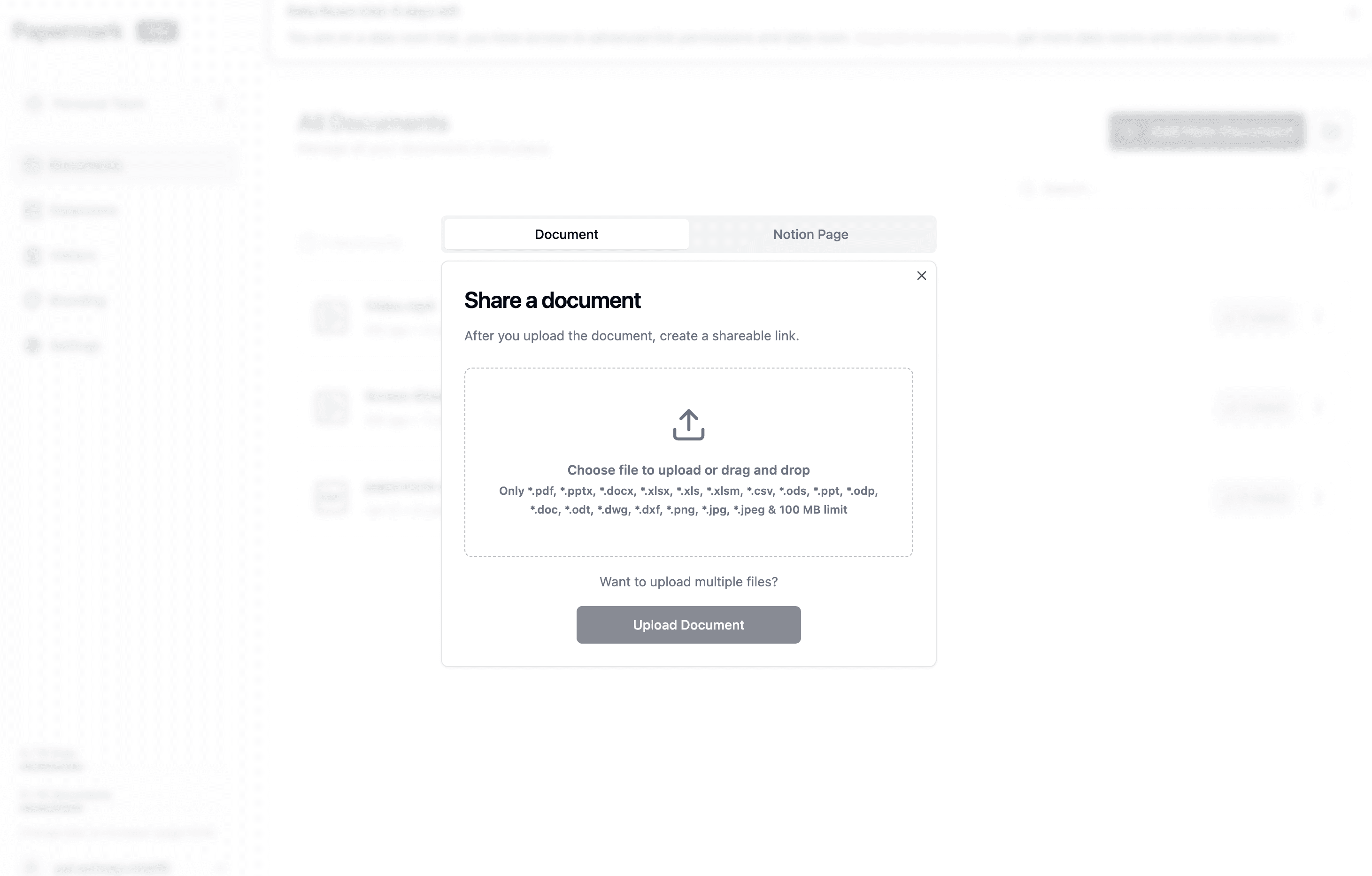
Upload Your Excel File: Click on the "Upload" button and select your Excel file.
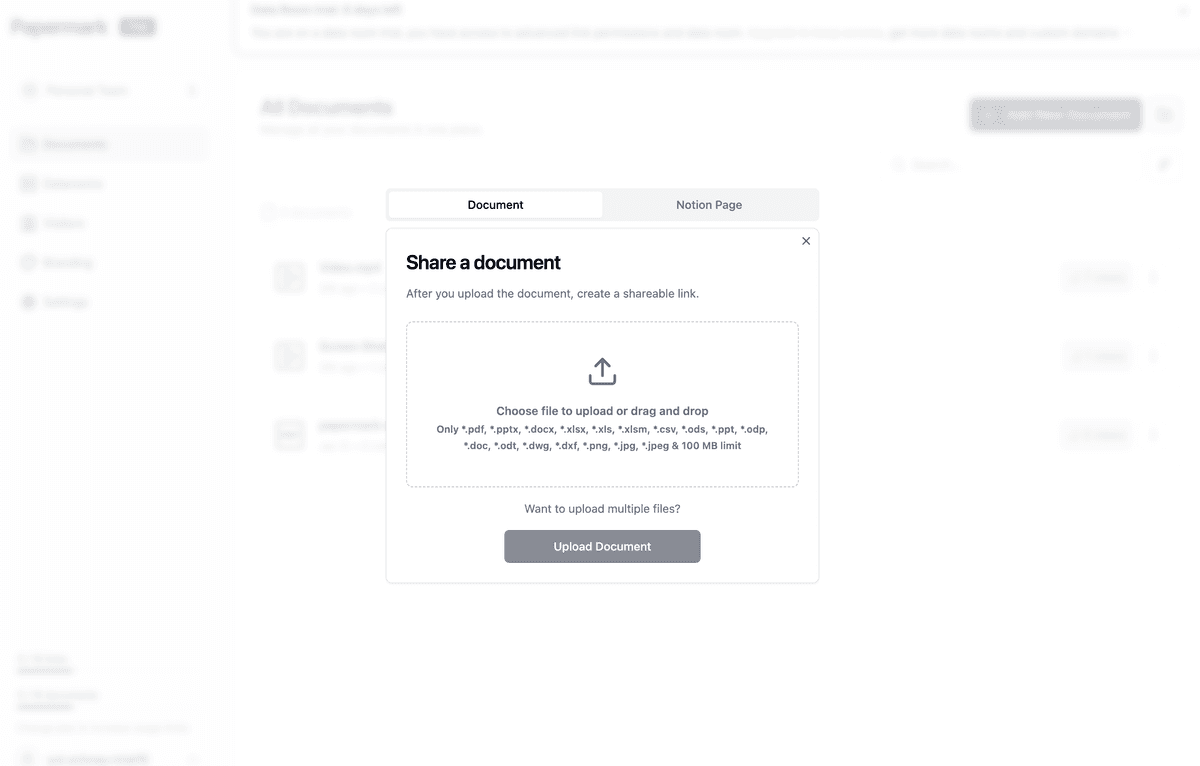
Generate Link: Once uploaded, Papermark will automatically generate a shareable link.
Customize Settings (Optional): Set access permissions, add password protection, or customize the viewing experience.
Copy and Share: Copy the generated link and paste it into your email.
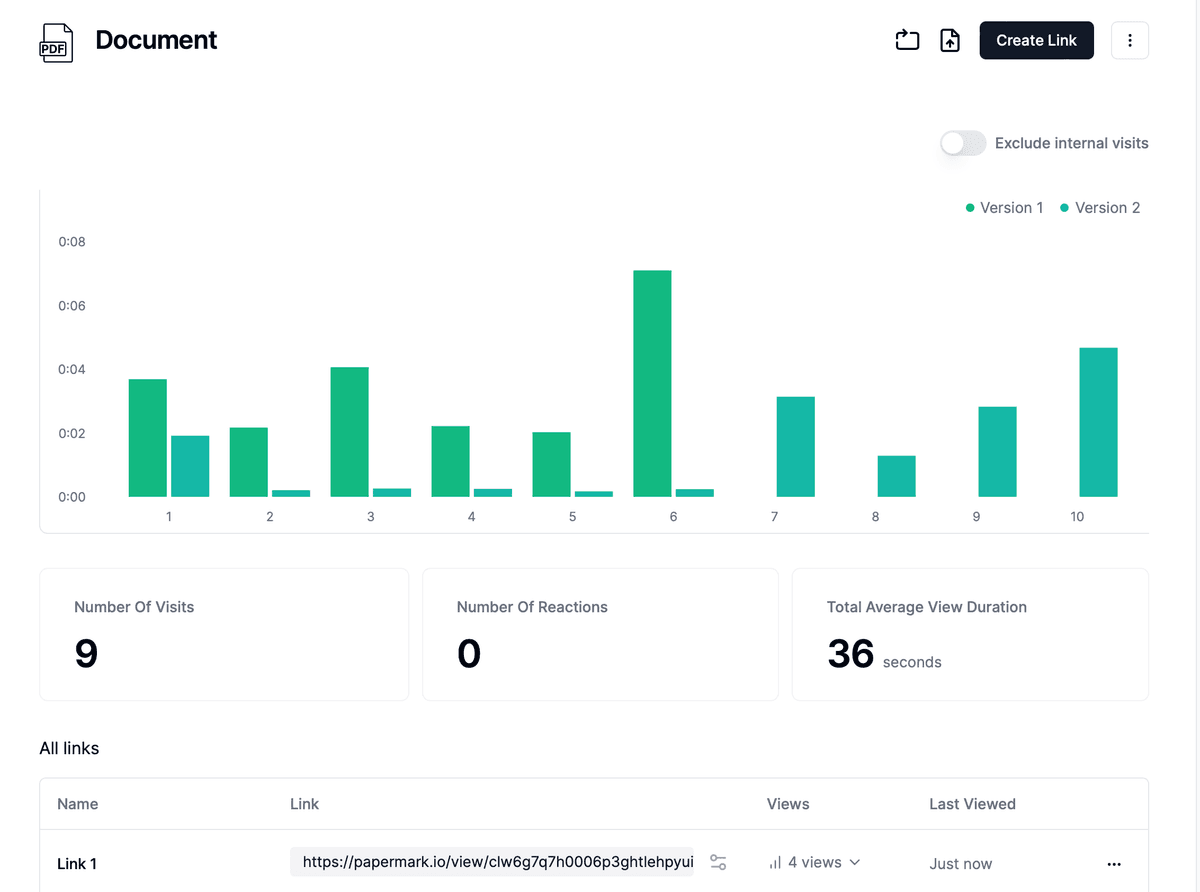
Analyze File Views: Track engagement with your Excel file using Papermark's analytics dashboard.
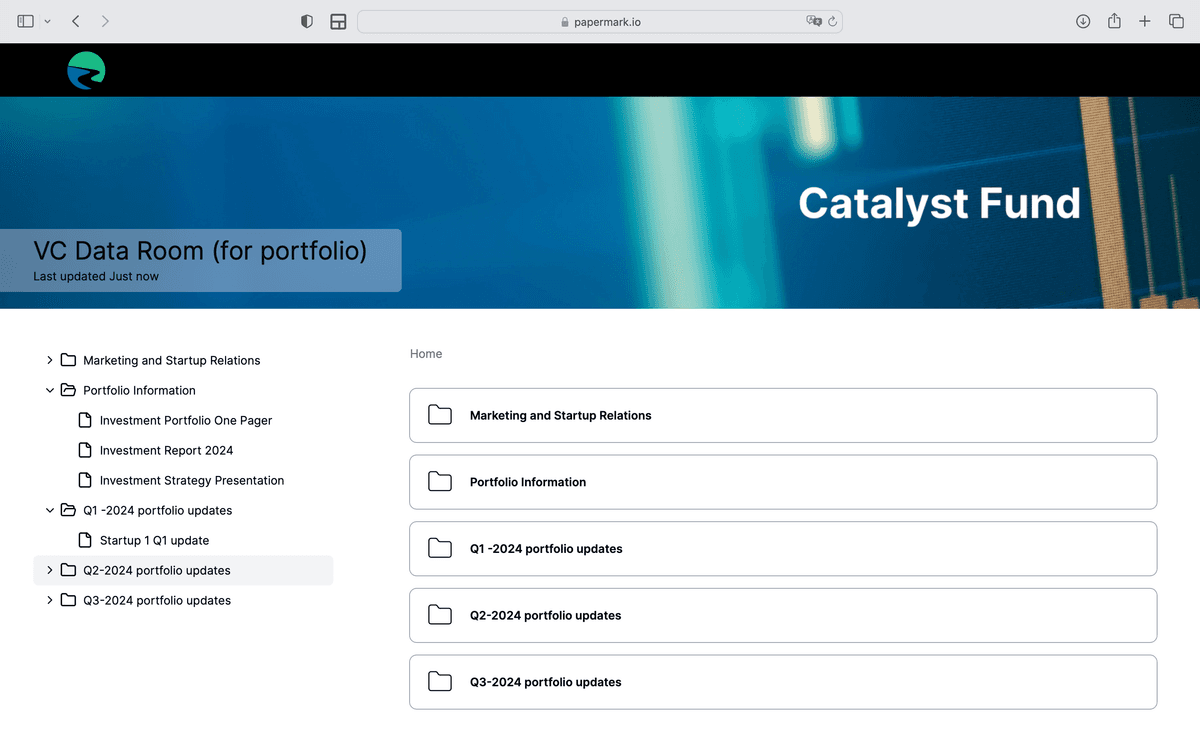
For sharing multiple Excel files or creating a professional presentation:
Create a Data Room: In your Papermark dashboard, create a new data room.
Upload Excel Files: Add all your Excel files to the data room.
Customize Branding: Add your logo and customize the appearance.
Set Access Permissions: Control who can view or download the files.
Share One Link: Send a single link that provides access to all your Excel files.
Using Papermark offers several advantages:
For small Excel files:
Note: Most email services have a 25MB limit for attachments.
While there are several methods to send Excel files via email, using Papermark provides a comprehensive solution, especially when dealing with multiple files or requiring a professional presentation. It combines ease of use with powerful tracking and security features, making it an ideal choice for businesses and professionals.
Learn effective methods for sending CAD files via email, including using Papermark for secure sharing and tracking.
Learn the most secure methods for sending sensitive documents via email. Discover how to protect confidential information using Papermark's secure document sharing platform.
Learn the most secure methods for sending sensitive documents and encrypted email attachments via Gmail. Discover how to protect confidential information using Papermark's secure document sharing platform.