
BlogHow to Protect a Dropbox Folder with a Password in 2025

How to Protect a Dropbox Folder with a Password in 2025

Dropbox Password Protection UI

Dropbox is a leading cloud storage platform, but protecting sensitive folders with a password requires a paid plan. In this guide, you'll learn how to set up password protection for Dropbox folders, what the limitations are, and how to get advanced security with Papermark.

Protect your documents with advanced security

No credit card required

Page by page analytics
Require email verification
Require password to view
Allow/Block specified viewers
Apply Watermark
Require NDA to view
Custom Welcome Message
Enable Q&A Conversations

Dropbox password protection: What you need to know

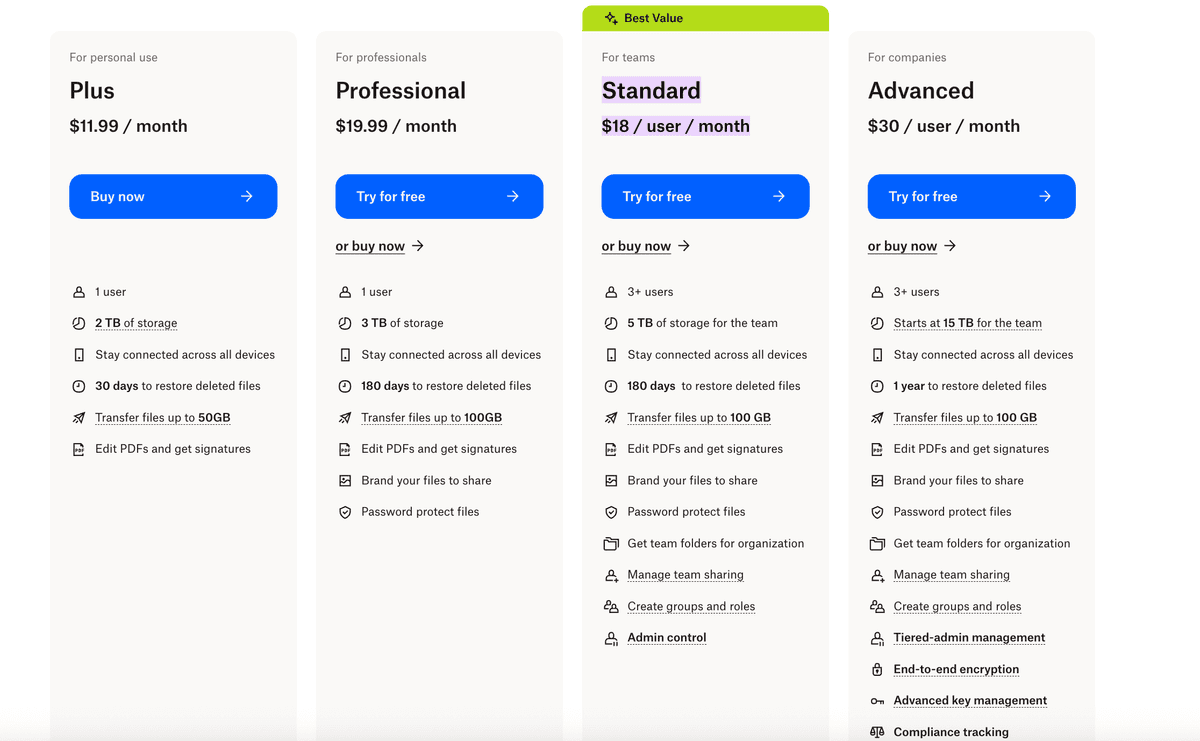
  • Password protection for shared links is only available on Dropbox Professional, Standard, Advanced, and Enterprise plans.
  • Free users cannot set passwords on shared folders or links.
  • Password protection applies to shared links, not to the folder itself in your account.
  • No screenshot protection or dynamic watermarking is available.
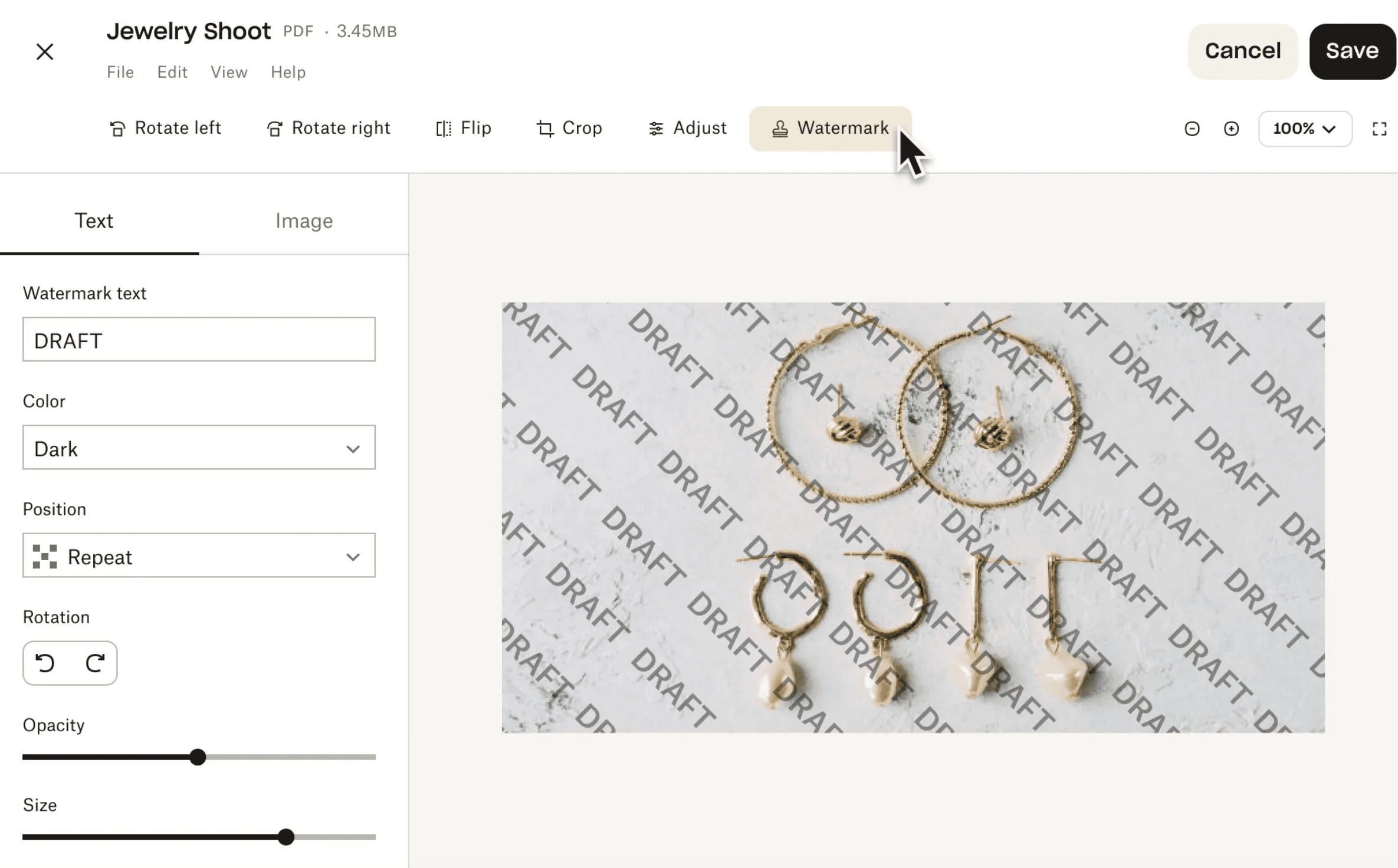
  • Watermarking is available (static) on paid plans, but not dynamic or viewer-specific.

Step 1: Make sure you have a paid Dropbox plan

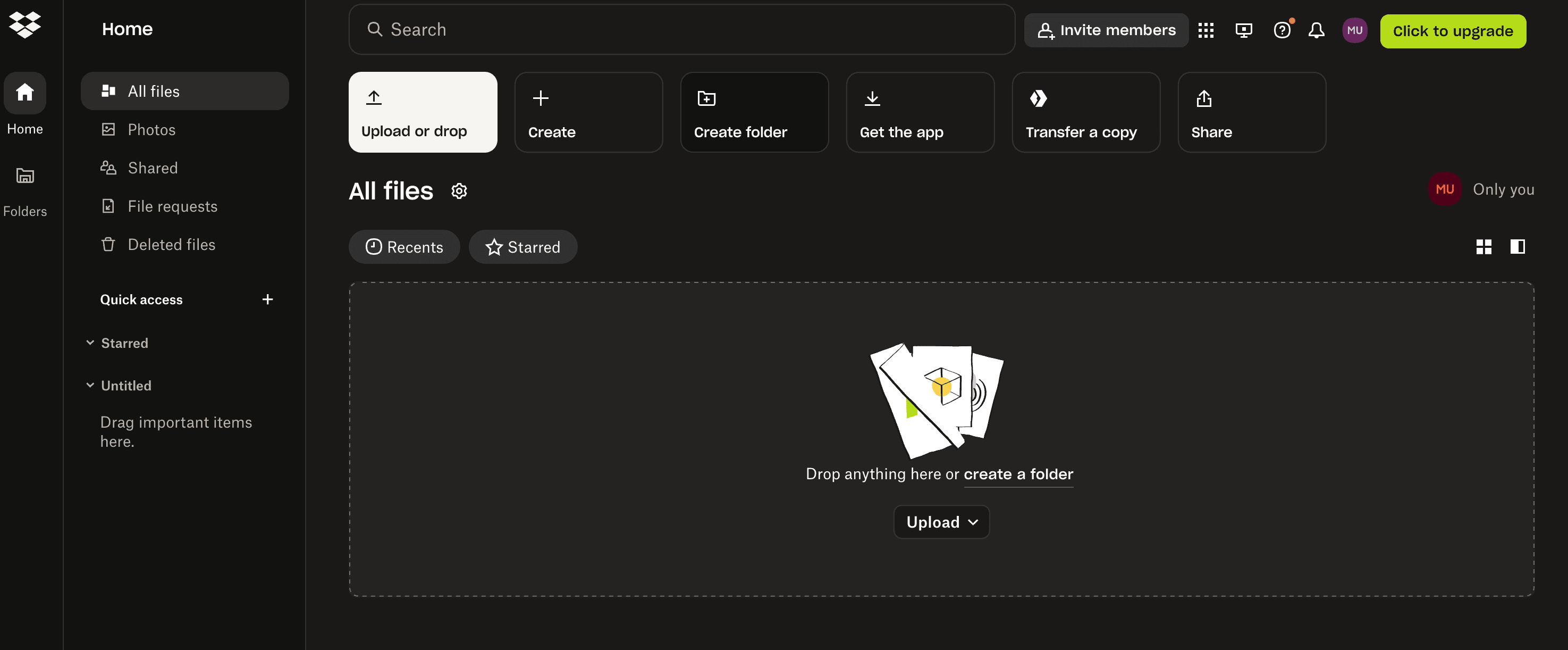
  1. Log in to your Dropbox account at dropbox.com
  2. Check your plan status. Upgrade if needed to Professional, Standard, Advanced, or Enterprise.

Dropbox Pricing Overview

Step 2: Create and organize your folder

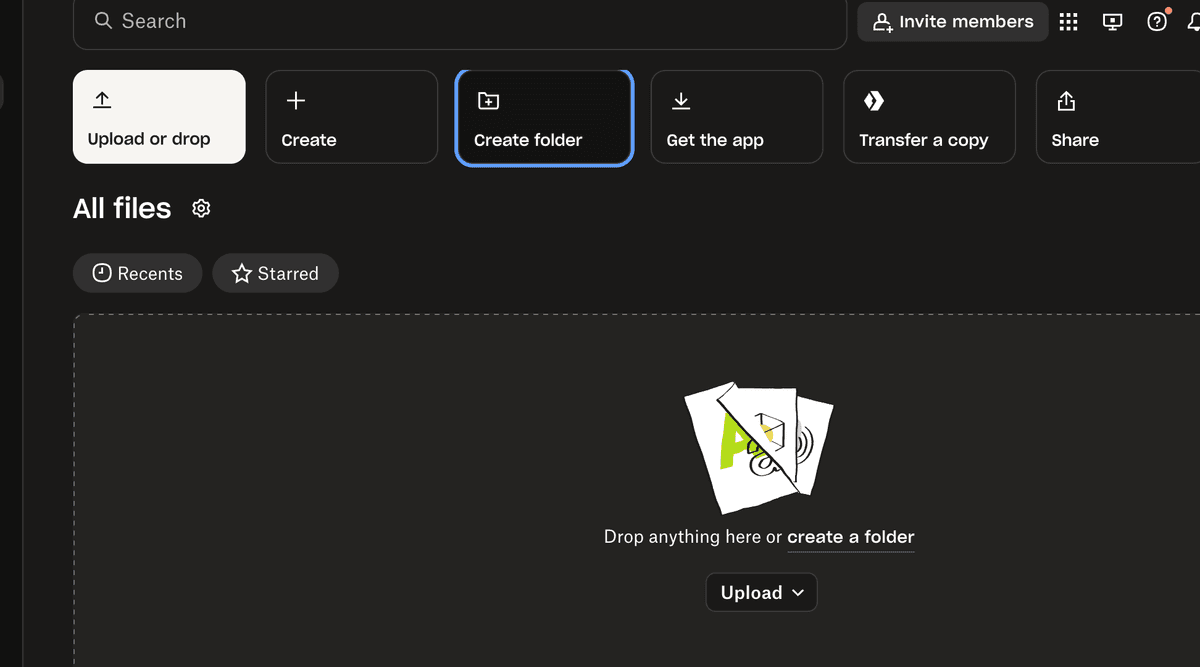
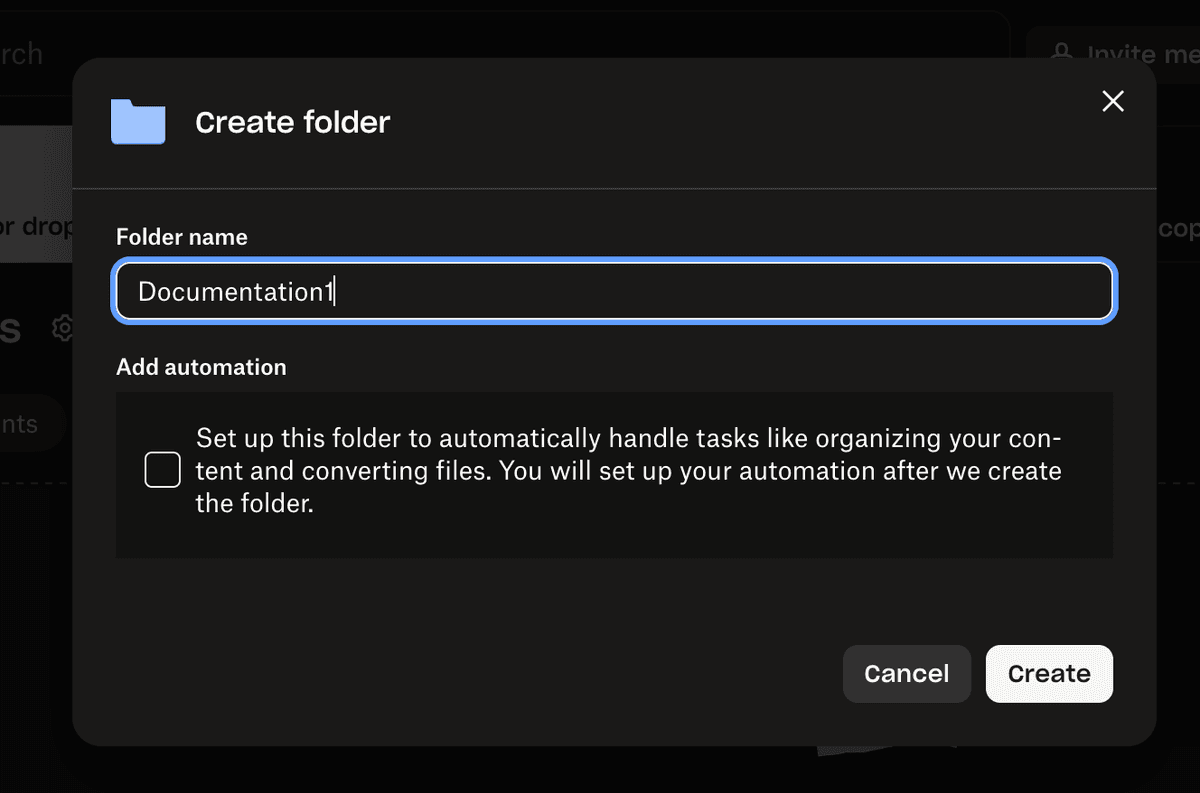
  1. Click "Create" and select "Folder"
  2. Name your folder descriptively
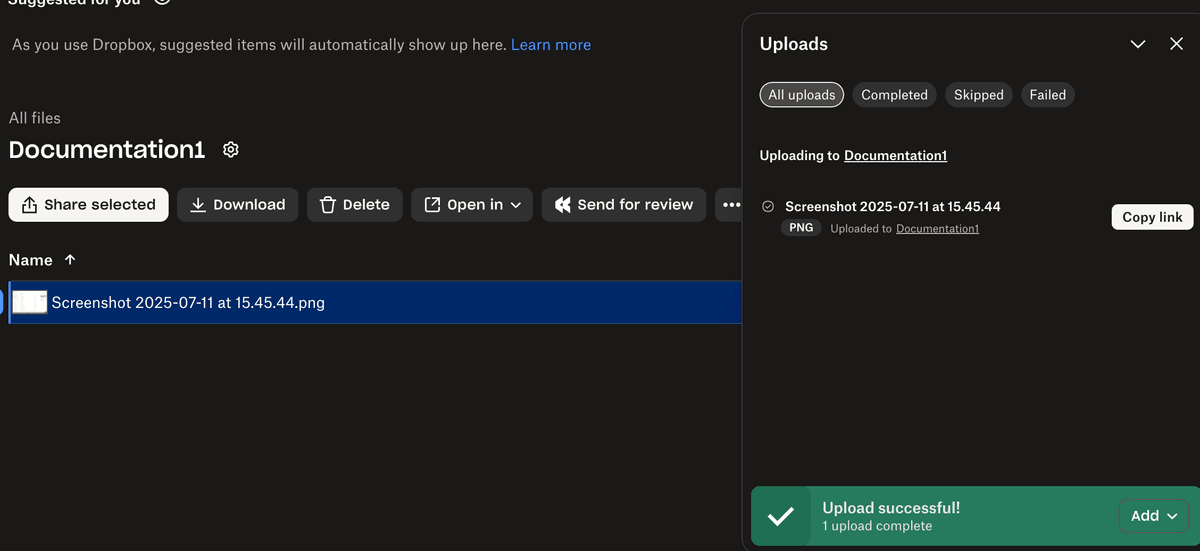
  3. Add files to your folder by dragging and dropping or using the upload button

Dropbox create a folder Dropbox name the folder Dropbox add file to folder

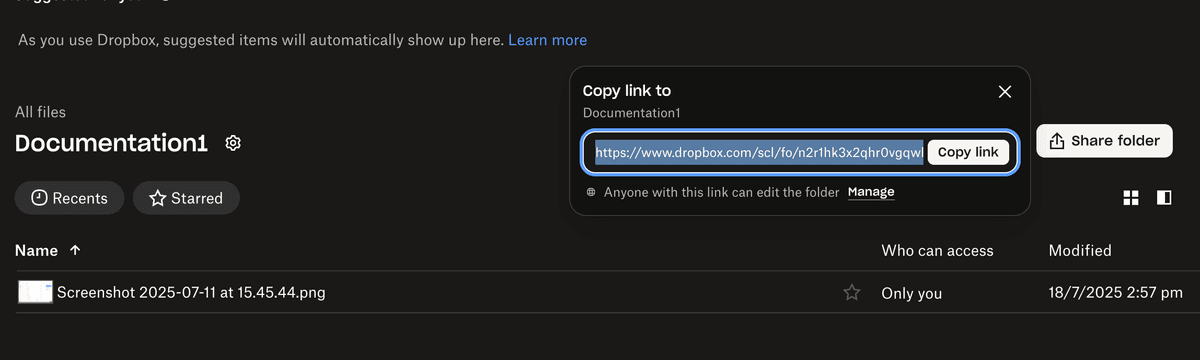
  1. Hover over the folder and click the "Share" button
  2. Select "Copy link" to generate a shareable link
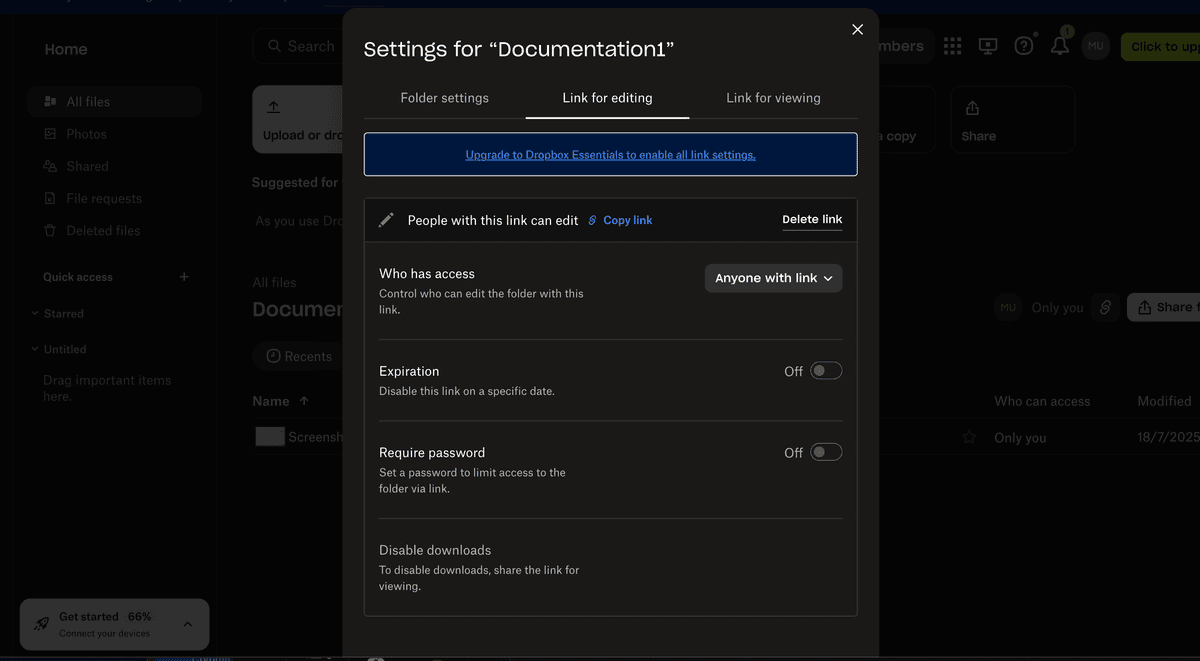
  3. Click "Link settings" (available on paid plans)
  4. Set a password for the link
  5. (Optional) Set an expiration date and adjust download permissions

Dropbox link sharing Dropbox advanced link settings

  1. Share the password-protected link with your recipients. Make sure to send the password securely (not in the same email as the link).

Step 4: Manage and monitor access

  1. Click the "..." (More) button next to your folder
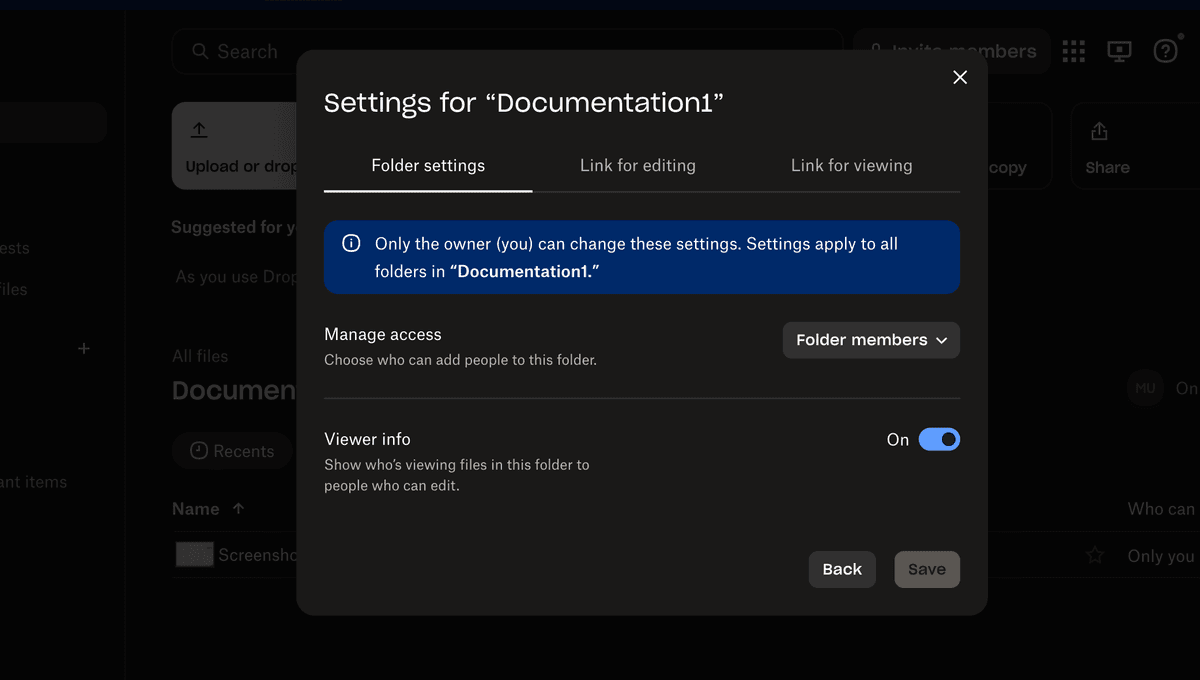
  2. Select "Folder settings" to review and adjust permissions
  3. You can change who has access, remove people, or adjust link settings at any time

Dropbox folder settings Dropbox folder options

Dropbox password protection: Limitations

  • Password protection is only for shared links, not for the folder itself in your Dropbox account.
  • No screenshot protection or dynamic watermarking.
  • Watermarking is static (not viewer-specific).
  • No detailed analytics or audit trails.
  • Passwords must be shared securely with recipients.

For highly sensitive documents, consider using Papermark for advanced security, analytics, and compliance.

Security featureDropboxPapermark
Password protectionPaid plans only (shared links)Multiple authentication layers, available on all plans
WatermarkingStatic watermark (Professional, Standard, Advanced, Enterprise)Dynamic, viewer-specific watermarks
Screenshot protectionAdvanced protection with multiple layers
Link securityPassword and expiration (paid only)Advanced protection with IP restrictions and detailed tracking
Page-level analyticsDetailed engagement tracking and real-time analytics
External trackingBasic download trackingFull external viewer tracking and analytics
Audit trailBasic activity logsComprehensive audit logs with exportable reports

Conclusion

Dropbox allows you to add password protection to shared links on paid plans, but this feature has important limitations. For organizations handling sensitive information, Papermark offers advanced security, analytics, and compliance tools for professional document sharing.

FAQ

More useful articles from Papermark

Ready to share your documents?