
Dynamic document watermark
A dynamic watermark in Papermark is a text overlay that shows each viewer's own details, such as their email, IP address and the date and time, on every page they open, so any copy or screenshot can be traced back to the person and session that produced it.
Plan: dynamic watermarking is available on the Data Rooms plan and above. The Business plan doesn't include it.
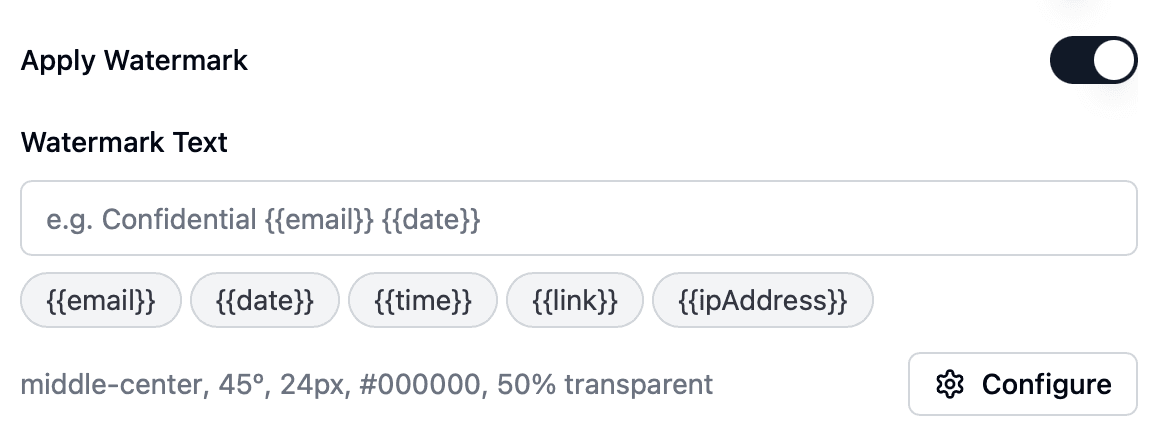
How watermarking works
The watermark is a setting on a link, not on the file. Every page opened through that link carries the watermark, and the dynamic variables fill in with the details of whoever is viewing. Other links to the same document or data room are not watermarked unless you turn it on for them too. This lets you watermark the links you send to buyers or investors while leaving an internal link clean.
Add a watermark to a document link
- Log into your Papermark account.
- Open the document you want to share.
- Create a new link, or open the settings of an existing link.
- Find Dynamic watermarking and switch the toggle on.
- Enter your Watermark Text (see variables below) and save the link.
Add a watermark to a data room link
- Open the data room.
- Create a new link, or open an existing one. For a group, open the group under Permissions > Groups and click Access link.
- Switch on Dynamic watermarking, enter your watermark text and save.
Every document a visitor opens through that data room link is watermarked.
Variables reference
Type your text in Watermark Text and click a variable button to insert it. Only these five variables are supported.
| Variable | Renders as | Example |
|---|---|---|
{{email}} | The viewer's email address | jane@buyerfirm.com |
{{date}} | The date of the visit, in the viewer's local format | 10/15/2026 |
{{time}} | The time of the visit, in the viewer's local format | 2:02:10 PM |
{{link}} | The name of the link | Bidder A - Northwind Capital |
{{ipAddress}} | The viewer's IP address | 81.2.69.160 |
Turn on Require email verification on the same link so {{email}} shows a verified address rather than whatever the visitor types.

Configure the appearance
Click Configure next to the watermark text to open the advanced settings:
- Tiled: repeat the watermark across the whole page.
- Position: place a single watermark in one of 9 positions (top, middle or bottom; left, center or right). Not used when tiled.
- Rotation: the angle of the text. Default 45°.
- Text Color: default black.
- Font Size: default 24px.
- Transparency: default 50% transparent.
For documents with tables or small numbers, a tiled watermark in light grey at 75 to 85% transparency keeps the content readable.

What viewers see, and downloads
Viewers see the watermark on every page in the browser, with their own details filled in. No plugin or account is needed.
If you allow downloads on the link, PDF and image files are downloaded with the watermark drawn into the file. Word, Excel and PowerPoint files are downloaded as the original file without a watermark, so upload those as PDFs or keep download off when the watermark matters. Always open the link once as a test viewer to check the result.
Example: watermarking documents for M&A buyers
When you send a CIM or data room to potential acquirers:
- Create one link per buyer firm (or one group per bidder) and name it after the firm, for example "Bidder A - Northwind Capital".
- Switch on Dynamic watermarking with this text:
CONFIDENTIAL Project [Codename] {{email}} {{ipAddress}} {{date}} {{time}} {{link}} - Set it to tiled, 45°, light grey, 80% transparent.
- Turn on Require email verification and an NDA agreement on the same link.
- Keep download off for the CIM and financials.
- Open the link as a test buyer and check every page.
Each buyer's pages now show the person, the firm (from the link name) and the session. For the full workflow, see how to watermark documents for acquirers.
Best practices
- Use variables:
{{email}}plus{{date}}and{{time}}make every copy unique to one viewer and session. - Name links clearly:
{{link}}prints the link name, so name links after the recipient firm. - Balance visibility and readability: adjust transparency and font size so the watermark is visible without hiding content.
- Combine with other controls: email verification, NDA agreements, allow lists and disabled downloads make the watermark much harder to avoid.
- Remember the limits: a watermark deters and traces leaks but can't stop someone photographing a screen.
For more on document security, see document analytics and groups and granular permissions. If you have questions, contact our support team.