
How to hide the Papermark branding banner?
When you share documents and data rooms, you usually want viewers to see your brand, not Papermark's. The hide branding banner setting removes the "Powered by Papermark" footer from the viewer so your links feel like an extension of your own product.
Hiding the branding banner is available on the Business plan and above.
What gets hidden
When the setting is on:
- The "Powered by Papermark" footer disappears from every page of the viewer
- The end-of-document statistics window is removed
- Your own logo (if set in global branding) still appears in the header
- Your brand color, banner image, and custom viewer background all remain intact
The result is a clean, distraction-free viewing experience with no visible Papermark references.
Step-by-step setup
Option 1: hide branding on a specific link
- Log into Papermark and open the document or data room.
- Go to the Links tab.
- Open the link settings.
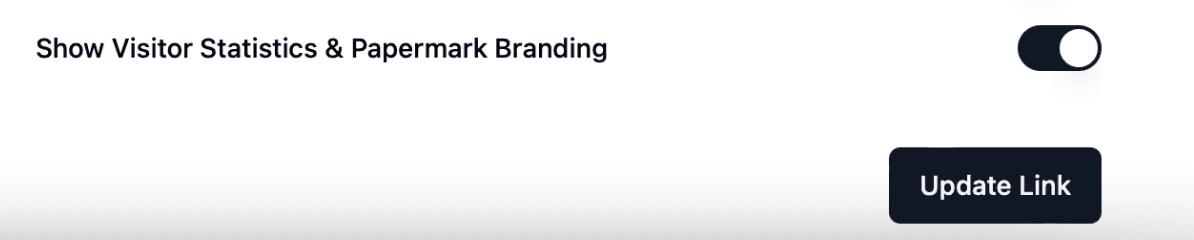
- Find Hide branding banner (or Powered by) and toggle it off.
- Save the link.
Toggling on keeps the Papermark branding visible. Toggling off removes it.
Option 2: hide branding by default with a link preset
If you want every new link to launch without Papermark branding:
- Create a link preset with Hide branding banner turned off.
- Mark the preset as default.
- Every new link inherits the setting automatically.
Option 3: combine with custom domain for full white-label
For a fully white-labeled experience:
- Connect a custom domain to your account.
- Configure global branding with your logo, color, and banner.
- Hide the branding banner per link (or via preset).
- Optionally pair with a custom viewer background color.
The end result: visitors see your brand at your URL with no visible Papermark references.
Use cases
- Investor pitch decks: keep the focus on your story, not the platform that delivers it.
- Client-facing data rooms: present documents as part of your own service, not a third-party tool.
- Agency white-label: deliver branded data rooms to clients without your tool stack showing.
- Enterprise sales collateral: maintain a clean, corporate look across every document you share.
Frequently asked questions
Related guides
- How to customize data room branding
- How to customize your document link
- How to set up global branding
- How to customize the viewer background color
- How to add a custom domain to your link
Need help? Contact support@papermark.com or use the in-app chat.