
Help CenterHow to add folders to your Data Room?
How to add folders to your Data Room?
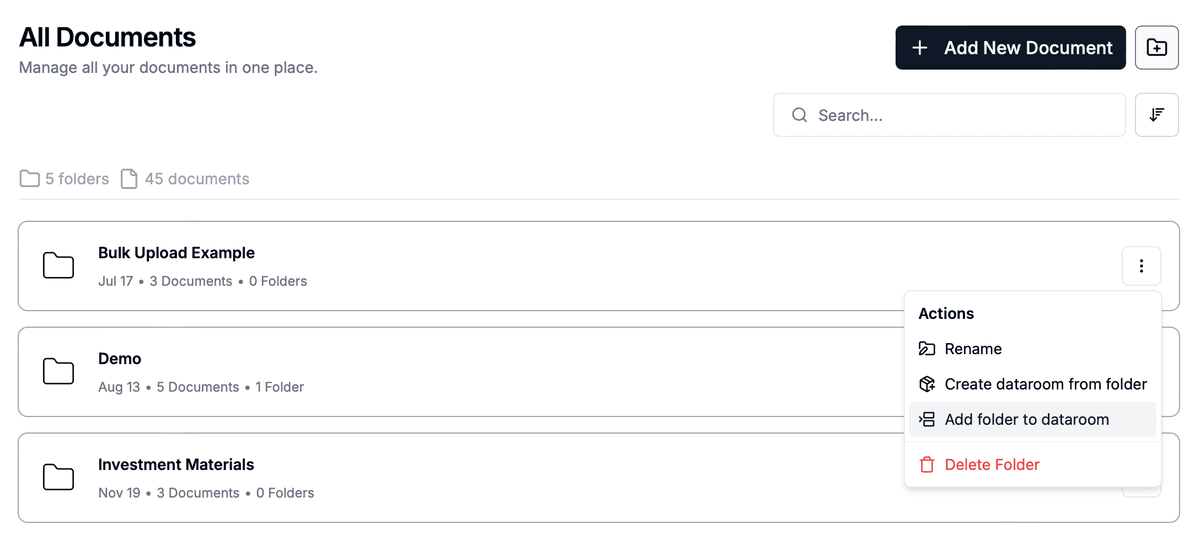
Papermark allows you to add entire folders to your data room, making it easy to organize and share multiple documents at once.
Adding Folders from Documents Page
Method 1: From Folder Overview
- Navigate to your documents page
- Locate the folder you want to add
- Click the three dots (⋮) menu in the top right corner
- Select "Add to dataroom" from the dropdown
- Choose your target data room from the modal
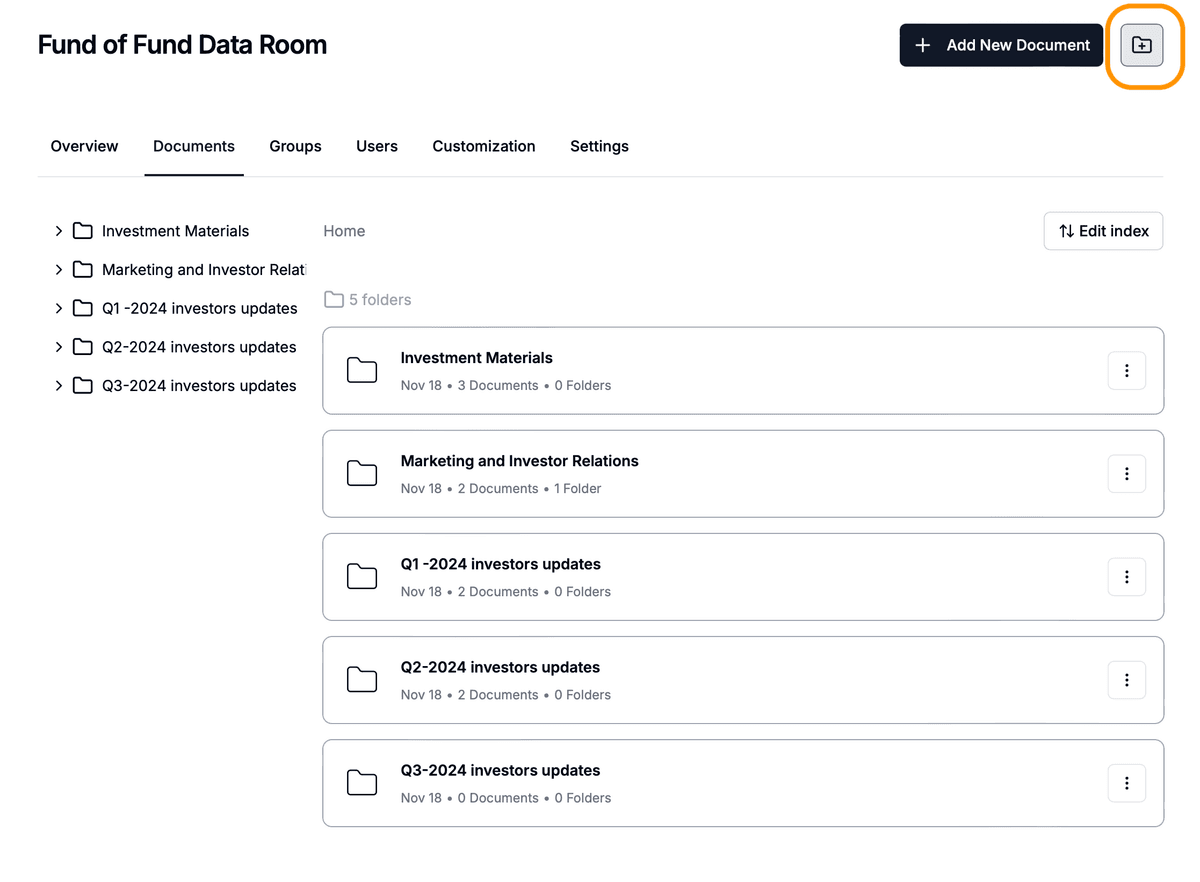
Method 2: From Data Room View
If you are already in a data room:
- Click the "Add Folder" button
- Select "Add Existing Folder"
- Choose the folder you want to add
- Confirm your selection
Method 3: Drag and Drop in Data Room
The quickest way to add folders to your data room:
- Open your data room
- Simply drag a folder from your computer
- Drop it into the data room interface
- The folder and its contents will be automatically uploaded
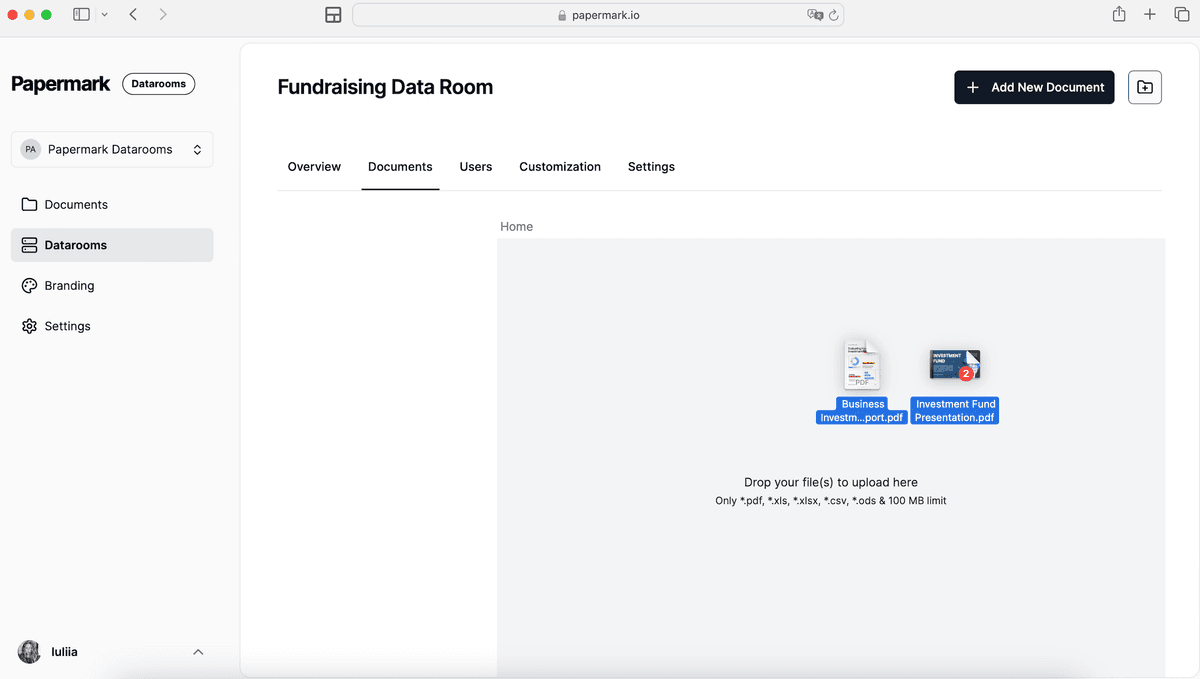
Pro tip: You can drag multiple folders at once to save time.
Benefits of drag and drop:
- Quick Upload: Fastest way to add folders
- Maintain Structure: Folder hierarchy is preserved
- Bulk Upload: Add multiple folders simultaneously
- Visual Feedback: See upload progress in real-time
Managing Folders in Data Rooms
When adding folders to data rooms:
- Folder Structure: The original folder structure is maintained
- Access Control: Folder permissions are inherited from the data room
- Updates: Changes to the original folder are reflected in the data room
- Multiple Data Rooms: The same folder can be added to multiple data rooms
Move folders with drag and drop
You can reorganize your data room hierarchy at any time without recreating folders. Drag any folder to a new location, drop it, and Papermark updates the structure instantly.
Steps:
- Open your data room.
- Click and hold the folder you want to move.
- Drag it to a new parent folder or to the root level.
- Drop it. The structure updates in real time.
What stays intact when you move a folder:
- Every document inside, including nested subfolders
- File permissions and group access
- Existing share links pointing to documents inside the folder
- Index numbering updates automatically
Best Practices
For effective folder management:
- Organize First: Structure your folders before adding to data rooms
- Clear Naming: Use descriptive folder names
- Regular Review: Periodically review folder contents
- Permission Check: Verify access settings after adding folders
Tips for Success
- Create a logical folder structure
- Use consistent naming conventions
- Keep folder contents updated
- Monitor folder access and usage
For more information about organizing your data room, check out our guide on managing folders in your data room.