
How to use the data room request list?
The request list turns due diligence into a shared checklist inside your data room. You list the documents you need, set a status and due date for each one, and assign items to the right visitor group or link, so both sides always know what's outstanding and what's been delivered.
The request list is available on the Data Rooms plan (and during the free trial).
Where to find the request list
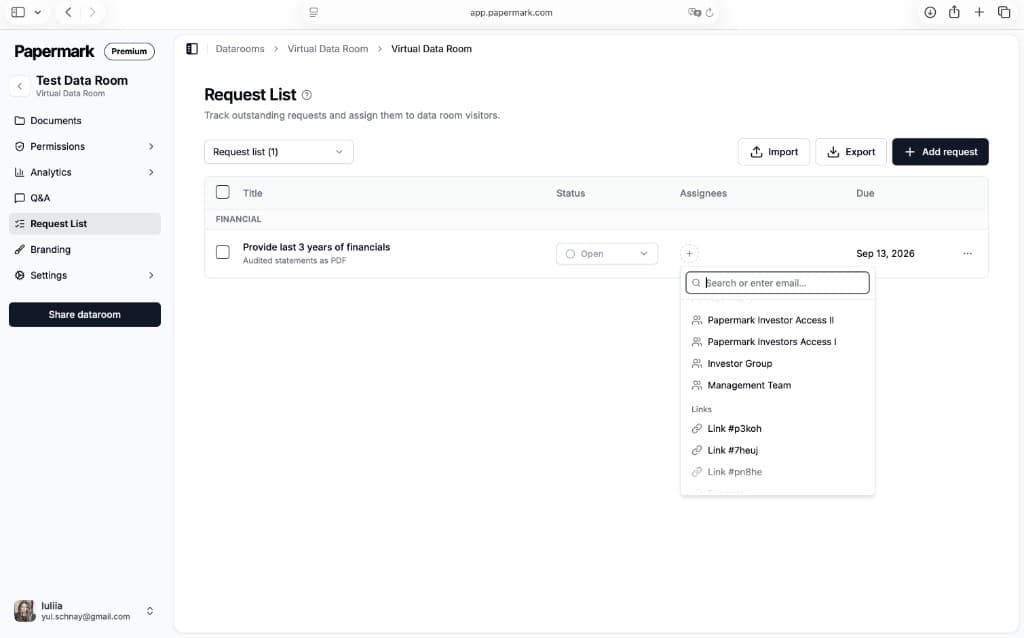
Open your data room and click Request List in the left sidebar (between Q&A and Branding). You'll see the header Request List and the subtitle "Track outstanding requests and assign them to data room visitors."
From here you can:
- Switch between lists using the Request list dropdown
- Import a list of requests
- Export the current list
- Add request to create a new item
Columns explained
Each request is shown as a row with four columns:
- Title: the document or item you need, with an optional short description below it (for example, "Provide last 3 years of financials" with "Audited statements as PDF").
- Status: where the request stands (see below).
- Assignees: the visitor group or link responsible for the item.
- Due: the date the item is expected.
Requests are grouped into categories (such as Financial or Legal) so a long list stays organized and scannable.
Statuses
Click the Status dropdown on any request to move it through the workflow:
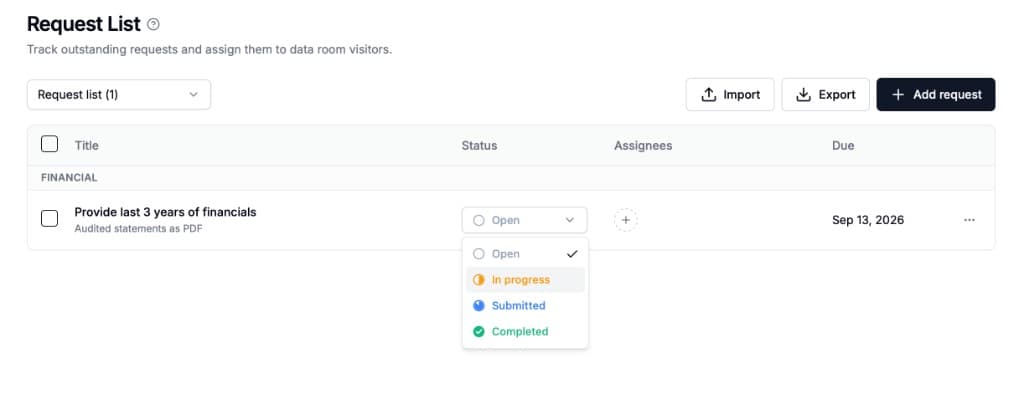
- Open: requested, not started yet
- In progress: the other side is working on it
- Submitted: the document has been provided for review
- Completed: reviewed and closed
Updating the status keeps everyone on the same source of truth, so you replace the back-and-forth spreadsheet most teams use to run diligence.
Assign requests
Click the + in the Assignees column to assign a request. You can search or enter an email, then pick from:
- Visitor groups: assign a whole group (for example, an investor access group or your management team)
- Links: assign a specific data room link
This makes it clear who owns each item and lets you split a list across multiple parties in the same deal.
Due dates
Set a Due date on each request so deadlines are visible to both sides. Due dates keep diligence on schedule and make it obvious which items are slipping.
Import and export
- Import: bring in a prepared list of requests instead of adding them one by one, which is useful when you reuse a standard diligence checklist across deals.
- Export: download the current list with its statuses to share progress with your team or keep a record.
Step-by-step setup
- Open the data room and click Request List in the sidebar.
- Add requests with the Add request button, or Import an existing checklist.
- Organize by category so financial, legal, and other items stay grouped.
- Set a due date for each request.
- Assign each request to a visitor group or link using the + in the Assignees column.
- Track progress by updating each request's status as documents come in.