
How to download or archive your data room?
Papermark gives you two ways to package a data room for offline use: download it as a ZIP anytime, or create a permanent freeze archive when a deal closes. Downloads keep your folder structure intact and respect each viewer's permissions, and the freeze archive captures the room (plus its audit log and Q&A) at a single point in time.
Download your data room as a ZIP
You and your viewers can download the whole data room or a single folder as a ZIP that preserves the folder hierarchy:
- As an admin: open the data room and use the Download button on the documents page.
- As a viewer: open the data room link and click the download icon in the toolbar, or use the Download option on a folder.
The ZIP is built in the background, so for large rooms you'll see progress while it's prepared. Very large rooms are split into multiple ZIP parts (each part covers up to 500 files or about 500 MB). Download links stay valid for 3 days.
A few things to know:
- Downloads respect per-viewer permissions, so each party only gets the documents they're allowed to download.
- If the link has watermarking enabled, downloaded PDFs and images are watermarked.
- Notion documents are not included in the ZIP.
Email verification (one-time passcode)
Starting a download usually just needs the viewer to have entered their email on the data room. When a viewer chooses to be notified by email when the ZIP is ready, or returns to the downloads page to grab a previous ZIP, Papermark verifies them with a 6-digit one-time passcode sent to their email. The code is valid for 10 minutes, so only the real recipient can retrieve the files.
Control who can download
Downloads are off unless you allow them:
- On the link, enable Allow downloading so viewers can download at all.
- For the whole room, open Data room → Settings → Downloads to turn the bulk (entire data room) download on or off for viewers.
Admins can always download the full room from the dashboard.
Freeze archive: a permanent snapshot
When a deal closes or you need a defensible record, you can freeze a data room to create a permanent, point-in-time archive. This is built for closings, audits, and compliance.
Freezing is a one-way action, so proceed with care. When you freeze a room:
- All viewer access is permanently revoked
- All existing links are archived
- A downloadable archive is generated with all documents, audit logs, and Q&A data
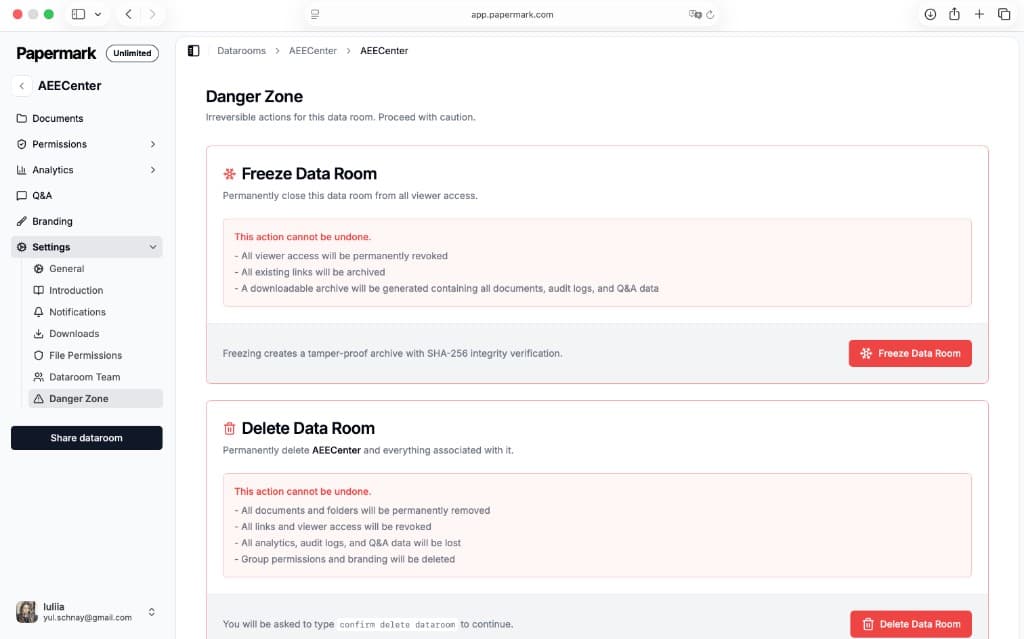
The freeze archive is a single, tamper-proof ZIP, sealed with SHA-256 integrity verification, that contains:
- documents.zip: every document in the room (split into parts if large)
- audit-log.csv: the full activity log
- qa-pairs.csv: the Q&A questions and answers
- MANIFEST.sha256: a checksum file, with a SHA-256 hash of the whole archive so anyone can verify it hasn't changed
Open Data room → Settings → Danger Zone and click Freeze Data Room. Once the freeze completes, download the archive from the same place (it also shows in the sidebar). Freezing a data room is available on the Data Rooms Plus plan and above.
Step-by-step
- Allow downloads on the link (and, for full-room downloads, leave bulk download enabled under Settings → Downloads).
- Share the link with your viewers.
- Download a ZIP anytime from the data room (admin) or the link toolbar (viewer); pick the whole room or a folder.
- Verify by email if you ask to be notified or return to the downloads page later.
- Freeze the room from Settings → Danger Zone when the deal closes to keep a permanent archive with the audit log and Q&A.