BlogData RoomsProtect a PDF From Copying in 2026: 6 Methods and What Breaks Them
Protect a PDF From Copying in 2026: 6 Methods and What Breaks Them
·14 min read
Marc Seitz
To protect a PDF from copying and printing you have two real choices: restrict the file with a permissions password and accept that compliant readers enforce it while others do not, or stop sending the file at all and share a rendered, view-only version instead. The second is the only one that holds.
Quick recap
A PDF supports two passwords: a document open password that blocks opening the file, and a permissions password, also called an owner password, that restricts printing, copying, and editing.
The permissions password is enforced by the reader application, not by the file itself, so any PDF tool that chooses to ignore the flags can print and copy anyway.
Acrobat X and later encrypt PDFs with 256-bit AES, so a document open password is genuinely strong; the weakness sits in the permissions model, not in the encryption.
Free tools that strip owner passwords are widely available, which is why a permissions password is a deterrent rather than a control.
Flattening text to images stops text selection and copy and paste but does not stop printing, and it destroys search and accessibility.
Google Drive can turn off download, print, and copy for viewers and commenters, but the setting does not apply to anyone with edit access and does not stop a screenshot.
View-only link sharing is the only method that removes the file from the recipient entirely: they see rendered pages in a browser, with no download and no local copy.
Dynamic watermarking does not prevent a screenshot, but it stamps the viewer's email, IP, and timestamp onto every page, which turns an untraceable leak into a traceable one.
Nothing stops a camera pointed at a screen, so the realistic goal is to raise cost and attribute leaks rather than to achieve perfect prevention.
A data room for protected PDF sharing combines view-only rendering, watermarking, screenshot protection, and per-page analytics from €99/month with Papermark.
Most people searching for how to protect a PDF from copying want one thing: send a document to someone and stop them keeping it, printing it, or passing it on. The tooling they reach for first, Acrobat's permissions password, is the one that does this least well, and understanding why saves a lot of wasted effort. This guide covers how PDF permissions actually work, six methods ranked by what they really prevent, and where each one is worth using.
The honest answer for anything genuinely sensitive is to stop distributing the file. A data room for protected PDF sharing renders pages in the browser, so there is no local copy to protect. Section 8 covers the setup step by step.
1. What protecting a PDF from copying actually means
"Copying" covers four different actions, and no single control addresses all of them. Being precise about which one you care about determines which method is worth using.
Text extraction is selecting text in the document and pasting it elsewhere. Printing is producing a paper or virtual print, and virtual printing matters more, because printing to PDF from a restricted document produces an unrestricted one. File duplication is the recipient saving the file and sending it to somebody else, which is the action most people actually mean and the one least addressed by PDF settings. Screen capture is a screenshot, a screen recording, or a phone camera, and it is the floor beneath every other control.
Ranked by how well the ecosystem handles them, file duplication is the easiest to solve, because you simply do not send a file. Text extraction is next. Printing is harder. Screen capture cannot be prevented at all, only deterred and attributed.
That ordering is the opposite of most people's intuition, which is why so much effort goes into settings that do not achieve the goal. The question worth asking before choosing a method is what happens if the document leaks: if the answer is that you need to know who leaked it, watermarking and audit logging matter more than any restriction flag. If the answer is that a single leaked page causes real harm, the document should not leave a controlled viewer at all.
2. How PDF permissions work, and why the owner password fails
The PDF specification supports encryption with two distinct passwords. The user password, usually called the document open password, is required to open the file. Without it the content is genuinely inaccessible, because it is encrypted, and in Acrobat X and later that encryption is 256-bit AES. This is a real security control.
The owner password, usually called the permissions password, works differently. The document opens without any password at all. Inside the encryption dictionary sits a set of permission flags telling the reader what the author would like to allow, and the reader is expected to honour them. That is the whole mechanism: a request, recorded in the file, that the software is trusted to respect.
Permission flag
What it is meant to control
How it is bypassed
Printing
Whether the document can be printed, and at what resolution
A reader that ignores the flag, or a screenshot sent to a printer
Content copying
Selecting and copying text and images
OCR on a screenshot, or a tool that strips the owner password
Document assembly
Inserting, deleting, and rotating pages
Any editor that ignores the flag
Content extraction for accessibility
Screen reader access to the text layer
Rarely restricted; restricting it also breaks accessibility
Commenting and form fill
Annotations and filling form fields
Editors that ignore the flag, or a flattened re-export
Changes to the document
Editing page content
Re-export through a virtual printer produces an unrestricted file
Adobe's own products honour these flags. So do most mainstream readers. But nothing in the file forces them to, and utilities that remove owner passwords are trivially available because removing them requires no cryptographic attack; the file is not encrypted against the reader in the first place. A permissions password therefore stops a colleague who tries to copy text and gets a greyed-out menu. It does not stop anyone who wants the content.
There is one important corollary. If you set both passwords, the document open password does real work: someone without it cannot read the file at all. The problem is distribution. Sending the password by email in the message that carries the attachment, which is what almost everyone does, removes the entire benefit, and sending it separately means managing a password for every recipient forever. Our guide to password-protecting a PDF without Adobe covers the mechanics if that is the route you want.
A document open password is real encryption. A permissions password is a request that the reader may ignore.
3. The 6 methods compared
Six methods cover essentially everything people do. They differ less in sophistication than in whether the recipient ends up holding a file.
#
Method
Stops text copy
Stops print
Stops file being forwarded
Traceable if leaked
1
Permissions (owner) password
In compliant readers only
In compliant readers only
2
Document open password
Only until the password spreads
3
Flatten text to images
4
Google Drive download and print off
(viewers only)
(viewers only)
(viewers only)
Basic activity log
5
View-only link with no download
Per-visitor log
6
View-only plus dynamic watermark
per page, per viewer
Read down the "stops file being forwarded" column, because it is the one that matters most and the one that separates the methods into two groups. Methods 1 to 3 all send the recipient a file. Once they hold it, forwarding it is a two-second action you cannot see, and every restriction inside it is subject to whatever software the next person uses. Methods 4 to 6 do not send a file at all; they send access to a rendered view.
That is the whole architecture of the problem. Everything else is detail.
Choosing between the two groups is not really a technical decision, it is a decision about what the recipient is entitled to. A subscriber whose contract says they may retain the report has to receive a file, and the honest control there is attribution rather than prevention. A prospective buyer reading a confidential information memorandum is not entitled to keep anything, so sending them a file at all is a choice nobody made deliberately; it is just what email defaults to. Most organisations discover, when they map their document flows, that a large share of what they send as attachments falls into the second category.
There is a middle case worth naming. Some recipients genuinely need to read offline, on a plane or in a facility with no connectivity, and no rendered view solves that. For those recipients the right answer is a document open password plus a named, logged exception, so the small number of unmanaged copies is a known list rather than an unknown one. In the worked scenario later in this guide, that group is 10 people out of 260.
If you have decided a file must go out, here is where each control lives. None of these require Adobe Acrobat except the first.
Tool
Where the setting is
What you can set
Adobe Acrobat Pro
File, Protect, Restrict Editing
Open password, permissions password, print resolution limit, copy restriction
LibreOffice Draw or Writer
File, Export as PDF, Security tab
Open password, permissions password, printing and copying flags
Microsoft Word
Save as PDF, Options, Encrypt with a password
Open password only, no permission flags
macOS Preview
File, Export as PDF, Permissions
Open password, plus print and copy restrictions on export
Google Drive
Share, gear icon, viewer download option
Turns off download, print, and copy for viewers and commenters
Flatten to images
Export each page as an image, rebuild as PDF
Removes the text layer entirely
Two of these are worth explaining further because they are widely misunderstood.
Google Drive's setting is better than most people think and narrower than they assume. Unchecking the option for viewers and commenters to download, print, and copy genuinely removes those actions from the Drive preview, and because the recipient never gets a file, it also prevents forwarding of the file itself. The narrowness is in the word "viewers": anyone with edit access is unaffected, anyone you later upgrade to editor keeps the file, and the protection ends the moment the document is copied into another Drive. It also does nothing about screenshots and gives you a thin activity log rather than a per-page record. Our guide to securely sharing files with Google Drive covers the wider setup.
Flattening to images is the most overrated method. Converting each page to an image genuinely prevents text selection, which is why it is popular. But it does not prevent printing, it does not prevent forwarding, modern OCR reconstructs the text in seconds, and it makes the document unsearchable and unusable with a screen reader. It is worth doing when you specifically need to stop casual copy and paste of a small amount of text and nothing else matters. It is not a security control.
There is also a printing subtlety worth knowing. Acrobat lets you allow printing but limit it to low resolution, which is a real middle ground for documents where a paper copy is acceptable but a clean digital reproduction is not. It is one of the few permission flags that changes an outcome rather than just a menu state, and it still depends on a compliant reader.
5. What actually stops a copy: rendered viewing and watermarking
The method that works is the one that never hands over the file. A view-only link renders pages server-side and displays them in the recipient's browser, so there is no PDF on their machine to forward, no print dialogue wired to the original, and no text layer to select. The recipient does not install anything and does not create an account. What they get is a page, and what you keep is the document.
That removes three of the four copying actions. The fourth, screen capture, cannot be removed by anyone. Screenshot blocking works on some browsers and operating systems and not others, and a phone camera defeats every version of it. Anyone claiming otherwise is selling something.
Screenshot protection deters casual capture. It does not stop a camera, and no product does.
So the design goal changes from prevention to attribution. Dynamic watermarking renders the viewer's email address, IP address, and a timestamp onto every page at the moment the page is served, which means every recipient sees a slightly different document. A page that turns up somewhere it should not carries the identity of the person it was served to. That does not undo the leak, but it changes the incentives before one happens, and it answers the question afterwards, which a bare PDF never can.
Two practical notes on watermarking. Keep it legible but not obstructive, because a watermark heavy enough to make the document unreadable simply gets ignored or leads recipients to ask for a clean copy. And combine it with per-page analytics, because knowing that one recipient opened all 92 pages in four minutes, at three in the morning, twice, tells you something a watermark alone does not.
6. Worked scenario: protecting a research report at Vantera
Vantera Research is a boutique market research firm selling a sector report on an annual subscription at €4,800 per seat. The report runs 92 pages, is published twice a year, and goes to 260 named subscribers across 74 client organisations. In the previous cycle, a complete copy appeared on a document-sharing site nine days after publication, and Vantera had no way of telling which of the 260 subscribers it came from.
For the following edition the firm changes distribution rather than the document. The report is no longer attached to an email. Each subscriber receives a personal link into a room, verified with a one-time code sent to their work address, with the report rendered view-only and watermarked with their email, IP, and the time of viewing on every page.
Vantera Research: how 260 subscribers were served the same 92-page report
260subscribers
View-only, watermarked link198 · 76%
No file leaves Vantera, every page carries the viewer's identity
Download permitted under contract34 · 13%
Institutional clients whose agreements require an archival copy
Print allowed at low resolution18 · 7%
Subscribers who read on paper, printing capped in the link settings
Offline PDF with open password10 · 4%
Field analysts with no reliable connectivity
Worked scenario. 198 subscribers get a view-only watermarked link with no file at all; only the 10 offline exceptions leave with a PDF, and those carry a document open password.
The split matters more than the total. 198 of 260 subscribers never receive a file, which removes the forwarding path entirely for 76 percent of the distribution. 34 institutional clients whose contracts require an archival copy still get a download, but their links are named and logged, so a leak from that group is attributable to an organisation. 18 print-only subscribers get printing enabled at reduced resolution. Only 10 field analysts leave with an unmanaged PDF, and those carry a document open password.
The outcome in the following cycle is not that leaking became impossible. It is that the surface shrank from 260 uncontrolled copies to 44, and every one of the remaining 44 is attributable. When two pages did surface on a forum three months later, the watermark identified the subscriber within a minute, and the conversation Vantera had with that client was a factual one rather than an accusation.
7. Common mistakes when protecting a PDF
The first mistake is trusting the permissions password. It greys out a menu in Acrobat and nothing more, and any recipient who wants the content will get it. Use it if you like as a signal of intent, but do not build a policy on it.
The second is emailing the password with the file. A document open password is real encryption, and putting the password in the same message, or in a follow-up message to the same mailbox, cancels the benefit entirely. If you use one, deliver it on a different channel.
The third is confusing watermarking with prevention. A watermark does not stop anything. It makes a leak attributable, which is a different and often more useful property, and the two get conflated in most vendor marketing. Our explainer on dynamic watermarking covers how the rendering works.
The fourth is flattening to images and considering the job done. It stops text selection, it does not stop printing or forwarding, OCR reverses it in seconds, and it breaks screen readers. It is a formatting choice, not a control.
The fifth is protecting the document and ignoring the link. A view-only document behind a link that anyone can open, forward, and reopen indefinitely has moved the problem rather than solved it. The controls that matter are on the link: email verification, an allowlist, an expiry date, and the ability to revoke. See our guide to preventing PDF forwarding for the full setup.
Manage due diligence with a virtual data room
No credit card required
Page by page analytics
Unlimited documents & folders
Permission management
Dynamic watermarks
NDA collection
Real-time alerts
Custom branding
Audit trail
8. Data room for your protected PDF sharing
A data room for protected PDF sharing is the practical form of method 6. Instead of protecting a file you have already given away, you keep the file and give out controlled access to a rendered version of it, per recipient, with the ability to change your mind.
Papermark is a secure, fully customizable, and developer-friendly data room built for modern dealmakers and firms that share sensitive documents, with page-by-page analytics, dynamic watermarking, and transparent pricing (open-source and self-hosting available).
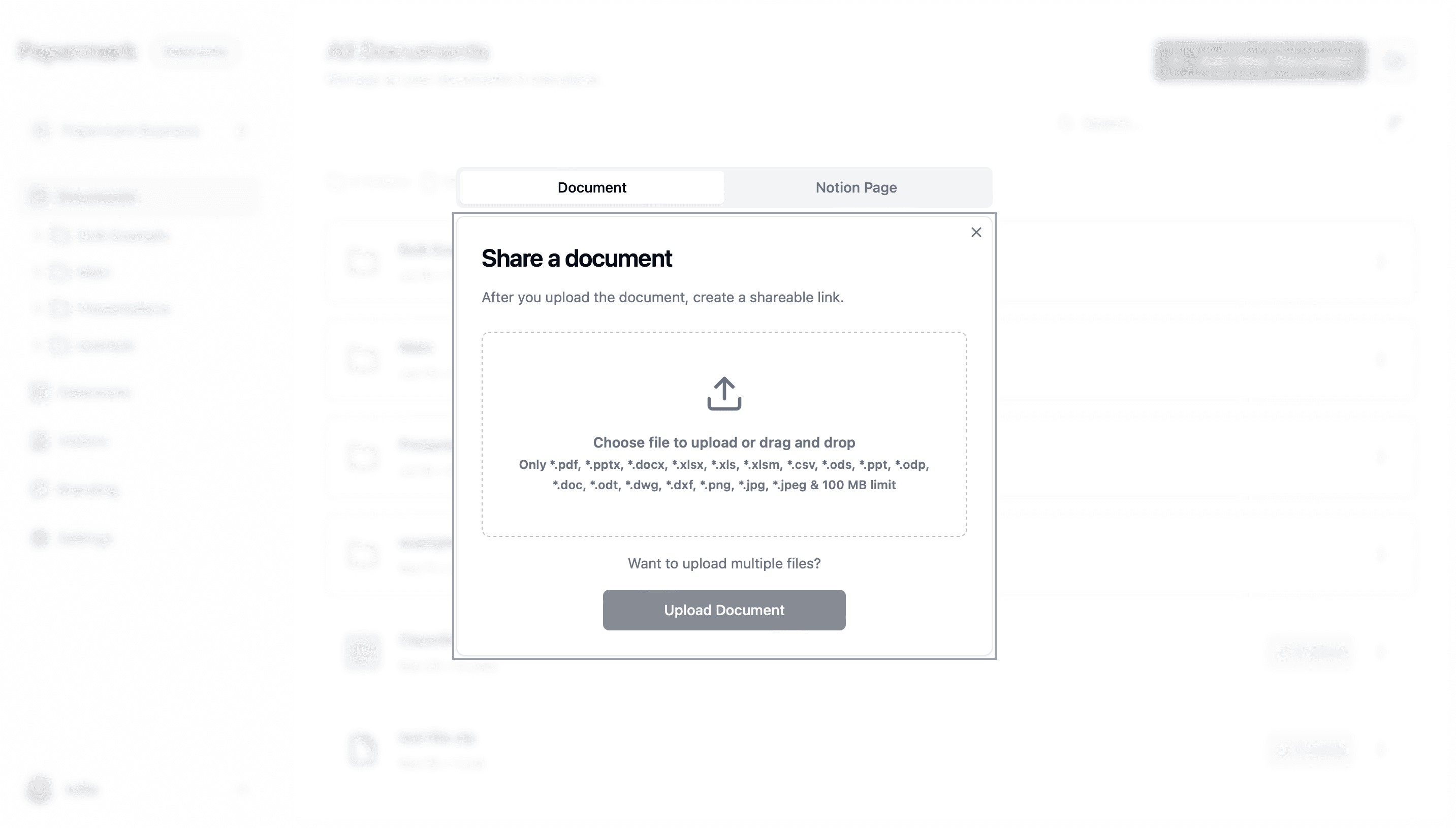
Recipients see rendered pages in a browser. There is no file on their machine to forward.
Why you need a data room to protect PDFs from copying
Everything in sections 2 to 4 shares one weakness: the recipient holds the document. Four things change once they do not. If you are still choosing a platform, our comparison of the best virtual data rooms covers pricing, permissions, and compliance across the main providers.
There is no file to forward. This is the whole point and it is worth stating plainly. A recipient who never receives a PDF cannot attach one to a message. Text copying and printing become moot, because the actions that produced them no longer have a target.
You can change your mind after sending. An emailed attachment is final. A link can be revoked, expired, restricted to new email addresses, or switched from download to view-only at any point, including after you realise the wrong version went out.
Every page carries the viewer's identity. Dynamic watermarking renders the recipient's email, IP, and timestamp into each page as it is served, so 260 recipients see 260 distinguishable documents. That is the only mechanism that survives a screenshot.
You find out what happened. Per-page analytics show which recipient opened the document, which pages they spent time on, whether they returned, and whether a link was opened from an unexpected location. A PDF sent by email tells you nothing at all.
The rest of this section is the practical setup: five steps that handle all four.
Step 1: upload the document and keep the original
Drag the PDF in. Papermark renders it for browser viewing while keeping your source file intact, and versions replace each other cleanly, so recipients on an existing link always see the current edition rather than the copy they were sent in March. That versioning property is worth more than it sounds: most document leaks that cause commercial damage are leaks of an old draft that the sender forgot was still circulating.
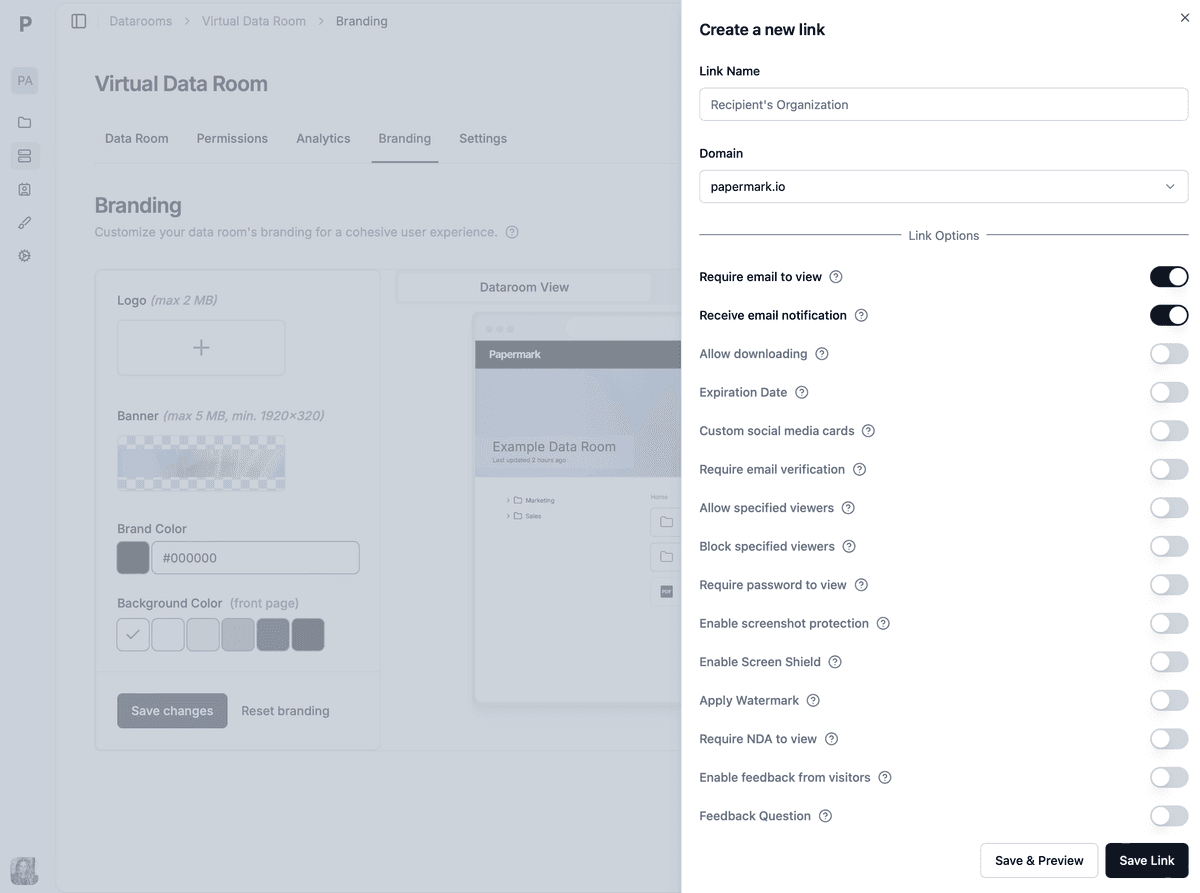
Step 2: create a link per recipient group and turn download off
Recipient
Link settings
What they can do
Standard subscriber
View only, watermark on, email verification
Read in the browser, no file, no print
Institutional client under contract
Download allowed, watermark on, allowlist
Keep an archival copy, attributable to the organisation
Print-only reader
Print allowed at low resolution, no download
Produce a paper copy, no clean digital reproduction
Prospect or trial reader
View only, 7-day expiry, page limit
See a sample, access ends automatically
Granular link settings are configured per link rather than per document, so the same PDF can be view-only for most recipients and downloadable for the few whose contracts require it. Add an email allowlist, an expiry date, and email verification so the person opening the link is the person you sent it to.
Download, printing, expiry, and verification are set per link, not baked into the file.
Step 3: turn on dynamic watermarking and screenshot protection
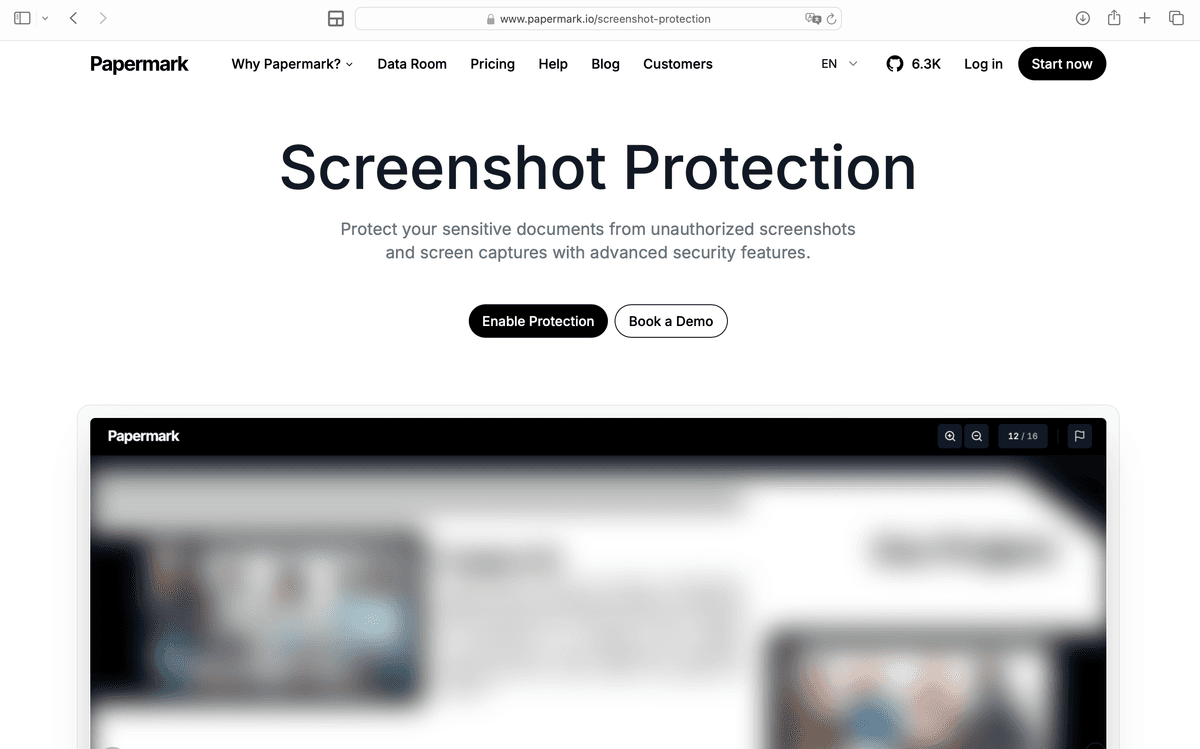
Dynamic watermarking stamps the viewer's email, IP address, and timestamp onto every page as it renders. Screenshot protection deters casual capture on supported browsers. Together they change a leak from anonymous to attributable, which is the realistic goal.
Every recipient sees a different rendering of the same page, identified to them.
Be honest about the limit with your own stakeholders: a camera pointed at a screen defeats every control on this list. Watermarking is what makes that outcome traceable rather than anonymous.
Step 4: gate access with an NDA where the document warrants it
For documents where the recipient should accept terms before reading, a one-click NDA can be attached to the link, requiring acceptance before the first page renders. Acceptances are recorded against the viewer's email with a timestamp and version, so you can show later exactly which version of the terms a given reader agreed to.
Step 5: watch the analytics and revoke when needed
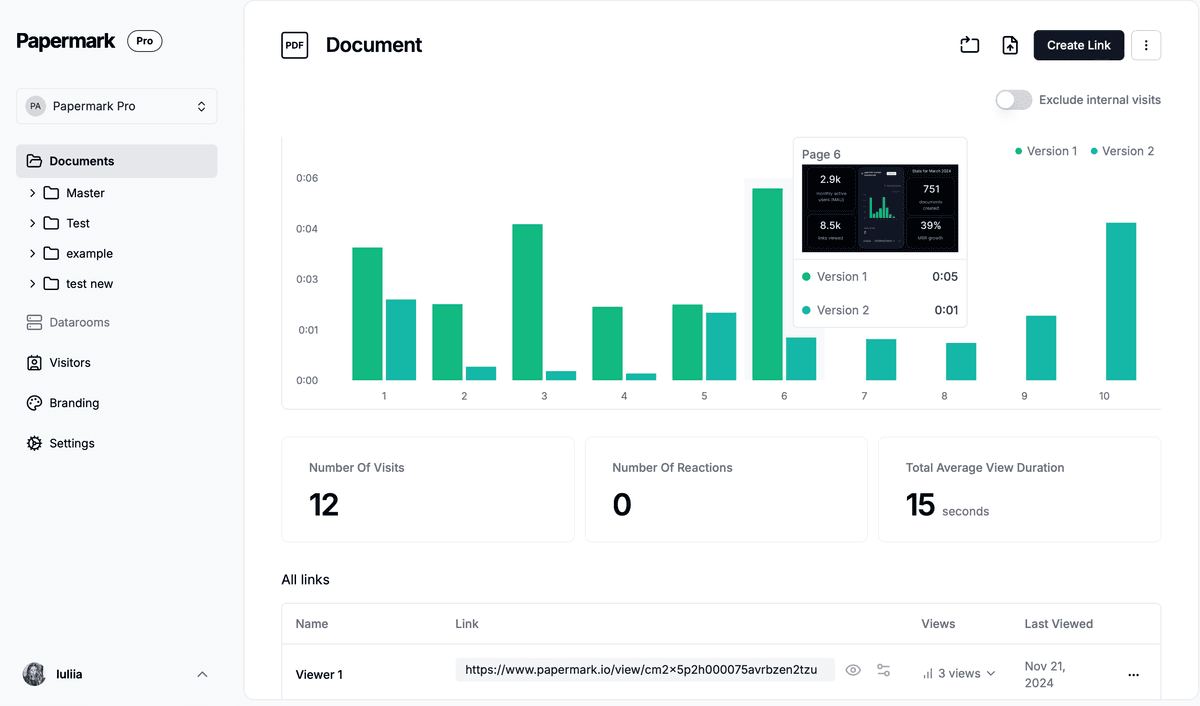
Page-level analytics show who opened the document, which pages held attention, and how many times a link was used. Unusual patterns, such as one link opened from four cities in a day, are visible immediately, and any link can be revoked in a click without affecting the others.
Per-page analytics show which sections held attention and which links are being shared.
Read case study →
I love Papermark, it's the best fundraising tool I've ever used.
Aleksander Dahlberg
Founder of Sahha.ai
What it costs
Document sharing starts on the Free plan at €0 with page analytics and email capture, and Pro at €24/month adds unlimited links and custom branding. For view-only sharing with dynamic watermarking, granular permissions, and custom domains, the Data Rooms plan is €99/month with a 7-day free trial and includes 3 team members, unlimited data room visitors, unlimited data rooms, and unlimited documents with no file size limit. Data Rooms Plus at €249/month adds 5 team members, the audit log, the Q&A module, automatic file indexing, and SOC 2 Type II, and Data Rooms Premium at €549/month adds 10 team members, AI redaction, full API access, SSO, and whitelabeling. Data Rooms Unlimited at €999/month removes per-seat charges entirely, so teams that add reviewers mid-deal pay one number regardless of headcount, and it carries every Premium capability including AI redaction.