
How to share audio files with Papermark?
Audio content shouldn't sit in a folder of unprotected links. Upload .mp3 and .m4a recordings to Papermark and you get the same secure sharing, branded experience, and analytics you get with documents.
Audio file support is available on the Pro plan and above.
What you can share
Papermark supports the two most common audio formats:
| Format | Description |
|---|---|
MP3 (.mp3) | The standard audio format used across the web |
M4A (.m4a) | Apple's audio format, common with iPhone Voice Memos and Apple Music exports |
Once uploaded, audio files behave just like any document in Papermark. They get a shareable link, link permissions, and full audit logging.
Step-by-step setup
Step 1: Upload your audio file
- Log into Papermark.
- Click Documents in the sidebar.
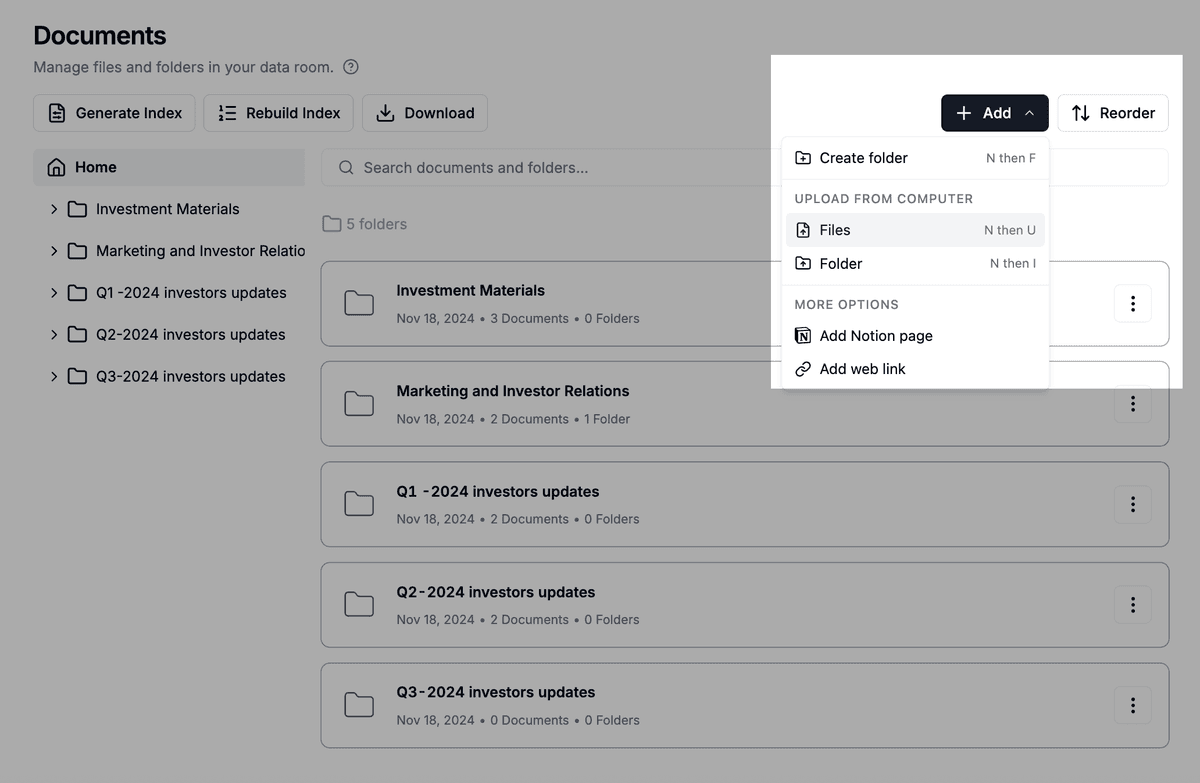
- Click Upload and pick your
.mp3or.m4afile. - Wait for the upload to finish.
Step 2: Create a link
- Open the audio file.
- Click Create link.
- Configure access controls (email verification, password, expiration).
- Save and copy the link.
Step 3: Share with viewers
Viewers click your link, verify their email (if required), and play the audio directly in the Papermark viewer. No download needed.
Playback analytics
For every listener you get:
- Total listening time per visitor
- Playback start and stop events
- Number of listens per visitor
- Whether they finished the recording
This is more useful than a simple "viewed" counter because audio engagement is binary: either someone listened or they didn't. Time spent shows you who actually engaged with the content.
Use cases
- Podcast pre-release reviews: send the cut to your network for feedback before publishing.
- Founder voice memos for investors: a more personal pitch than a written update.
- Audio briefings: include voice updates inside a data room for buyers or partners.
- Recorded calls: share call recordings with stakeholders and track who listened.
- Voice-over presentations: pair a recorded narration with a deck shared on Papermark.
Security and access controls
Audio files inherit every Papermark security control:
- Email verification before access
- Password protection
- Expiration dates
- Allow / block lists by email or domain
- NDA agreements
- Granular permissions in data rooms
- Audit logs for every play event
Add audio to a data room
Audio files can be included in any data room alongside documents:
- Open your data room.
- Click Add, then Files.
- Pick the
.mp3or.m4afile. - Set permissions per the data room's configuration.
The audio file appears in the data room file list with a distinctive audio icon and shows up in the automatic index file.
Frequently asked questions
Related guides
- File types supported in Papermark
- How to share and analyze videos
- How to upload your document to Papermark
- How to add documents to your data room
Need help? Contact support@papermark.com or use the in-app chat.