
Today we are launching Papermark Agents on Product Hunt: let AI agents run your next deal, fundraise or data room.
Setting up a data room is still mostly clicking: create the room, build the folders, upload files, create a link for each investor, set the permissions, then check back on who read what. None of that needs a human. So we made Papermark, the secure, modern data room, something your agent can operate directly.
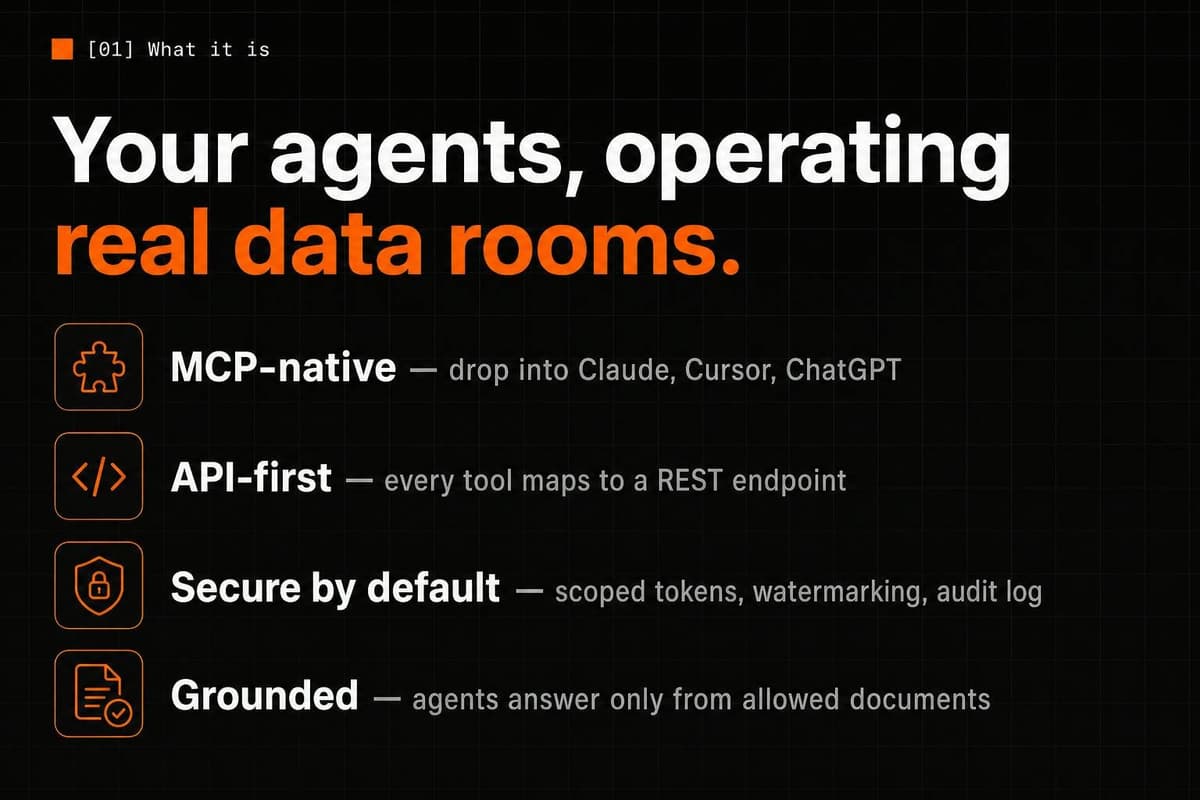
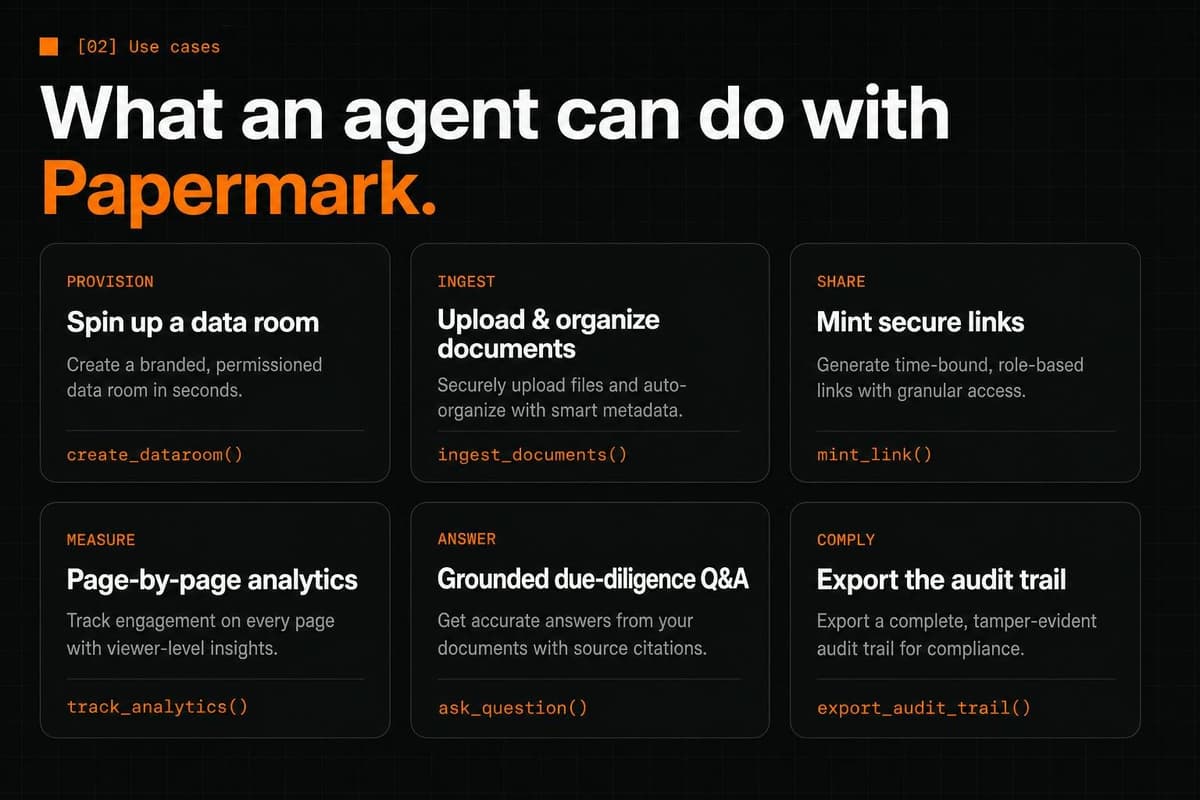
Papermark now has a full API, a CLI and an MCP server, so you can connect Claude, Cursor or ChatGPT to your Papermark account. Ask your agent to create a data room, upload documents, set permissions for each group of investors, or pull analytics on who read what.
Here is what launched.
1. MCP server
Connect Papermark to any MCP-compatible AI assistant. At launch the MCP server came with more than 40 tools covering data rooms, documents, folders, links, visitors and analytics. Claude, ChatGPT and Cursor work out of the box, and any local agent that speaks MCP should work too.
Setup is one command, npx -y @papermark/mcp-server, plus an API token from your Papermark settings. Our MCP server guide walks through it step by step.
2. Data room API and CLI
Create rooms, folders, groups and permissions programmatically. The same operations the MCP server uses are available through the REST API and the CLI, so you can script your own workflows or plug Papermark into your existing tools. See the developer docs.
3. Agent-ready workflows
Set up a buy-side M&A room or a fundraising room from a single prompt. A few things you can ask:
- "Create a data room for our Series A, upload every PDF in this folder and create a password-protected link."
- "Create a separate email-gated link for each investor firm, with downloads off and an expiry date."
- "Which investor spent the most time on our financials, and which pages did they read?"
- "Check all my links and flag any without a password or an expiry date."
The agent does the clicking. You keep the decisions.
4. Secure by default
An agent works with the same permissions as the token you give it. Token scopes are enforced on our side, so a read-only token cannot change anything, and you can revoke a token at any time. Every link an agent creates carries the same access controls as one you create by hand: email verification, passwords, expiry dates, watermarks and granular permissions.
API, CLI and MCP access are available on Business plans and above. See every plan on our pricing page.
5. Connect your agent step by step
Here is the full setup, from an empty account to an agent that can run a room. It takes a few minutes.
Step 1: Create an API key
- Log in to Papermark and open Settings, then API Keys.
- Click Create API key and give it a name you will recognise later, for example "Claude fundraising".
- Pick the Type. You ties the key to your user account, so it stops working automatically if you leave the workspace. Machine stays valid even if the creator leaves, which suits servers and long-running automations.
- Pick the Permissions: All for full access, Read Only for read access to everything, or Restricted to choose per resource.
- Copy the key. It starts with
pm_live_and, for security, it is shown only once.
With Restricted, you set None, Read or Write for each resource: Documents, Links, Datarooms, Analytics, Visitors and Branding. Analytics and Visitors are read only. Choosing Write also grants Read.
Our advice: start an agent on Read Only. When you want it to build a room, create a separate Restricted key with Write on Documents, Links and Datarooms, and revoke it when the job is done.
Step 2: Add Papermark to your AI client
Claude Desktop. Open ~/Library/Application Support/Claude/claude_desktop_config.json on macOS (or %APPDATA%\Claude\claude_desktop_config.json on Windows) and add:
Save the file and restart Claude Desktop. npx downloads the server the first time it starts, so there is nothing else to install.
Claude Code. Add the same server from your terminal:
The local server can also read files straight from your disk, which is what makes "upload every PDF in this folder" work.
Cursor and other HTTP clients. Use the hosted endpoint at https://mcp.papermark.com/mcp with your key as a bearer token:
claude.ai and ChatGPT. Add https://mcp.papermark.com/mcp as a connector and sign in to Papermark in the browser. You approve the access once, and no key ends up pasted in a chat.
Step 3: Run a first prompt
Start with something that only reads:
- "List my Papermark data rooms."
- "List my Papermark documents."
You should see the agent call a tool such as list_datarooms or list_documents and answer with your real rooms and files. If it does, the connection works.
Step 4: Check what the agent did
The agent works through the same API as the dashboard, so everything it creates shows up in your Papermark account like anything you made by hand. After a setup prompt, open the room and check three places:
- Documents and folders: are the files where you expected?
- Permissions: does each link and group show the settings you asked for?
- Analytics: once links are shared, views appear here as usual.
You can also ask the agent to report back: "List every link in this data room with its password, email and expiry settings." Reading its own work back is a good habit before you send anything to an investor.
Step 5: Revoke the key
Open Settings, then API Keys, click the menu on the key's row and choose Delete. Confirm by typing the key's name in the Revoke API key dialog. From that moment every call made with the key is rejected, while the rooms, documents and links the agent created stay in your account.
6. Example: a fundraising room, end to end
Here is how a seed round could run through one conversation in Claude Desktop, with a Restricted key that can write Documents, Links and Datarooms.
- Create the room. "Create a data room called Seed Round 2026 with folders Pitch, Financials, Legal and Team." The agent calls
create_dataroom, thencreate_dataroom_folderfor each folder. - Fill it. "Upload every PDF in ~/raise/ and put the financial model and cap table in Financials." The agent runs
upload_documentfor each file and files it in the right folder. - Split access. "Create a group called Partners that can see every folder, and a group called Scouts that can only see Pitch." The agent calls
create_dataroom_groupandset_dataroom_group_permissionsfor each group. - Share it. "Create one email-gated link per firm in investors.txt, downloads off, expiring in six weeks." One
create_linkper firm, each with its own analytics. - Follow up. A week later: "Which firms opened the financials, and for how long?" The agent reads
get_dataroom_analytics,list_link_viewsandget_view_analyticsand answers in a few sentences.
You review each step in the dashboard and decide who gets a follow-up. The agent does the setup.
7. Example: a link audit before a deal goes live
Before a sell-side process opens to bidders, you can use a Read Only key and ask:
"Go through every data room. For each link, tell me if it has a password, email verification and an expiry date. Flag any link that has none of them."
The agent walks list_datarooms, list_links and get_link and returns a short list of links to fix. Because the key is Read Only, it cannot change anything: you fix the links yourself, or switch to a write key for that one task.
8. What is next
This launch is about managing the room: creating it, filling it, sharing it and reading the analytics. Next, agents get access to the content of the room itself, and after that we want investors' agents to be able to open the rooms shared with them. If you want to see a full example today, read how to build a due diligence agent with Claude and Papermark.
Launch day
Papermark Agents finished as #10 Product of the Day. Launching feels different from our first launch three years ago, but we still say: launch, launch, launch. No matter if it is a new product or a new update, it keeps you accountable.
Marc summed up the idea behind it on launch day: "Open source at the core. Agent-native at the edges."
Four months later, the agent features became part of Papermark Data Rooms 2.0. See every launch on our Product Hunt page.