
How to share a CIM with multiple buyers securely
To share a confidential information memorandum (CIM) with multiple buyers, send a blind teaser first, release the CIM only after a signed NDA, and give each buyer its own view-only, watermarked link that you can track and revoke. This playbook covers the 7 steps, the settings and the timeline from teaser to IOI.
1. Short answer
2. The 7 steps
3. Keep buyers isolated
4. Sharing methods compared
5. What to hold back
6. Reading engagement
7. Timeline
8. FAQ
How do you share a CIM with multiple buyers securely?
Send a blind teaser, require a signed NDA, then give each buyer its own NDA-gated, view-only link or data room group with dynamic watermarks and page-level tracking. Never email the PDF, and revoke access the day a buyer exits the process.
- One buyer, one link. Every open is attributed to a named party, and you can cut off one buyer without touching the others.
- Identity before content. Email verification and the NDA gate come before page one.
- Online, not attached. View-only with downloads off until a buyer is shortlisted.
- Traceable pages. Viewer email, IP, date and time on every page.
- Engagement data. Read which buyers studied the financials before the IOI calls.
The 7-step confidential information memorandum distribution workflow
The same sequence works whether you are a banker running a broad auction or a founder selling to a handful of strategic buyers. Each step lists why it matters and the setting that does it in Papermark, a secure, modern data room.
- 1
Send a blind teaser to the long list
The teaser is a one- or two-page anonymous summary: sector, region, revenue band, EBITDA and the reason for the sale, with no company name. It tells you who is interested before anyone sees the business. Send it to the full long list and record who opens it.
In Papermark: Share the teaser as a tracked link with email capture, so every open is tied to an email address and you can see which buyers read it to the end.
- 2
Screen buyers and sign NDAs (NDA gate)
Only parties that pass your screen (strategic fit, ability to pay, no conflict) receive the CIM, and only after the NDA is signed. Gating the CIM behind the NDA means nobody reads page one without being bound by it.
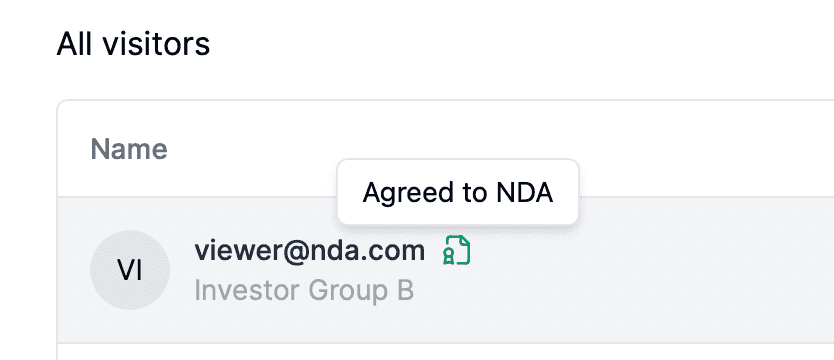
In Papermark: Upload your own NDA and require acceptance before the first page loads, and keep email verification on so each viewer confirms their address with a one-time code.
- 3
Create one link or group per buyer
A separate link for each buyer firm makes every open attributable to a named party, lets you set different rules per buyer and lets you cut off one buyer without touching the others. A single shared link makes all of that impossible.
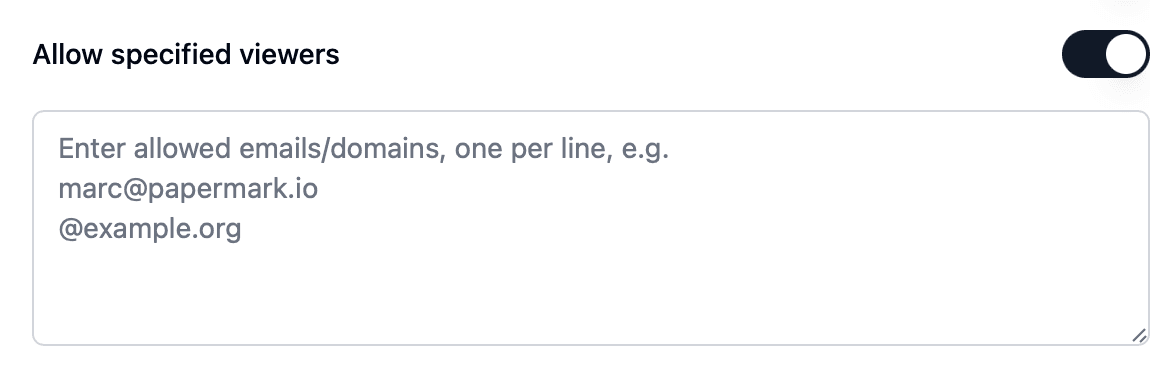
In Papermark: Put the CIM in a data room, create one link per buyer and name it after the buyer. Allow-list the buyer's email domain so its deal team and advisors can join on the same link, each verified and tracked individually.
- 4
Set the CIM to view-only, with download and print off
A downloaded PDF cannot be recalled. Until a buyer is shortlisted, keep the CIM online so you can revoke it, and so every page view is logged.
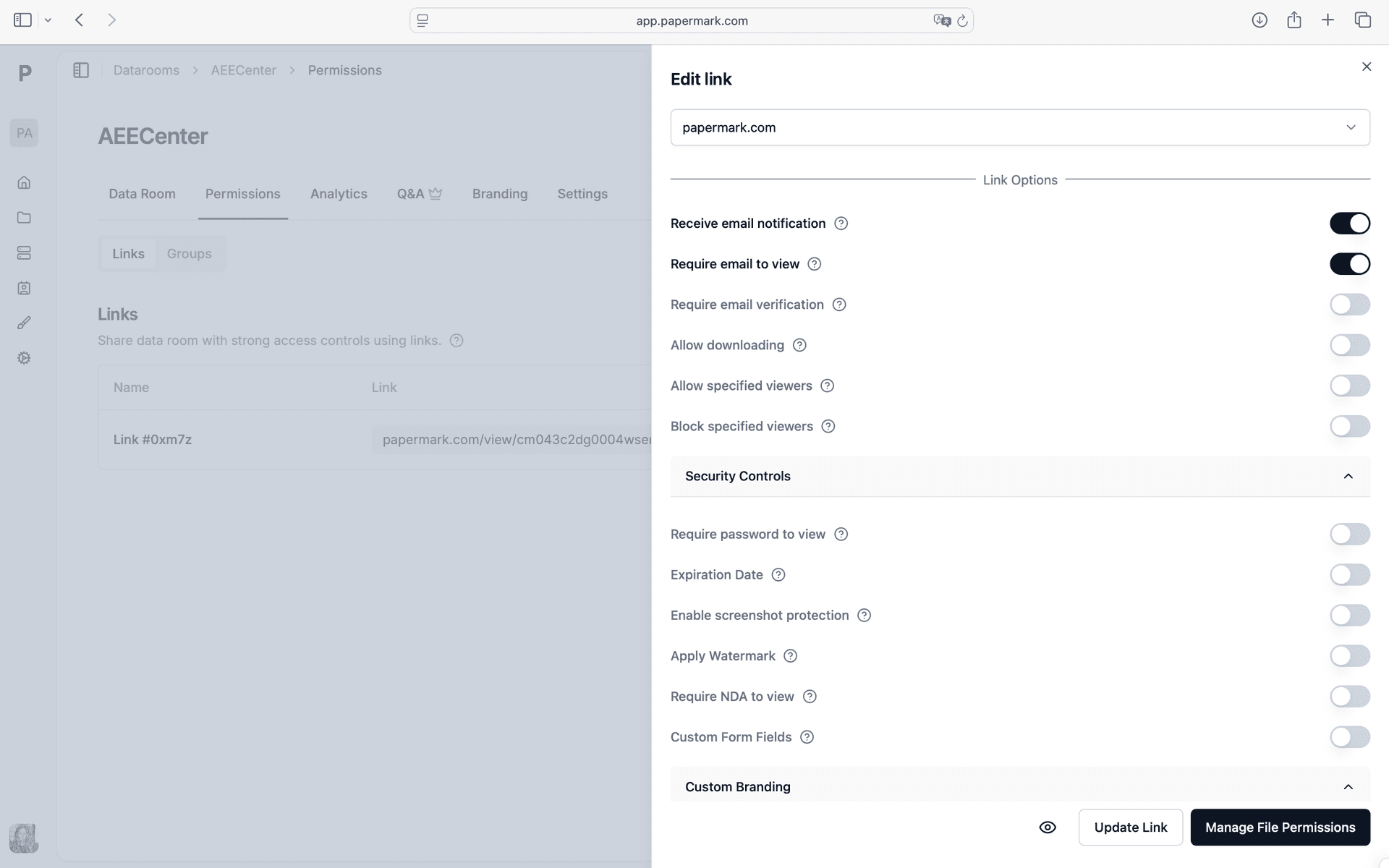
In Papermark: Turn downloads off in the link settings and enable screenshot protection. On mobile browsers screenshot detection is limited, so the watermark in the next step does the heavy lifting there.
- 5
Turn on dynamic watermarks (email, IP, date and time)
A per-viewer watermark discourages forwarding and screenshots, and if a page does leak it shows who it came from. A static 'Confidential' stamp does neither.
In Papermark: Apply a dynamic watermark that overlays the viewer's email, IP address, date and time on every page. It is included on the Data Rooms plan and carries into any file you later allow to be downloaded.

- 6
Track who read which sections and follow up
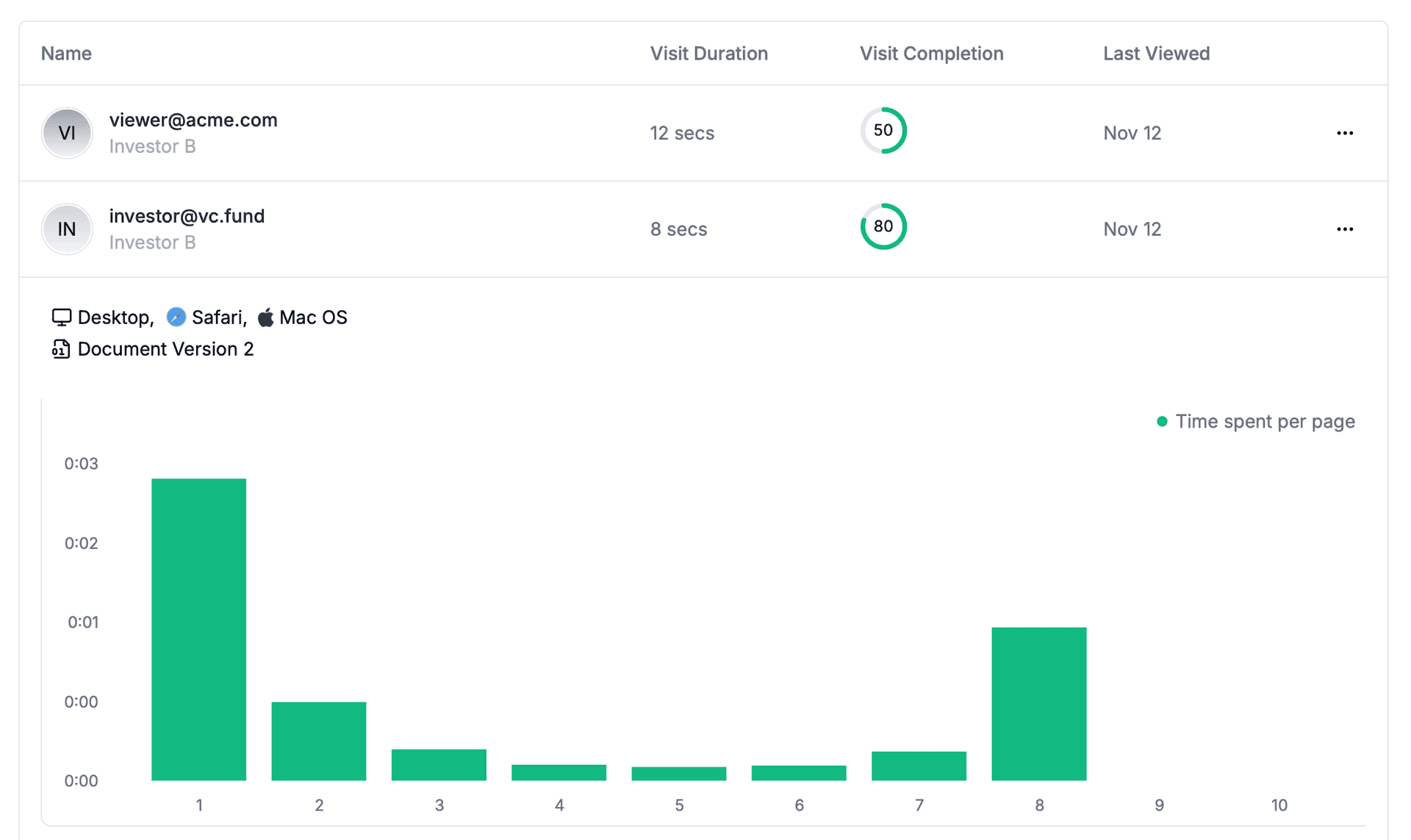
Engagement is the best early read on seriousness. A buyer whose team spent time on the financial and customer sections and came back twice is working the deal; a buyer who opened page one and left is not.
In Papermark: Page-by-page analytics show, for each visitor and session, which pages they opened, how long they spent on each and when they returned. Turn on Slack notifications to hear about first opens and return visits as they happen.
- 7
Move shortlisted buyers into the data room and revoke the rest
After the IOI deadline, buyers that are not advancing should lose access the same day. The shortlist moves to the diligence stage with a wider set of documents.
In Papermark: Set each CIM link to expire on your IOI date, deactivate links for buyers that drop out, and add the shortlisted buyers to a Stage 2 group with its own link and folder permissions.
How to keep buyers isolated from each other
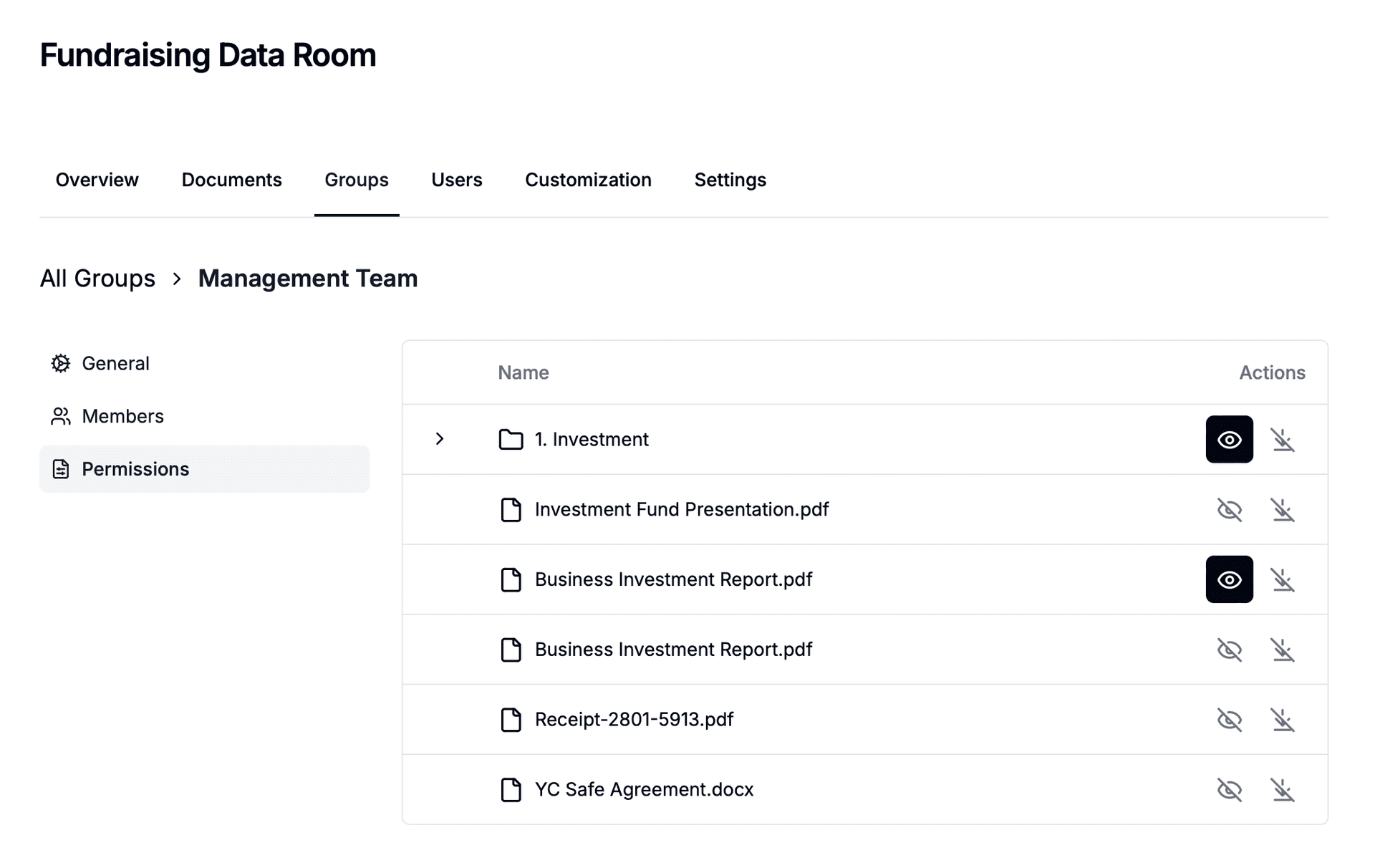
Buyers in a competitive process should never learn who else is looking, how far the others have read or what they asked. Isolation is a setup decision, not a policy: give each buyer firm its own link in the CIM stage and its own group in the data room stage.
- Separate links and groups. Each buyer sees only its own access, and its activity is reported only to you.
- Individual invitations. Never send the CIM to a shared email thread or with buyers in CC.
- Private questions. With the Q&A module on Data Rooms Plus, buyers submit questions privately, you review them before publishing, and each answer can go to all bidders or only to the buyer who asked.
- Clean teams for competitors. When a strategic buyer competes with the target, release commercially sensitive data to a named clean team (often outside advisors) through a separate group rather than to the buyer's whole deal team.
For a folder-by-folder view of who sees what at each stage, see the data room permission matrix and data room access controls.
CIM sharing methods compared
The method decides what you can control after the CIM leaves your hands. Only per-buyer links and data rooms let you revoke access, trace a leak and see what was read.
| Method | Per-buyer identity | Revoke access | Watermark per buyer | See pages read | Verdict |
|---|---|---|---|---|---|
| Email attachment | No | No | No | No | Avoid |
| Password-protected PDF | No (the password gets shared) | No | Static only | No | Teaser at most |
| Google Drive or Dropbox link | Partial | Yes | No | No | Not for a CIM |
| Tracked link (Papermark, DocSend) | Yes | Yes | Yes | Yes | Good for the CIM stage |
| Data room with buyer groups (Papermark, Datasite, Intralinks, Firmex) | Yes | Yes | Yes | Yes | Best once diligence starts |
What to leave out of the CIM until later stages
A CIM should give a buyer enough to submit an indication of interest, not enough to compete with you if the deal fails. Hold the items below back and release them stage by stage.
| Information | In the CIM | Released later |
|---|---|---|
| Customer names | Anonymised (Customer A, B, C) with revenue share and tenure | Named in confirmatory diligence, often to a clean team |
| Pricing and margin by customer or product | Aggregated by segment | Detailed once a buyer is in exclusivity |
| Employee detail | Headcount by function and key-person roles | Names, salaries and contracts after the LOI |
| Material contracts | Summarised terms | Redacted copies in Stage 2, full copies in Stage 3 |
| Proprietary know-how, IP, source code | Description of what exists | Expert sessions or restricted folders late in diligence |
When contracts move into the data room, redact names and pricing before release. Papermark's AI redaction (Data Rooms Premium and above) finds names, emails and other identifiers so a reviewer can accept or decline each one.
Reading CIM engagement: which buyers are serious?
Page-level analytics turn the weeks between the CIM and the IOI deadline into information. Read these signals per buyer before every follow-up call.
| Signal | What it usually means | What to do |
|---|---|---|
| Time on financial and customer pages | The buyer is building a model | Prioritise the follow-up call; offer a management call |
| Return visits over several days | The CIM is circulating inside the buyer's team | Ask who else is involved and when the investment committee meets |
| New verified viewers from the buyer's domain | Advisors or partners have been brought in | Treat as a strong signal; confirm they are covered by the NDA |
| Opened, read the first pages, never returned | Low priority or a fishing exercise | One reminder, then let the link expire at the IOI date |
| Never opened after signing the NDA | Not engaged | Confirm the email reached the right person, then drop from the list |
For a scoring model and the full setup, read how to track which buyers are reading your deal documents and the buyer activity monitoring workflow.
Timeline: from teaser to IOI
A typical CIM phase runs about six weeks. The ranges below are common in sell-side processes, not fixed rules; smaller targeted processes move faster with fewer buyers.
| When | What happens |
|---|---|
| Week 0 | Teaser goes to the long list (often 50 to 150 parties) |
| Weeks 1 to 2 | NDAs signed; one CIM link issued per screened buyer |
| Weeks 2 to 5 | CIM review; monitor engagement; answer clarifying questions; management calls |
| Weeks 5 to 6 | IOIs due; revoke non-advancing buyers; open Stage 2 data room groups for the shortlist (often 5 to 10) |
Set up CIM distribution in Papermark
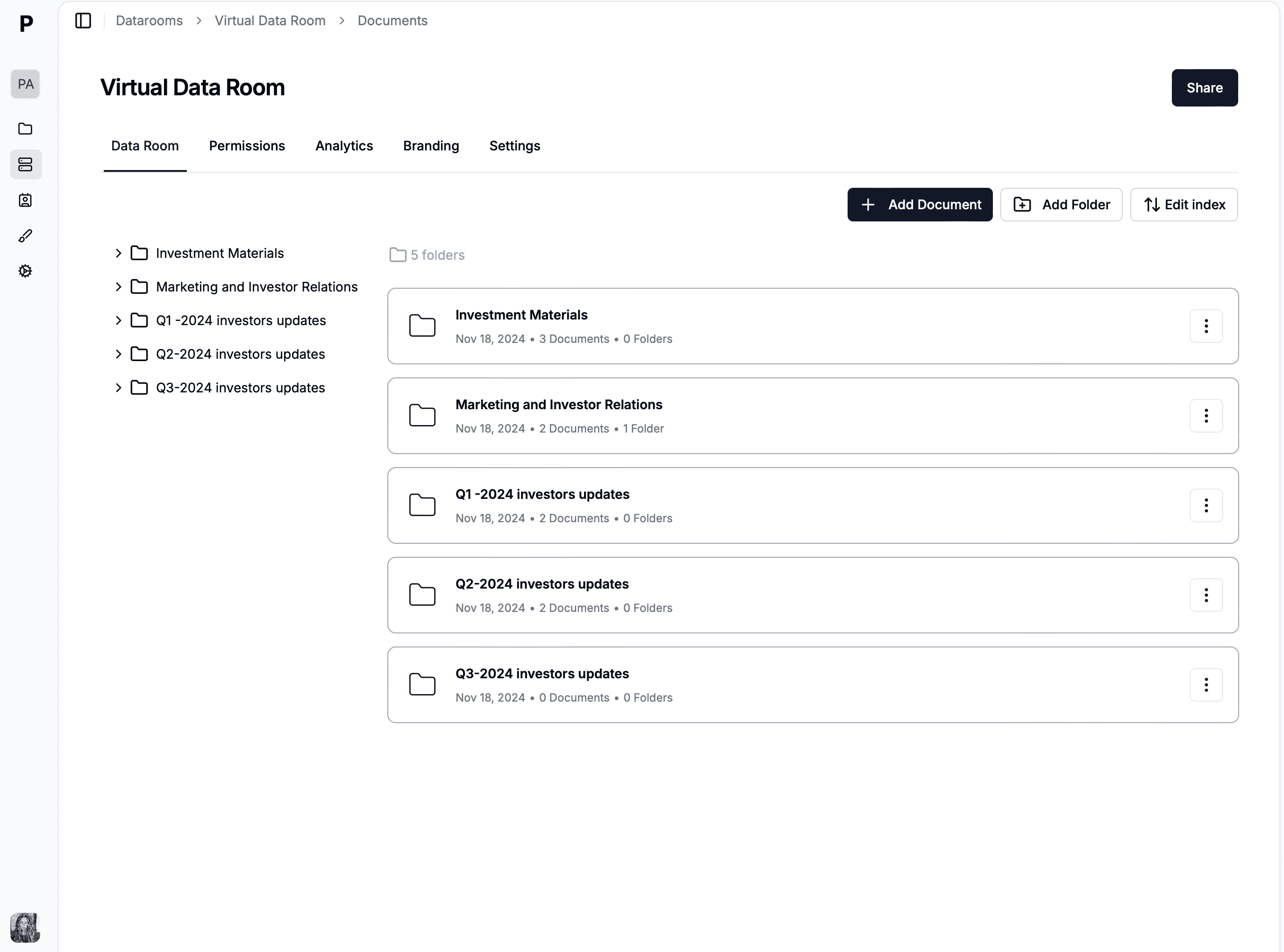
- Create a data room named after the project codename.
- Upload the CIM PDF (and the teaser, if you track it in the same room).
- In the link settings, turn on email verification, require your NDA, switch downloads off and apply a dynamic watermark with the viewer's email, IP address, date and time.
- Create one link per buyer, name it after the buyer and set it to expire on the IOI date.
- Connect Slack for view notifications and review page-by-page analytics before each follow-up call.
The Papermark Data Rooms plan starts at $99/month with unlimited buyer viewers, and every setting above is included. Papermark is SOC 2 Type II and ISO 27001 certified.
Related guides
Confidential information memorandum guide
What a CIM contains, how long it is and how it differs from a teaser.
How to watermark documents sent to acquirers
Watermark settings for the CIM, financials and the data room.
Data room permission matrix
Who sees which folder at each stage of the process.
Track which buyers are reading your deal documents
Engagement signals and a simple scoring model.
Running a competitive bidding process
Rounds, deadlines and bid scoring.
Staged data room setup workflow
Teaser, NDA, CIM and diligence stages in one room.