
How to generate a data room with AI in Papermark?
Starting a new data room? Instead of building the folder structure yourself, you can let Papermark AI generate one based on your use case. Describe what the data room is for, pick a template, and Papermark creates up to 8 top-level folders with appropriate subfolders that match industry-standard best practices.
AI data room generation is available on the Data Rooms plan and above. You get a 7-day free trial when you start.
What AI data room generation does
Papermark AI builds a ready-to-use folder hierarchy you can start uploading documents into right away. It:
- Creates up to 8 top-level folders with relevant subfolders
- Uses naming conventions common to the use case you select
- Lets you edit, rename, or delete any folder before finalizing
- Works with all standard Papermark data room features (permissions, links, branding, analytics) once created
Think of it as a smart starting point. You stay in control, but skip the blank-canvas problem.
Supported templates
You can describe a custom use case or pick from these built-in templates:
| Template | Best for |
|---|---|
| M&A due diligence | Buyers and sellers running a sell-side or buy-side process |
| Fundraising | Startups raising a seed, Series A, or growth round |
| Real estate transactions | Investment sales, asset acquisitions, and property portfolios |
| Legal document management | Law firms organising case files or client matters |
| Custom use case | Anything else, just describe what you need |
Step-by-step setup
Step 1: Start creating a new data room
- Log into Papermark.
- In the left sidebar, click Datarooms.
- Click Create data room in the top right.
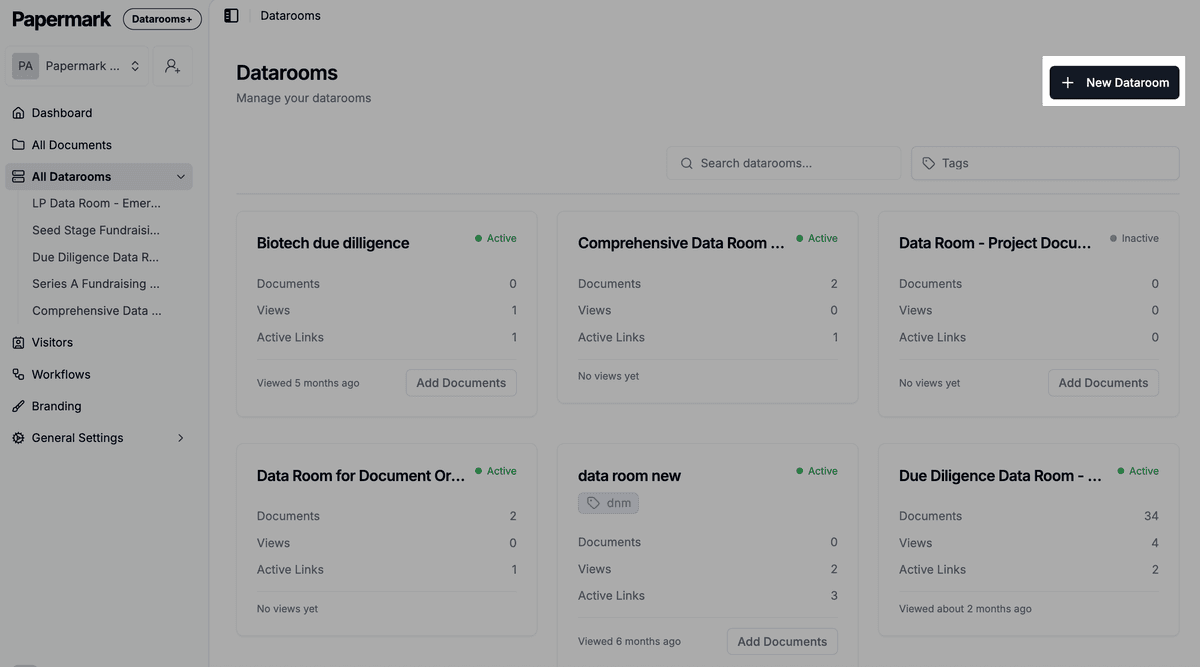
Step 2: Choose "Generate with AI"
When the creation modal opens you'll see three options. Pick Generate with AI.
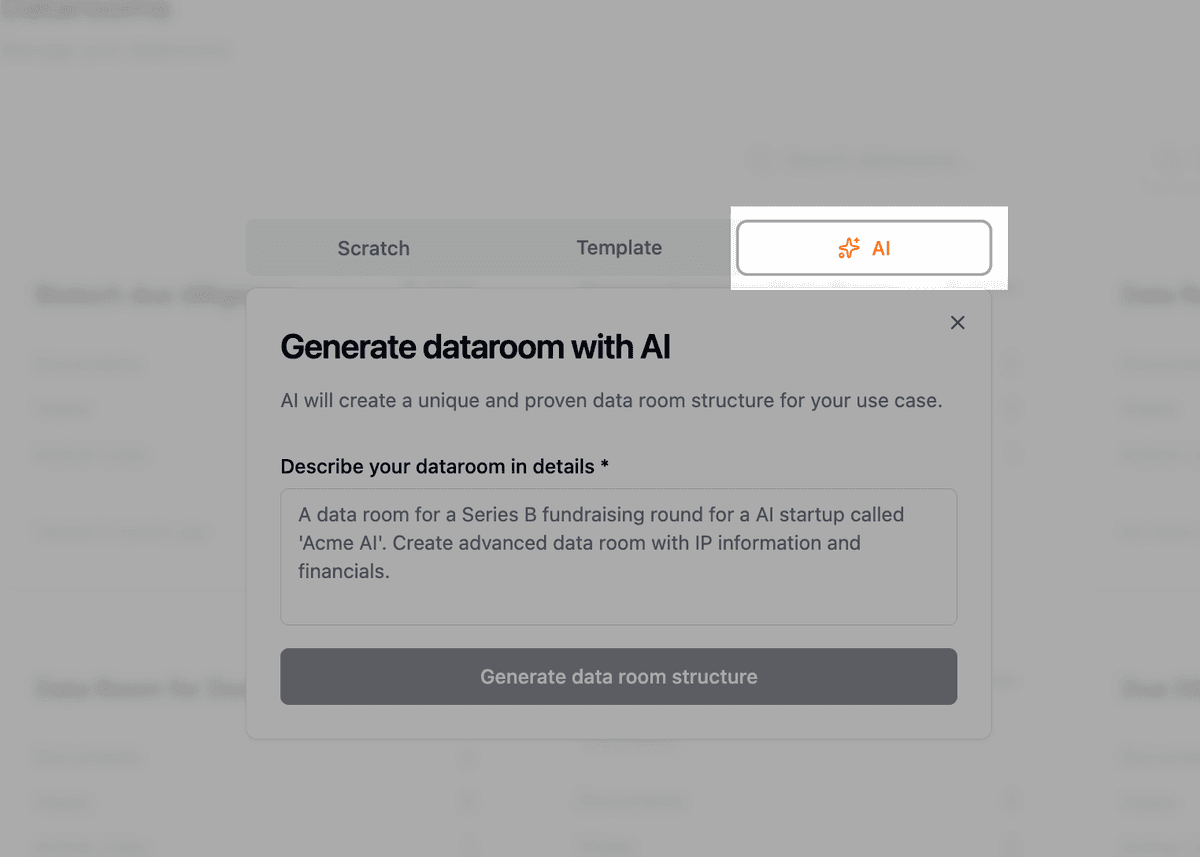
The other two options are:
- Empty data room: start from scratch with no folders
- Template: pick from pre-built folder structures
- Generate with AI: describe your use case and let AI build it for you (this guide)
For a full walkthrough of the other paths, see How to create a data room.
Step 3: Describe your use case
Give the data room a name and add a short description of what it's for. The more specific you are, the more tailored the folder structure will be.
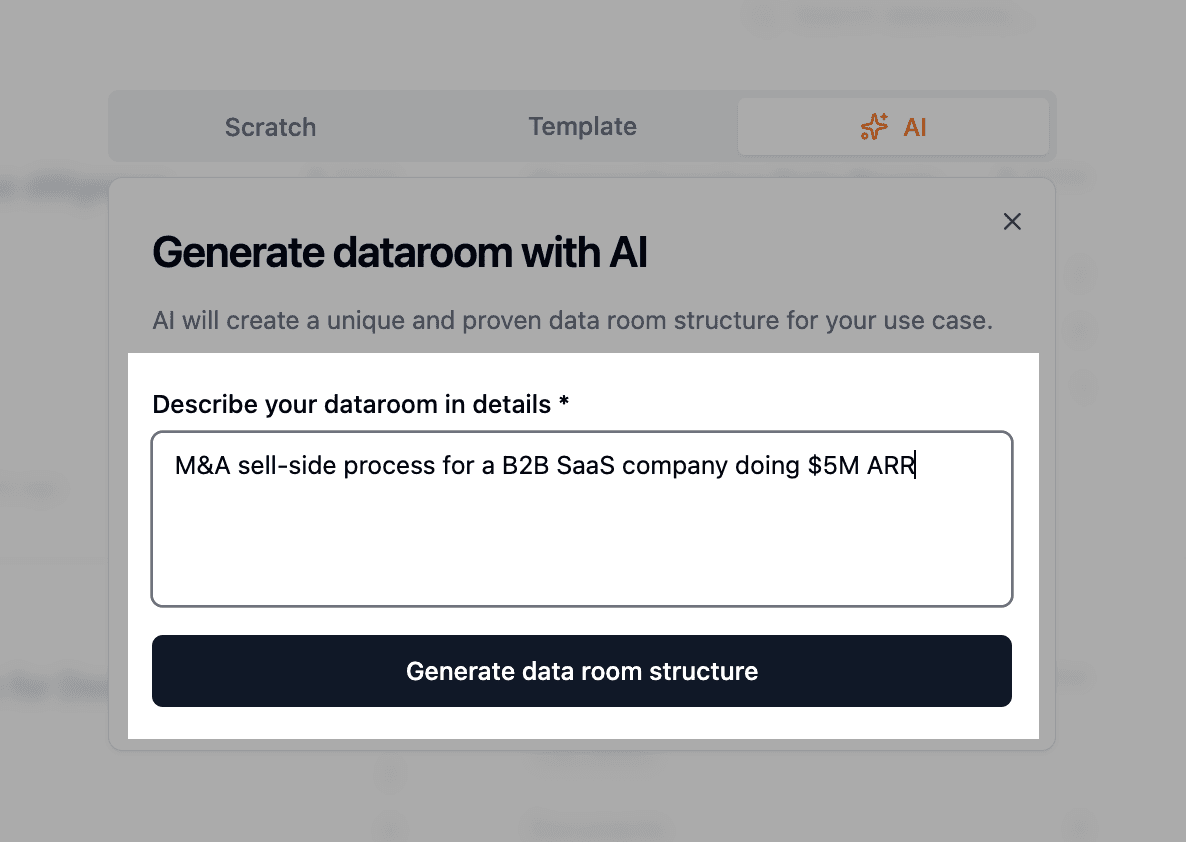
Examples that work well:
- "M&A sell-side process for a B2B SaaS company doing $5M ARR."
- "Series A fundraising for a fintech startup, 18-month runway, EU investors."
- "Sale of a 12-unit multifamily property in Berlin."
- "Sell-side legal data room for an asset purchase agreement, US deal."
Step 4: Review the generated folder structure
Papermark AI returns a folder tree with up to 8 top-level folders and nested subfolders, organised by topic.
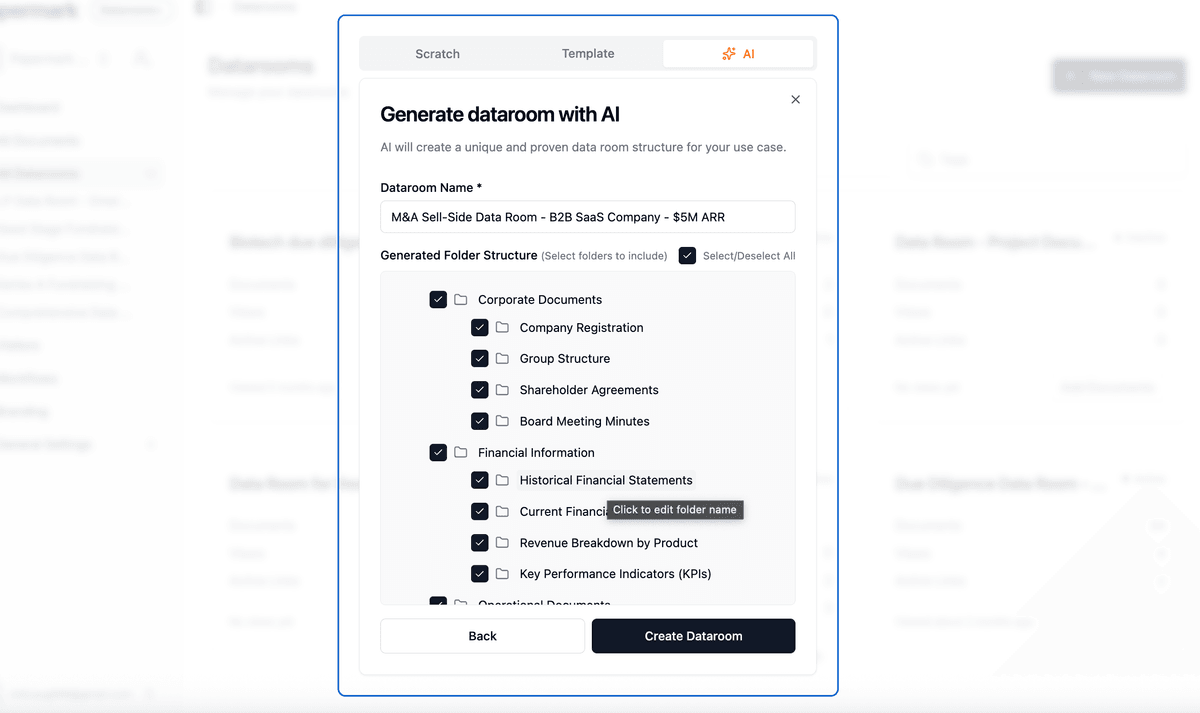
For example, an M&A due diligence room will typically include:
- 1. Corporate documents: articles of incorporation, cap table, board minutes
- 2. Financials: historical financials, projections, audits
- 3. Commercial: customer contracts, partnership agreements
- 4. Legal: IP, litigation, regulatory filings
- 5. HR and team: org chart, employment agreements, equity plans
- 6. Technology and product: product roadmap, technical architecture
- 7. Operations: facilities, suppliers, insurance
- 8. Tax: tax returns, tax positions, audits
Step 5: Edit the structure before finalizing
You can adjust the structure before it's created:
- Rename any folder by clicking its name
- Delete folders you don't need
- Add new folders or subfolders manually
- Reorder items to match your preferred sequence
When you're happy with the structure, click Create data room.
Step 6: Start uploading documents
Once the data room is created, you can drag and drop documents directly into the folders. Papermark supports PDFs, Office files, images, videos, Keynote, audio, and more. See supported file types for the full list.
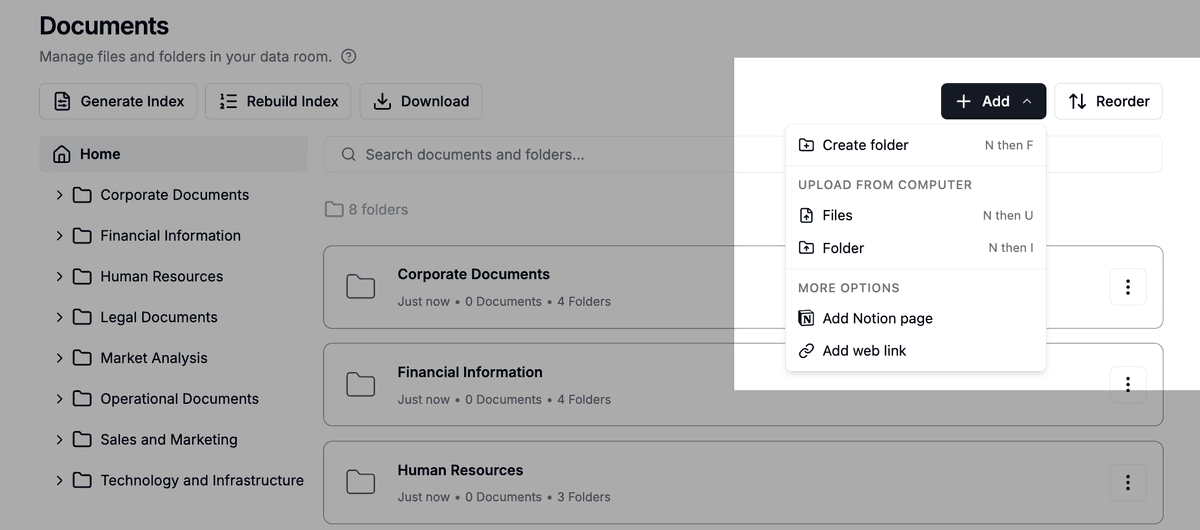
You can also keep building the structure as you go: add nested subfolders, move files between folders, or rename documents at any time without breaking existing share links.
When to use AI generation vs. a blank room
| Use AI generation when | Start from blank when |
|---|---|
| You're new to data rooms and want a sensible starting point | You already have a folder structure you re-use across deals |
| Speed matters and you need to share something today | The use case is highly bespoke and templates don't fit |
| You want to follow industry conventions | You're migrating from another VDR and want to mirror the existing tree |
Tips for better AI results
- Be specific about industry and stage: "Series A fundraising for a fintech startup" beats "fundraising data room"
- Mention the audience: investors, buyers, lenders, regulators each expect different folders
- Mention the deal size or geography: affects which legal and tax folders are relevant
- Iterate: if the first generation isn't right, edit the description and regenerate before creating
What happens after the data room is created
Once your AI-generated data room exists, it behaves exactly like any other Papermark data room. You can:
- Set granular file permissions per folder or per file
- Customize branding and custom domains
- Enable automatic index file generation
- Turn on Q&A conversations for visitor questions
- Add an introduction page for first-time visitors
- Invite visitors by email or share a link
Frequently asked questions
Related guides
- How to create a data room
- How to add documents to your data room
- How to add folders to your data room
- Using AI agent for data rooms
Need help? Contact support@papermark.com or use the in-app chat.