
How to share Outlook .msg email files with Papermark?
Email correspondence is often the most important evidence in due diligence and legal review. Papermark supports Outlook .msg files natively, so you can share email threads without converting them to PDF and losing metadata like the sender, recipients, and timestamp.
.msgfile support is available on the Pro plan and above.
Why upload .msg files instead of PDFs
When you convert an email to PDF, you keep the content but lose context. A native .msg upload preserves:
- Original sender, recipients (To, CC, BCC), and reply-to addresses
- Subject line and exact timestamp
- The full email body with formatting
- Attachment metadata (if attachments are referenced)
For buyers in M&A, lawyers preparing discovery, or auditors reviewing trails, the metadata is often as important as the body text. Native .msg preserves all of it.
Step-by-step setup
Step 1: Save the email as .msg from Outlook
From Outlook on your desktop:
- Open the email you want to share.
- Click File, then Save As.
- Pick Outlook Message Format (
.msg) from the format dropdown. - Save to your computer.
If you're using Outlook on the web or Mac, you can drag the email from the inbox to your desktop, which usually creates a .msg (or .eml) file.
Step 2: Upload to Papermark
- Log into Papermark.
- Click Documents in the sidebar.
- Click Upload and pick the
.msgfile. - The email opens in the Papermark viewer with all metadata preserved.
Step 3: Share with viewers
- Click Create link.
- Configure access controls.
- Save and copy the link.
Viewers see the email's sender, recipients, subject, timestamp, and body cleanly rendered in their browser, no Outlook required.
Common use cases
- M&A due diligence: include key email threads as evidence of customer contracts, partnerships, or board decisions.
- Legal discovery: share email correspondence with opposing counsel or expert witnesses.
- Audit working papers: provide auditors with the original emails behind material transactions.
- Internal investigations: collect and share email evidence with investigators while keeping metadata intact.
- Compliance reviews: keep an immutable trail of communications for regulators.
Add .msg files to a data room
For deal rooms with many email threads, organize them inside a dedicated folder:
- Open your data room.
- Create a folder called "Correspondence" or "Email evidence".
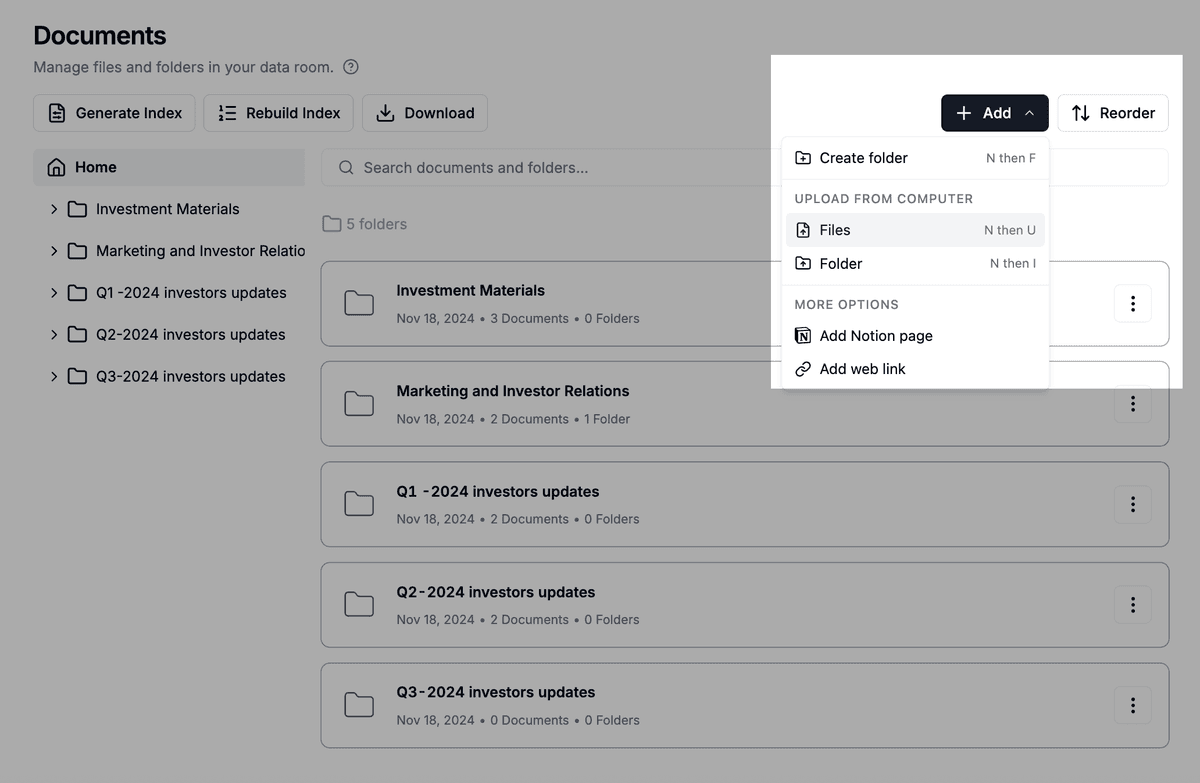
- Click Add, then Files, and select the
.msgfiles (bulk upload supported).
- Set permissions so only the right reviewers see them.
The .msg files behave like any document: they appear in the index file, respect granular permissions, and are tracked in analytics.
Security and protection
Outlook .msg files inherit all standard Papermark protection:
- Email verification before viewing
- Password protection
- Expiration dates
- Dynamic watermarks with the viewer's identity
- Disable printing
- Disable downloads
- Audit logs recording every view, download, and search
Frequently asked questions
Related guides
- File types supported in Papermark
- How to upload your document to Papermark
- How to add documents to your data room
- How to set granular file permissions
- Audit logs
Need help? Contact support@papermark.com or use the in-app chat.