BlogHow to Add Watermark in Your Data Room (2026 Step by step + 2 methods)

How to Add Watermark in Your Data Room (2026 Step by step + 2 methods)

2 min read
Marc Seitz

Marc Seitz

Adding watermarks to your data room is one of the highest-impact security controls you can configure. Dynamic watermarks stamp per-session viewer email, IP, and timestamp on every page, making leaked documents traceable to the specific viewer and session that leaked them. This guide walks through adding dynamic watermarks in Papermark, with customization options and best practices for M&A, fundraising, and regulated workflows.

Quick recap

  • Dynamic watermarking stamps per-session viewer information (email, IP, timestamp) on every page of every document.
  • Setup time in a modern VDR like Papermark: under 2 minutes per data room.
  • Customizable variables: viewer email, IP address, date, time, link ID, document ID.
  • Display options: opacity, position, rotation, font size, color, tiling.
  • Why it matters: leak traceability, accountability, audit evidence for regulated workflows (SEC, FDA 21 CFR Part 11, HIPAA).
  • Supported document types: PDF, Word, Excel, PowerPoint, Keynote, Pages, Google Docs/Sheets.
  • Papermark includes dynamic watermarking on Business (€59/month) and Data Rooms (€99/month) plans.

Why Watermarks Matter in Datarooms

Datarooms often contain highly sensitive information such as:

  • Financial statements
  • Legal documents
  • Intellectual property
  • Customer data
  • Strategic plans

Watermarks help protect this information by:

  • Identifying who viewed each document
  • Deterring unauthorized sharing
  • Providing audit trails
  • Maintaining document confidentiality

Method 1: Using Papermark for Dynamic Dataroom Watermarking

Papermark offers comprehensive watermarking solutions specifically designed for datarooms, with advanced features for tracking and security.

Step-by-step guide for Papermark dataroom watermarking:

  1. Access Your Dataroom:
    • Log into your Papermark account
    • Navigate to your dataroom dashboard

Dataroom Dashboard

  1. Configure Watermark Settings:

    • Select your dataroom
    • Go to "Settings" > "Security"
    • Enable watermarking for your dataroom
  2. Customize Watermark Content:

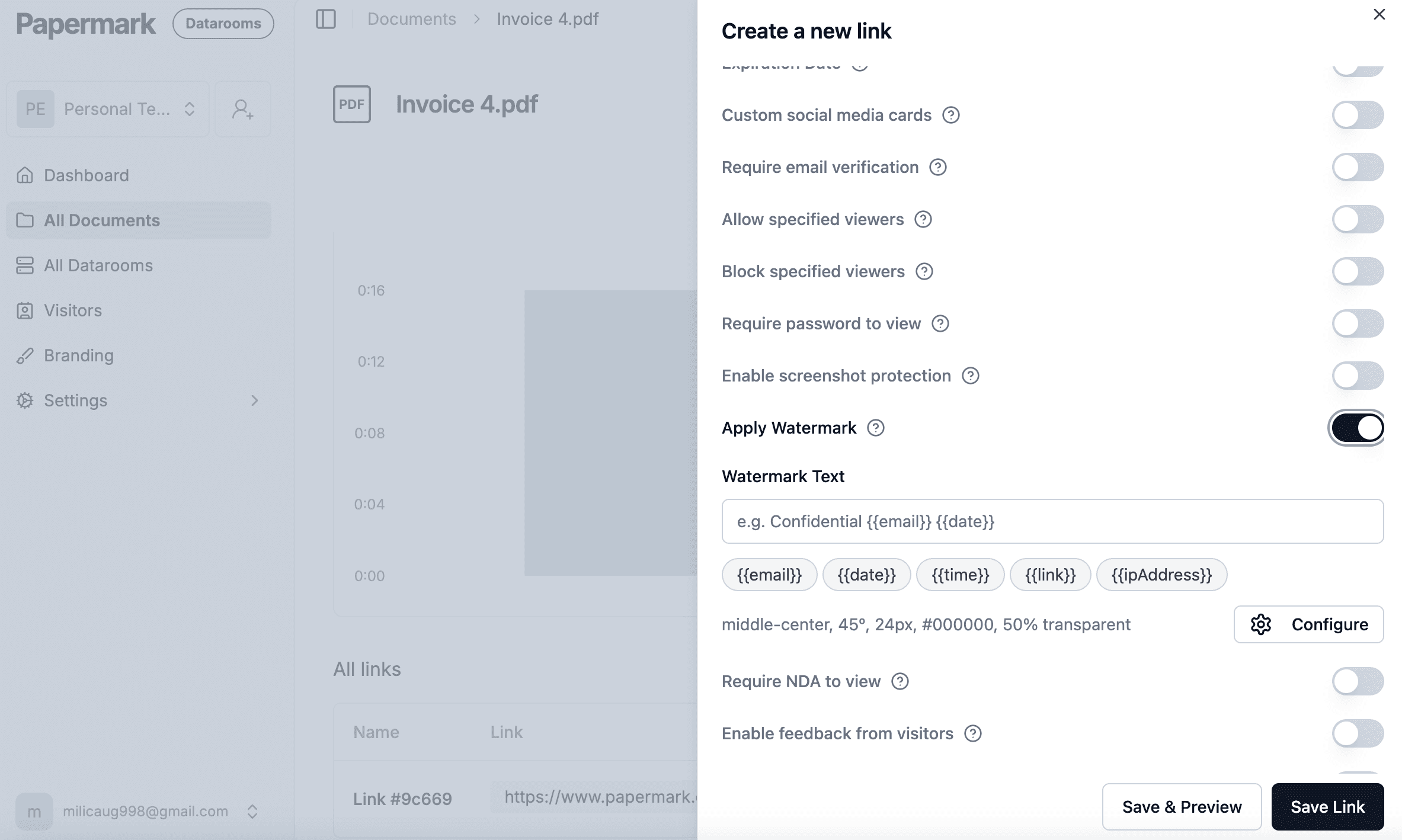
    • Set up dynamic variables for your watermarks:
      • {{email}} - Viewer's email address
      • {{date}} - Current date
      • {{time}} - Current time
      • {{ipAddress}} - Viewer's IP address
      • {{company}} - Viewer's company name
      • {{documentName}} - Name of the document being viewed
  3. Advanced Watermark Configuration:

    • Adjust watermark appearance:
      • Position (top, bottom, diagonal)
      • Opacity (recommended: 30-50%)
      • Font size and style
      • Color scheme
      • Tiling options
  4. Apply to Specific Documents:

    • Choose which documents require watermarking
    • Set different watermark rules for different document types
    • Configure document-specific security settings
  5. Share Your Dataroom:

    • Generate secure access links
    • Set up user permissions
    • Monitor access and activity

Method 2: Traditional PDF Watermarking for Dataroom Documents

For documents that need to be downloaded or shared outside the dataroom, you can add watermarks directly to PDF files.

Step-by-step guide for PDF watermarking:

  1. Prepare Your Documents:

    • Convert documents to PDF format if needed
    • Ensure consistent formatting across all documents
  2. Add Watermarks Using PDF Software:

    • Open your PDF in Adobe Acrobat or similar software
    • Navigate to the watermark tool
    • Create a new watermark with:
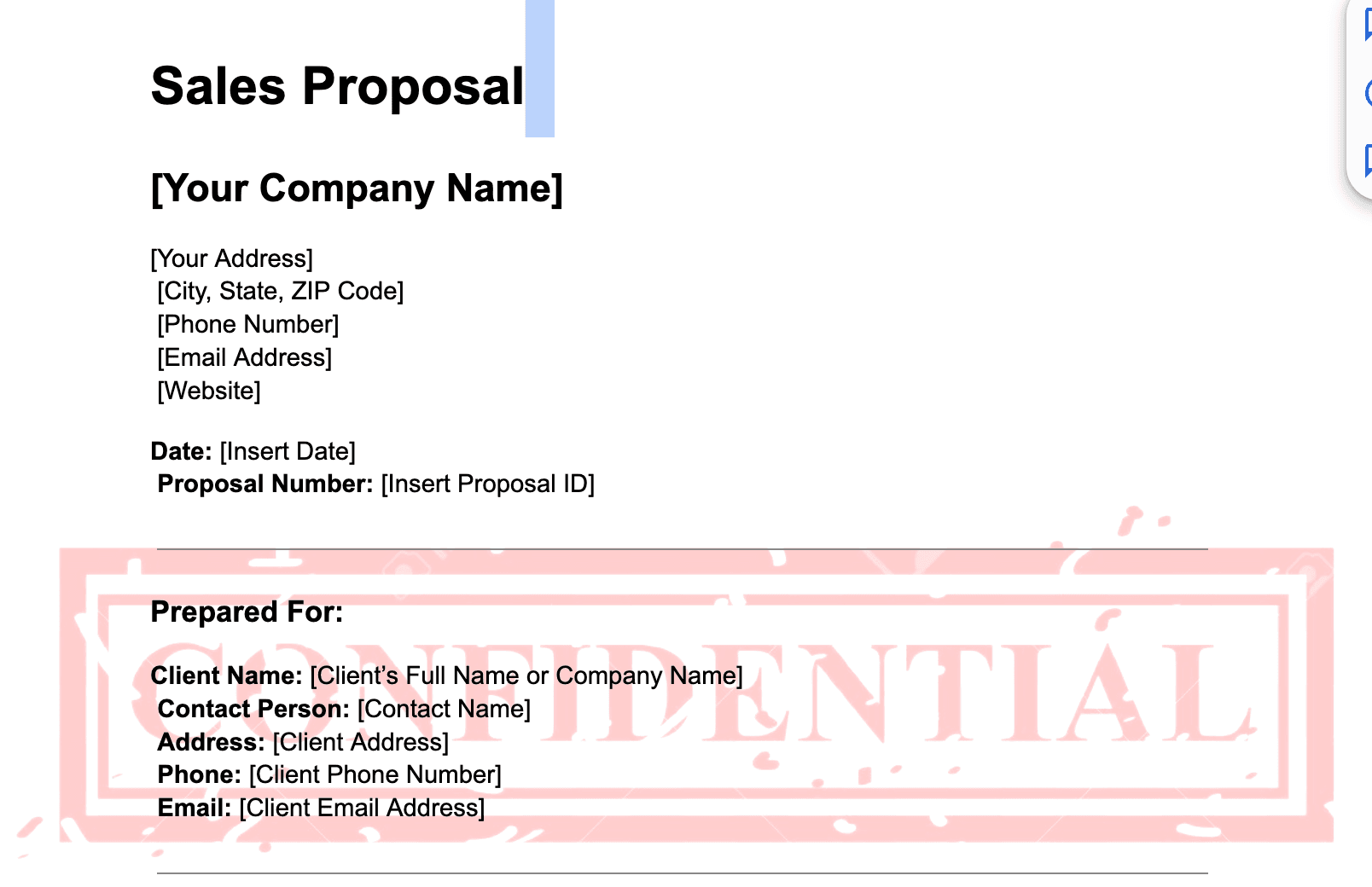
      • Text content (e.g., "Confidential - For [Recipient Name]")
      • Date and time stamps
      • Company information
  3. Apply Watermarks:

    • Select pages to watermark
    • Choose watermark position and appearance
    • Apply watermarks consistently across documents
  4. Save and Upload:

    • Save watermarked PDFs
    • Upload to your dataroom
    • Verify watermark appearance

Best Practices for Dataroom Watermarking

  1. Consistency:

    • Use consistent watermark formatting across all documents
    • Maintain brand guidelines in watermark design
    • Apply watermarks to all sensitive documents
  2. Security:

    • Use dynamic watermarks when possible
    • Include unique identifiers for each viewer
    • Enable tracking and monitoring features
  3. Visibility:

    • Ensure watermarks are visible but not distracting
    • Balance opacity for readability
    • Test watermarks on different document types
  4. Compliance:

    • Follow industry regulations for document security
    • Maintain audit trails of document access
    • Document watermark policies and procedures

Key Takeaways

Effective dataroom watermarking:

  1. Protects sensitive information
  2. Tracks document access
  3. Deters unauthorized sharing
  4. Maintains audit trails
  5. Ensures compliance

Manage due diligence with a virtual data room

No credit card required

Page by page analytics
Unlimited documents & folders
Permission management
Dynamic watermarks
NDA collection
Real-time alerts
Custom branding
Audit trail

FAQ

More useful articles from Papermark

Ready to securely share documents?