
How to secure a data room for biotech licensing deals
Biotech licensing and partnering deals ask you to show your most valuable assets before anything is signed: unpublished clinical and preclinical data, patent filings, manufacturing know-how and regulatory correspondence. The visitors are pharma business-development teams, licensing partners and their scientific and legal advisors, and you are often talking to several potential partners at once. Once unpublished data or an unfiled invention leaks, you cannot take it back.
This guide walks through the Papermark data room controls that matter most for biotech and IP licensing, in the order you would set them up.
Quick recap: data room security best practices
- Require an NDA or CDA before the first page loads
- Verify every visitor's email before they see anything
- Give each partner and workstream its own group (scientific, regulatory, commercial, legal)
- Release sensitive data in stages as the partnership progresses
- Protect unpublished data and IP with screenshot protection and Confidential view
- Watermark every page with the viewer's email and date
- Keep downloads and printing off
- Set expiry dates for each phase of discussions
- Answer scientific questions inside the room with Q&A
- Use analytics to see which data packages partners study
- Freeze the room when the deal signs or ends
Data room security features for biotech licensing
These are the controls that do most of the work in a biotech licensing room. The rest of this guide shows how to set each one up.
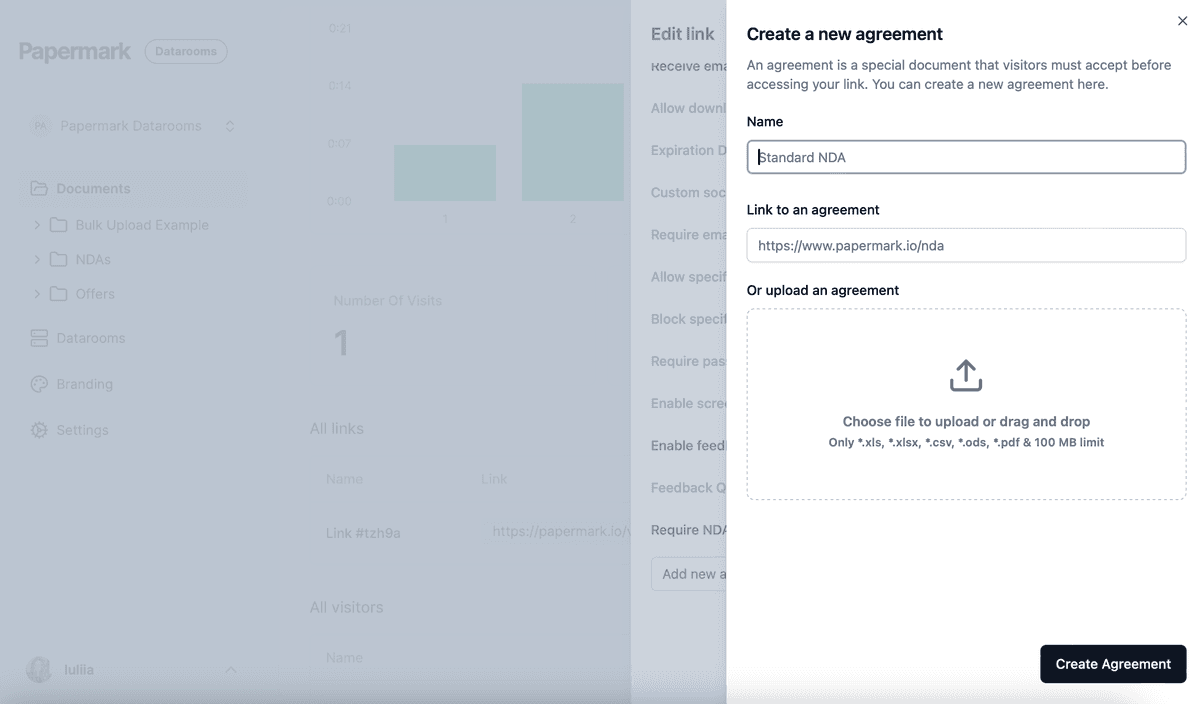
- NDA agreement: every partner accepts your NDA or CDA before the first page loads, and Papermark records who accepted and when.
- Screenshot protection: blurs the document when a screenshot is attempted, for unpublished efficacy data, patent drafts and process details.
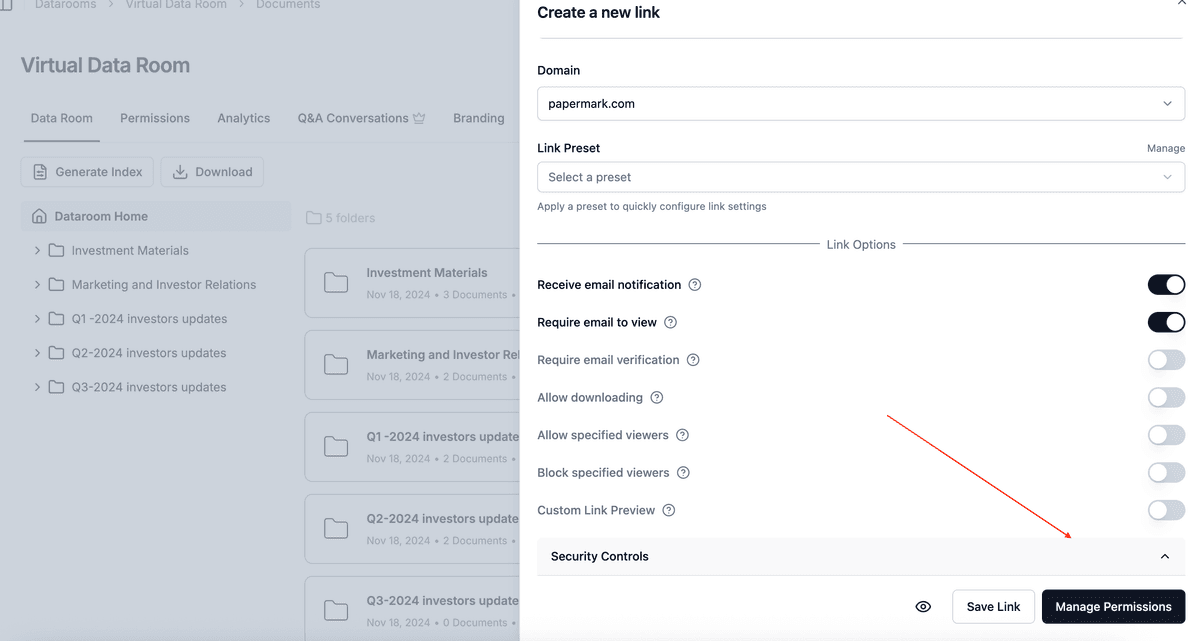
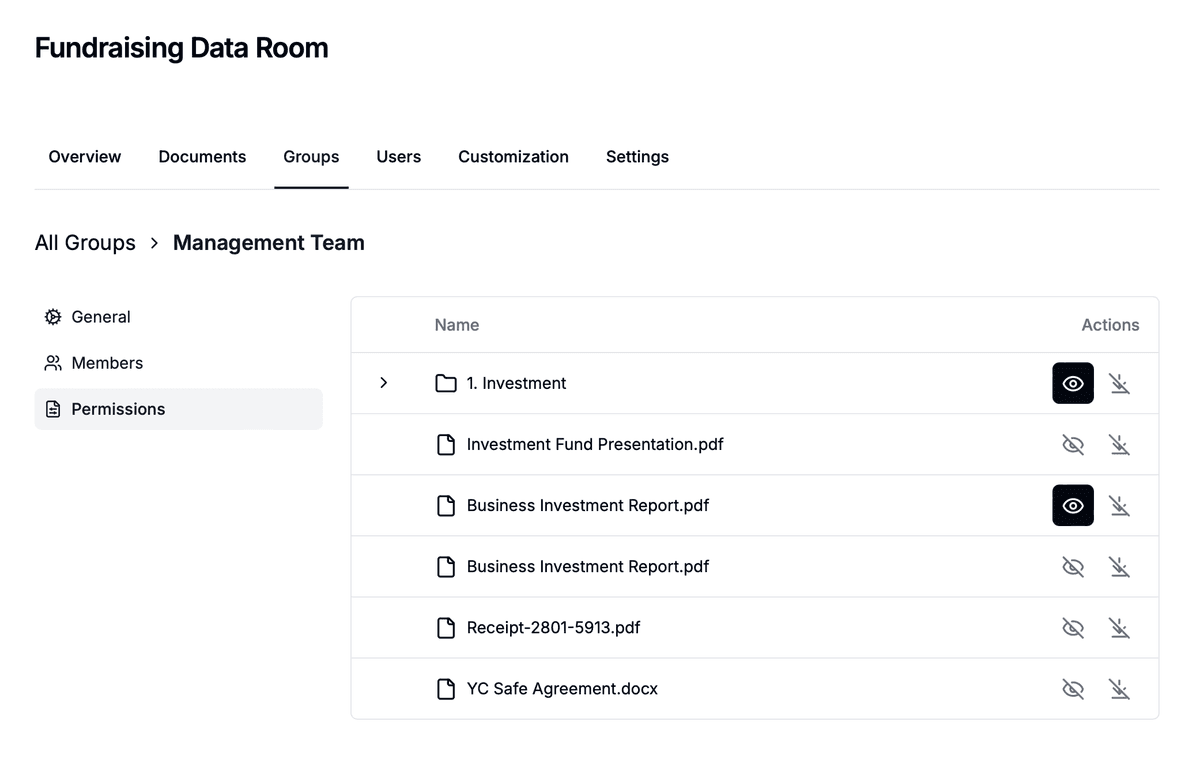
- Groups and granular permissions: give each partner, and each workstream within a partner, its own group with folder-level access.
- Default permissions for new documents: keep new data packages hidden until you decide to release them to a partner.
- Dynamic watermarking: each page shows the viewer's email and date, so a leaked page can be traced.
- Q&A conversations: partners' scientists ask about assays, endpoints or formulations next to the relevant document.
- Data room analytics: see which data packages each partner opens and how long they spend on each page.
- Freeze data room: at the end of discussions, end all visitor access and keep a tamper-proof archive of documents, audit log and Q&A.
1. Require an NDA or CDA before the first page loads
Attach your confidentiality agreement with NDA agreements. Each visitor must accept it before viewing, and the acceptance is recorded with their verified email and a timestamp. In licensing, partners often bring new scientific or legal advisors in mid-process, and each new person accepts the agreement before seeing anything. You can add agreements once and reuse them on every link.
2. Verify every visitor's email
Turn on email verification on every link. Visitors receive a one-time code by email before the room opens, so a forwarded link does not work for anyone without access to that inbox. Combine it with an allow list of the partner's domain, for example @pharmapartner.com, and add competitors you are not talking to on a global block list.

3. Give each partner and workstream its own group
Create a group for each potential partner, and within each partner one group per workstream:
- Scientific: preclinical and clinical data, mechanism of action, publications
- Regulatory: regulatory correspondence, submissions, safety data
- Commercial: market analysis, pricing assumptions, forecasts
- Legal: patents, freedom-to-operate analyses, existing licenses
Use granular file permissions to set which folders each group can see and whether it can download. The partner's commercial team does not need raw clinical data, and their scientists do not need your license agreements.
4. Release sensitive data in stages
Licensing discussions move from screening to evaluation to term sheet. Match the room to that:
- Screening: non-confidential summary and top-line data.
- Evaluation: full study reports, regulatory files and patent filings for partners who are serious.
- Final diligence: raw datasets, manufacturing and process details for the partner you are negotiating with.
Set default permissions for new documents so each new data package stays hidden from every group until you grant access. When you update a study report, use document versions so partners always see the latest file under the same link.
5. Protect unpublished data and IP
For unpublished results, patent drafts and process know-how:
- Turn on screenshot protection, which blurs the document when a capture is attempted.
- Use Confidential view, which shows only a small part of the page at a time while the viewer scrolls.
These settings make it harder to capture a full figure or table, and the watermark still identifies anyone who photographs the screen.
6. Watermark every page
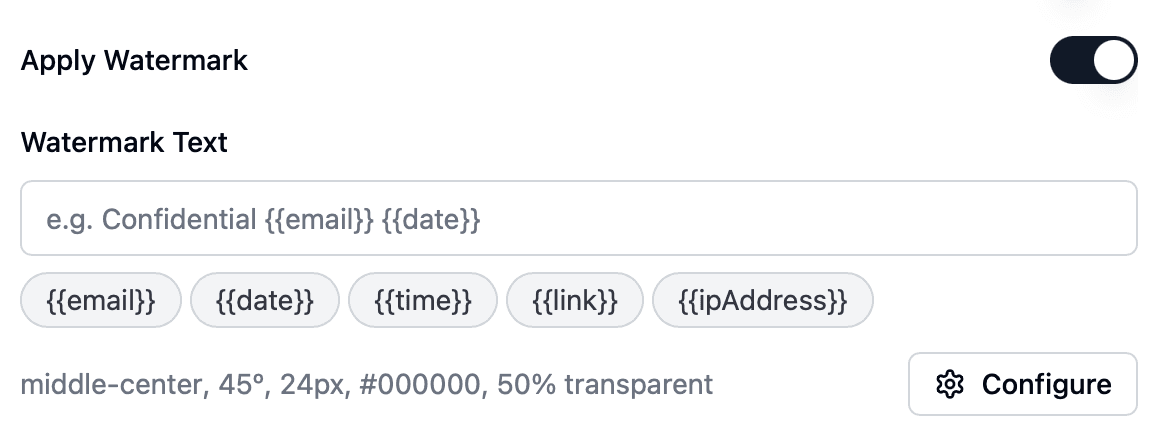
Enable a dynamic watermark on every link. Papermark stamps each page as it is viewed with the details you choose, for example Confidential {{email}} {{date}}. If a slide of your efficacy data turns up at a conference or with a competitor, the watermark shows whose copy it was.
7. Keep downloads and printing off
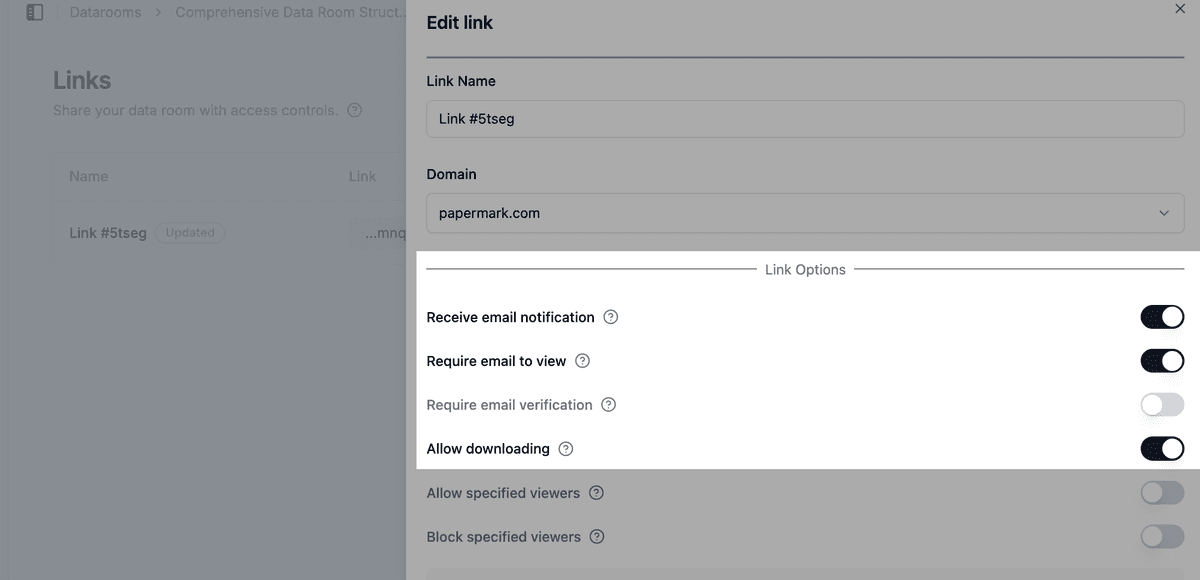
Keep downloads off for scientific and IP folders, and allow them only for the final partner's named advisors when they need offline copies. Disable printing on the same folders. See how to allow downloads from a data room. If you allow bulk downloads, OTP-verified bulk downloads send a one-time password to the visitor's verified email before the ZIP is built.
8. Set expiry dates for each phase
Give each partner link an expiration date that matches the phase, for example the end of the evaluation period agreed in the CDA. Partners who step back lose access automatically. You can also disable a link at any time if discussions end early.

9. Answer scientific questions inside the room
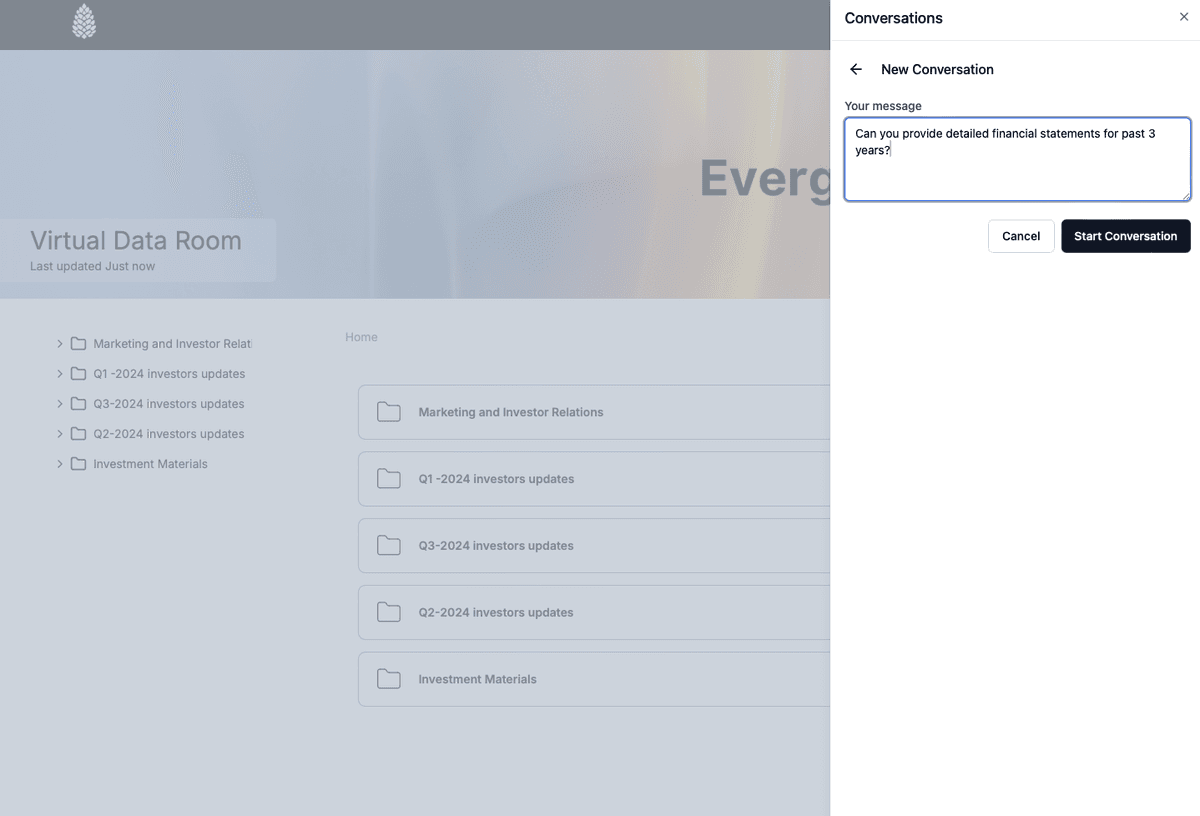
Use Q&A conversations so partners' scientists ask about an assay, an endpoint or a formulation next to the document it concerns. Answers stay inside the room's access controls, only the right group sees them, and you keep a full record of what you disclosed in answers, not just in documents.
10. Use analytics to see which data packages partners study
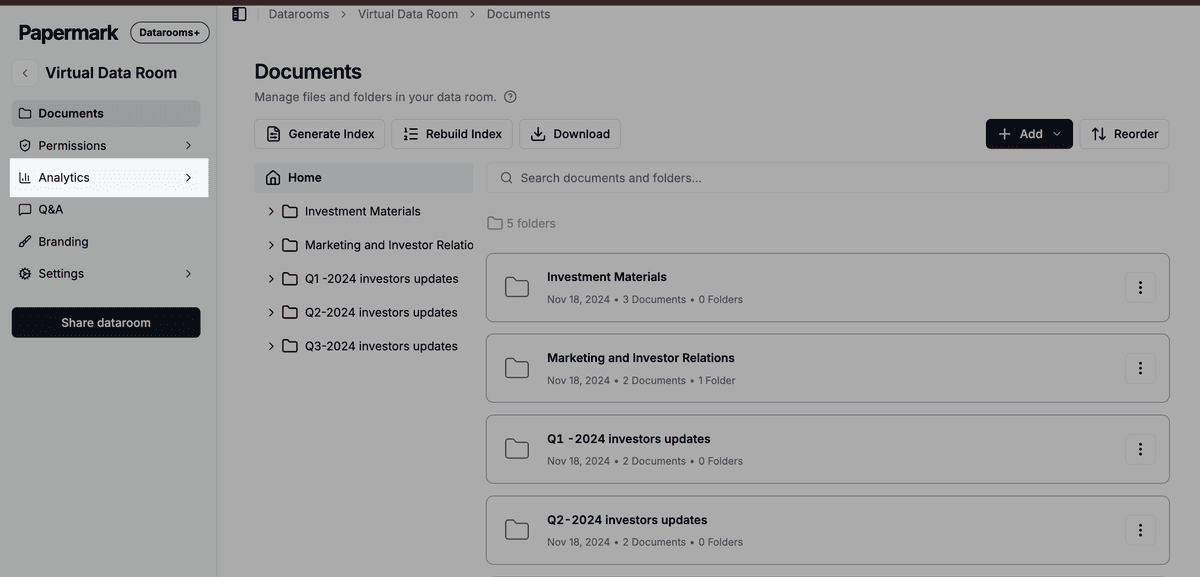
Data room analytics show which partner opened which folders and how long they spent on each page. A partner whose scientists spend hours in the clinical data and whose legal team opens the patent folder is moving toward a decision. A partner who only read the summary may need a follow-up call.
- Audit logs record views, downloads, email verifications and NDA acceptances.
- Exclude internal visits so your own team does not distort the numbers.
11. Freeze the room when the deal signs or ends
When the license signs or discussions end, freeze the data room. Freezing permanently ends all visitor access, archives every link and generates an archive of the documents, the full audit log and all Q&A, with a SHA-256 hash. This gives you a record of exactly what each partner was shown, which helps if questions about disclosed IP come up later. If a partner later moves to acquire the company, set up a new room for a corporate development transaction.
Recommended setup by phase
| Phase | Who gets access | Settings |
|---|---|---|
| Screening | Business-development teams at potential partners | Email verification, NDA or CDA, non-confidential summary only, watermark, no downloads |
| Evaluation | Partners who signed the CDA and their advisors | One group per partner and workstream, screenshot protection and Confidential view on data and IP, Q&A, expiry per phase |
| Term sheet and diligence | Selected partner's scientific, regulatory and legal teams | Release raw data and process details in stages, downloads only for named advisors, OTP bulk downloads |
| Signing or end of discussions | Deal team only | Disable partner links, export audit logs, freeze the room |
Some controls depend on your plan. See pricing for what each plan includes. To see how Papermark compares with other providers, look at the best virtual data rooms.
All Papermark features used in this guide
| Feature | How to set it up |
|---|---|
| NDA agreement | Require an NDA before viewing |
| Email verification | Require email verification |
| Allow list | Create an allow list |
| Global block list | Create a global block list |
| Groups and granular permissions | Groups and granular permissions |
| Default permissions for new documents | Set default permissions |
| Document versions | Document versions |
| Screenshot protection and Confidential view | Screenshot protection |
| Dynamic watermark | Add a dynamic watermark |
| Download permissions | Allow downloads from a data room |
| Disable printing | Disable printing |
| OTP-verified bulk downloads | Bulk downloads with OTP |
| Link expiration | Set an expiration date |
| Q&A conversations | Q&A conversations |
| Data room analytics | Detailed data room analytics |
| Audit logs | Audit logs |
| Freeze data room | Freeze a data room |