
How to secure a data room for a corporate restructuring
A restructuring brings many parties into the same set of documents, and their interests do not line up. Senior lenders, bondholders, trade creditors, ad hoc committees, potential new-money investors and every side's legal and financial advisors all need information, but not the same information and not at the same time. Much of it is price-sensitive: a creditor who sees the business plan or the proposed terms may be restricted from trading, and a leak can move the price of the company's debt or equity.
This guide walks through the Papermark data room controls that matter most for a corporate restructuring, in the order you would set them up.
Quick recap: data room security best practices
- Limit who on your team can open the room
- Verify every visitor's email before they see anything
- Use strict allow lists on every link
- Require an NDA before the first page loads
- Create one group per creditor class or committee
- Keep new documents hidden by default
- Set short expiry dates for each negotiation phase
- Watermark every page with the viewer's email, date and IP address
- Stop screenshots and printing
- Keep downloads off
- Keep questions inside the room with Q&A
- Record every view with analytics and audit logs
- Freeze the room and keep a tamper-proof archive
Data room security features for corporate restructuring
These are the controls that do most of the work in a restructuring room. The rest of this guide shows how to set each one up.
- Groups and granular permissions: senior lenders, bondholders, trade creditors and new-money investors each see only the folders meant for them.
- Allow list: only the named funds, banks and advisors on each link can get in, even if the link is forwarded.
- NDA agreement: every visitor accepts the confidentiality terms set by counsel before the first page loads, with email and timestamp recorded.
- Link expiration: access ends when a negotiation phase ends, so restricted parties are not left with open links.
- Dynamic watermarking: each page shows the viewer's email, date and IP address, so a leaked page can be traced.
- Screenshot protection: blurs the document when a screenshot is attempted, for business plans and term proposals.
- Audit logs: a record of who viewed what and when, which counsel may need when information is later made public.
- Freeze data room: end all access and keep an archive of documents, audit log and Q&A with a SHA-256 hash.
1. Limit who on your team can open the room
Inside the company, only a small group should see the corporate restructuring materials before they are public.
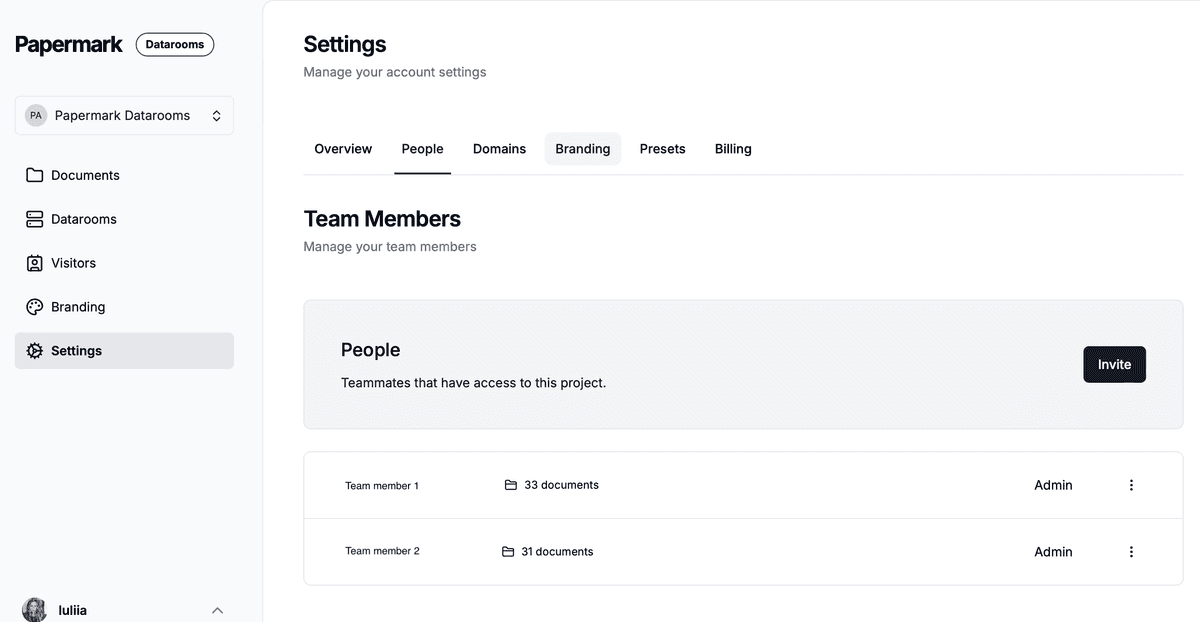
- Use team roles so only the core restructuring team can create links, change permissions or see analytics.
- Invite the company's legal counsel, financial advisor and other outside advisors as Data Room Member. They can work in the rooms they are assigned to and see nothing else in your workspace. See how to invite team members.
- If your company uses an identity provider, connect SAML SSO and SCIM so access ends automatically when someone leaves.
2. Verify every visitor's email
Turn on email verification on every link. Visitors receive a one-time code by email before the room opens. In a restructuring, this matters for more than security: it ties every view to a named person, so counsel can tell exactly who received price-sensitive information.

3. Use strict allow lists on every link
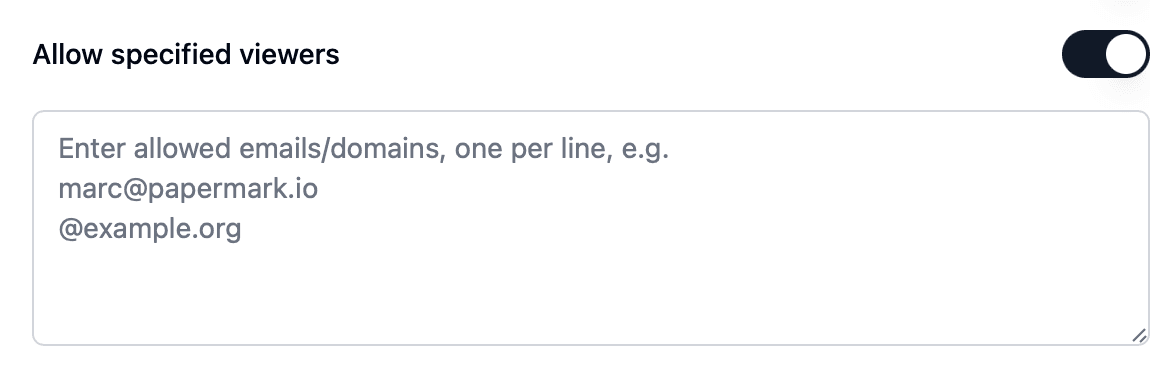
Add an allow list to every link. Where you can, list individual email addresses rather than whole domains: a fund may have both a restricted team that signed the NDA and a trading desk that must not see anything. Use domains, for example @committeecounsel.com, only for advisors where the whole firm is covered.
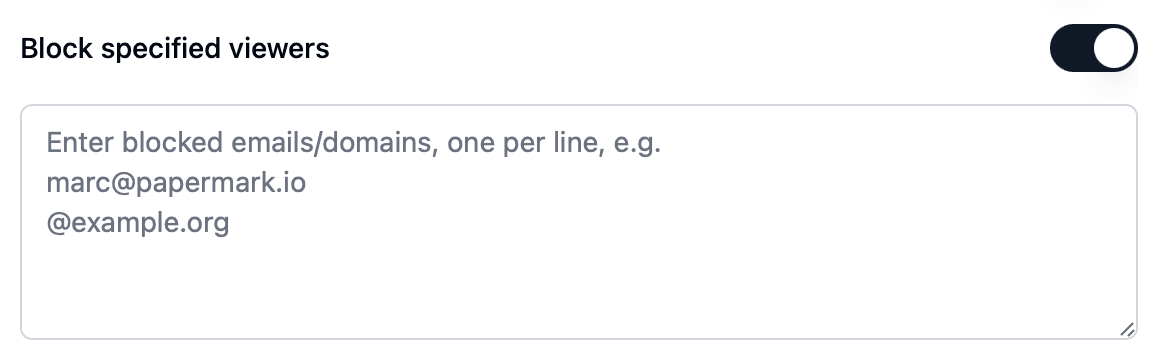
- Add parties that must not see the materials to a block list, or to a global block list so they are blocked on every link in your workspace.
- Papermark emails you when a blocked visitor tries to get in, so you know about attempted access.
4. Require an NDA before the first page loads
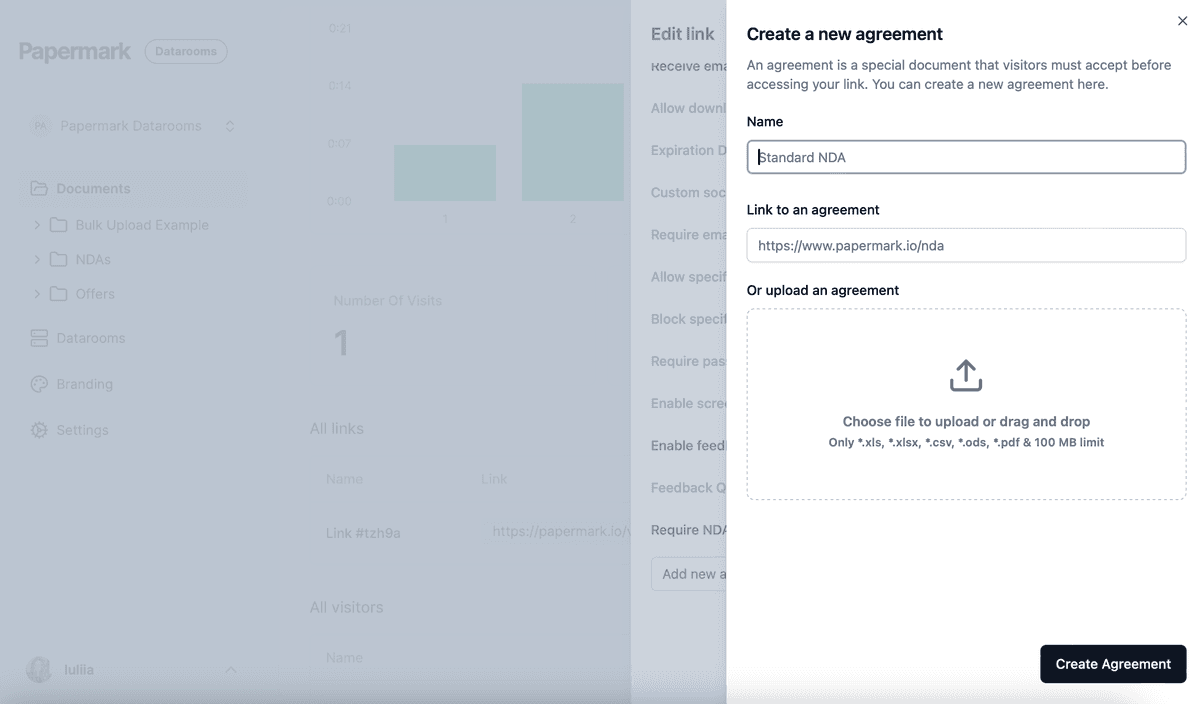
Attach the confidentiality agreement with NDA agreements. Each visitor must accept it before viewing, and Papermark records the acceptance with their verified email and a timestamp. In restructurings, these agreements often cover how long a creditor stays restricted and when information will be made public. Those terms are for your counsel to set; Papermark records who accepted which version and when. You can add agreements once and reuse them on every link.
5. Create one group per creditor class or committee
Create a group for each class or committee, for example senior secured lenders, the ad hoc bondholder committee, trade creditors, potential new-money investors, and each committee's advisors. Then use granular file permissions to decide, folder by folder:
- which folders each group can see
- whether each group can view only, or also download
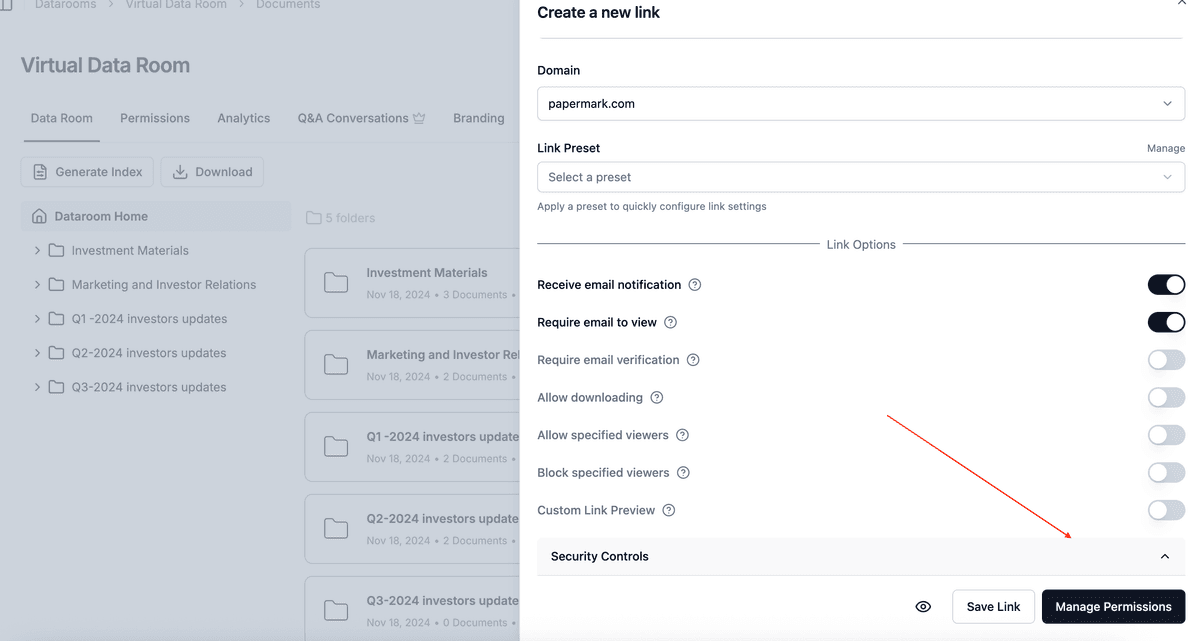
A typical setup gives all restricted parties the liquidity forecast and business plan, while term proposals for one class stay visible only to that class and its advisors. Read more on granular permissions.
6. Keep new documents hidden by default
Restructurings move fast, and new term sheets, cash-flow updates and advisor reports arrive every week. Set default permissions for new documents so new files stay hidden from every group until you share them on purpose. One file dropped in the wrong folder could restrict a party who did not agree to it. When a forecast is updated, upload it as a new document version so everyone with access sees the current figures on the same link.
7. Set short expiry dates for each negotiation phase
Give each link an expiration date that matches the phase it covers, for example the end of a two-week negotiation window with the ad hoc committee. When the phase ends, access ends automatically. You can also disable a link at any time, for example when a party leaves the process or its restriction period is over.

8. Watermark every page
Enable a dynamic watermark on every link, for example Confidential {{email}} {{date}} {{ipAddress}}. With many funds and advisors in the room, the watermark shows whose copy a leaked page came from. See dynamic watermarking.

9. Stop screenshots and printing
For business plans, valuation reports and term proposals:
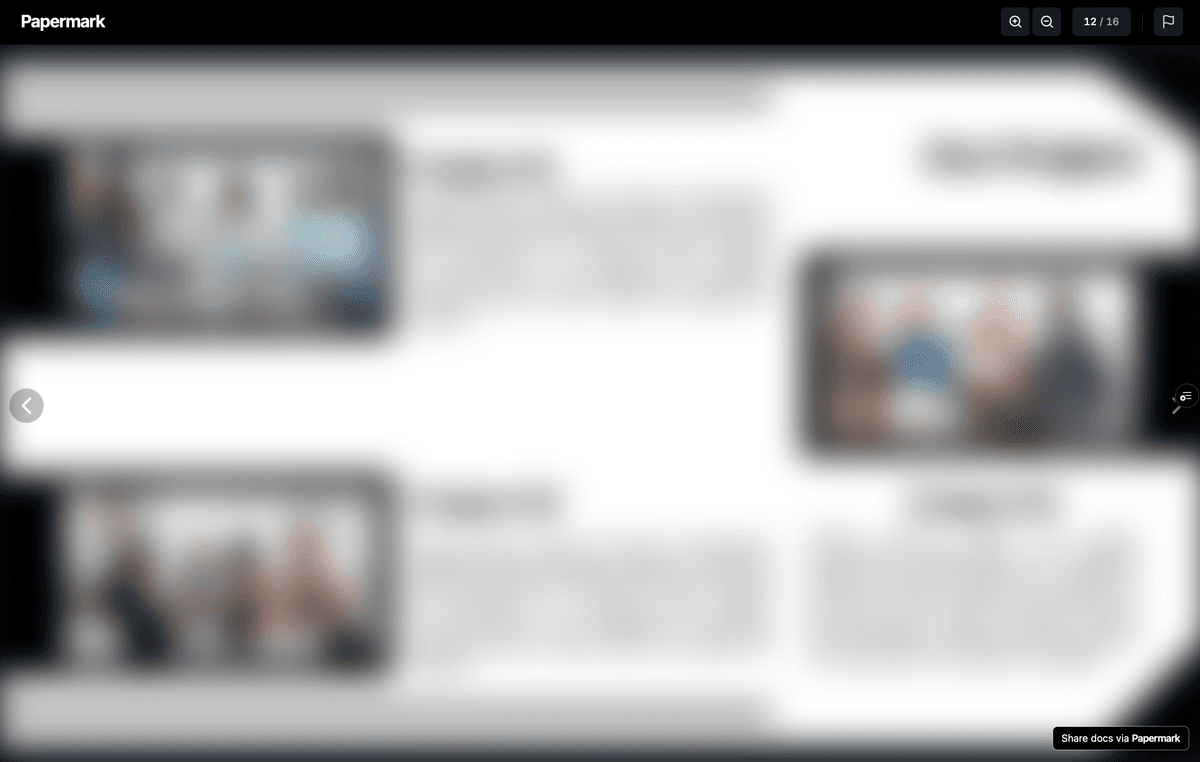
- Turn on screenshot protection on the link.
- Use Confidential view, which shows only a small part of the page at a time while the viewer scrolls.
- Disable printing.
These settings make it harder to copy price-sensitive material, and the watermark still identifies anyone who photographs the screen.
10. Keep downloads off
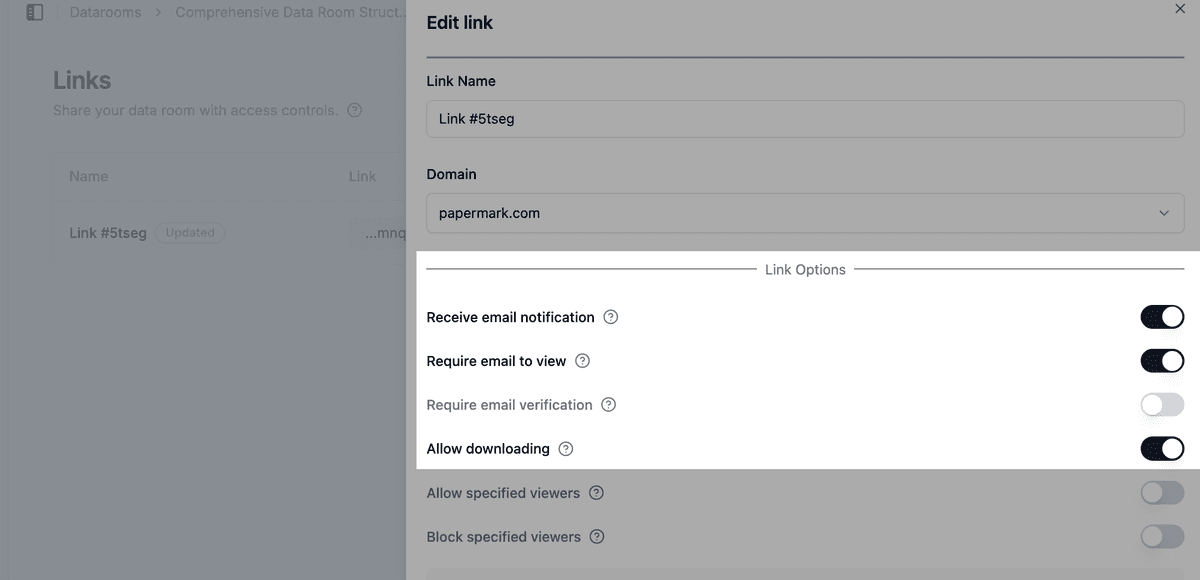
Most parties in a restructuring only need to read. Keep downloads off on every link, and allow them only where a named advisor needs an offline copy, for example the committee's financial advisor building a recovery analysis. See how to allow downloads from a data room. If you allow bulk downloads, OTP-verified bulk downloads require a one-time password sent to the visitor's verified email.
11. Keep questions inside the room
Use Q&A conversations so creditors and their advisors ask questions next to the document they refer to. Answers stay inside the room's access controls, so an answer meant for one class does not go out to the wrong distribution list by email, and you have a complete record of what each party was told.

12. Record every view
- Audit logs record views, downloads, email verifications and NDA acceptances. Counsel can use them to confirm exactly which documents each party saw.
- Data room analytics show which documents each creditor group is reading, which helps you prepare for negotiations.
- Export data room visits to CSV for your records.
13. Freeze the room and keep a tamper-proof archive
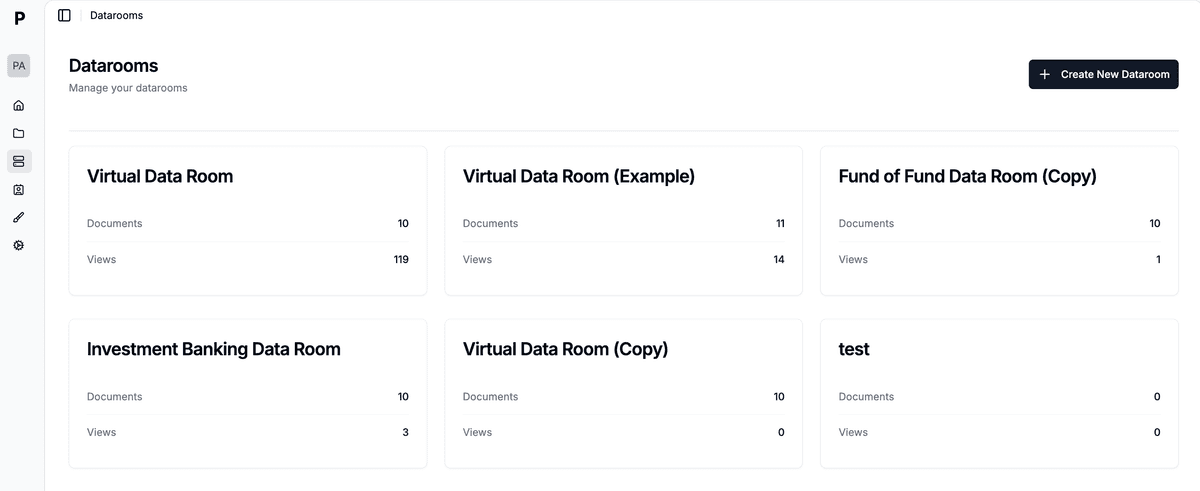
When the restructuring is implemented, or a phase ends and the materials must be closed off, freeze the data room. Freezing permanently ends all visitor access, archives every link and generates an archive of the documents, the full audit log and all Q&A, with a SHA-256 hash so you can prove later that the record has not been changed. This is useful if the process is challenged in court or if a creditor disputes what it was shown. If the restructuring ends in a sale of the business, set up the next room for a sell-side M&A process.
Recommended setup by phase
| Phase | Who gets access | Settings |
|---|---|---|
| Preparation | Company and its advisors | Team roles, Data Room Member role for advisors, default permissions set to hidden |
| Advisor access | Advisors to lenders and committees | Email verification, NDA, allow list by advisor domain, watermark, no downloads |
| Restricted negotiations | Restricted creditors in each class or committee | One group per class, allow list by individual email, short expiry per phase, screenshot protection, Q&A |
| New-money investors | Potential investors who signed the NDA | Own group, only the folders they need, watermark, short expiry |
| Implementation and close | Company and its advisors only | Expire or disable all links, export audit logs, freeze the room |
Some controls depend on your plan. See pricing for what each plan includes. To see how Papermark compares with other providers, look at the best virtual data rooms.
All Papermark features used in this guide
| Feature | How to set it up |
|---|---|
| Team roles and Data Room Member | Manage team roles |
| SAML SSO and SCIM | Set up SSO and SCIM |
| Email verification | Require email verification |
| Allow list | Create an allow list |
| Block list and global block list | Create a global block list |
| NDA agreement | Require an NDA before viewing |
| Groups and granular permissions | Groups and granular permissions |
| Default permissions for new documents | Set default permissions |
| Document versions | Document versions |
| Link expiration | Set an expiration date |
| Dynamic watermark | Add a dynamic watermark |
| Screenshot protection and confidential view | Screenshot protection |
| Disable printing | Disable printing |
| Download permissions | Allow downloads from a data room |
| OTP-verified bulk downloads | Bulk downloads with OTP |
| Q&A conversations | Q&A conversations |
| Audit logs | Audit logs |
| Data room analytics | Detailed data room analytics |
| Freeze data room | Freeze a data room |