
How to secure a data room for litigation and legal matters
Legal matters and litigation involve sharing documents with parties who sit on different sides: opposing counsel, co-counsel, expert witnesses, clients and sometimes regulators. Productions often contain personal data about employees, customers or patients, and privileged material must never reach the wrong group. When a dispute turns on who saw what and when, you also need a reliable record of access.
This guide walks through the Papermark data room controls that matter most for legal matters, in the order you would set them up. It covers how to configure Papermark, not legal advice: what you produce, how you redact it and what your agreements say are decisions for counsel.
Quick recap: data room security best practices
- Limit who on your team can open the room with roles and the Data Room Member role
- Redact personal data with AI redaction before you upload
- Separate privileged and produced material with groups and folder permissions
- Restrict access to law firm domains with allow lists
- Verify every visitor's email before they see anything
- Require an agreement before the first page loads
- Watermark every page with the viewer's email, date and IP address
- Disable printing and downloads for sensitive material
- Set expiry dates and disable links when access should end
- Use audit logs as your record of access
- Choose where files are stored for data residency
- Freeze the room to preserve the record
Data room security features for legal matters and litigation
These are the controls that do most of the work in a legal or litigation room. The rest of this guide shows how to set each one up.
- AI redaction: find and black out names, emails, account numbers and other personal data before a production goes into the room.
- Groups and granular permissions: keep privileged and produced material in separate folders, and give each party its own group.
- Allow list: only people with an email at the named law firms, experts or agencies can open a link.
- NDA agreement: visitors accept the agreement text counsel provides before viewing, and Papermark records who accepted and when.
- Dynamic watermarking: each page shows the viewer's email, date or IP address, so any leaked copy can be traced.
- Audit logs: a record of views, downloads, email verifications and agreement acceptances for each visitor.
- Freeze data room: end all visitor access and keep a tamper-proof archive of documents, audit log and Q&A.
1. Limit who on your team can open the room
A legal room often holds privileged strategy documents that only the matter team should see.
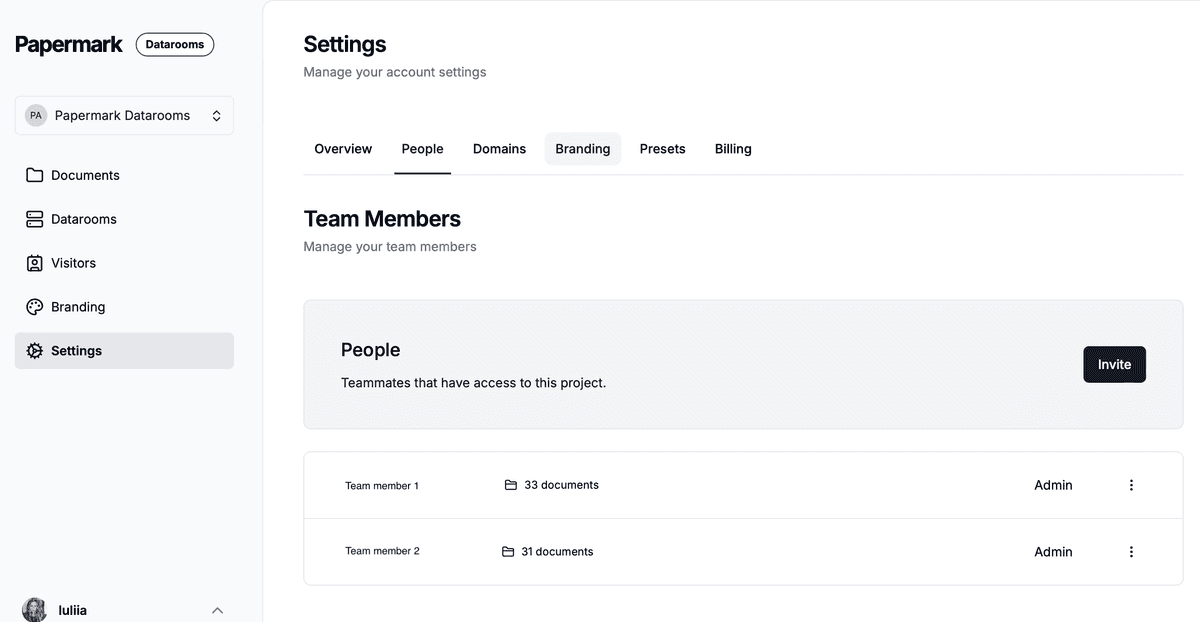
- Use team roles so only the responsible attorneys and paralegals can create links, change permissions or see analytics.
- Invite colleagues who support one matter as Data Room Member. They can work inside the rooms they are assigned to and see nothing else in your workspace. See how to invite team members.
- If your firm uses an identity provider, connect SAML SSO and SCIM so access ends automatically when someone leaves the firm.
2. Redact personal data before you upload
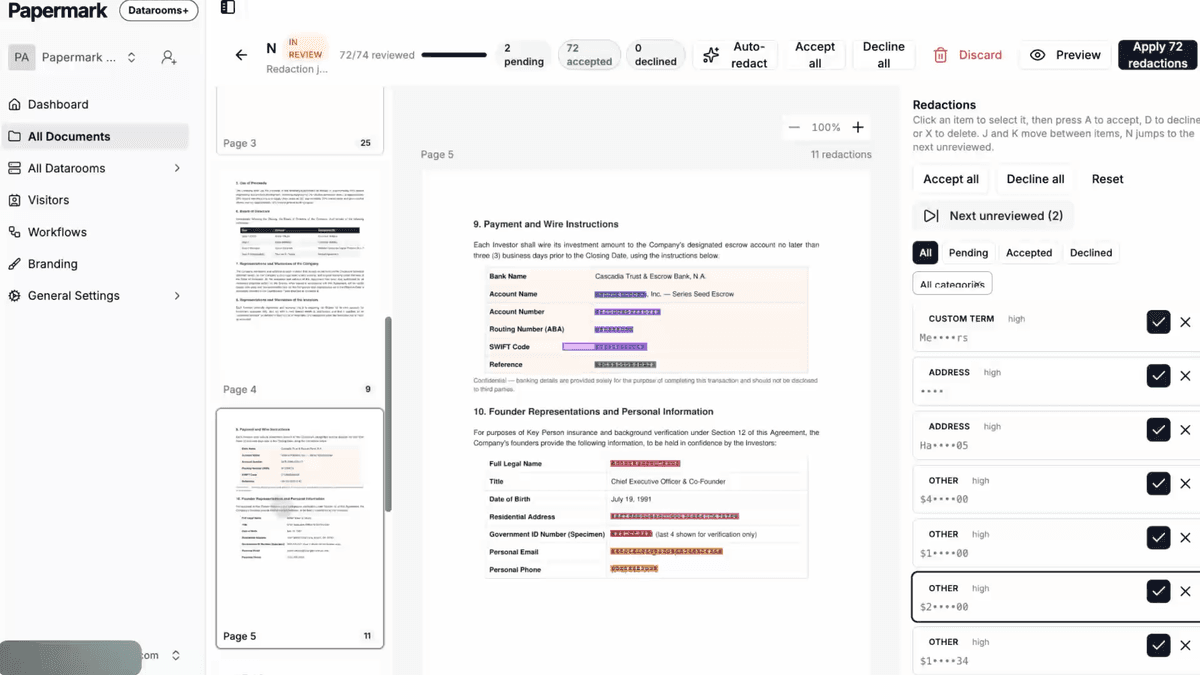
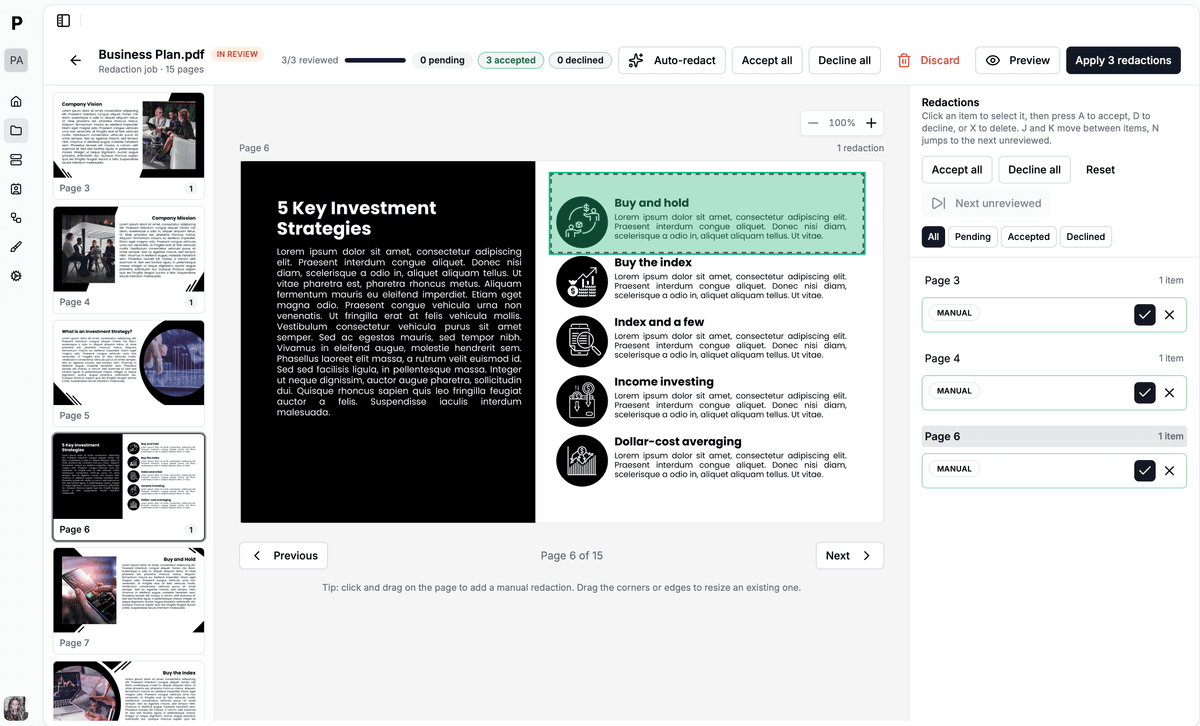
Emails, HR files, medical records and customer data often contain personal details that are not relevant to the matter. Use AI redaction to detect names, email addresses, phone numbers and account numbers, review each suggestion and black out what should not be shared before the document goes into the room. Counsel decides what to redact; the tool helps you apply it consistently. This also supports your GDPR compliance.
3. Separate privileged and produced material
Structure the room so privileged material and produced material never share a folder, for example:
- Produced: documents released to opposing counsel, organized by production set
- Privileged: work product, memos and correspondence for your team and co-counsel only
- Experts: materials prepared for or by expert witnesses
- Client: documents shared with the client for review
Create a group for each party (opposing counsel, co-counsel, each expert, the client, a regulator) and use granular file permissions to set which folders each group can see and whether they can download. Set default permissions for new documents so new uploads stay hidden from every group until you share them on purpose.
4. Restrict access to law firm domains
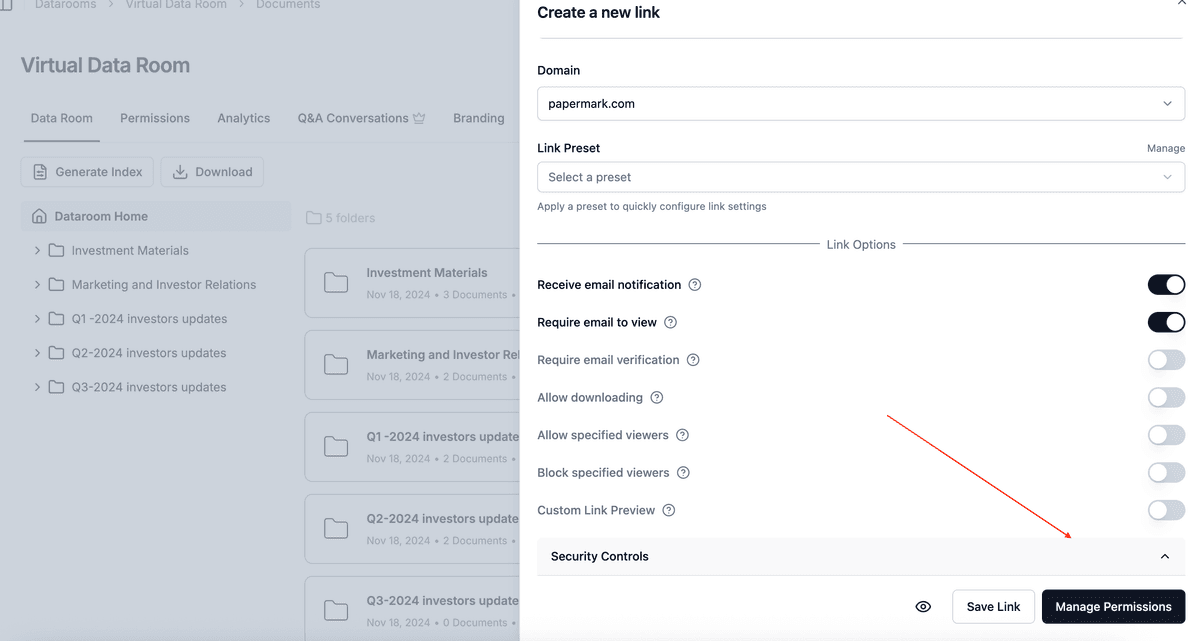
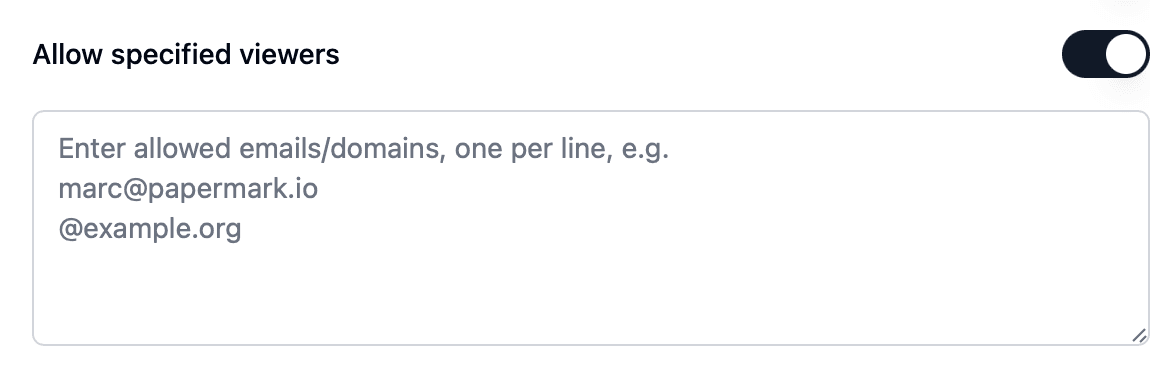
- Add an allow list to each link with the domains of the firms and agencies that should have access, for example
@opposingfirm.comor@agency.gov. - Add domains that must never see the material to a block list or a global block list.
When someone is denied access, Papermark notifies you, so you see attempted access instead of guessing.
5. Verify every visitor's email
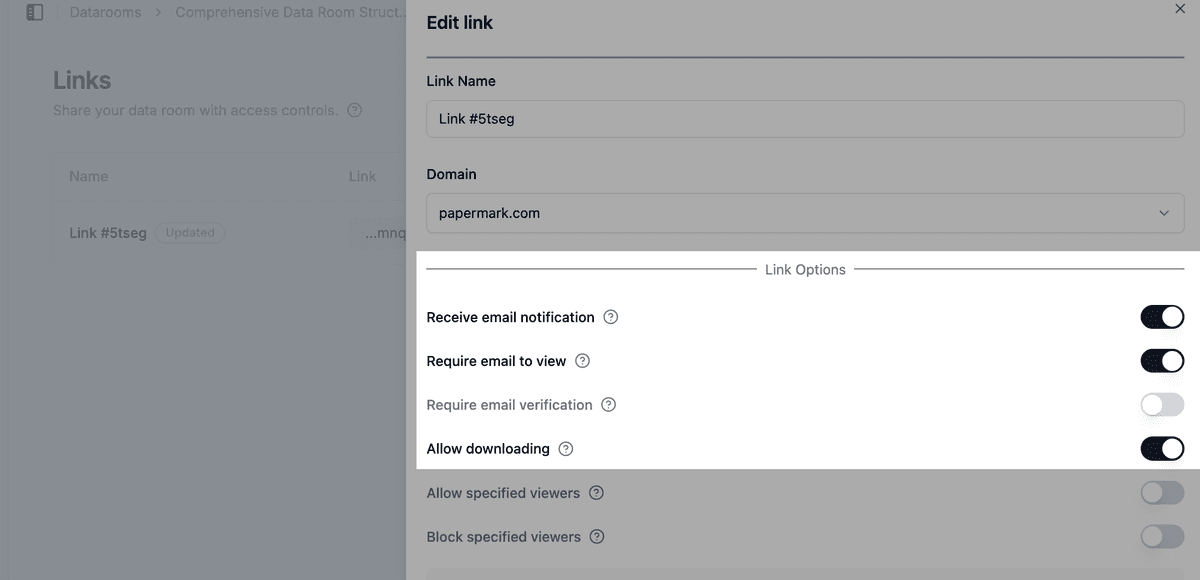
Turn on email verification on every link. Visitors receive a one-time code by email before the room opens, so each view in your audit log is tied to a verified person. This makes the access record far more useful than one based on typed-in addresses.

6. Require an agreement before the first page loads
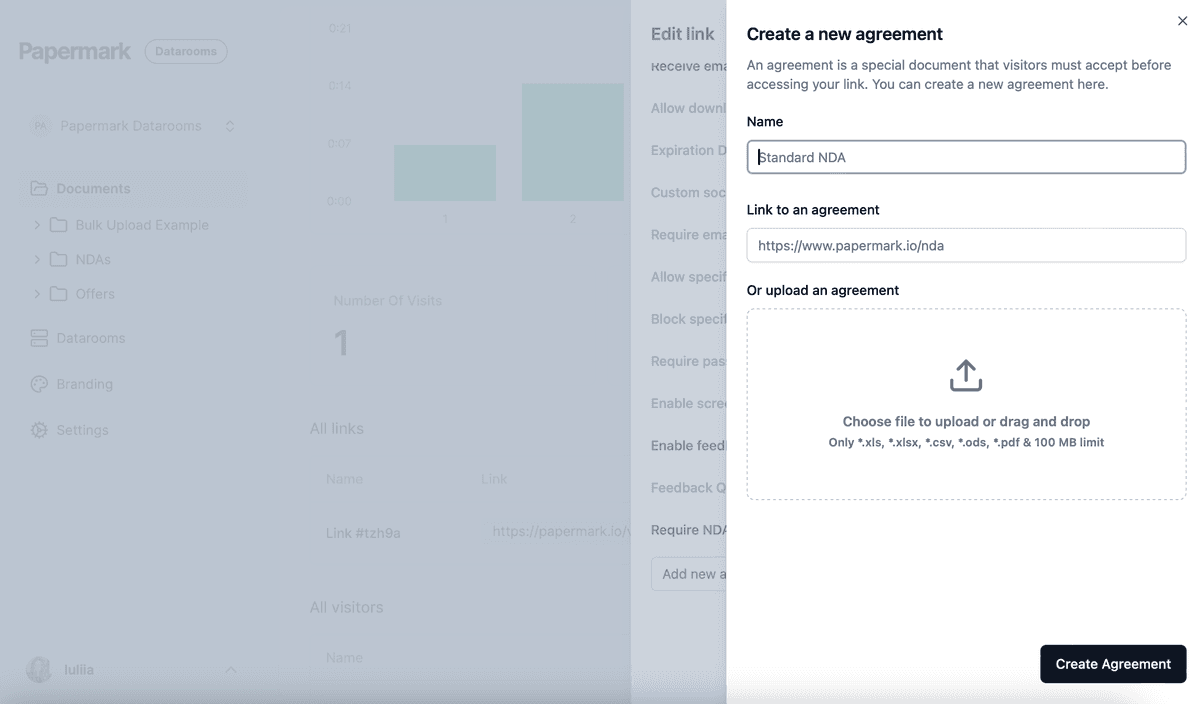
Use agreements to show a confidentiality agreement, or the terms of a protective order, before viewing. The agreement text is whatever counsel provides; Papermark displays it and records each acceptance with the visitor's verified email and a timestamp. See how to require an NDA before viewing.
7. Watermark every page
Enable a dynamic watermark on every link. Papermark stamps each page as it is viewed with the details you choose, for example Confidential {{email}} {{date}} {{ipAddress}}. If a document appears where it should not, the watermark shows whose copy it was.

8. Disable printing and downloads for sensitive material
For material designated confidential, or anything you do not want copied outside the room:
- Keep downloads off for those folders, and allow them only for groups that need offline copies. See how to allow downloads from a data room.
- Disable printing.
- Turn on screenshot protection for the most sensitive documents.
If you allow bulk downloads of a production, OTP-verified bulk downloads send a one-time password to the visitor's verified email before the ZIP is built.
9. Set expiry dates and disable links
Give links to experts, regulators and other temporary parties an expiration date that matches their role in the matter. When an expert's engagement ends or a party withdraws, disable their link right away. Access ends without you having to delete documents.

10. Use audit logs as your record of access
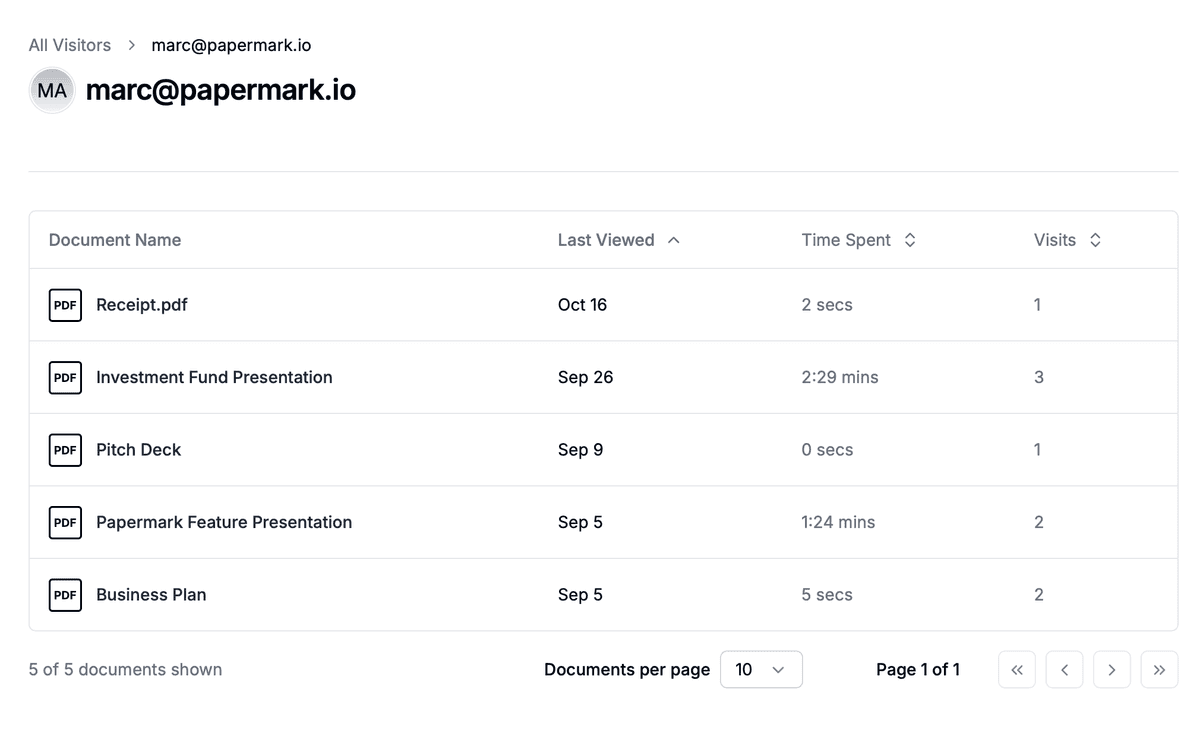
Audit logs record each view, download, email verification and agreement acceptance, with the visitor's email and a timestamp. Use them to show which party had access to which production and when. Export data room visits to CSV for the matter file, and exclude internal visits so your own team's activity does not mix with outside parties. Page-level data room analytics show how long each visitor spent on each document.
11. Choose where files are stored
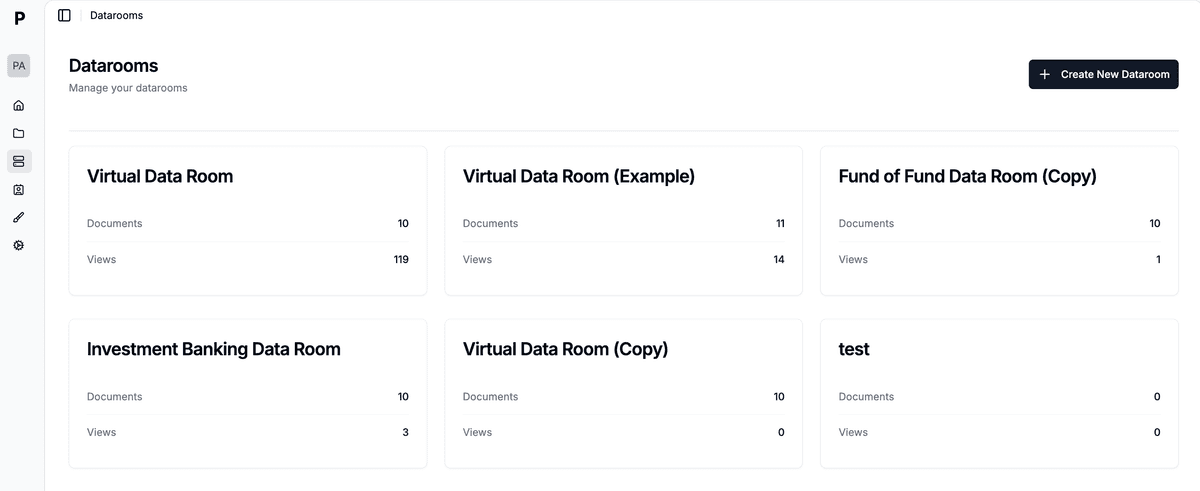
If the matter involves EU personal data or a client requires data residency, pick your storage region before you upload anything.
12. Freeze the room to preserve the record
When the matter settles, a production phase ends or the case closes, freeze the data room. Freezing permanently ends all visitor access, archives every link and generates an archive of the documents, the full audit log and all Q&A, with a SHA-256 hash so you can show later that the record has not been changed. Creditor disputes inside a corporate restructuring need a different setup, with one group per creditor class.
Recommended setup by phase
| Phase | Who gets access | Settings |
|---|---|---|
| Case preparation | Matter team, co-counsel, client | Data Room Member role, privileged folder for internal groups only, default permissions hidden |
| Production | Opposing counsel | AI redaction before upload, produced folder only, allow list by firm domain, email verification, agreement, watermark |
| Expert and regulator review | Experts, regulators | One group each, view only, printing disabled, expiry date per engagement |
| Resolution | Matter team only | Disable remaining links, export audit logs, freeze the room |
Some controls depend on your plan. See pricing for what each plan includes. To see how Papermark compares with other providers, look at the best data rooms for legal teams.
All Papermark features used in this guide
| Feature | How to set it up |
|---|---|
| Team roles and Data Room Member | Manage team roles |
| SAML SSO and SCIM | Set up SSO and SCIM |
| AI redaction | AI redaction |
| Groups and granular permissions | Groups and granular permissions |
| Default permissions for new documents | Set default permissions |
| Allow list | Create an allow list |
| Block list and global block list | Create a global block list |
| Email verification | Require email verification |
| Agreements and NDA | Add agreements |
| Dynamic watermark | Add a dynamic watermark |
| Download permissions | Allow downloads from a data room |
| Disable printing | Disable printing |
| Screenshot protection | Screenshot protection |
| OTP-verified bulk downloads | Bulk downloads with OTP |
| Link expiration | Set an expiration date |
| Audit logs | Audit logs |
| Export visits | Export data room visits |
| Storage region | Choose your storage region |
| Freeze data room | Freeze a data room |